Sidebar Navigation
Side Bar Container
The Sidebar provides hierarchical navigation through your MongoDB and SQL connections, databases, collections, tables, and views. Browse your database structure, access context menus for common operations, and use powerful search capabilities to quickly find any database object in your workspace.
Quick Start
Navigate your databases with the Sidebar:
- Click on connection names to expand and view databases
- Expand databases to see collections, views, and GridFS buckets
- Click on a collection to open it in the Collection Activity
- Right-click on any item for context menu options
- Use the search box to quickly find databases, collections, or views
Core Features
Connection Tree
Navigate through your database connections with a hierarchical tree structure.
- Expand/collapse connections, databases, and collections
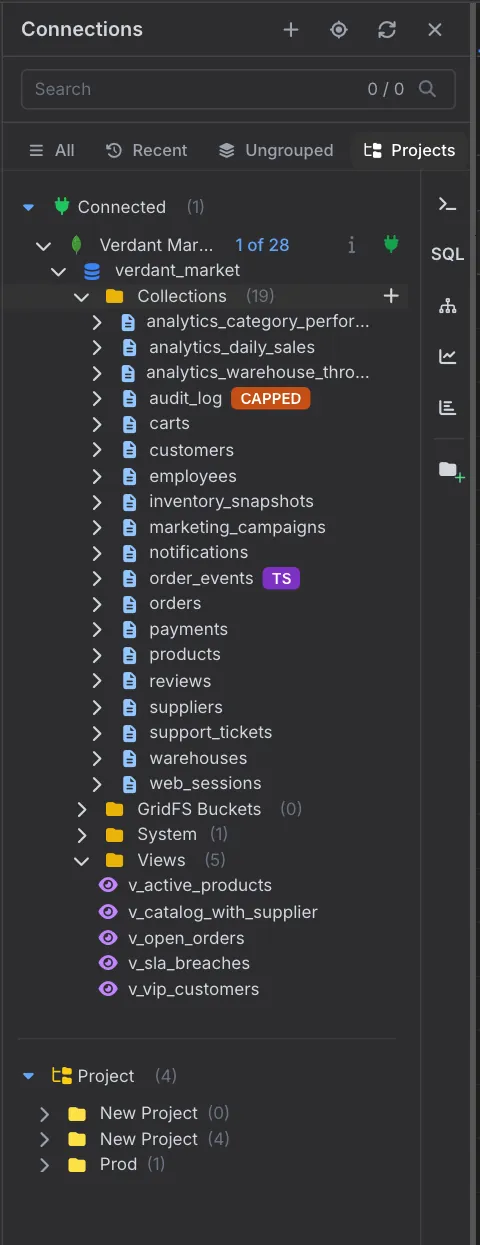
- Visual icons for different object types (DB, collection, view, GridFS)
- Color-coded connection status indicators
- Nested hierarchy showing database relationships
- Click to open objects in their respective activities
View Modes
The buttons under the search box change how connections are listed:
- All - Every connection
- Recent - Connections you used most recently
- Ungrouped - Connections that don't belong to a project
- Projects - Connections grouped by project and environment
Connections you are currently connected to are always gathered at the top under Connected.
Search & Filter
Quickly find databases, collections, and views across all connections.
- Real-time search as you type
- Search across all connections simultaneously
- Match counter showing results (e.g., "3 / 15")
- Navigate through matches with Enter (next) and Shift+Enter (previous)
- Arrow key navigation through search results
- Highlight matching items in the tree
Context Menus
Right-click context menus provide quick access to common operations.
- Collection operations (query, aggregate, export, etc.)
- Database management (create collection, statistics, etc.)
- Connection actions (refresh, disconnect, settings)
- View management (query view, view definition)
- GridFS operations (browse files, upload, manage)
Object Hierarchy
Clear visualization of your MongoDB structure from connections down to collections.
- Connections at the top level
- Databases nested under connections
- Collections, views, and GridFS under databases
- Visual distinction between object types
- Expandable/collapsible nodes for navigation
Inside a MongoDB database, objects are grouped into Collections, GridFS Buckets, System and Views folders, each with a count. Special collections carry a badge, such as CAPPED for capped collections and TS for time series collections. Expanding a collection shows its Indexes.
Connection Tree Navigation
Hierarchy Structure
The sidebar organizes your MongoDB environment in a clear hierarchy:
| Level | Icon | Description | Click Action |
|---|---|---|---|
| Connection | MongoDB server connection (Standalone, Replica Set, Sharded) | Expand to show databases | |
| Database | Individual database within a connection | Expand to show collections, views, GridFS | |
| Collection | Data collection (similar to a table in SQL) | Open in Collection Activity | |
| View | Read-only view based on aggregation pipeline | Open in Collection Activity (read-only) | |
| GridFS | File storage system for large binary objects | Open in GridFS Activity |
Expanding and Collapsing
- Expand: Click the arrow icon or the item name to expand a node
- Collapse: Click the down arrow to collapse an expanded node
- Auto-Expand: Clicking on a connection automatically expands it and loads databases
- Visual Feedback: Expanded nodes show a down arrow, collapsed nodes show a right arrow
Search and Filter
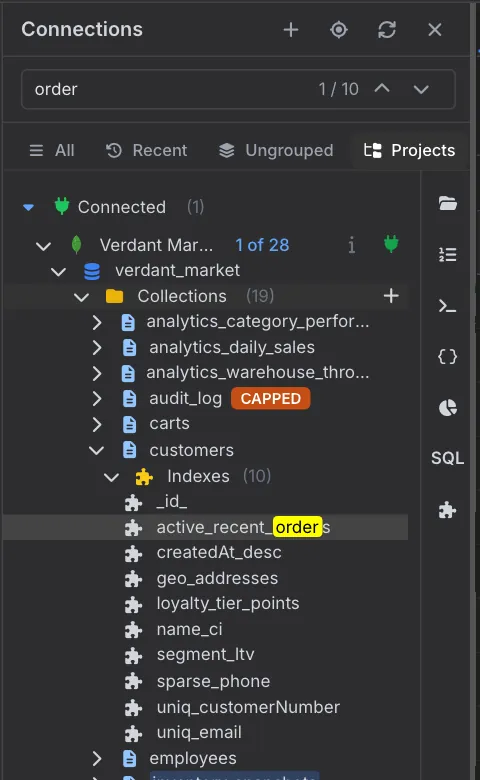
Search Features
- Real-Time Search: Results update as you type
- Match Counter: Shows current match and total matches (e.g., "2 / 5")
- Navigation Arrows: Click up/down arrows to navigate through matches
- Keyboard Navigation: Press Enter for next match, Shift+Enter for previous
- Arrow Keys: Use up/down arrow keys to navigate through results
- Highlight Matches: Matching items are highlighted in the tree
- Auto-Expand: Parent nodes expand automatically to show matching children
Search Behavior
The search function scans through:
- Connection names
- Database names
- Collection names
- View names
- GridFS bucket names
- Index names
Filter Databases
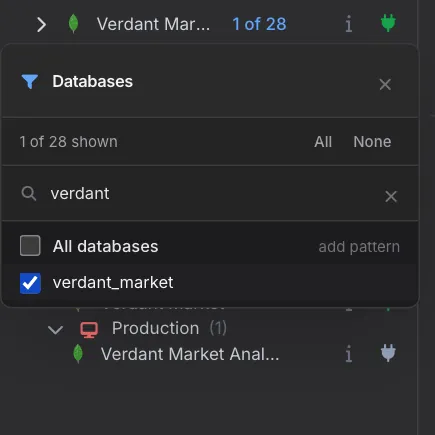
On servers with many databases, you can choose which ones the tree shows. Right-click a connection and choose Filter Databases…, then tick the databases you want. Type in the search box to narrow the list, use All or None to change everything at once, or add pattern to match databases by name. The connection then shows how many databases are visible, for example "1 of 28".
Context Menu Options
Right-click on any item in the sidebar to access context-specific operations:
Connection Context Menu
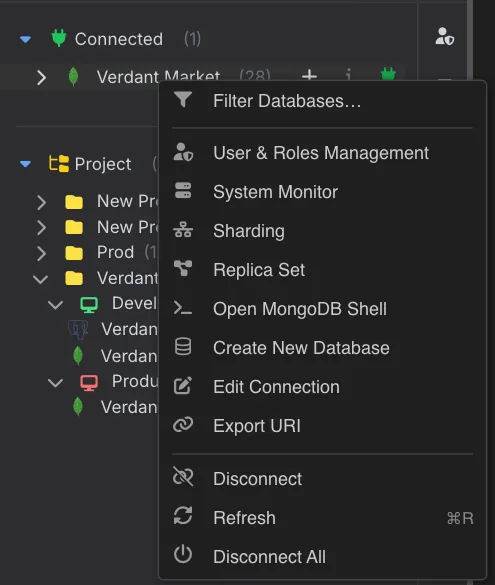
- Filter Databases…: Choose which databases the tree shows (see Filter Databases)
- User & Roles Management: Manage database users and roles
- System Monitor: Watch live server activity
- Sharding / Replica Set: Inspect the cluster topology
- Open MongoDB Shell: Open a shell on this connection
- Create New Database: Create a new database on this connection
- Edit Connection: Modify connection settings
- Export URI: Copy the connection as a connection string
- Disconnect: Close the connection
- Refresh: Reload databases and collections from server
- Disconnect All: Close every open connection
Database Context Menu
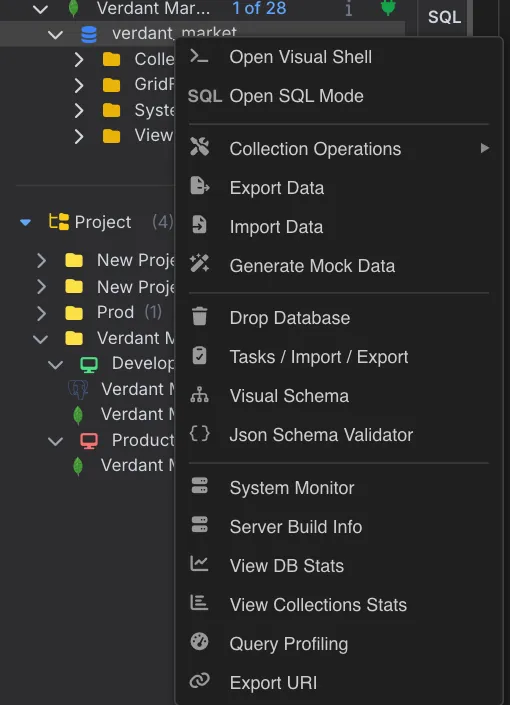
- Open Visual Shell / Open SQL Mode: Work with the database in the shell, or query it with SQL
- Collection Operations: Create, rename, modify, drop or clear collections in this database
- Export Data / Import Data: Move data out of or into the database
- Migrate to Another Database…: Copy the database into another MongoDB or SQL database — see Migrating to another database
- Generate Mock Data: Fill collections with realistic test data
- Drop Database: Delete the database (with confirmation)
- Data Transfer: Open Data Transfer to see and manage export, import and migration jobs
- Visual Schema / Json Schema Validator: Explore the schema as a diagram or manage validation rules
- System Monitor / Server Build Info: Check server activity and version details
- View DB Stats / View Collections Stats: Open database or per-collection statistics
- Query Profiling: Find slow queries in this database
- Export URI: Copy a connection string pointing at this database
Collection Context Menu
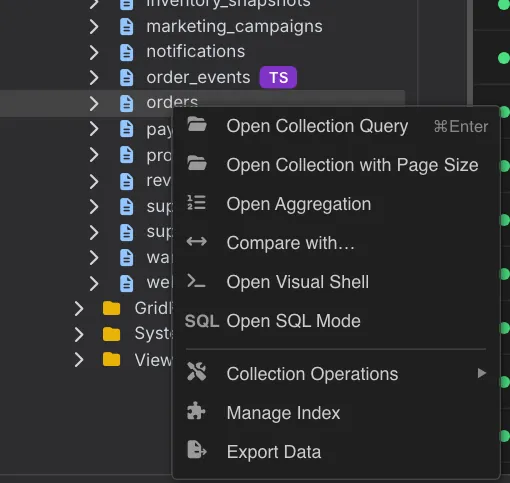
- Open Collection Query: Open in Collection Activity (Cmd/Ctrl+Enter)
- Open Collection with Page Size: Open it with a custom number of documents per page
- Open Aggregation: Open in Aggregation Activity
- Compare with…: Compare this collection with another one
- Open Visual Shell: Open a shell with this collection selected
- Open SQL Mode: Query the collection with SQL
- Collection Operations: Create, rename, modify, drop or clear a collection
- Manage Index: Create, view, or delete indexes
- Export Data: Export collection data to various formats
- Migrate to Another Database…: Copy the collection into another MongoDB or SQL database
View Context Menu
- Query View: Open view in Collection Activity (read-only)
- View Definition: Show the aggregation pipeline that defines the view
- Export View Data: Export the view's data
- Drop View: Delete the view (with confirmation)
GridFS Context Menu
- Browse Files: Open GridFS Activity to view files
- Upload Files: Add files to GridFS
- GridFS Statistics: View storage usage and file count
- Export GridFS: Export files from GridFS
Sidebar Controls
Header Actions
- Connections Title + Plus Icon: Click to open Connection Manager and add new connections
- Refresh Button: Reload all connections and their databases
- Close Button (X): Hide the sidebar to maximize workspace
Resizing the Sidebar
Adjust the sidebar width to fit your workflow:
- Position your cursor over the right edge of the sidebar
- The cursor changes to a resize indicator
- Click and drag left or right to adjust width
- Release to set the new width
- Minimum width: 200px, Maximum width: 1000px
Keyboard Shortcuts
| Shortcut | Action |
|---|---|
| Ctrl + F | Focus sidebar search box |
| Enter | Navigate to next search result |
| Shift + Enter | Navigate to previous search result |
| Down Arrow | Move to next item in search results |
| Up Arrow | Move to previous item in search results |
| Esc | Clear search and blur search box |
Note: On macOS, use Cmd instead of Ctrl
Pro Tips
- Use Ctrl+F to quickly jump to the sidebar search box from anywhere in the application. This is the fastest way to locate a specific collection across multiple databases.
- Double-click on a collection to open it in the Collection Activity. Right-click for a menu of all available operations like aggregation, export, and schema management.
- Resize the sidebar to your preferred width and it will remember your preference for the current session. Wider sidebars make it easier to read long collection names.
- When searching, use Enter and Shift+Enter to cycle through matches quickly. The current match number helps you track your position in large result sets.
- Keep the sidebar open while working with multiple collections to easily switch between them. Close it when you need maximum screen space for data viewing.
- Use the refresh button in the sidebar header to reload all connections if you've made changes outside of VisualLeaf or need to sync with the latest database state.
Related Features
- Connection Manager - Add and configure new database connections
- Collection Activity - Query and manage collection data
- Aggregation Activity - Build aggregation pipelines
- GridFS Activity - Manage large files in MongoDB
- Layout System - Work with multiple activities in split panels
Ready to try VisuaLeaf?
Download and start managing your MongoDB and SQL databases with ease.
Download Free Trial