SQL Editor
SQL Editor
The SQL Editor is VisuaLeaf's dedicated activity for writing, running, and iterating on SQL against your relational databases. It is built on CodeMirror 6, so you get fast syntax highlighting, dialect-aware autocomplete, multi-tab editing, and a rich result viewer that can switch between grid, tree, JSON, and explain-plan output on the same query.
Quick Start
- Open a connection to a SQL database (Postgres, MySQL, MariaDB, SQL Server, or SQLite).
- Click SQL Editor in the activity bar (or press
Ctrl/Cmd + Shift + S). - Type a query. Autocomplete offers table and column names as you type.
- Press
F5to run the whole buffer, highlight a fragment and pressF9to run just the selection, or pressCtrl/Cmd + F5to run up to the cursor. - Inspect results in the grid, or flip to the tree, JSON, or explain-plan view.

Opening the Editor
Each connection has its own SQL Editor context so tabs, history, and result sets stay scoped to the database you are working on:
- From the sidebar, right-click any database and choose Open SQL Editor.
- From the activity bar, click the SQL icon; the editor opens on the last-used tab.
- Right-click a table and choose Open Table Query to open the editor with a
SELECTagainst that table already filled in, or Open SQL Editor for a blank buffer.
The toolbar above the buffer switches between the visual Query Builder and SQL; the highlighted one is the query Run executes. A badge such as Read-only tells you whether the cells in the results can be edited (results of a grouped query, for example, cannot be); hover it to see why. Next to it are Format SQL, Copy SQL, and a button that flips the editor and results between a vertical and a horizontal split; Save, History, and Run sit on the right. The breadcrumb names the connection, database, and table you are working in.
Writing Queries
The editor understands the SQL dialect of the current connection and adjusts keywords, functions, and quoting rules accordingly.
Autocomplete
Trigger the completion menu with Ctrl + Space, or just keep typing:
- Table names after
FROM,JOIN,UPDATE,INTO. - Column names after a table alias and a dot (e.g.
u.lists columns of the aliased table). - Built-in functions such as
COUNT,NOW(),COALESCE,JSON_EXTRACT. - Snippets for common shapes:
selectall,joinon,groupbycount,upsert.
Example
SELECT id, name, email
FROM users
WHERE active = true
ORDER BY created_at DESC
LIMIT 100;
Executing Queries
The editor exposes several execution modes so you can iterate on part of a script without re-running everything:
| Action | Windows / Linux | macOS |
|---|---|---|
| Run entire buffer | F5 |
F5 |
| Run current selection | F9 |
F9 |
| Run up to cursor | Ctrl + F5 |
Cmd + F5 |
Multiple Statements
If your buffer contains several statements separated by ;, running the whole buffer produces one result tab per statement. The status bar shows the aggregate row count and total elapsed time.
Result Viewer
Results appear in a grid below the editor. The breadcrumb shows the row count and how long the query took, the toolbar above the grid handles paging and page size, and a search bar finds values across the visible rows.
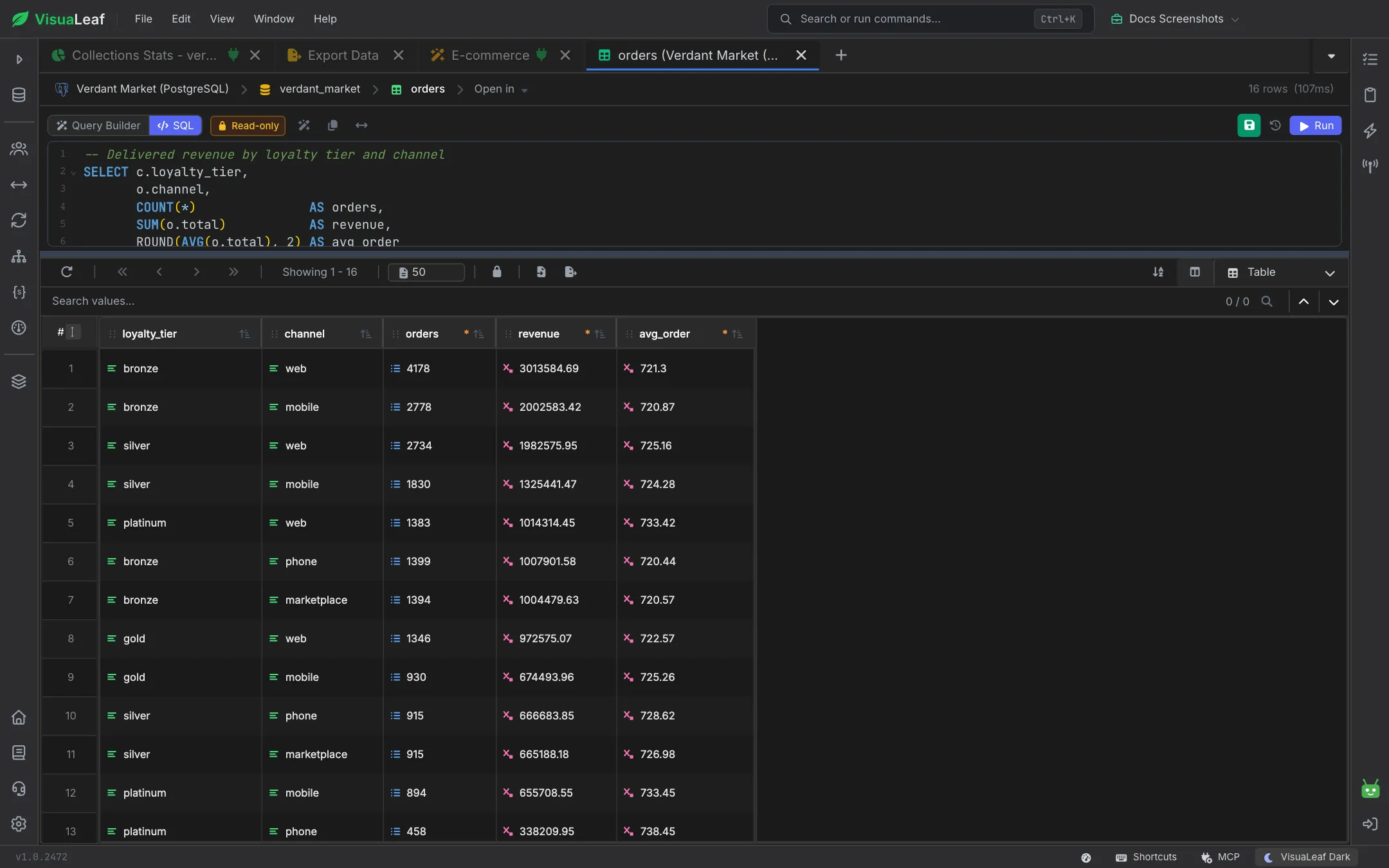
Every executed query produces a result tab that can render in four modes:
Grid
Sortable, resizable columns with type-aware cell rendering (dates, JSON, NULL, booleans). Right-click a cell to copy, filter by value, or open a related row via a foreign key.
Tree
Expandable tree of rows and nested values. Great for wide result sets with lots of columns, or when a cell contains JSON you want to drill into without leaving the result panel.
JSON
Each row rendered as a JSON object. Handy for LLM prompts, API mocking, or piping to jq.
Explain
Runs the current statement through the dialect's EXPLAIN and renders the plan for inspection alongside the result.
Multiple Result Sets
When a stored procedure or a batch returns more than one result set, each appears as its own sub-tab under the result panel. Metadata rows (row count, elapsed) are shown per set.
Saving to Query Library
Press Ctrl/Cmd + S to save the current buffer. Saved queries include:
- A name, description, and tags for search.
- The dialect and originating connection, so parameters resolve correctly on reload.
- Optional bound parameters (e.g.
:tenant_id) prompted at run time.
Access saved queries from the Saved Queries sidebar entry or by typing @ anywhere in the editor.
Keyboard Shortcuts
| Shortcut | Action |
|---|---|
Ctrl/Cmd + T | New editor tab |
Ctrl/Cmd + W | Close current tab |
Ctrl/Cmd + S | Save query to library |
Ctrl/Cmd + / | Toggle line comment |
Ctrl/Cmd + Space | Trigger autocomplete |
Ctrl/Cmd + Shift + F | Format SQL |
F5 | Run entire buffer |
F9 | Run current selection |
Ctrl/Cmd + F5 | Run up to the cursor |
Pro Tips
- Use aliases early: Alias tables in the
FROMclause first — autocomplete uses the alias immediately for the rest of the query. - Highlight to explore: Wrap a fragment in a
SELECT, highlight it, and hitF9to preview intermediate results without touching the full query. - Bind sensitive values: Use
:parameterplaceholders instead of hardcoding IDs — VisuaLeaf will prompt at run time and never store the value in the saved query.
Related Features
- Visual SQL Query Builder - Build queries without typing, then paste them into the editor.
- SQL Profiling - Run EXPLAIN on the current buffer to inspect the plan.
- Saved Queries - Organize and share reusable queries.
Ready to try VisuaLeaf?
Download and start managing your MongoDB and SQL databases with ease.
Download Free Trial