Visual SQL Query Builder
Visual SQL Query Builder
The Visual SQL Query Builder is a point-and-click canvas for assembling SELECT statements. Each table in the query is a card on the canvas, joins are drawn as lines between them, and filters and sorting live in a panel on the right. The generated SQL updates live underneath as you work. When you're happy, hit Run Query to see the results in the same tab, or switch to SQL and keep editing by hand.
Quick Start
- Open a table (right-click it in the connection tree and choose Open Table Query).
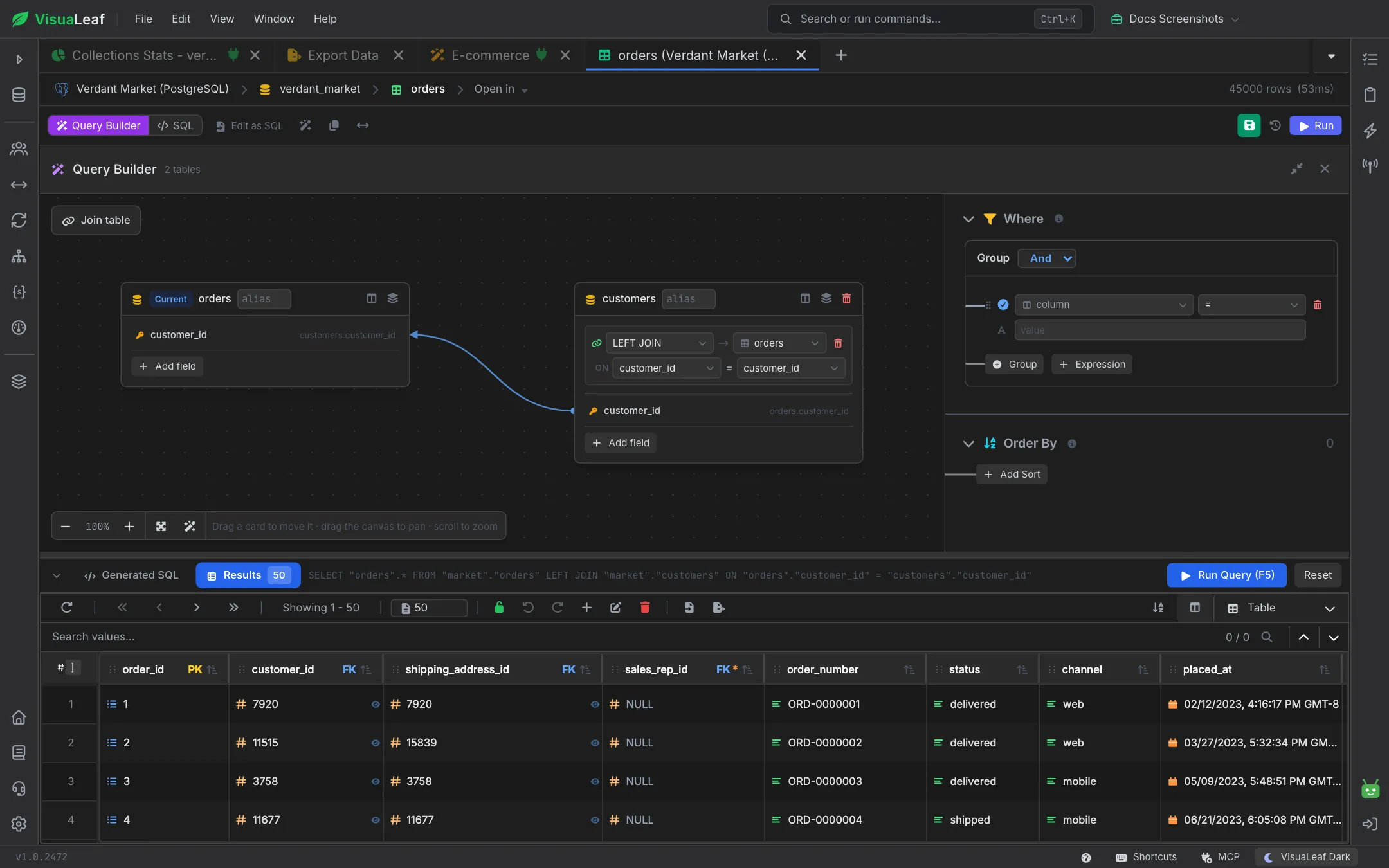
- Click Query Builder in the toolbar. The builder opens with that table on the canvas, marked Current.
- Click Join table to bring in related tables, and + Add field on a card to choose output columns.
- Add conditions under Where and sorts under Order By.
- Click Run Query (F5). The results open in the Results tab under the canvas.
Opening the Builder
The builder belongs to a table's query tab, so it always starts from a specific table. Open the table, then click Query Builder in the toolbar (next to SQL). The builder fills the tab: the canvas on the left, the Where and Order By panels on the right, and the Generated SQL and Results tabs along the bottom. The header shows how many tables are in the query, with buttons to shrink the builder back down or close it.
Switching back to SQL keeps the builder's state — return to it later and your tables, joins, and conditions are still there. Edit as SQL copies the generated query into the SQL editor so you can carry on by hand.
Moving Around the Canvas
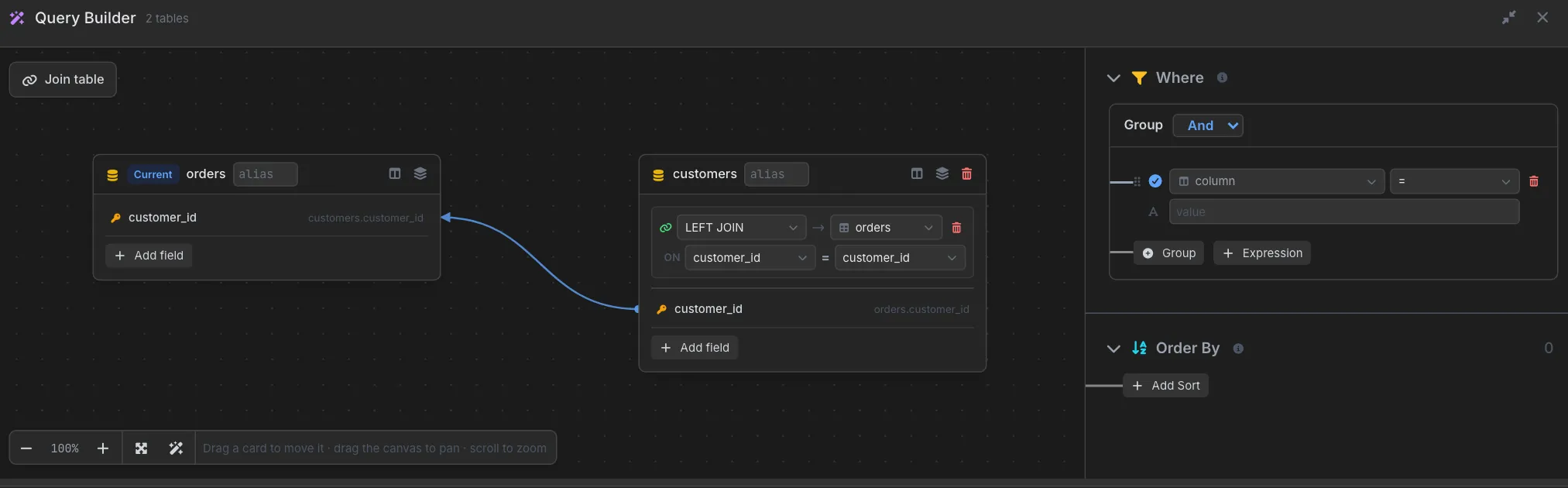
Drag a card to move it, drag the empty canvas to pan, and scroll to zoom. The controls in the bottom-left corner zoom in and out, show the current zoom level, fit every card on screen, and tidy the cards into a clean layout.
Picking Columns
Until you pick any columns, the query returns every column of the current table. To choose the output yourself, use the buttons on each table card:
- + Add field — search the table's columns and add them to the
SELECTone after another. - Show every column (the columns icon) — lists all of the table's columns with checkboxes, so you can tick and untick them directly on the card.
- Add all fields (the stacked-layers icon) — adds every column of that table at once.
- alias — the box next to the table name sets the alias used for the table in the generated SQL.
Join columns are marked with a key icon, and the remove button next to a field takes it back out of the SELECT.
Adding Filters
The Where panel holds your conditions. Each condition row has three parts:
- A column picker (scoped to the tables on the canvas).
- An operator picker, offering the operators that suit the column's type.
- A value input.
| Operator | Meaning | Value input |
|---|---|---|
=, != | Equality / inequality | Single value |
>, <, >=, <= | Numeric / date comparisons | Single value |
BETWEEN | Range (inclusive) | From and to values |
IN, NOT IN | Value in a list | Comma-separated list |
LIKE, NOT LIKE, ILIKE | Pattern match (ILIKE ignores case) | Pattern with % / _ |
IS NULL, IS NOT NULL | Presence check | None |
Conditions in a group are combined with And; switch the group's dropdown to Or to change that. + Group adds a nested group with its own And/Or, + Expression adds another condition, and you can drag conditions to reorder them. The check mark at the start of a row turns a condition off without deleting it.
Joining Tables
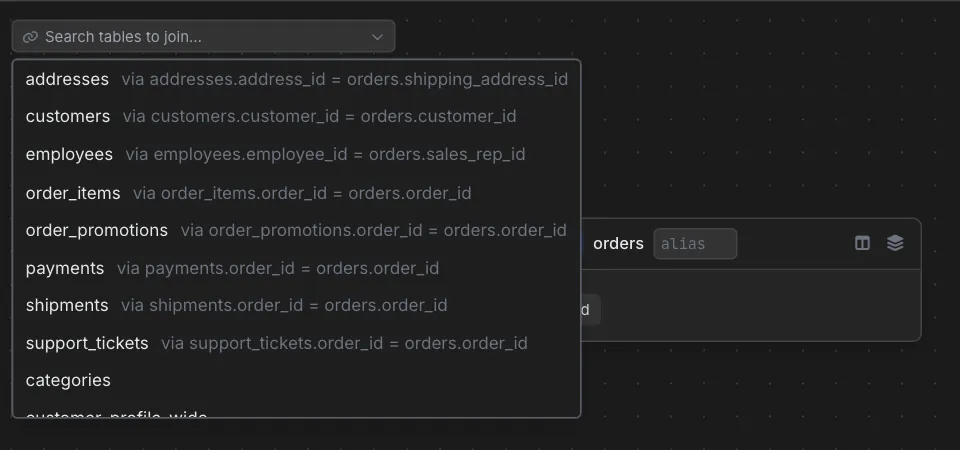
Click Join table in the top-left corner of the canvas to add another table. VisuaLeaf reads the foreign keys in your schema, so the list puts related tables first and tells you how each one would connect.
Automatic JOIN Suggestions
Example: with orders as the current table, the list offers customers via customers.customer_id = orders.customer_id and addresses via addresses.address_id = orders.shipping_address_id. Pick one and the card arrives already joined on that condition. Tables with no foreign key to the query are listed after the related ones.
Each joined card carries its join settings at the top:
- Choose
INNER JOIN,LEFT JOIN,RIGHT JOIN,FULL OUTER JOIN, orCROSS JOIN, and which table it joins to. - Change the ON columns on either side of the
=. The line on the canvas follows the columns you pick. - Remove the relationship with the delete button on the join row, or remove the whole table with the delete button on the card header.
Aggregates & GROUP BY
Hover the + next to a field on a card to wrap it in an aggregate:
COUNT,COUNT DISTINCTSUM,AVGMIN,MAX
As soon as one field is aggregated, every other field is marked GROUP and goes into the GROUP BY clause for you. A Having panel also appears on the right for filtering on aggregated values. Click an aggregate badge to remove it.
ORDER BY and Paging
Click + Add Sort in the Order By panel, pick a column, and choose ascending or descending. Add more sorts for tie-breakers; the counter next to the heading shows how many are set. How many rows come back per page is set in the results grid, the same way as for any other query.
Live SQL Preview Panel
The Generated SQL tab under the canvas shows the query as you build it, and updates on every change. While the Results tab is open, the generated SQL stays visible on a single line beside the tabs, so you can always check what will run.
Getting the SQL Out
Two ways to take the query further:
- Copy SQL — the copy button on the Generated SQL tab grabs the query as-is. Paste it into the SQL Editor if you need CTEs, window functions, or anything else the visual builder doesn't cover.
- Edit as SQL — the toolbar button puts the generated query into the tab's own SQL editor in one click.
Reset clears the builder back to just the current table.
Walkthrough: Top Customers by Total Order Value
- Open the
orderstable and click Query Builder. - Click Join table and pick
customers(via customers.customer_id = orders.customer_id). Set the join type toINNER JOIN. - On the
customerscard, click + Add field and addemail. - On the
orderscard, addtotaland set its aggregate toSUM.emailis now marked GROUP. - Under Order By, click + Add Sort and sort by the summed total, descending.
- The Generated SQL tab shows something like:
SELECT "customers"."email", SUM("orders"."total") FROM "market"."orders" INNER JOIN "market"."customers" ON "orders"."customer_id" = "customers"."customer_id" GROUP BY "customers"."email" ORDER BY SUM("orders"."total") DESC - Click Run Query (F5), or Edit as SQL to keep refining by hand.
Pro Tips
- Model your FKs: The join suggestions come from declared foreign keys. Without them, Join table still lists every table, but you set the ON columns yourself.
- Shape it here, refine it there: The builder is fastest for the initial shape. Once you need CTEs, window functions, or anything else it doesn't cover, use Edit as SQL and finish by hand.
- Tidy the canvas: With several joined tables, use the layout button in the zoom controls to rearrange the cards, then fit them on screen.
Related Features
- SQL Editor - Refine exported SQL by hand.
- SQL Table - View and edit the results as a live grid.
- SQL Profiling - Check the plan of the query you built.
Ready to try VisuaLeaf?
Download and start managing your MongoDB and SQL databases with ease.
Download Free Trial