SQL Table
SQL Table
The SQL Table is a paginated grid view over the rows of a single table, wrapped around an embedded SQL editor and a visual query builder. It supports browsing, sorting, per-cell inline edit, single-row insert/edit/delete via a modal, and batch update/delete on multi-row selections.
Beta
The table picker describes this view as a "Read-only viewer for debugging. Not optimized for large datasets." Write actions (inline edit, insert, delete, batch) do work end-to-end, but treat this activity as a fast browser for now and reach for the SQL Editor for anything you'd want a rollback for. Large-table performance is a known limitation.
Quick Start
- Open a database in the sidebar, right-click a table, and choose Open Table Query.
- The table opens with the first page of rows loaded. Click a column header to sort.
- Double-click any cell to edit it in place; press
Enterto commit,Escto cancel. The write is sent to the server immediately — there is no pending state or Save button. - Switch the toolbar between Query Builder and SQL to shape the underlying query.
Opening a Table
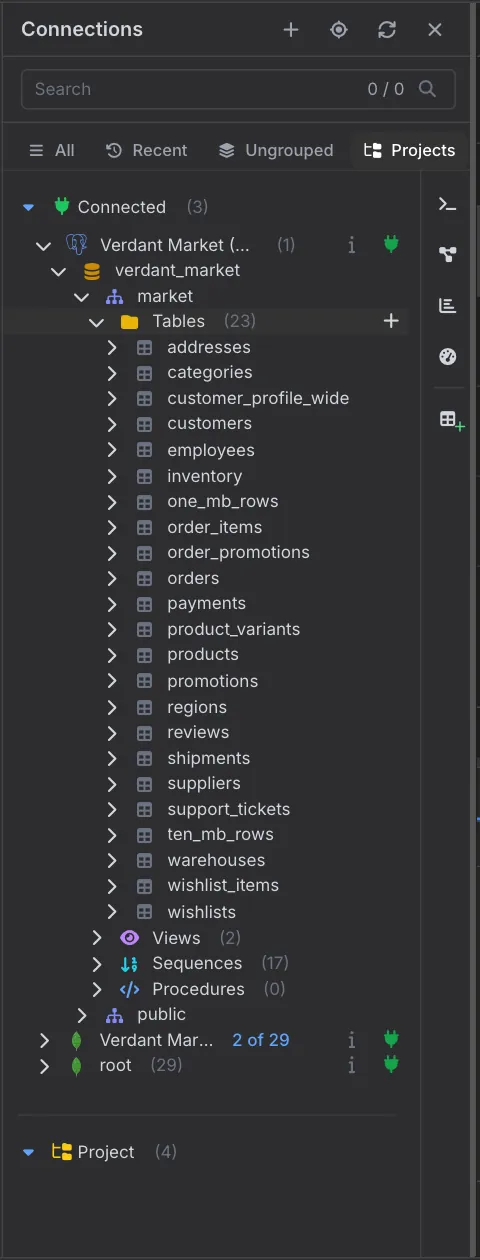
Tables are listed in the connection tree under database › schema › Tables, with the schema's views, sequences, and procedures in their own folders beside them.
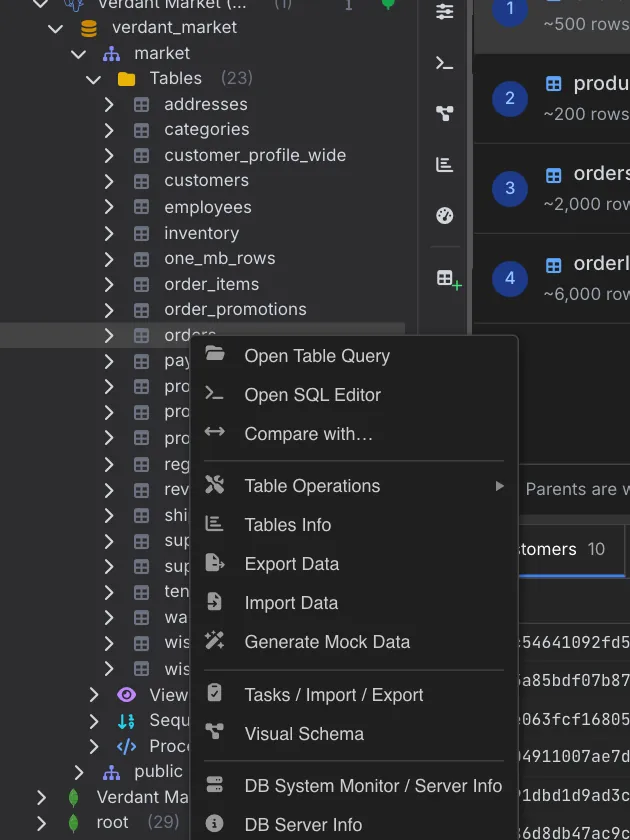
- Right-click a table and choose Open Table Query to open it in the grid. The same menu opens a blank Open SQL Editor, Tables Info, export and import, mock data, Visual Schema, and the server tools.
- Or open the activity from a SQL context menu — the table picker shows every table in the database and includes a Use Custom SQL escape hatch that skips picking a table and drops you straight into the editor.
Activity Layout
Three regions, top to bottom:
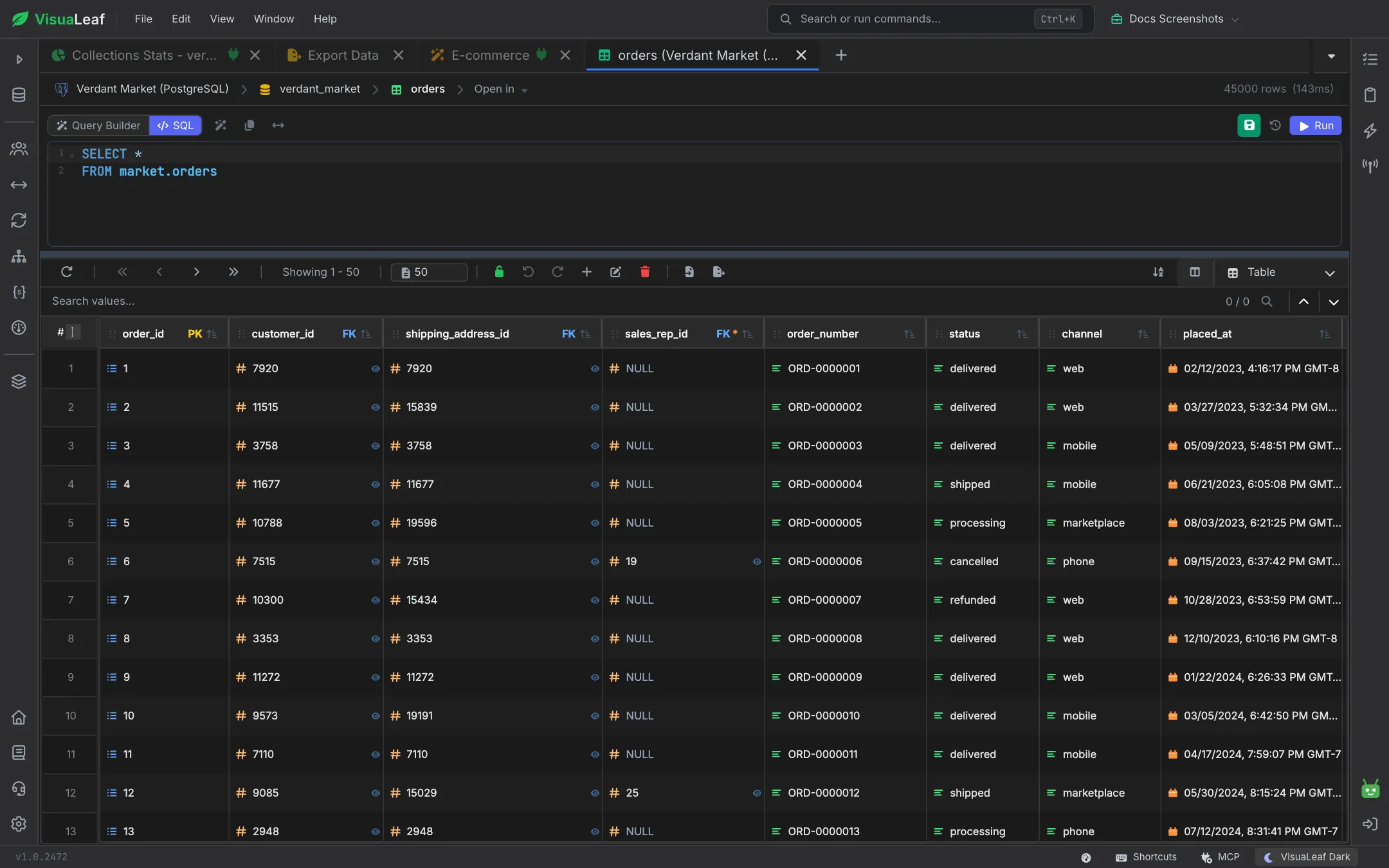
- Toolbar — the breadcrumb (connection, database, table, and an Open in menu) with the total row count and query time on the right; below it the Query Builder / SQL toggle, Save, History, and Run.
- SQL editor — the query behind the current results. Switch to SQL to write your own, or to Query Builder for the visual alternative; the highlighted one is what Run executes.
- Result grid — its own toolbar for refresh, paging, page size, undo/redo, add/edit/delete row, import/export, and the view picker, then sortable columns with PK and FK badges and per-cell inline edit.
Sorting & Pagination
- Sort: Click a column header to toggle
ASC, thenDESC, then off. Sorting resets to the first page and re-runs the query. - Paging: The grid toolbar has First / Previous / Next / Last controls, a "Showing 1 - 50" counter, and a page-size box. Rows are fetched one page at a time — there's no virtual scrolling mode.
Inline Editing
Double-click a cell to edit its value in place. Cell inputs are type-aware where the driver reports type information (text, numeric, boolean, date/timestamp, enum, JSON/JSONB). Pressing Enter writes the change to the server immediately via an UPDATE ... WHERE <primary-key> = ...; a toast confirms the number of rows affected, and the row flashes green on success. Esc cancels before commit.
Inline edit only works when the grid can safely address the row — that means the base table is a real table (not a view) and the primary-key columns are present in the projection. Otherwise the cell is not editable and the tooltip explains why. When you write your own SQL, a badge next to the Query Builder / SQL toggle (for example Read-only) tells you whether the results can be edited; hover it for the reason.
Row Actions
- Insert Row — opens a modal with fields for every column and any known foreign-key pickers; submits an
INSERT. - Edit Row — same modal, pre-filled from the selected row.
- Delete Row — confirms, then runs a
DELETE ... WHERE <primary-key> = .... - Batch Update and Batch Delete — after selecting multiple rows, apply the same update to all of them or delete them together.
- Copy as CSV, Import, Export — bulk-data conveniences on the toolbar / row menu.
Read-Only Connections
Inline edit, insert, delete, and batch actions all require the base table to be editable (real table, not a view, primary keys present). If any condition fails, the affected affordance is hidden and its tooltip explains why. Server-side privileges still apply — see SQL User Management for how the connection's grants govern which of these will actually succeed.
Pro Tips
- Filter before you edit: Use the Query Builder panel to narrow the grid to the rows you actually need to touch — smaller results are safer and faster.
- Read the SQL: The embedded editor always shows the query producing the grid, so you can spot a bad filter or a missing join before you start clicking cells.
- Prefer batch update over per-row edits when applying the same change to many rows — one round trip, one row-count in the log, and it's much easier to notice a mistake before hitting Apply.
- Reach for the SQL Editor for anything transactional or destructive at scale. The Table activity commits each edit immediately; the SQL Editor lets you wrap changes in explicit transactions with
ROLLBACK.
Related Features
- SQL Editor - Write arbitrary SQL for cases beyond simple grid edits.
- SQL Table Statistics - See size, row count, and index usage for the current table.
- SQL User Management - Control who can write to which tables.
Ready to try VisuaLeaf?
Download and start managing your MongoDB and SQL databases with ease.
Download Free Trial