Mock Data Generator
Mock Data Generator
The Mock Data Generator fills a MongoDB database or a SQL schema with realistic test data: names, emails, addresses, dates, prices and the references between them. Describe the collections or tables you want and how they relate, and VisuaLeaf writes them parents first, so every reference points at a row that really exists. You see a live sample before anything is written, and the same seed always produces the same dataset.
Quick Start
- Right-click a database (or a SQL schema, its Tables folder, or a table) in the sidebar and choose Generate Mock Data. You can also run Generate Mock Data from the command palette.
- Pick a starting point: Read what's already there, Start blank, or one of the ready-made datasets.
- Adjust row counts and fields in the Fields view, and watch the sample update below.
- Optionally set a Seed and a Locale in the bottom bar.
- When the status says Ready, click Generate.
Choosing a Starting Point
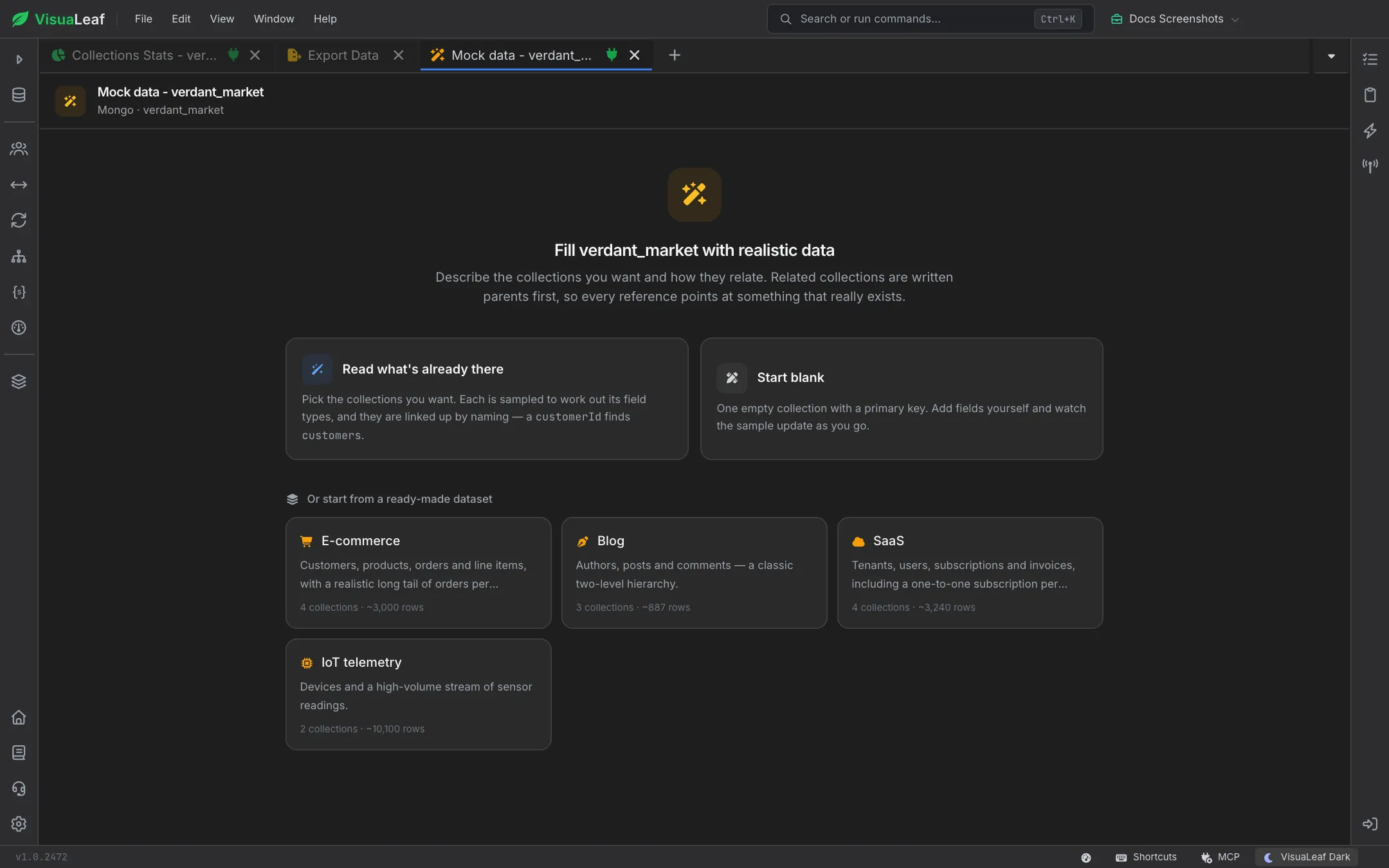
A new generator tab opens on a start screen named after the target database. Pick one of three ways in:
| Option | What it does |
|---|---|
| Read what's already there | Pick the existing collections or tables you want. Each one is sampled to work out its field types, and they are linked up by naming: a customerId field finds customers. |
| Start blank | One empty collection with a primary key. Add fields yourself and watch the sample update as you go. |
| Ready-made dataset | E-commerce (customers, products, orders and line items), Blog (authors, posts and comments), SaaS (tenants, users, subscriptions and invoices) or IoT telemetry (devices and a high-volume stream of sensor readings). Each card shows how many collections and roughly how many rows it creates. |
You can switch later: Presets in the header loads a ready-made dataset, and Read schema rebuilds the plan from what is already in the database.
Collections and Fields
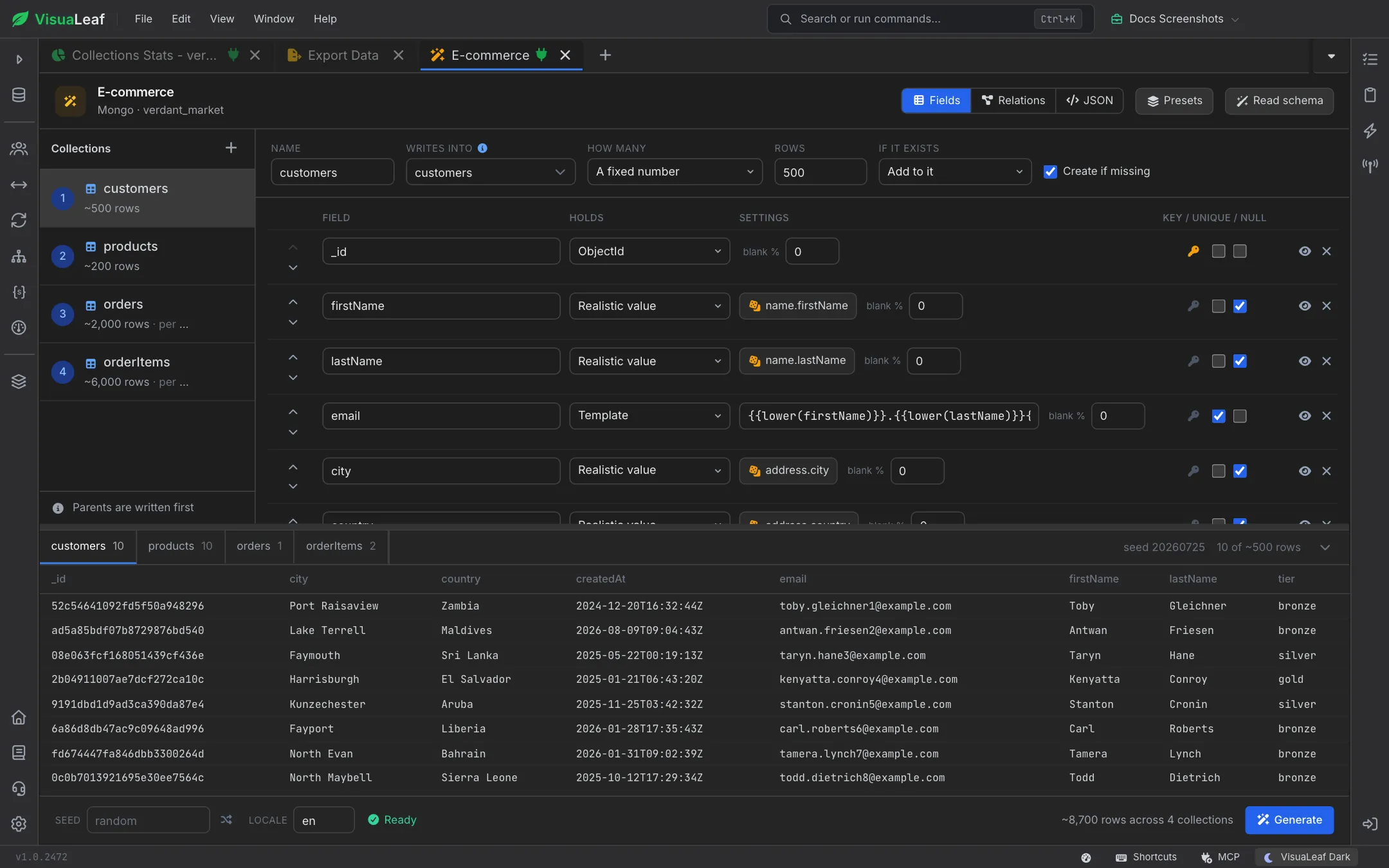
The Fields view lists every collection or table on the left, numbered in the order they will be written (parents first). Select one to edit it on the right.
Collection Settings
- Name and Writes into: the name used inside the plan and the collection or table the rows land in.
- How many: A fixed number of rows, or Some for each parent row. The second makes, for example, 1 to 5 order lines for every order, spread evenly, clustered around the middle, or so that a few get most of them for a realistic long tail.
- If it exists: Add to it, Add or replace by key, or Drop it and start over (shown in red).
- Create if missing: creates the collection or table when it doesn't exist yet. On SQL targets, Foreign keys also creates the matching constraints.
Field Types
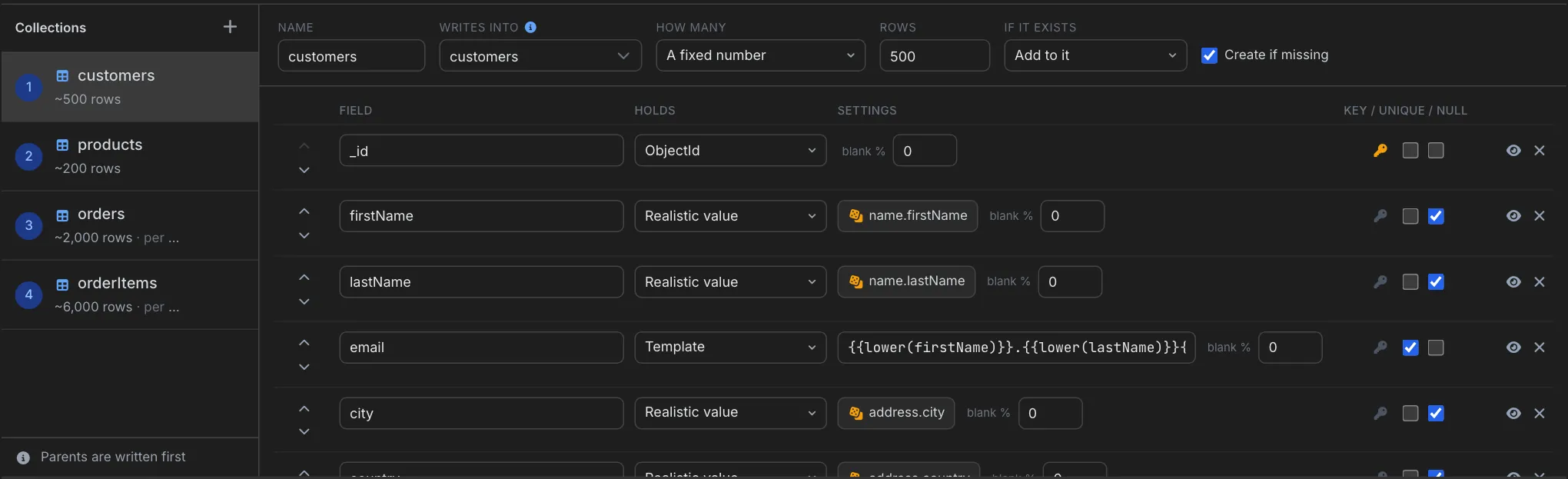
Each row in the field list has a name, what it holds, its settings, how often it is left blank, and key / unique / nullable checkboxes. The eye icon skips a field without deleting it, and the arrows reorder fields.
| Holds | Use it for |
|---|---|
| Realistic value | Names, emails, addresses, companies, prices and more, picked from a searchable list (for example name.firstName or address.city). |
| Template | Text built from fields declared above it, such as {{lower(firstName)}}.{{lower(lastName)}}@example.com. {{seq}}, {{uuid}} and {{now}} are also available. |
| One of (weighted) | A fixed list of values, each with a relative weight, such as order statuses or tiers. |
| Reference / Array of references | A key borrowed from another collection, so related data lines up. |
| Text, Integer, Decimal, Boolean, Date, ObjectId, UUID, Auto-increment, Null | Plain values with ranges or lengths. Dates accept relative values like -30d, -1y or now. |
| Array / Nested object | Embedded structures for MongoDB documents. |
On SQL targets, Array of references isn't available. Model the relationship with a junction table instead.
Live Preview
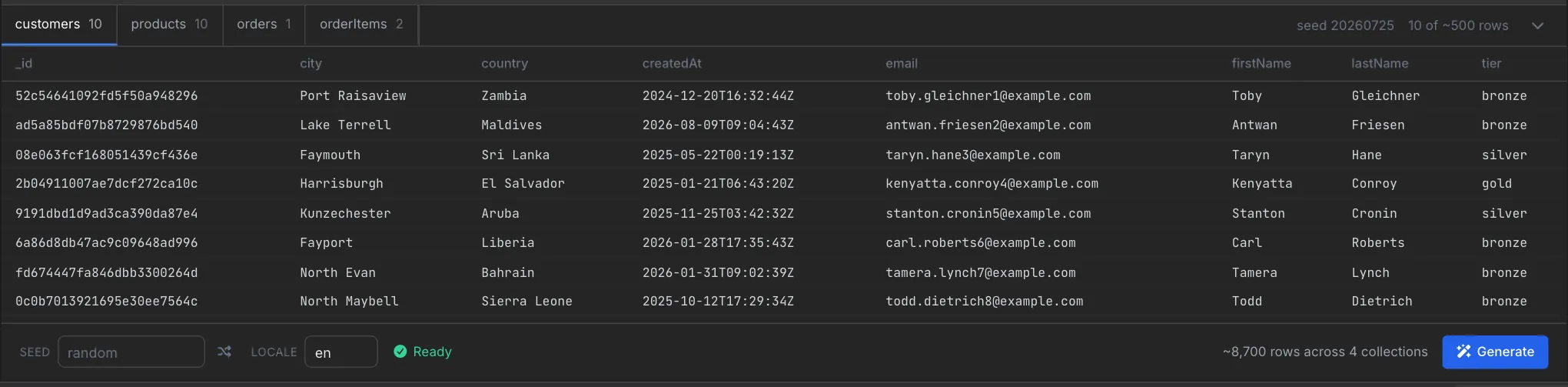
Below the editor, a sample of each collection updates as you type. Tabs switch between collections and show how many sample rows each has. Columns that hold a key borrowed from another collection are highlighted and labelled with their source.
Relations
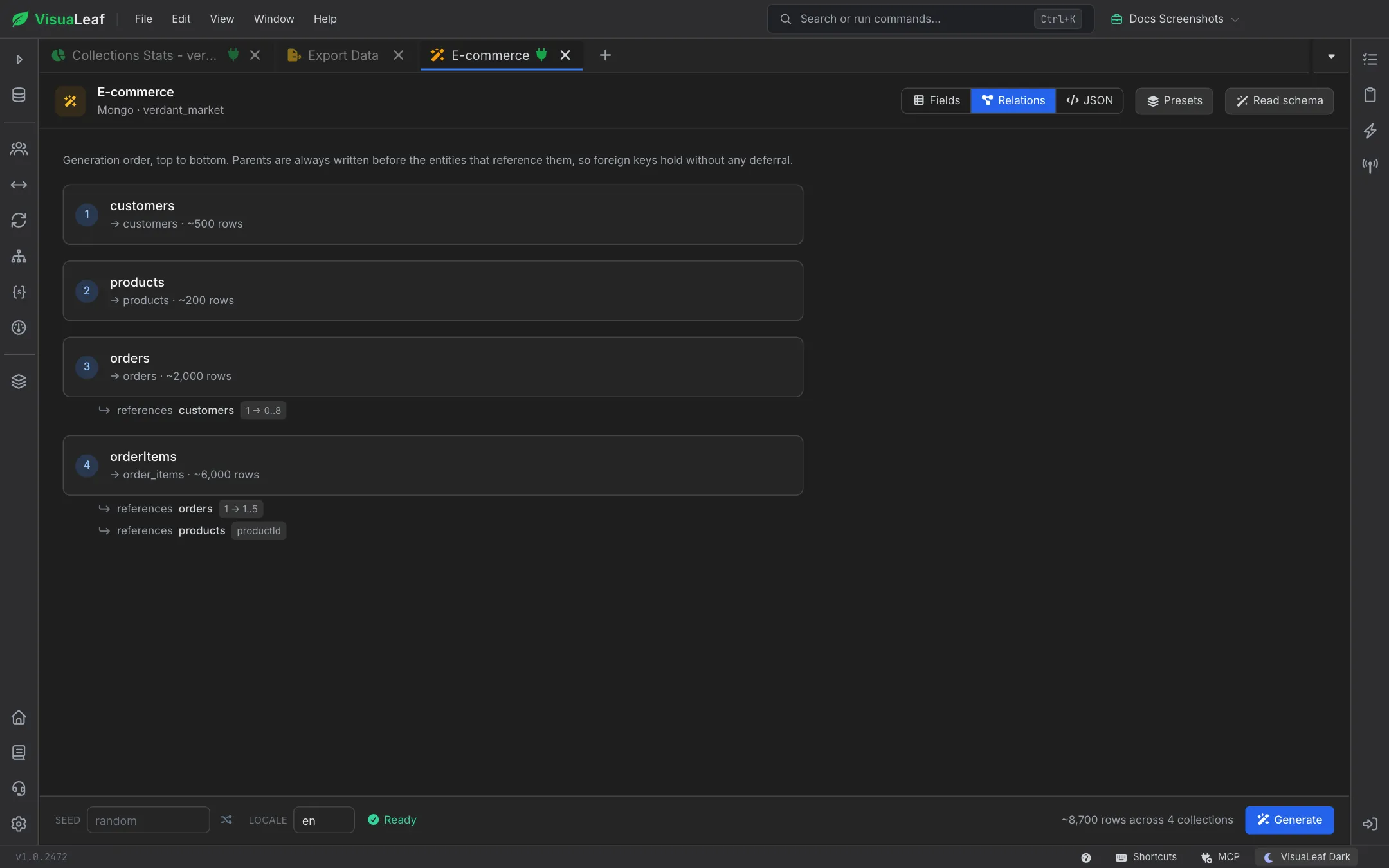
The Relations view shows the generation order from top to bottom. Each collection lists what it references and how many children each parent gets (for example 1 → 0..8), so you can check the shape of the data before writing it.
JSON Blueprint
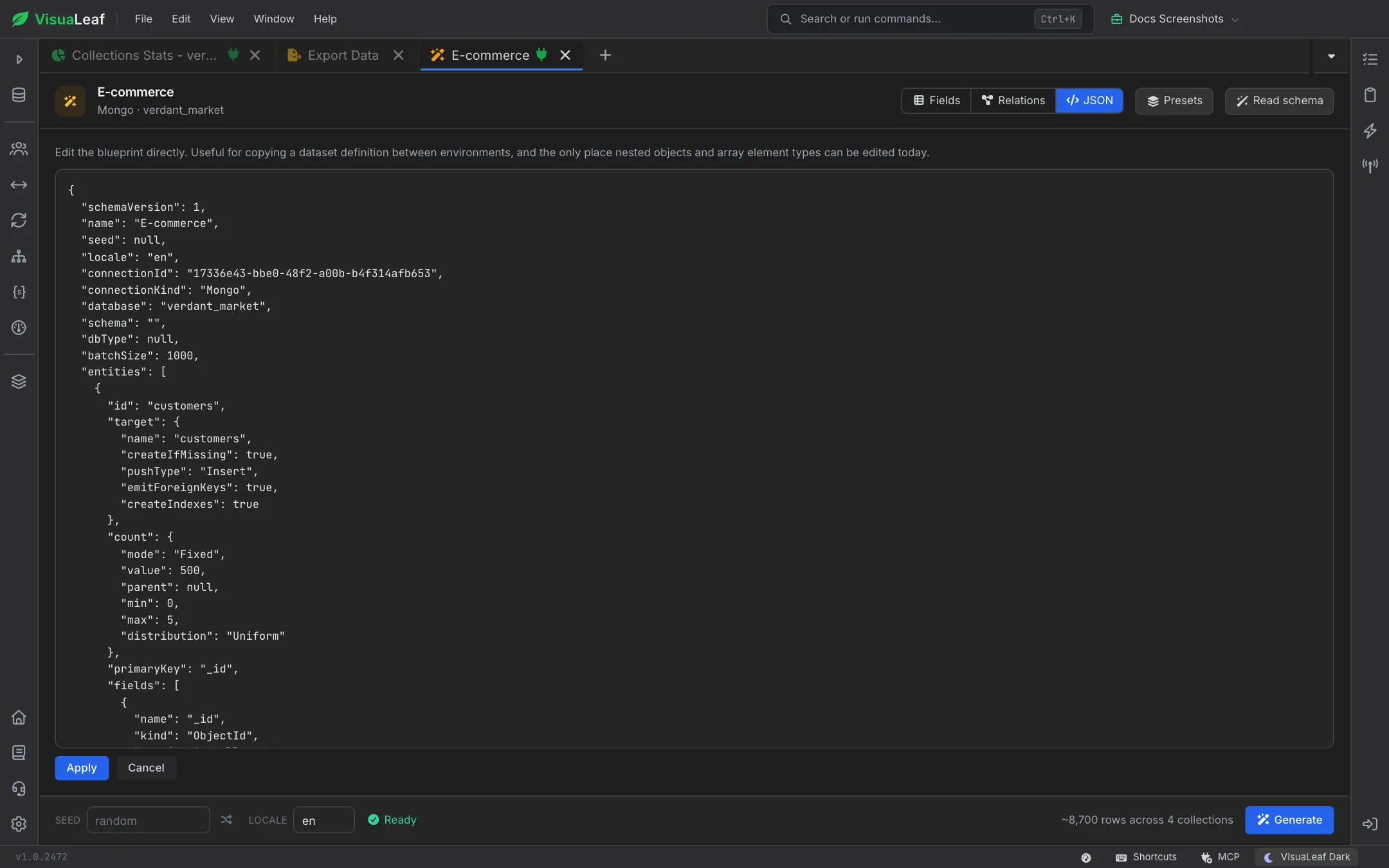
The JSON view shows the whole plan as an editable blueprint. Use it to copy a dataset definition between environments, or to edit nested objects and array element types, which can only be changed here for now. Click Apply to load your edits or Cancel to discard them.
Seed, Locale and Generate
- Seed: leave it on random, or enter a number to get exactly the same dataset every time. The shuffle button picks a new one.
- Locale: names, addresses and phone numbers follow it (
en,fr,ja, …). - Status: shows Ready, a warning count, or the first error. Click an error to jump to the field that caused it.
- Generate: writes the data. The bar shows the total row estimate, and progress appears while it runs.
When a run finishes, a summary shows how many rows were written to each collection and how long it took. Copy copies the seed that was used, and Reuse seed puts it on the plan so you can reproduce the same data later.
Pro Tips
- Start from your real schema: Read what's already there gives you field types and links that match your app, so you only need to tweak values.
- Pin the seed for tests: a fixed seed makes demos and automated tests repeatable.
- Use "Some for each parent row": with the a few get most of them spread, child counts look like production data, not a flat average.
- Be careful with "Drop it and start over": it removes what's already in the target before writing.
- Keep the blueprint: copy the JSON view into your repo to rebuild the same test database anywhere.
Related Features
- Collection Management - Create and manage the collections you fill with data
- SQL Create Table - Define tables before generating rows into them
- JSON Schema - Check generated documents against your validation rules
- Export / Import Data - Export generated data to share with your team
Ready to try VisuaLeaf?
Download and start managing your MongoDB and SQL databases with ease.
Download Free Trial