Data Compare & Sync
Data Compare
Data Compare (labelled Data Compare in the app) shows you exactly how two collections differ — across databases, connections or environments such as production and staging. You lay out what to compare on a canvas, run every pair at once, then review document-by-document and field-by-field differences and sync the ones you choose. It works for MongoDB collections and for SQL tables.
Quick Start
Get started with a comparison in VisuaLeaf:
- Open Data Compare from the activity bar and click New comparison
- On the empty canvas, click Match whole database and pick a source and a target database
- Review the proposed pairs and click Add N pairs — or add collections one by one and pair them yourself
- Click a pair's label to check its match keys and filters
- Name the comparison so it is saved, then click Run comparison
- Review the results and, if you want, sync the differences
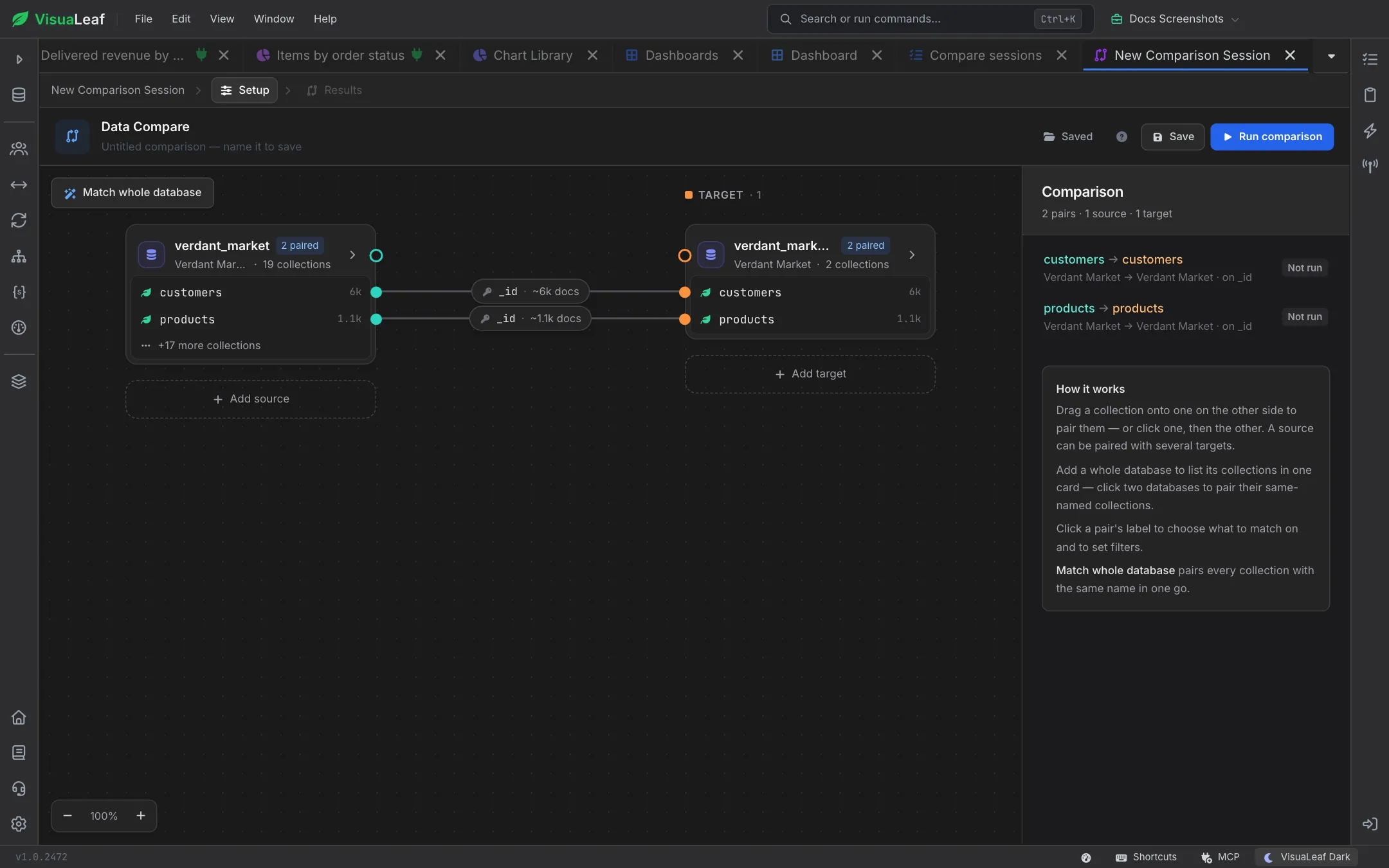
Comparison Setup
A comparison is set up on a canvas. Sources sit in the left column, targets in the right column, and every pair you create is drawn as a line between them. The Comparison panel on the right lists each pair with its match key and whether it has run yet.
The Compare Canvas
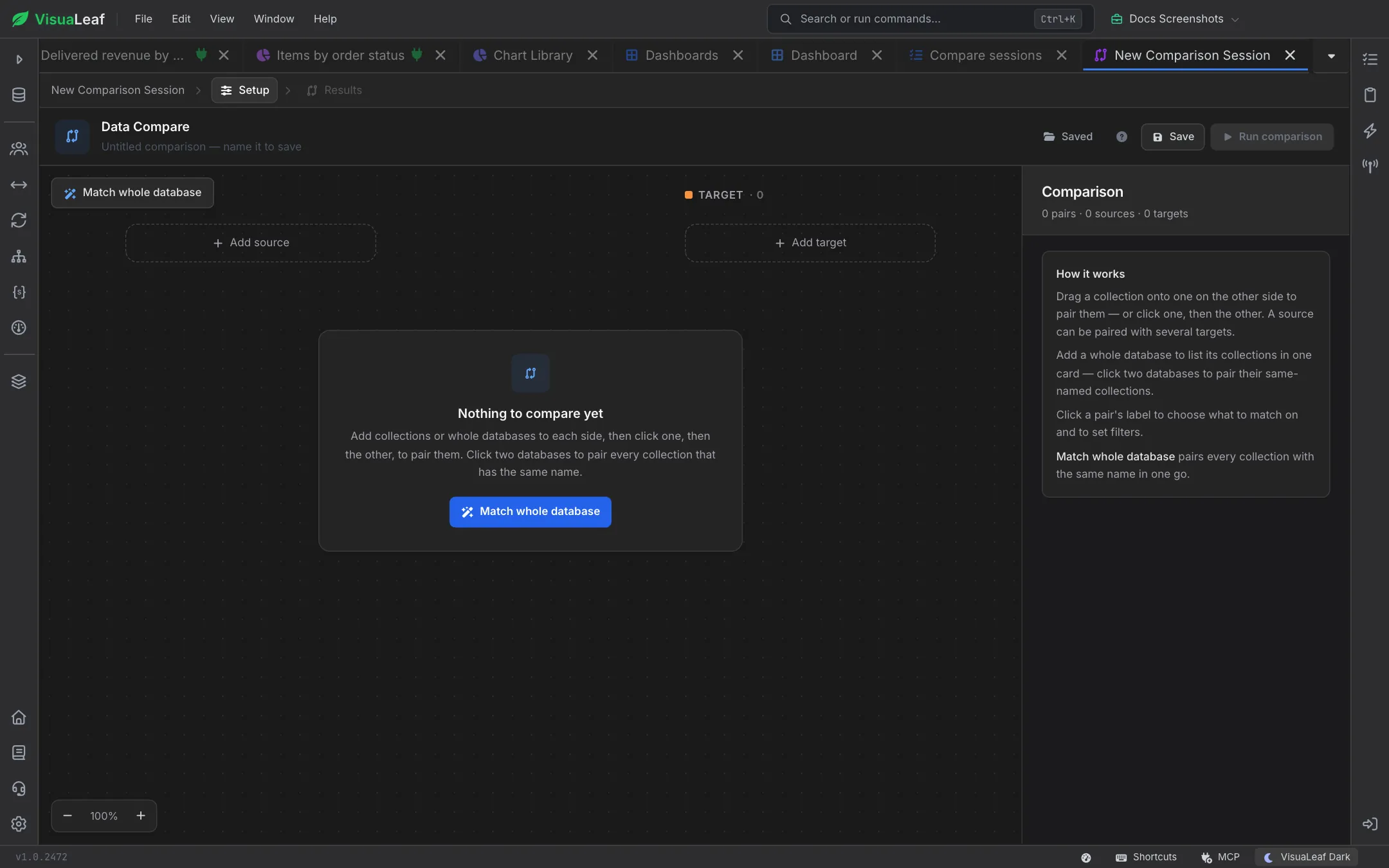
Click New comparison in the Data Compare list to open an empty canvas. It offers two ways to start: Match whole database, or Add source / Add target to place collections yourself. Use the zoom controls in the bottom-left corner when the canvas gets busy.
Match Whole Database
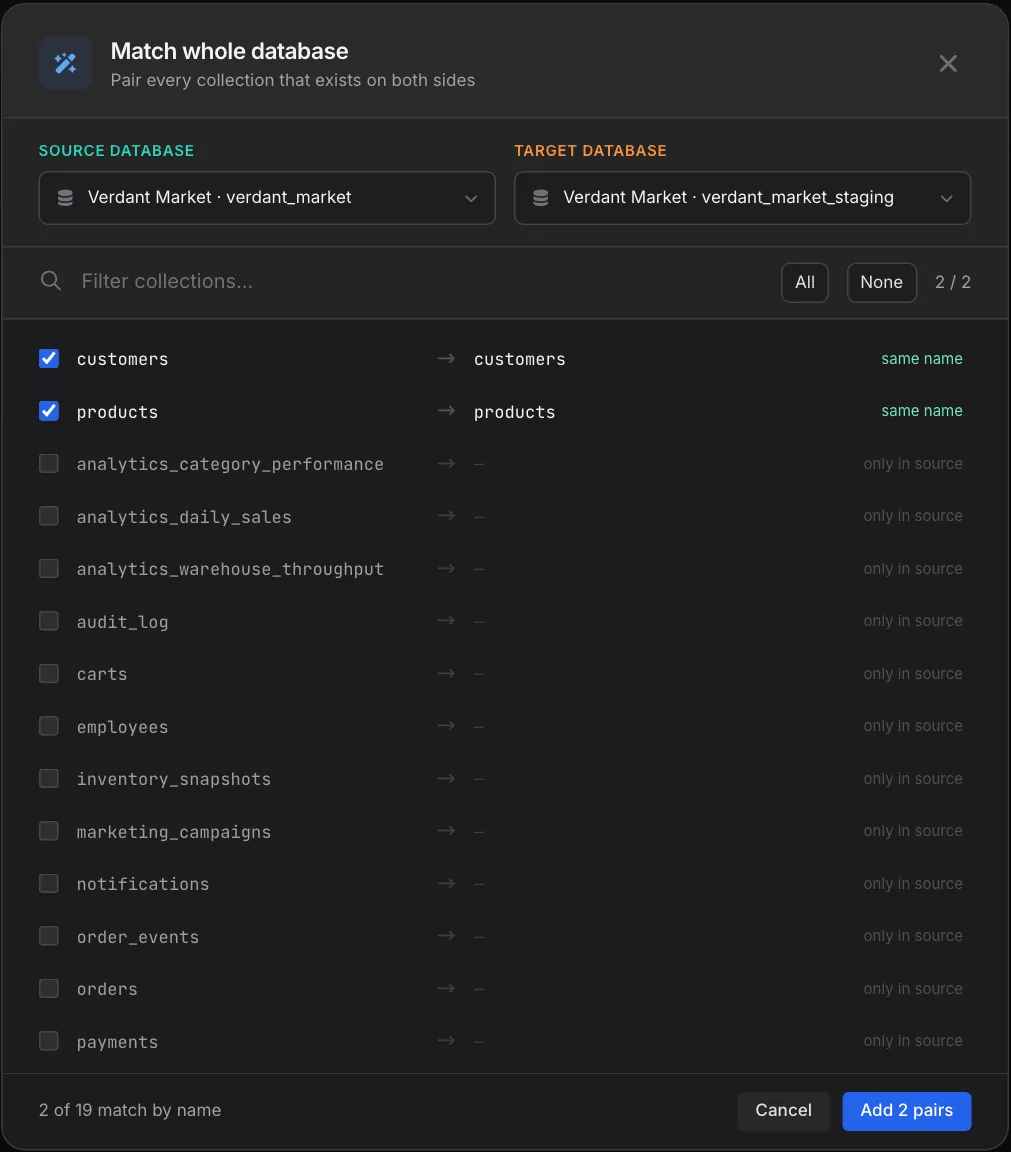
The fastest way to compare two copies of the same database. Click Match whole database, then choose the Source database and Target database — each one is a connection and database, so the two can live on different servers.
- Every collection that exists on both sides is listed as a pair, marked same name, and checked
- Collections that exist on only one side are listed as only in source or only in target and left unchecked
- Use the filter box, All and None to narrow the list; the footer shows how many collections match by name
- Click Add N pairs to put the checked pairs on the canvas
A MongoDB database can only be matched with another MongoDB database, and a SQL database with another SQL database.
Adding Pairs One by One
To compare collections whose names differ, or just a few of them, build the pairs yourself:
- Click Add source and pick a collection or table — or stop at the database to add all of it as one card
- Click Add target and do the same for the other side
- Drag a source collection onto a target collection, or click one and then the other, to pair them
A source can be paired with several targets. Clicking two database cards pairs all of their same-named collections at once. Hover a card and click its × to remove it from the canvas along with its pairs.
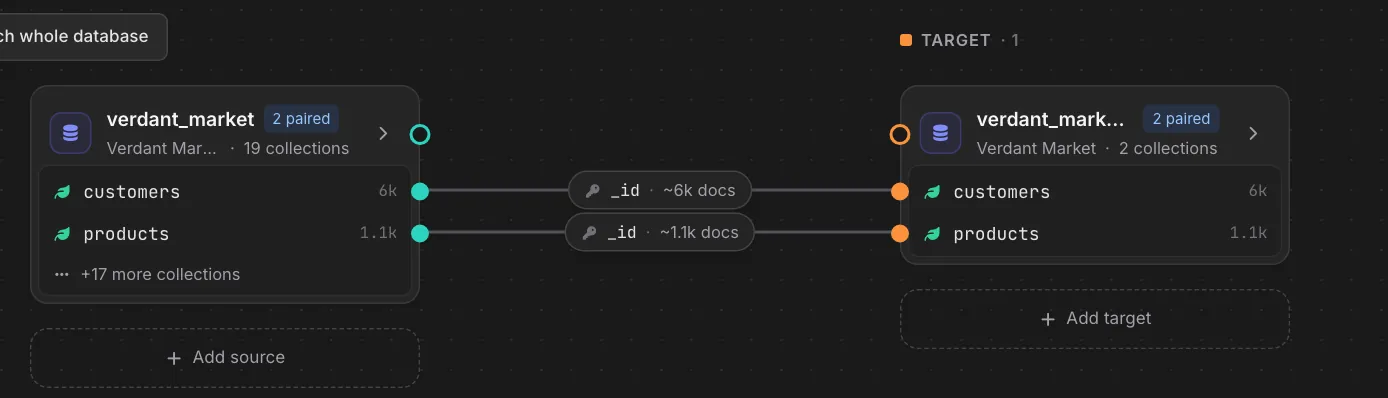
Each line carries a label showing the match key and an estimate of how many documents will be compared. A label shown in red means the pair has no match key yet.
Pair Settings
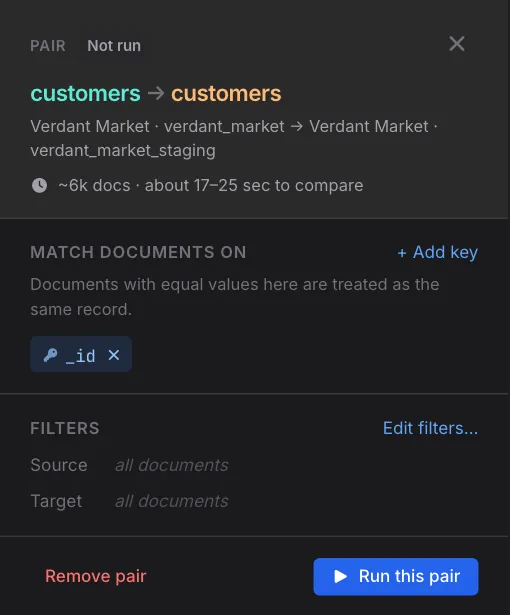
Click a pair's label to open its settings in the side panel. The panel shows the source and target, the estimated document count and how long the comparison should take, plus:
- Match documents on: the fields that identify the same record on both sides.
_idis the default; click + Add key to match on business keys such asemailorcustomerNumber - Filters: the source and target filters, shown as all documents until you set one. Click Edit filters… to limit either side with a query (for example
{"status": "active"}) or to include or exclude fields from the comparison - Run this pair to compare just this pair, and Remove pair to delete it
After a run, the panel also shows the pair's last result with an Open full results button.
Saving the Comparison
A comparison runs fine without a name, but naming it lets you come back to it:
- Name: type a name under the Data Compare title (it reads “Untitled comparison — name it to save” until you do)
- Save: stores the canvas and every pair's settings
- Saved: opens your saved comparisons and their past results
Running Comparisons
Click Run comparison to run every pair at once. If a connection a pair needs is not open, VisuaLeaf offers to connect it first.
- Each pair's label turns into a progress bar (“Comparing 42%…”), and the pair panel shows how many documents have been read so far
- When a pair finishes, its label shows the identical, modified and missing counts at a glance
- Once the runs have started, the view moves to the Results step; use the Setup breadcrumb to go back to the canvas
Comparison Results
The Results step shows one pair at a time; switch pairs from the selector at the top. The Summary tab gives the totals, when the run started and finished, how long it took, whether the result files are encrypted, and the match keys and filters used.
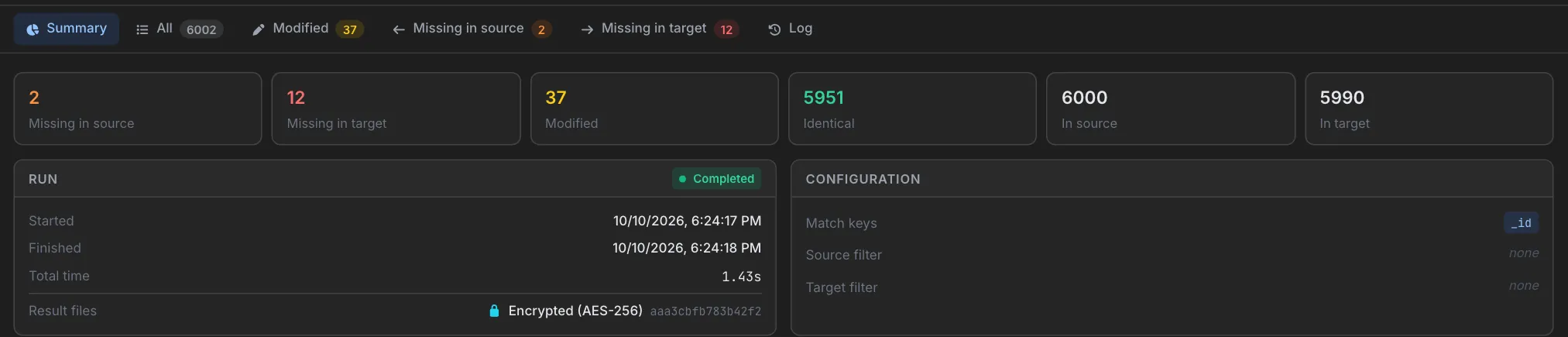
In the example above, production verdant_market.customers was compared against verdant_market_staging.customers: 37 customers differ, 12 exist only in production, and 2 exist only in staging.
Result Tabs
| Tab | Description |
|---|---|
Summary |
Totals, run timing and status, and the configuration used |
All |
Every compared document in one list |
Modified |
Documents that exist on both sides but have different field values |
Missing in source |
Documents present in the target but not in the source |
Missing in target |
Documents present in the source but not in the target |
Log |
History of sync operations performed on this comparison |
Results Table
Each list tab shows a paged table with a toolbar for Select all, Clear and Refresh, and the sync controls on the right. Its columns are:
- Checkbox: select documents to sync
- Field path / document ID: the match key value; expand a row to see its fields
- Status: Modified, Missing in source, Missing in target or Identical
- Source value and Target value: a preview of the document on each side (click to open it in Collection View)
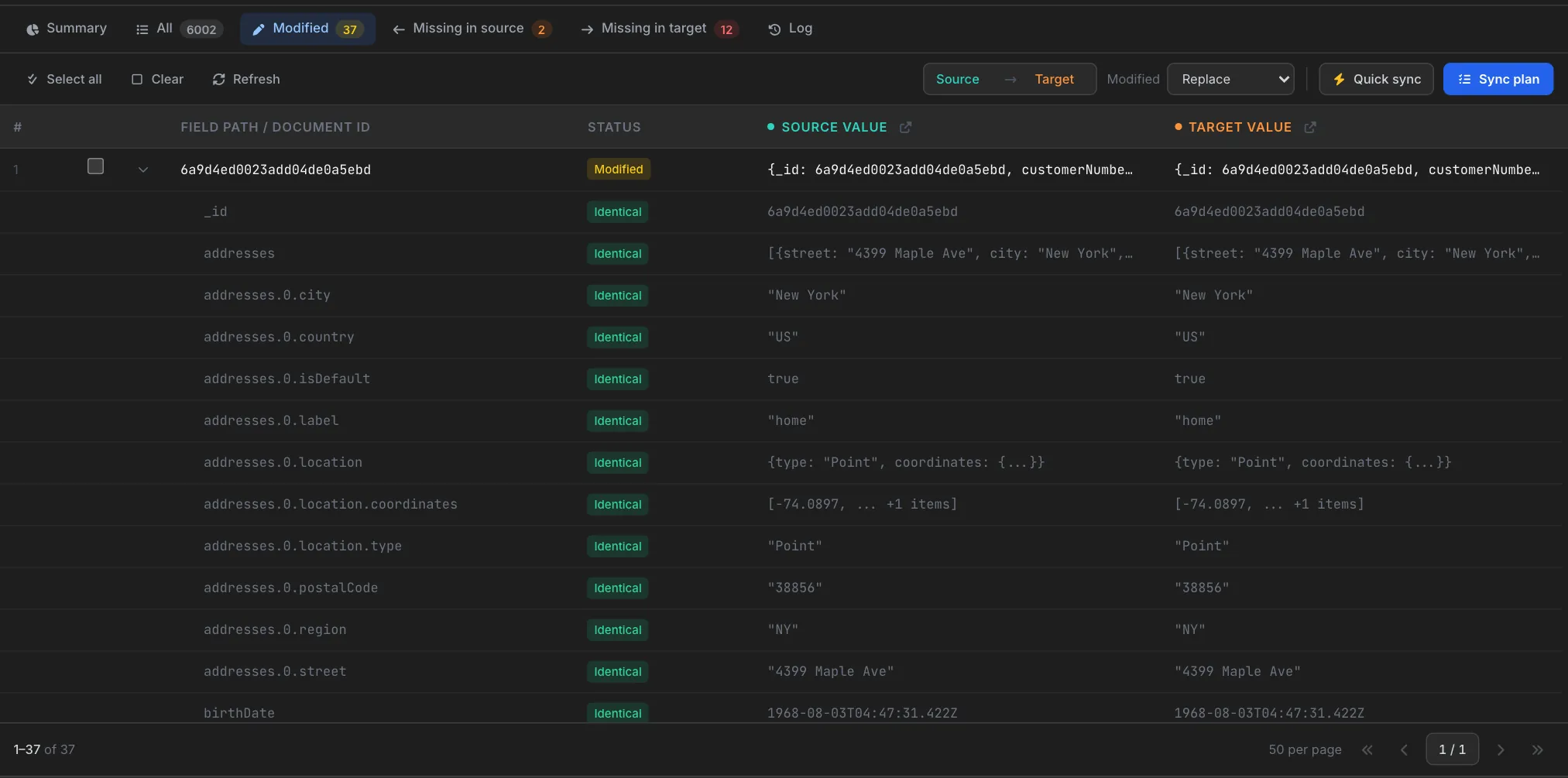
The Missing in target and Missing in source tabs list the documents that exist on only one side, with a field count and a preview of the document that does exist.
Viewing Field Differences
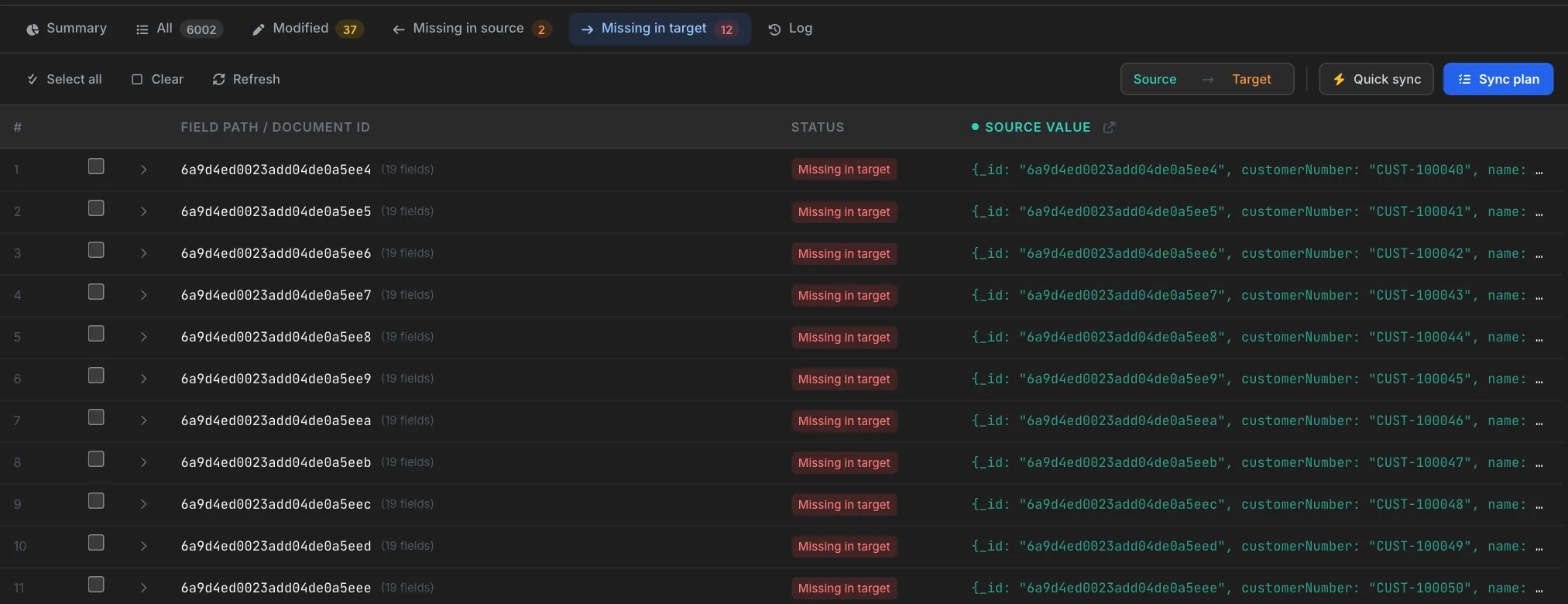
Click a modified document's row to expand it. Every field is listed by its path (e.g. addresses.0.city, preferences.language) with its value on each side. Unchanged fields are marked Identical; the fields that differ stand out with a Modified badge.
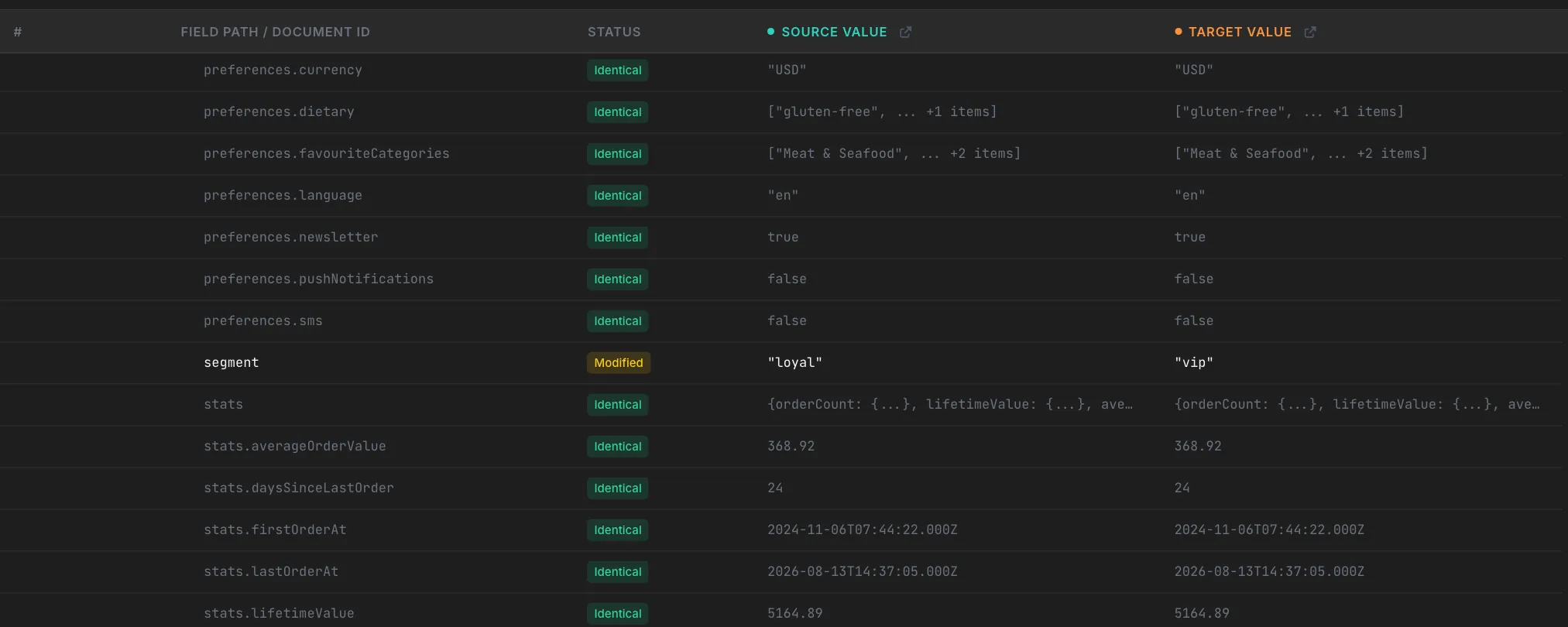
Here the only difference is segment: the customer is "loyal" in production and "vip" in staging.
Field-Level Diff Detection
Each document is classified into one of four buckets so you can filter results and sync exactly what you need:
| Bucket | Meaning |
|---|---|
| Identical | Match keys align and every compared field is equal on both sides |
| Modified | Match keys align but one or more fields differ — expand the row to see which |
| Missing in target | The document (or row) exists in the source but not in the target |
| Missing in source | The document (or row) exists in the target but not in the source |
Nested fields and array elements are compared individually and shown with dot notation, so a change deep inside a document is pinpointed rather than flagged on the whole object.
Walkthrough: Compare Two SQL Tables
Data Compare also works on SQL tables — for example a PostgreSQL customers table in production against the same table in staging. SQL tables pair with SQL tables, and MongoDB collections with MongoDB collections.
Prerequisites
- A connection to each database (they can be the same server or different ones)
- Read access to both tables
Step 1 — Add the connections
Open Connection Manager and add the SQL connections you want to compare, for example production and staging PostgreSQL.
Step 2 — Create the pair
- Open Data Compare and click New comparison
- Click Match whole database and choose the two databases (and schemas) to pair every same-named table — or use Add source / Add target to place individual tables and pair them
Step 3 — Choose the matching columns
Click the pair's label, then Pair settings…. Pick the target table, then mark the columns that identify a row (the primary key is a good choice) and any columns to ignore. A SQL pair cannot run until at least one matching column is chosen. You can also choose how the tables are compared:
- Automatic — picks the fastest method for the table size
- Full — reads and compares every row
- Hashed — only the ranges of rows that differ are read, which is much faster on large tables
Step 4 — Run the comparison
Click Run comparison. Progress appears on the pair's line just as it does for collections.
Step 5 — Review and sync
Open the Modified tab to see which columns drifted in which rows. Select the rows to fix, set the direction, choose whether to write All columns or only Changed columns, and click Quick sync. Then re-compare to confirm the tables now match.
Sync Operations
After reviewing the results, you can bring selected documents into line between the two sides.
Sync Direction (Bidirectional Plans)
The Source → Target toggle in the results toolbar sets which side is written to; click it to swap. The same result can sync either way without re-running the comparison.
- Source → Target: push the source's version into the target
- Target → Source: pull the target's version back into the source
For modified documents, choose how they are written: Replace the whole document, or Update ($set) only the changed fields. When fields are excluded from the comparison, $unset options are offered as well.
Live Progress Monitoring
Comparisons and syncs both report progress as they go:
- Each pair's line on the canvas shows a percentage and progress bar while it runs
- The pair panel shows how many documents have been read out of the total
- Finished pairs show their identical, modified and missing counts on the line
- You can cancel a running comparison from the results view
Generating a Sync Plan
There are two ways to sync: Quick sync writes immediately, while Sync plan shows you exactly what will be written first. For MongoDB collections:
- Select documents using the checkboxes (or Select all)
- Set the sync direction and how modified documents are written
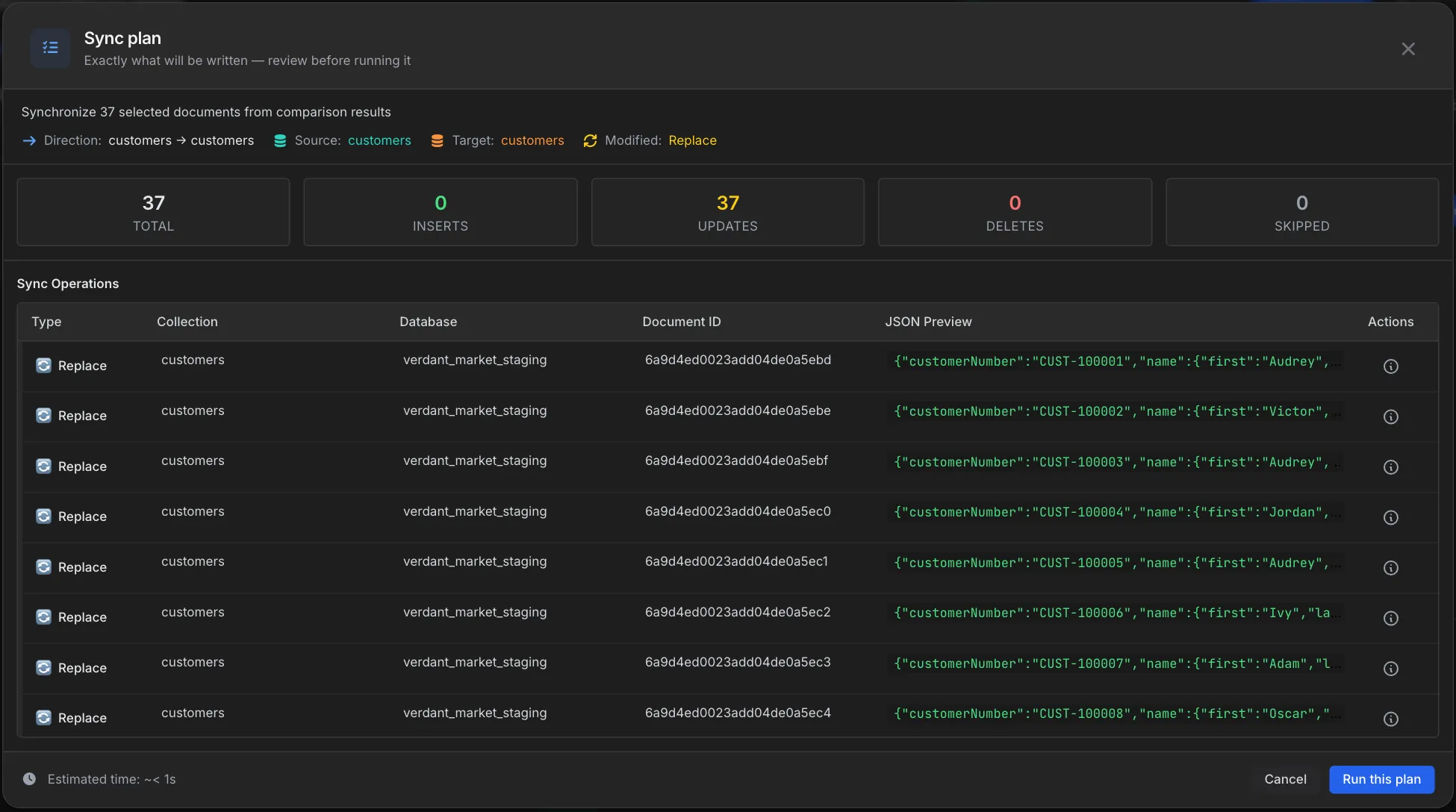
- Click Sync plan
- Review the plan: the direction, the totals for inserts, updates, deletes and skipped documents, and a row per operation with a JSON preview
Sync Plan Operations
| Operation Type | Description |
|---|---|
Insert |
The document is added to the side being written (for missing documents) |
Replace / Update |
The existing document is replaced, or only its changed fields are updated (for modified documents) |
Delete |
The document is removed from the side being written |
Executing Sync
- Review the plan's operations carefully
- Check the estimated time at the bottom of the dialog
- Click Run this plan to apply the changes
- Watch the progress as operations complete
- Check the Log tab for the operation history and any errors
- Re-compare to confirm the two sides now match
Sync Log
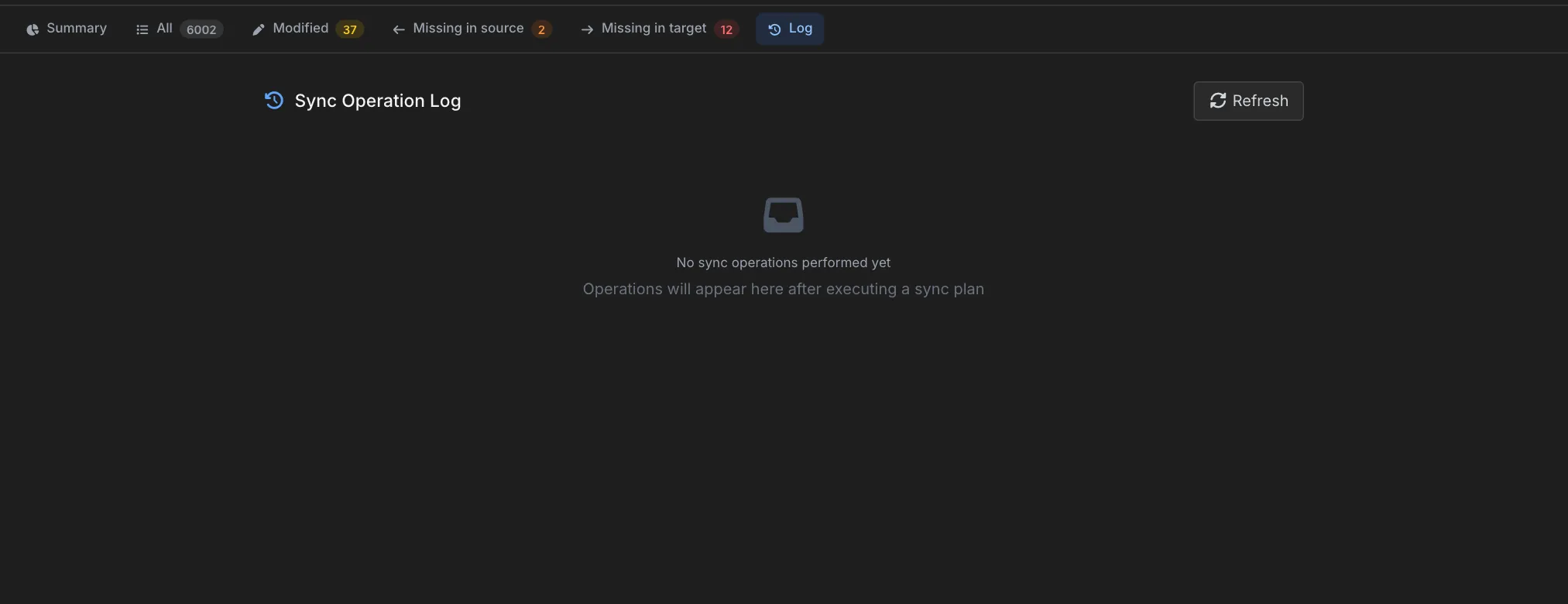
The Log tab records every sync run against this comparison — the operation, whether it succeeded, where it was written, the document it touched, when it happened and any error message. Until you run a sync it reads “No sync operations performed yet”.
Additional Features
Opening Documents
Click a source or target value in the results table to open documents:
- Click: open the document in Collection View
- Cmd/Ctrl + Click: open it in a new panel
- Bulk open: click the open icon next to the Source value or Target value column header to open several documents at once
Storage Configuration
Comparison results are stored locally and can be encrypted. Click the storage path in the results header to open settings and change the results directory.
Re-comparing
Run the comparison again with the same configuration from the results header, or click Run this pair on the canvas. This is the quickest way to confirm a sync did what you expected.
Common Use Cases
Environment Synchronization
Match a production database against staging in one step to see every collection that has drifted, then push or pull the differences.
Data Migration Validation
After migrating data, compare source and destination to verify completeness. Check for missing or modified documents.
Backup Verification
Compare a collection against its backup to ensure data integrity and identify any discrepancies.
Multi-Region Consistency
Compare collections across different MongoDB instances or regions to ensure data consistency.
Pro Tips
- Start with Match whole database: it pairs every same-named collection in one go; uncheck the ones you don't need.
- Use filters for large collections: source and target filters limit what is compared and speed up the run.
- Choose good match keys: use unique identifiers like
_idor business keys (email,orderId) so documents are matched correctly. - Name and save recurring comparisons: a saved comparison keeps its canvas and pair settings for next time.
- Preview before syncing: use Sync plan rather than Quick sync when you want to see every operation first.
- Check the Log tab and re-compare: after a sync, review the log for failures and run the pair again to confirm.
Related Features
- Collection Activity - Open and edit individual documents from comparison results
- Export Data - Create backups before performing sync operations
- Collection Statistics - Review collection sizes before running large comparisons
Ready to try VisuaLeaf?
Download and start managing your MongoDB and SQL databases with ease.
Download Free Trial