Keyboard Shortcuts
Keyboard Shortcuts
The Keyboard Shortcuts screen lists every command that has a shortcut, grouped by where it works: navigation, tabs, the table and tree views, collections, the shell, GridFS and more. Search by name or by key, and rebind the commands you use most. Your changes are saved with your settings.
Quick Start
- Click Shortcuts in the status bar, press Ctrl+/ (⌘+/ on macOS), or run See Keyboard Shortcuts from the command palette.
- Type in the search box, or pick a category such as Table or Shell.
- Hover a command and click the pencil to change its shortcut, then press the new keys.
- Click Save to keep your changes.
Browsing Shortcuts
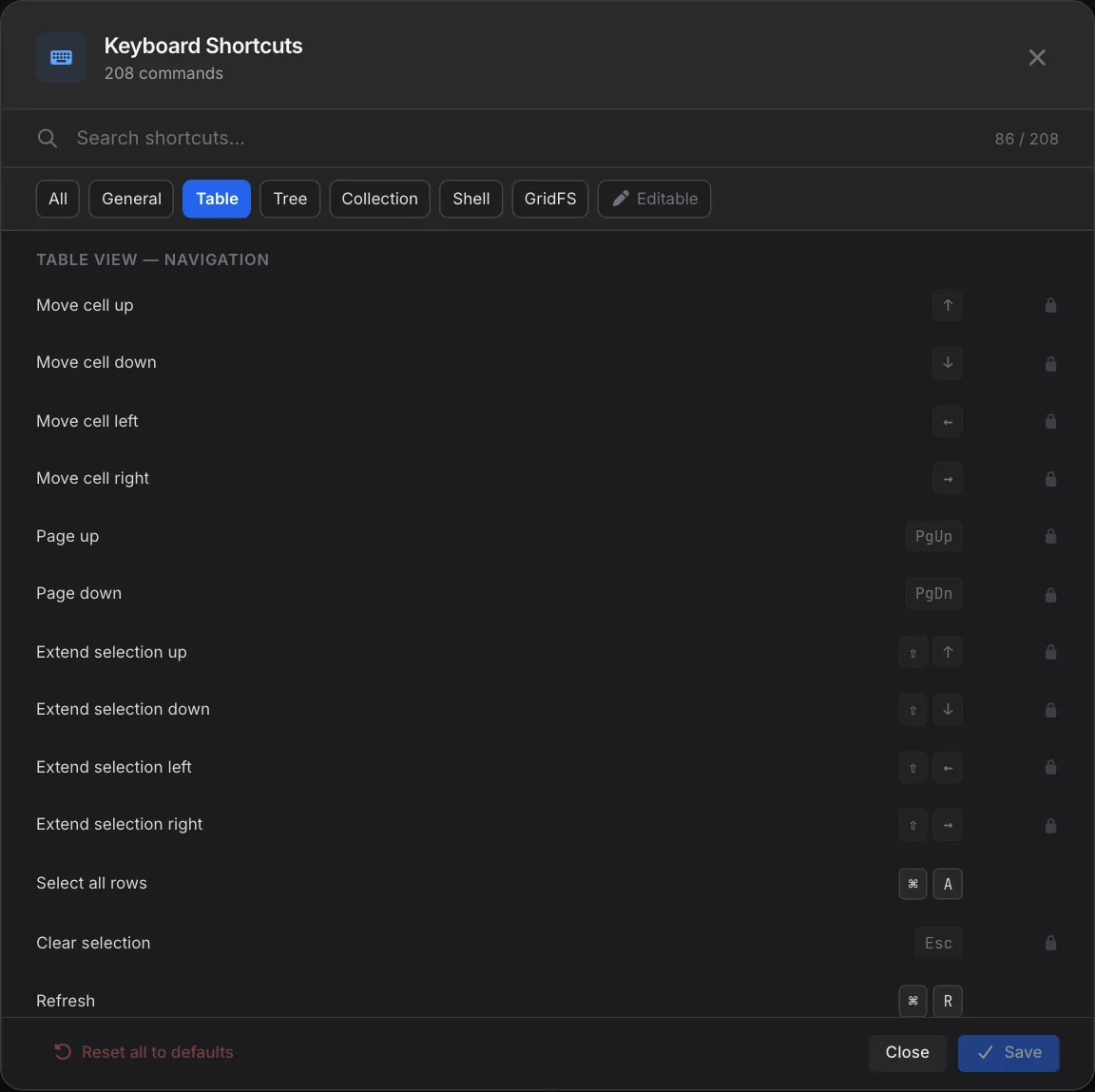
The header shows how many commands there are. Below the search box, filter pills narrow the list to All, General, Table, Tree, Collection, Shell or GridFS. Editable shows only the shortcuts you can change. A counter shows how many commands match.
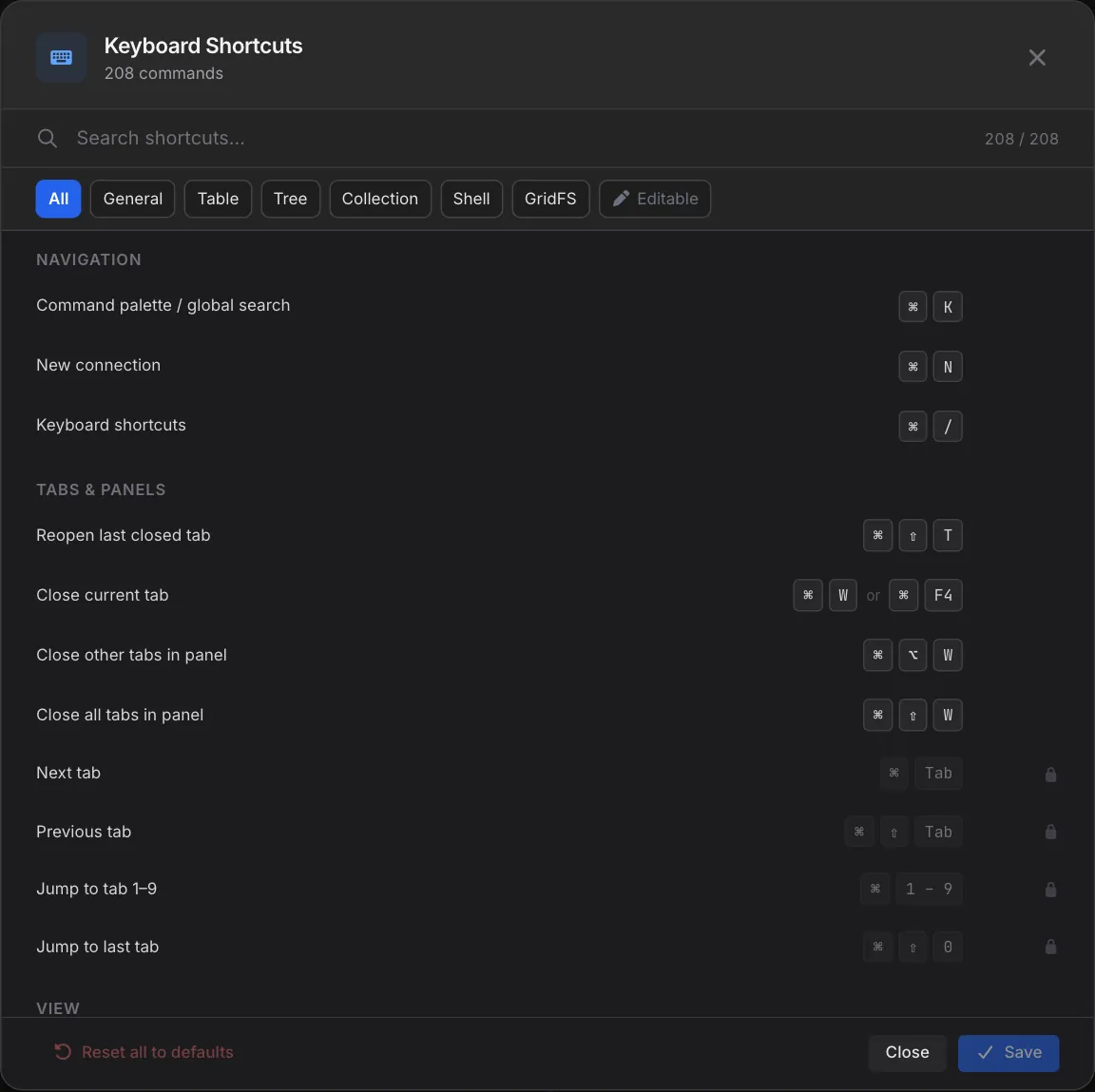
Search matches the key combination as well as the name, so typing shift or F5 finds every command that uses it. A command with two shortcuts shows both, separated by or.
Selecting a category groups its commands by area. For example, Table covers table-view navigation, editing, copy and paste, and search.
Common Shortcuts
On Windows and Linux use Ctrl; on macOS use ⌘. These are the defaults:
| Command | Shortcut |
|---|---|
| Command palette / global search | Ctrl+K |
| New connection | Ctrl+N |
| Keyboard shortcuts | Ctrl+/ |
| Reopen last closed tab | Ctrl+Shift+T |
| Close current tab | Ctrl+W or Ctrl+F4 |
| Close other tabs / all tabs in panel | Ctrl+Alt+W / Ctrl+Shift+W |
| Next / previous tab | Ctrl+Tab / Ctrl+Shift+Tab |
| Jump to tab 1–9 | Ctrl+1 … 9 |
| Table view: edit cell inline | F2 |
| Table view: find / find next | Ctrl+F / F3 |
| Table view: copy as CSV | Ctrl+Shift+S |
| Table view: delete row(s) | Shift+Delete |
| Shell: run script / run selected | F5 / Ctrl+F5 |
The Keyboard Shortcuts screen always shows the current bindings, including any you've changed.
Changing a Shortcut
- Hover the command and click the pencil (Change shortcut).
- Press the new key combination. It appears as you type. Press Esc or click Cancel to stop.
- Click Set, then Save at the bottom of the window.
Changed commands get a custom badge. If the keys you pick are already used by another command in the same place, a warning names that command and explains that setting the shortcut here will remove it there. If the keys mean something else in a different part of the app, you'll see a note, but nothing is unbound because both can work side by side.
Commands with a lock icon can't be changed. These include built-in navigation such as moving between cells, keys provided by the code editor, and zoom keys handled by the window itself. Hover the lock to see why.
Resetting Shortcuts
- Reset to default (the arrow next to a changed command) restores that one shortcut.
- Reset all to defaults at the bottom left restores every shortcut.
- Close without saving discards any changes you made in this session.
Pro Tips
- Learn one shortcut: Ctrl+K opens the command palette, which reaches almost everything else.
- Use the Editable filter to see only the commands you can rebind.
- Search by key before you rebind, to see what a combination already does.
- Match your other tools: rebind run and find commands to the keys you already use in your editor.
Related Features
- Command Palette - Run any command by name
- Status Bar - Where the Shortcuts button lives
- Settings - Other app preferences
- Collection View - Where most table and tree shortcuts apply
Ready to try VisuaLeaf?
Download and start managing your MongoDB and SQL databases with ease.
Download Free Trial