VisuaLeaf Command Palette
Command Palette
The Command Palette is VisuaLeaf's global, keyboard-first launcher. Press Ctrl+K on Windows/Linux or Cmd+K on macOS (or click Search or run commands… in the title bar), start typing, and hit Enter to run the top match. It searches every action, every collection or table across your live connections, every saved item, and every navigation destination in one list.
Quick Start
Three steps to reach anything in VisuaLeaf:
- Press Ctrl+K (Windows/Linux) or Cmd+K (macOS) from anywhere in the app.
- Type a few characters of what you want — a collection name, a command like "aggregation", or a keyword like "dark".
- Press Enter to run the highlighted match, or click any row directly.
What you can do from the palette
The palette brings everything into a single search box, so anything you would normally hunt for in a menu, a sidebar, or a tab is one keystroke away:
- Create things — open a new tab, add a connection, create a database or collection, start a shell or Redis script, generate mock data, build an aggregation or chart, and more.
- Jump to a collection or table — every MongoDB collection and SQL table across all your live connections appears as its own row, labelled with its connection and database.
- Open saved items — Saved Queries, Saved Scripts, Saved Charts, and Saved Dashboards.
- Navigate — the destinations in the left activity bar, such as Connection Manager, My Files, Compare, Data Sync and Query Profiler.
- Manage the workspace — open the Workspace Manager or clear the "recently closed" list.
- Change settings — open Settings, toggle Dark / Light mode, view the keyboard shortcuts.
- Account — Sign in or Log out.
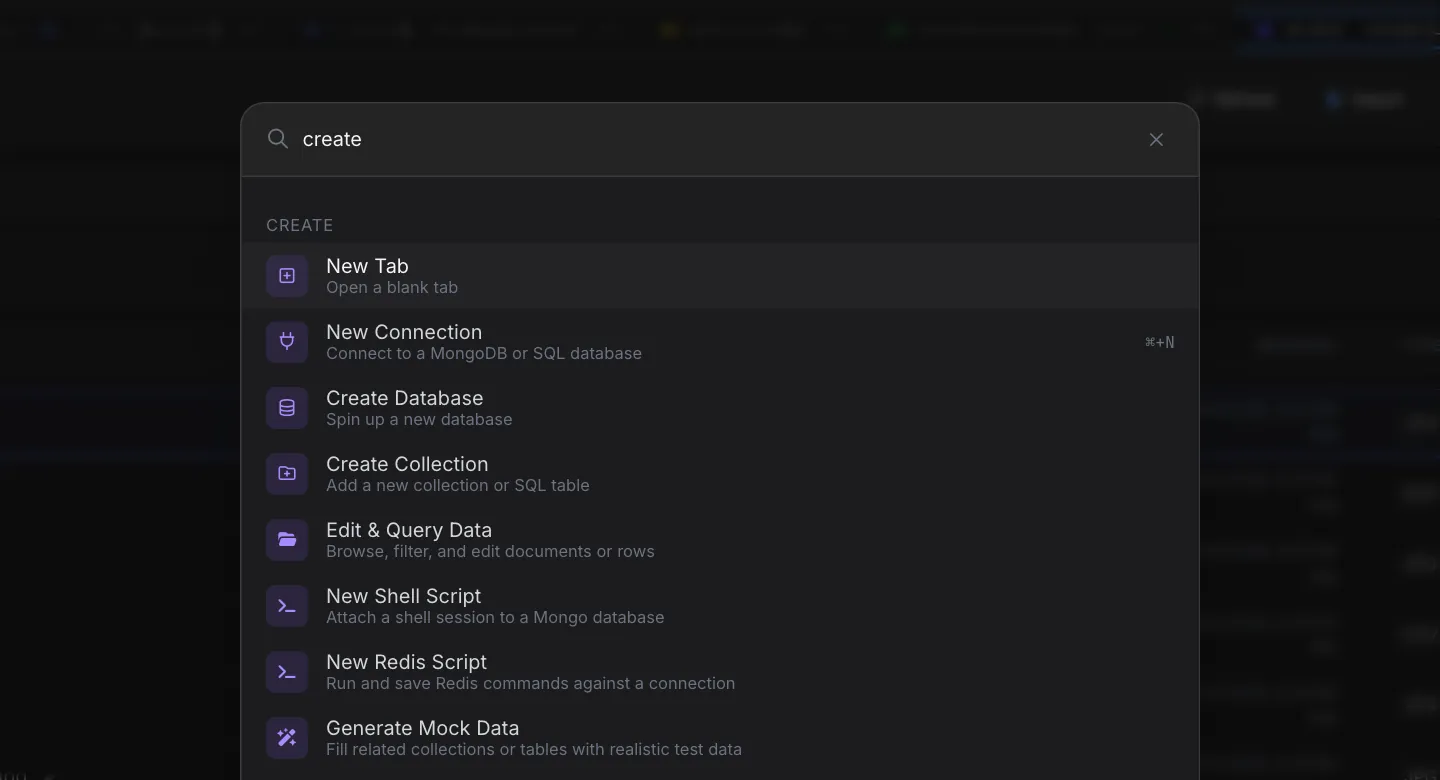
Categories
Results are grouped under category headers:
| Category | What it contains |
|---|---|
| Collections / Tables | Every MongoDB collection and SQL table across your live connections. Each row shows connection • database underneath, so you can tell apart collections with the same name. Listed first, because opening a collection is the most common thing people do. |
| Create | New Tab, New Connection, Create Database, Create Collection, Edit & Query Data, New Shell Script, New Redis Script, Generate Mock Data, Create Aggregation, Create Chart, Manage Indexes, Visual Schema, Schema Manager, Task Manager and more. Items only appear when your plan includes them. |
| SQL | SQL-specific actions when you have a SQL connection, such as New SQL Editor, Create Table, Manage Views, Query Profiling, SQL Users & Roles and SQL Server Info. |
| Navigation | The destinations in the left activity bar — Connection Manager, My Files, Compare, Data Sync, Query Profiler and the rest, including user and group management for admins. |
| Saved Items | Saved Queries, Saved Scripts, Saved Charts, Saved Dashboards. |
| Workspace | Manage Workspaces and Clear Recent Activities (only when there is something to clear). |
| Settings | Open Settings, Switch to Light / Dark Mode, See Keyboard Shortcuts, Tutorials. |
| Account | Sign In when signed out, Logout when signed in. |
Per-category "show more / show less"
Where the palette is shown with nothing typed (for example inside a New Tab), long categories are trimmed and end with a Show N more button; once expanded it becomes Show less. As soon as you type, every match is shown, so you never miss a hit behind a collapsed category.
Sub-action chips
Collection and table rows show a strip of quick links on the right. Clicking the row opens the collection; clicking a chip jumps straight to a specific view of that same collection or table.
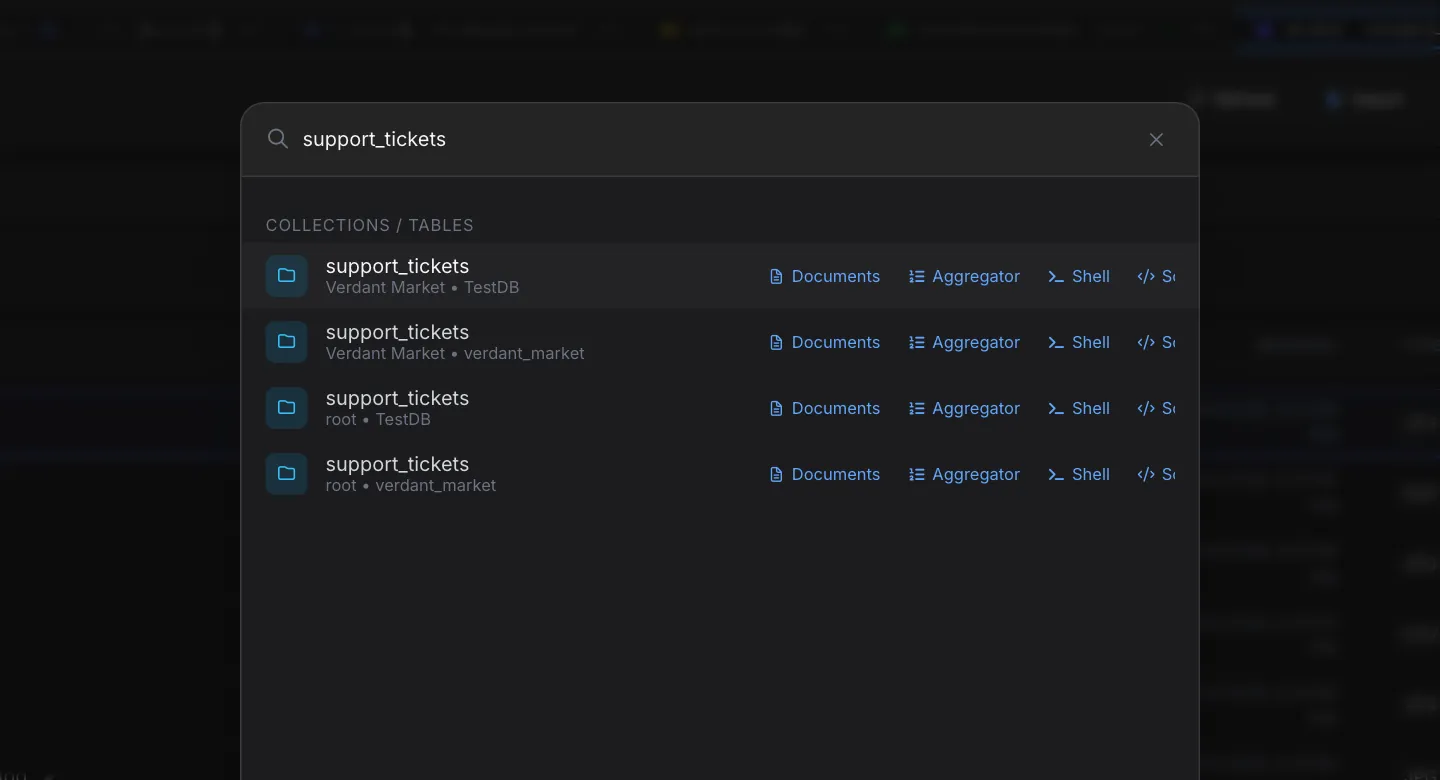
MongoDB collection chips
- Documents — open the collection browser.
- Aggregator — open an Aggregation activity for this collection.
- Shell — open a Mongo shell with
db.getCollection("<name>").find({})ready to run. - Schema — open the JSON / BSON Schema viewer or editor.
- Charts — start a chart from this collection.
- Indexes — open the Index Manager.
- Export — export this collection.
- Import — import into this collection.
SQL table chips
- Rows — open the table's rows.
- Schema — inspect columns and DDL.
- Editor — open the SQL Editor pre-filled with
SELECT * FROM <table>;. - Constraints — indexes, primary and foreign keys.
- Export — export this table.
- Import — import into this table.
When there are more chips than fit, scroll the strip sideways. The palette remembers where you scrolled each row's strip, so it stays put as you move up and down the list.
What each row shows
Each result row has an icon, a title, and usually a one-line description underneath. Some rows also show:
- A shortcut hint on the right, such as
⌘+Nfor New Connection, so you can learn the key for next time. - Sub-action chips on collection and table rows (see above).
If nothing matches what you typed, the palette says No commands match "<query>".
Category headers
Each group of results starts with a small uppercase header, such as CREATE or COLLECTIONS / TABLES, so you can see at a glance what kind of thing each match is.
Keyword search
Typing matches against each item's title, category and description, plus extra keywords chosen for that item. That means you can find things by what you want to do instead of the exact wording — "mock" finds Generate Mock Data, "night" and "day" both find the theme toggle, "cheatsheet" finds the keyboard shortcuts, and "etl" finds Task Manager.
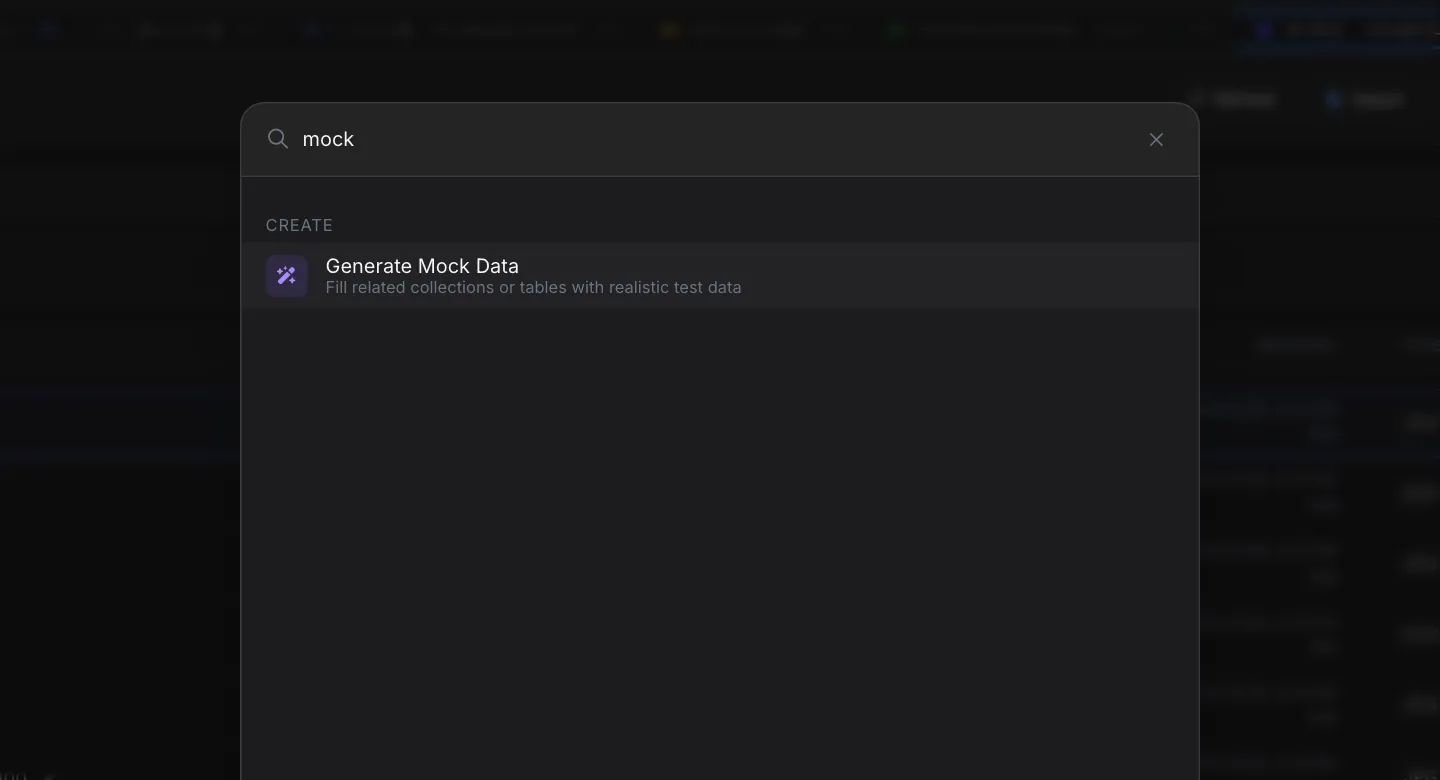
Inside a New Tab
The same search also appears inside a New Tab (Blank Activity), limited to Create, Saved and Navigate. There, picking a result opens it in that tab instead of a new one, and Esc clears the search box rather than closing anything.
Large workspaces
The palette stays fast even when your connections hold thousands of collections and tables, so you can keep typing to narrow the list without waiting.
Keyboard shortcuts
| Key | Action |
|---|---|
| Ctrl+K / Cmd+K | Open the Command Palette. |
| Enter | Run the highlighted row. |
| ↑ / ↓ | Move the selection up or down (wraps around). |
| Esc | Close the palette (or clear the search inside a New Tab). |
The palette shortcut is listed under Navigation in the Keyboard Shortcuts screen, which you can open from See Keyboard Shortcuts in the palette, the Shortcuts button in the status bar, or Cmd/Ctrl+/. You can rebind it there. See Keyboard Shortcuts for the full list.
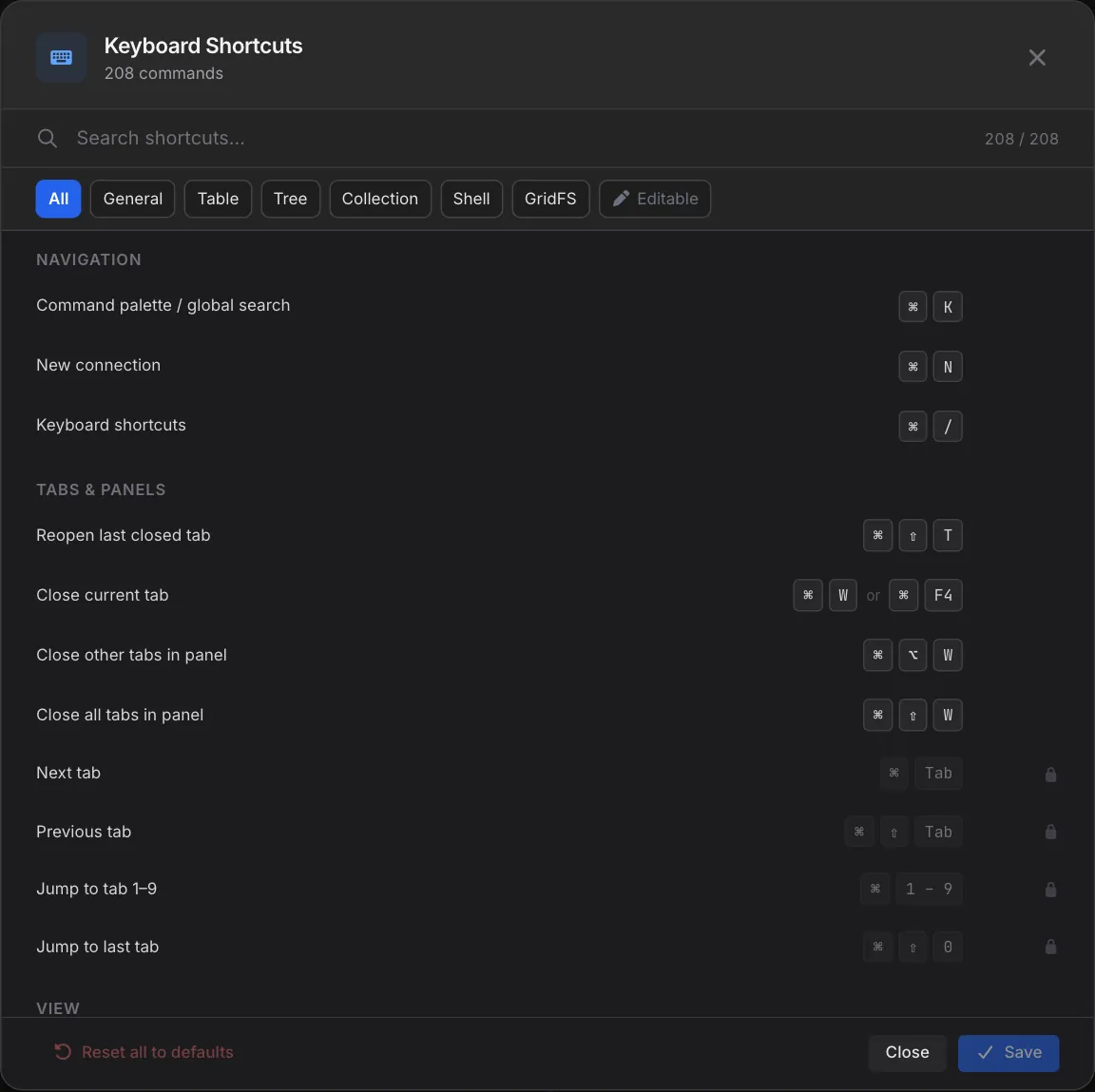
Tips
- Use keywords, not exact names. Typing "erd", "diagram", or "relations" all find Visual Schema.
- Cmd+K is the fastest way to open a collection. Collections / Tables is the top category, and every collection is a single row — type a few letters of the name and hit Enter.
- Chips skip a step. To jump straight to indexes on a collection, type the collection name, then click the Indexes chip instead of opening the collection first.
- Watch for shortcuts. Items like New Connection (
⌘+N) and Open Settings (⌘+,) display their global shortcut on the right of the row. - Same name, different database? Check the
connection • databaseline under each collection to pick the right one.
Related Features
- Blank Activity — the New Tab page, whose search box uses the palette filtered to Create, Saved, and Navigate.
- Settings — open with Open Settings or
⌘+,from the palette. - Sidebar — the palette's Navigation category mirrors the sidebar's top icons.
- Saved Queries — reachable from the palette's Saved Items category.
- Workspace Manager — opened by the palette's Manage Workspaces command.
- Keyboard Shortcuts — see and rebind every shortcut, including the one that opens the palette.
Ready to try VisuaLeaf?
Download and start managing your MongoDB and SQL databases with ease.
Download Free Trial