SQL Table Info
SQL Table Info
The Table Info (a.k.a. Table Management) activity is the single place to inspect and evolve an existing SQL table. It groups everything about a table — schema, triggers, constraints, partitions, storage — into tabs, and lets you switch into an edit mode that tracks additions, renames, type changes, and deletions before emitting the correct ALTER TABLE operations.
Quick Start
- Open the activity from a table's context menu (Table Management) or from the palette.
- Review the read-only Schema tab: columns, types, PKs, indexes, foreign keys.
- Click Edit to enter diff-aware mode. Add, rename, retype, or delete columns; new rows are highlighted green, modified rows yellow, and deletions red.
- Click Save to preview and apply the generated
ALTER TABLEoperations. - Use Show DDL in the top bar at any time to inspect the current
CREATE TABLE+ index statements.
Opening It
The activity opens with a breadcrumb showing connection → database → table → Table Management. Use the top-right buttons to:
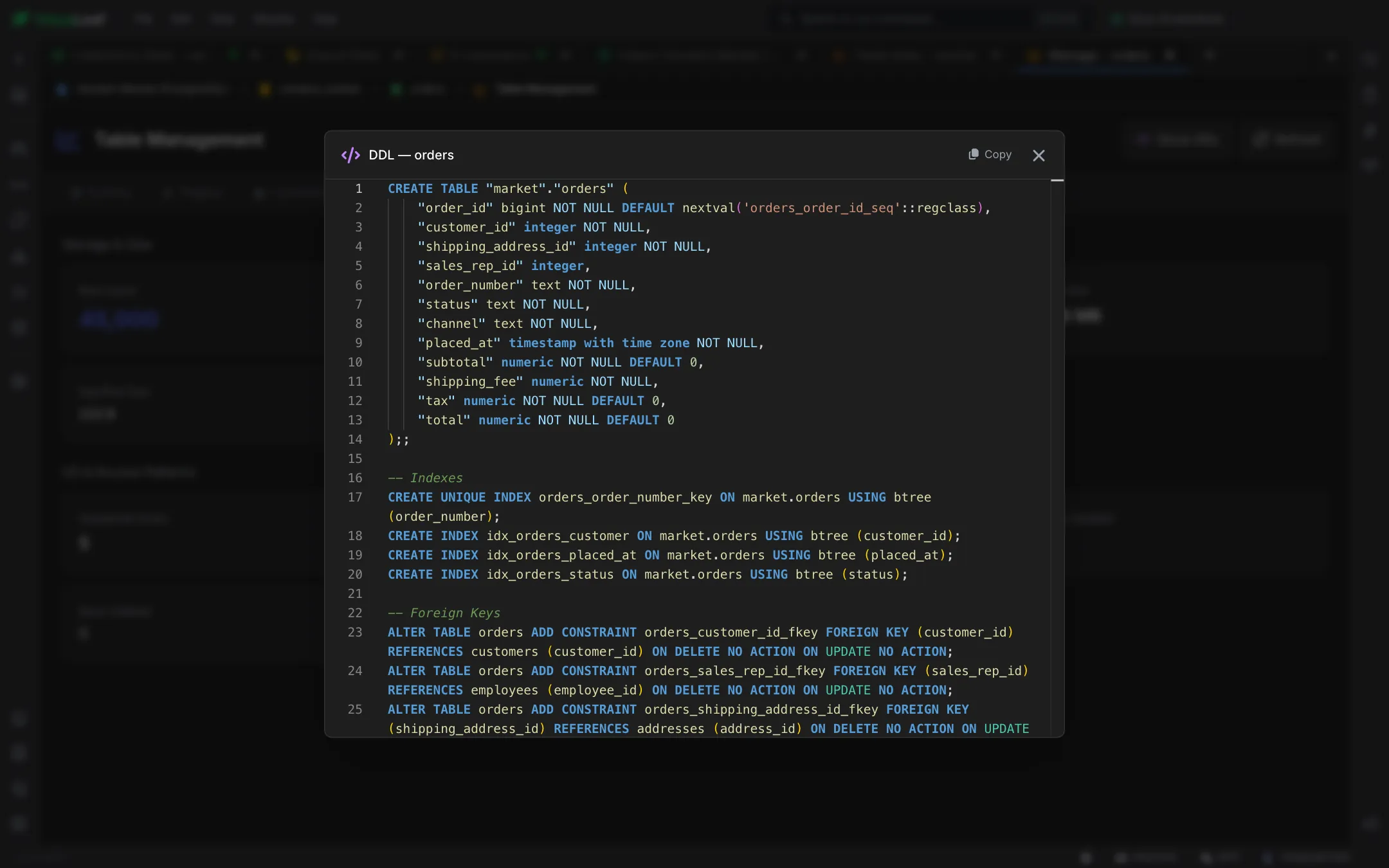
- Show DDL — pops open a code viewer with the
CREATE TABLEstatement and any associatedCREATE INDEXstatements. - Refresh — reloads the schema, triggers, constraints, partitions, and storage stats.
Schema Tab
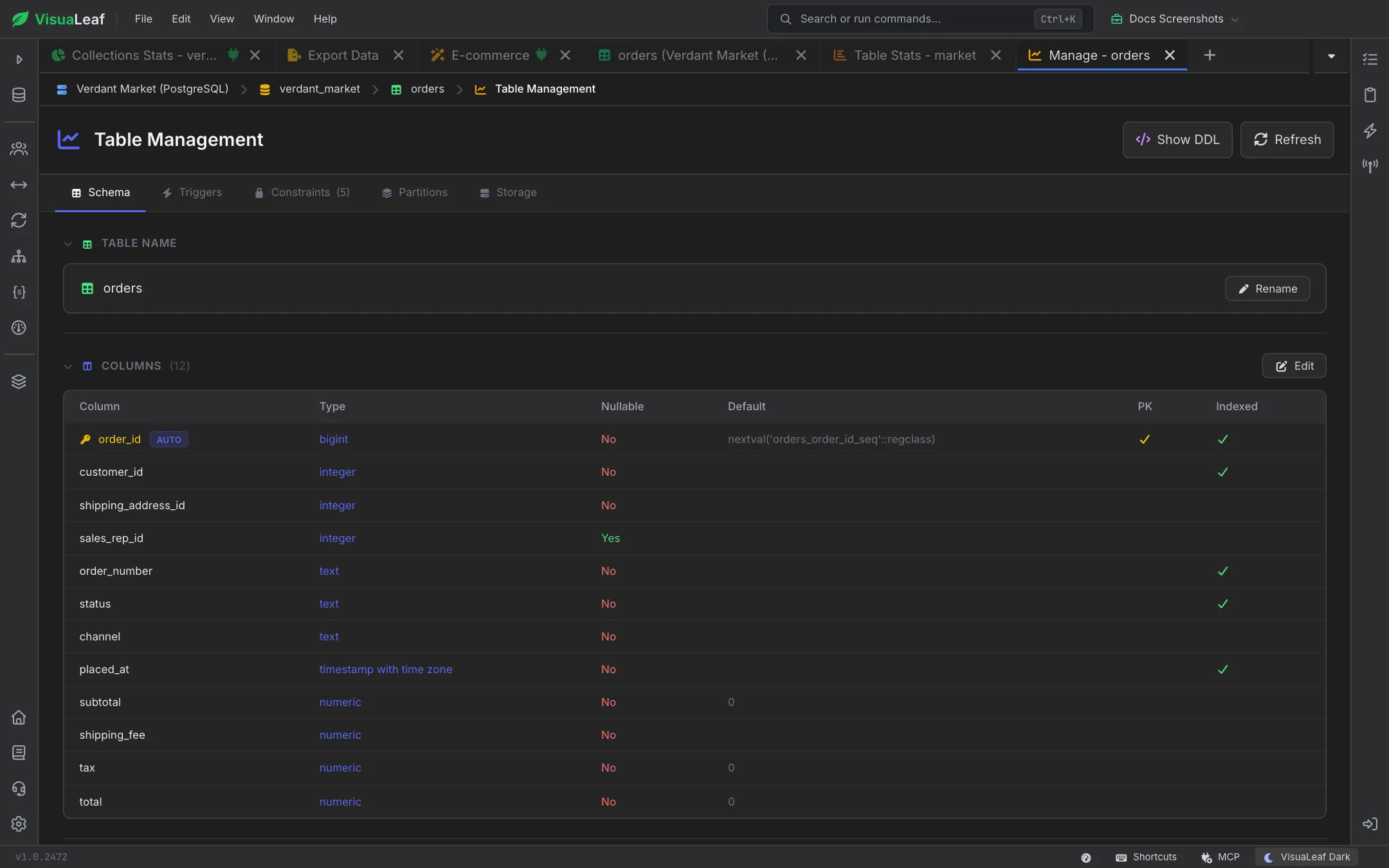
The Schema tab is split into collapsible sections: Table Name (with a Rename button), Columns, Foreign Keys, Indexes, and Partitioning. Each section has its own Edit button. The Columns section lists every column with the following attributes:
| Column | Meaning |
|---|---|
| Column | Identifier; primary-key columns are highlighted with a key icon and an AUTO badge marks auto-increment. |
| Type | Data type as reported by the driver (e.g. INTEGER, VARCHAR(255), NUMERIC(12,2)). |
| Nullable | Yes or No. |
| Default | Server-side default, if any. |
| PK | Checkmark when the column participates in the primary key. |
| Indexed | Checkmark when the column is covered by an index. |
| Cardinality | Optional statistic; visible when the driver returns it. |
| Comment | Column comment, when set. |
Renaming the Table
Click Rename at the top of the schema tab, edit the identifier inline, then press Enter or click Apply. Cancel with Esc.
Edit Mode — Diff-Aware Editing
Click Edit to unlock a table-shaped editor with per-row status:
- Green — new column
- Yellow — modified column
- Red — column marked for deletion (Undo restores it)
Each row exposes: name, type + size(1)/size(2), unsigned for numeric types, default, PK toggle, nullable toggle, and an expandable panel for auto-increment (with Seed/Step) plus a comment field. Invalid names show an inline validation error.
When you press Save, VisuaLeaf builds a batched set of ALTER operations, e.g.:
ALTER TABLE users
    ADD COLUMN phone VARCHAR(32) NULL,
    ALTER COLUMN email TYPE VARCHAR(320),
    ALTER COLUMN email SET NOT NULL,
    DROP COLUMN legacy_flag;

COMMENT ON COLUMN users.phone IS 'E.164 formatted';
Foreign Keys
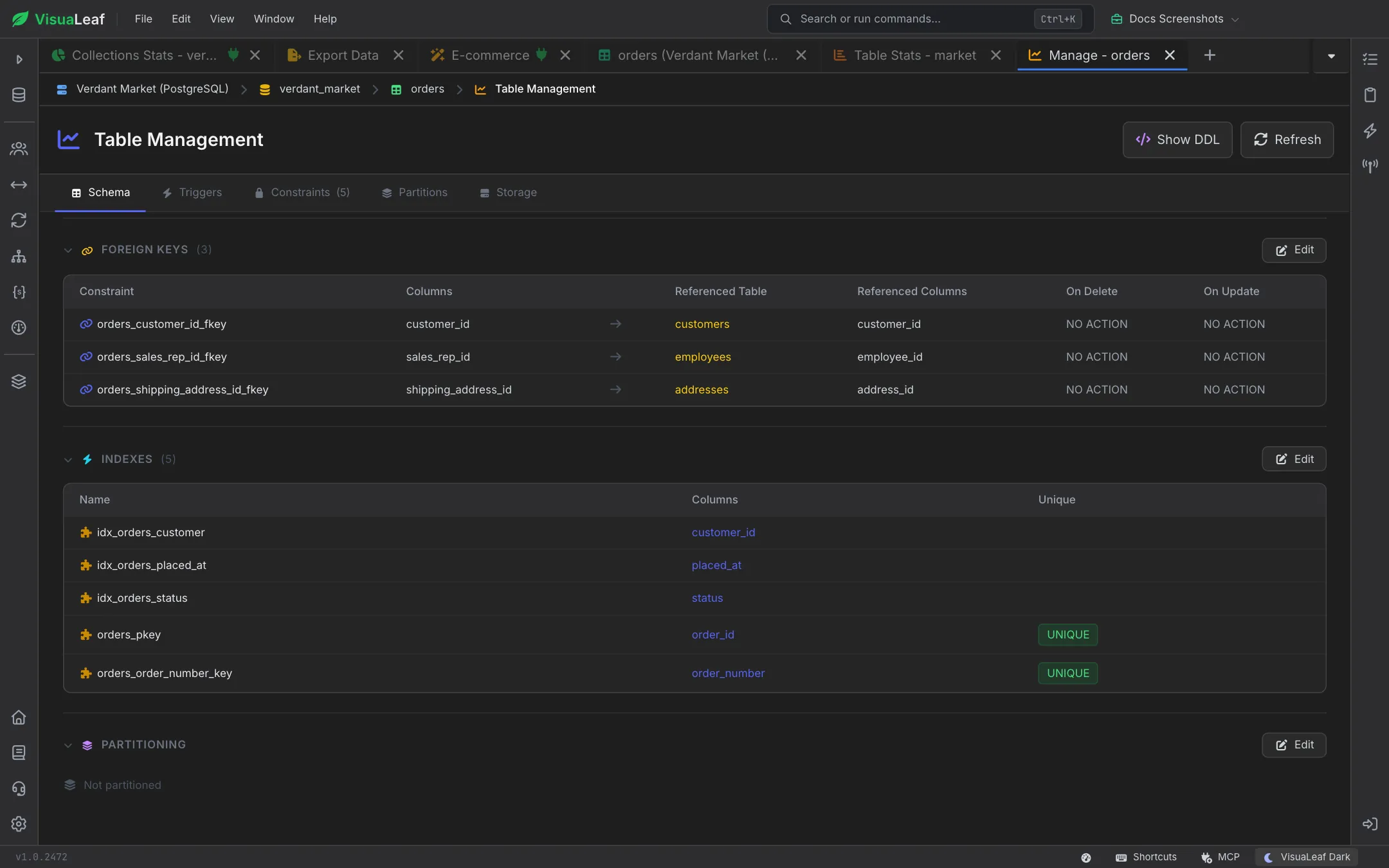
Below the columns, the schema tab lists foreign keys with constraint name, columns → referenced table/columns, plus ON DELETE / ON UPDATE actions.
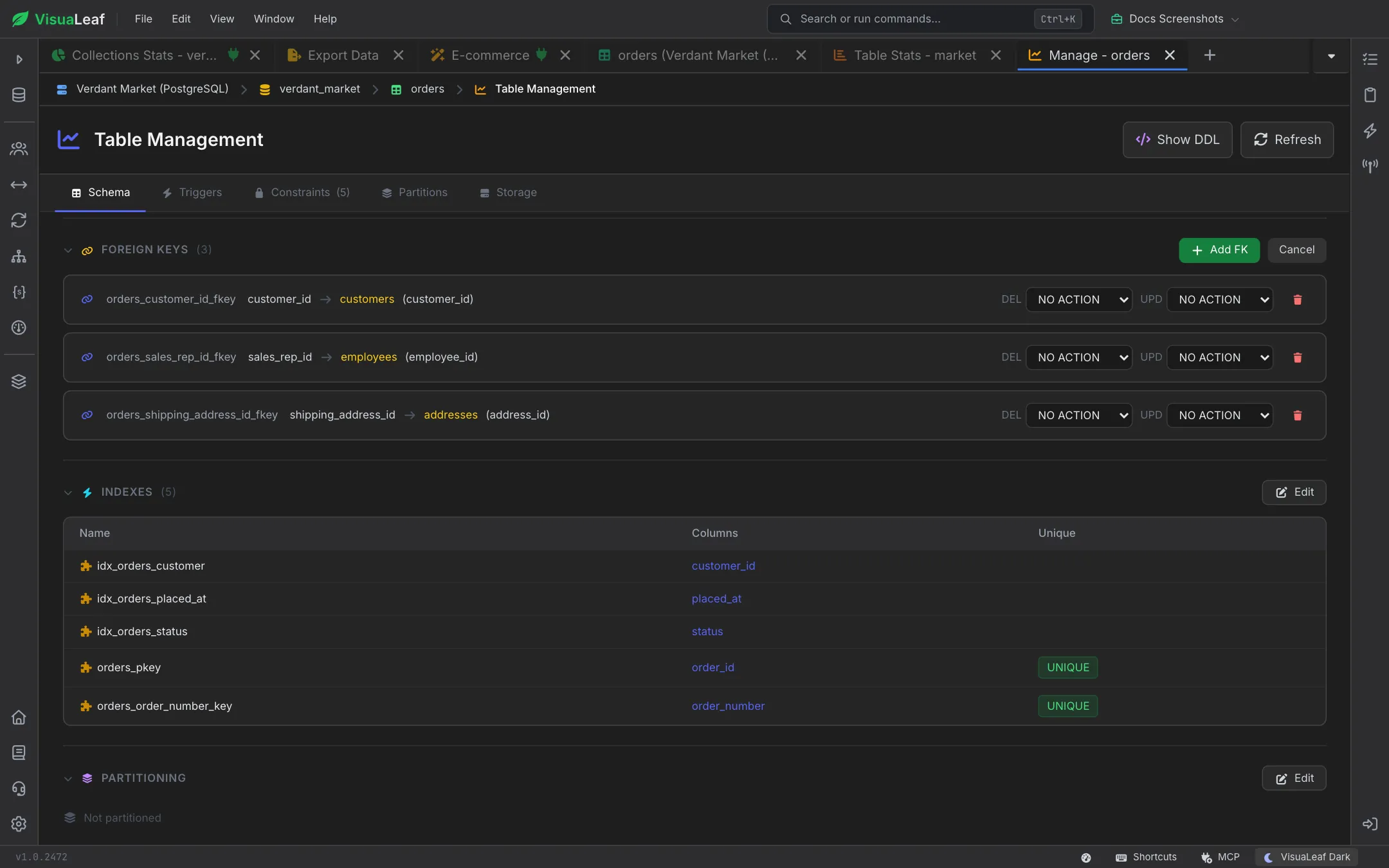
Click the section's Edit button to change them: each foreign key gets DEL and UPD action dropdowns and a delete button, and Add FK adds a new one. Type mismatches between local and referenced columns raise inline warnings before save. Cancel leaves edit mode without changes.
Indexes
Every index is shown with name, columns, and a UNIQUE badge where it applies, including the primary-key index. Edit mode supports creating new indexes and dropping ones you no longer need.
Triggers Tab
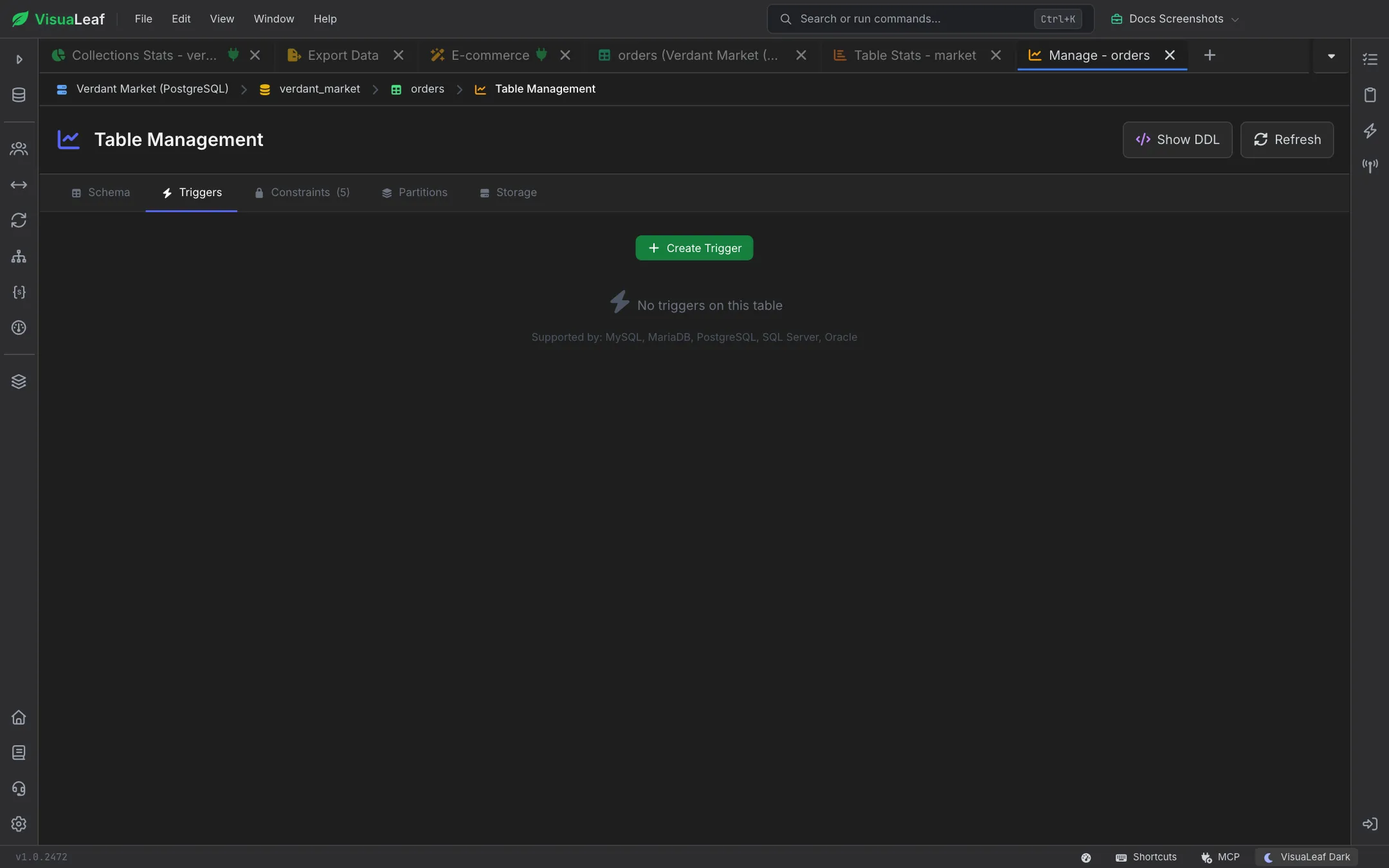
Lists trigger definitions attached to the table. Each entry can be opened in the code viewer to inspect the full CREATE TRIGGER body. Create Trigger adds a new one. Triggers are supported on MySQL, MariaDB, PostgreSQL, SQL Server, and Oracle.
Constraints Tab
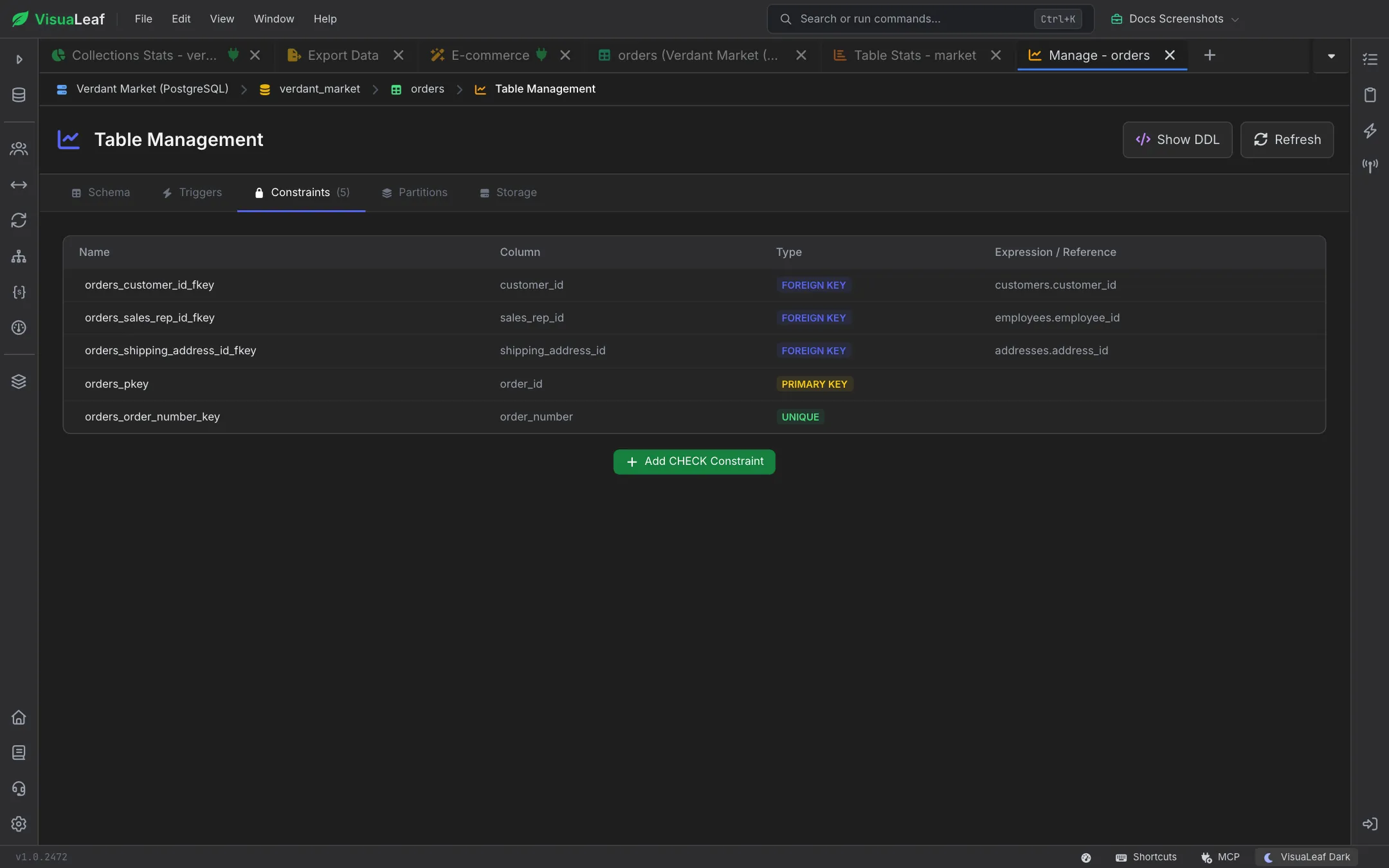
Enumerates every named constraint on the table — primary key, foreign keys, unique and check constraints — with its column, a type badge, and the expression or referenced column. Useful for auditing data-integrity rules alongside schema. Add CHECK Constraint adds a new check rule.
Partitions Tab
For dialects that support partitioning (MySQL, MariaDB, PostgreSQL, SQL Server, and Oracle), this tab lists partition names, expressions, and row counts. Non-partitioned tables say so.
Storage Tab
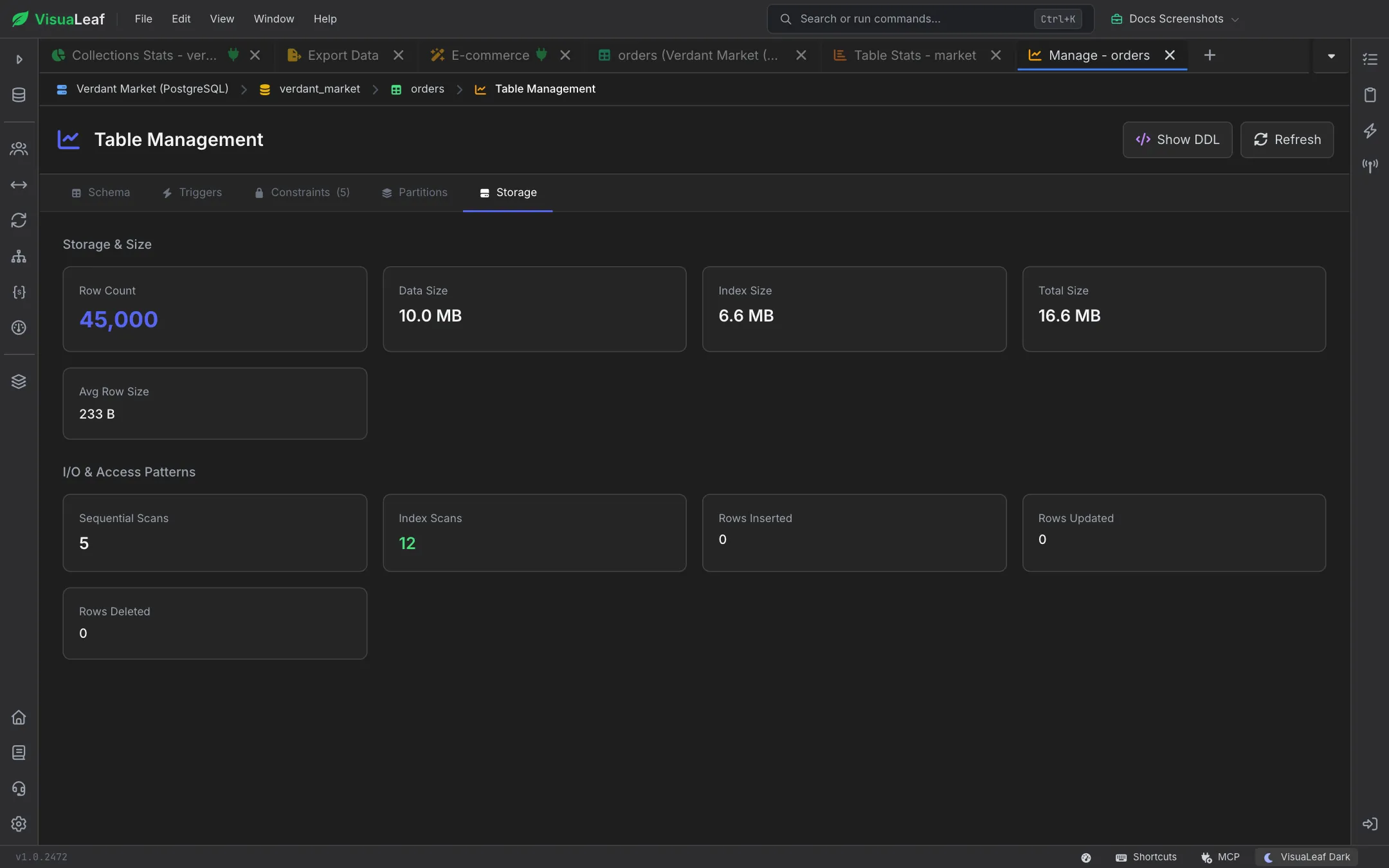
Shows storage-level metrics in two groups. Storage & Size has the row count, data size, index size, total size, and average row size. I/O & Access Patterns shows how the table has been used: sequential scans, index scans, and rows inserted, updated, and deleted. Some figures depend on what the database reports.
Safety Tips
- Preview the generated DDL before saving — VisuaLeaf shows a confirmation dialog listing every operation.
- SQL Server cannot add an
IDENTITYattribute to an existing column; the UI warns inline when this is attempted. - Deleted columns are reversible until you press Save; use the Undo icon to restore.
Related Features
- SQL Create Table - Build brand-new tables.
- SQL Table - Inspect rows and edit data.
- Table Statistics - Detailed size, row, and cardinality breakdowns.
- SQL Editor - Run ad-hoc DDL that the wizard does not cover.
Ready to try VisuaLeaf?
Download and start managing your MongoDB and SQL databases with ease.
Download Free Trial