VisuaLeaf Blank Activity
Blank Activity
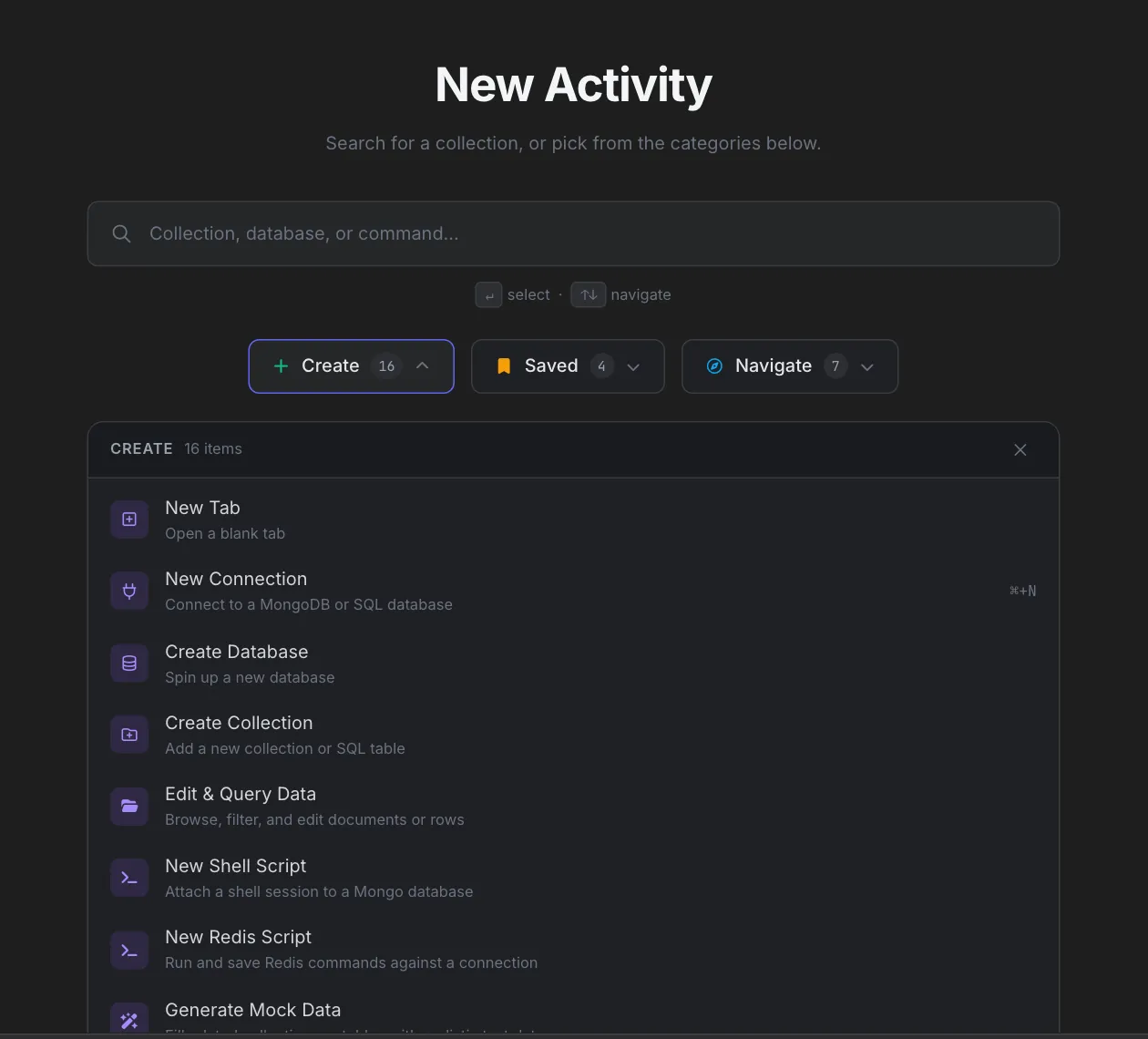
Blank Activity is what a fresh tab looks like in VisuaLeaf. It opens a New Activity page with a big centered search box and three menus underneath — Create, Saved and Navigate — and no database pinned to it, so you can go from there to any collection, table, or tool in the workspace.
Quick Start
Open a blank tab and jump wherever you want:
- Click the + button at the end of any panel's tab bar — or press Ctrl+K / Cmd+K and run New Tab.
- Start typing a collection name, table name, or command in the search box, or open one of the Create, Saved or Navigate menus.
- Press Enter (or click) to open the result — it replaces the blank tab in the same panel.

Opening Blank Activity
- The "+" button on a panel — the fastest way. Every tab bar ends with a plus icon that opens a new tab in that specific panel, so split-panel workflows stay in the right pane.
- Command Palette — press Ctrl+K / Cmd+K, type "New Tab", and hit Enter. It's at the top of the palette's Create category.
What's on the page
The page is a single centered column with a search box and a row of three menu buttons.
Search box
A wide search box with the placeholder "Collection, database, or command...". Click it or start typing to see results right underneath. Below the box, a small hint reminds you that ↵ selects and ↑/↓ move through the list.
Create, Saved and Navigate menus
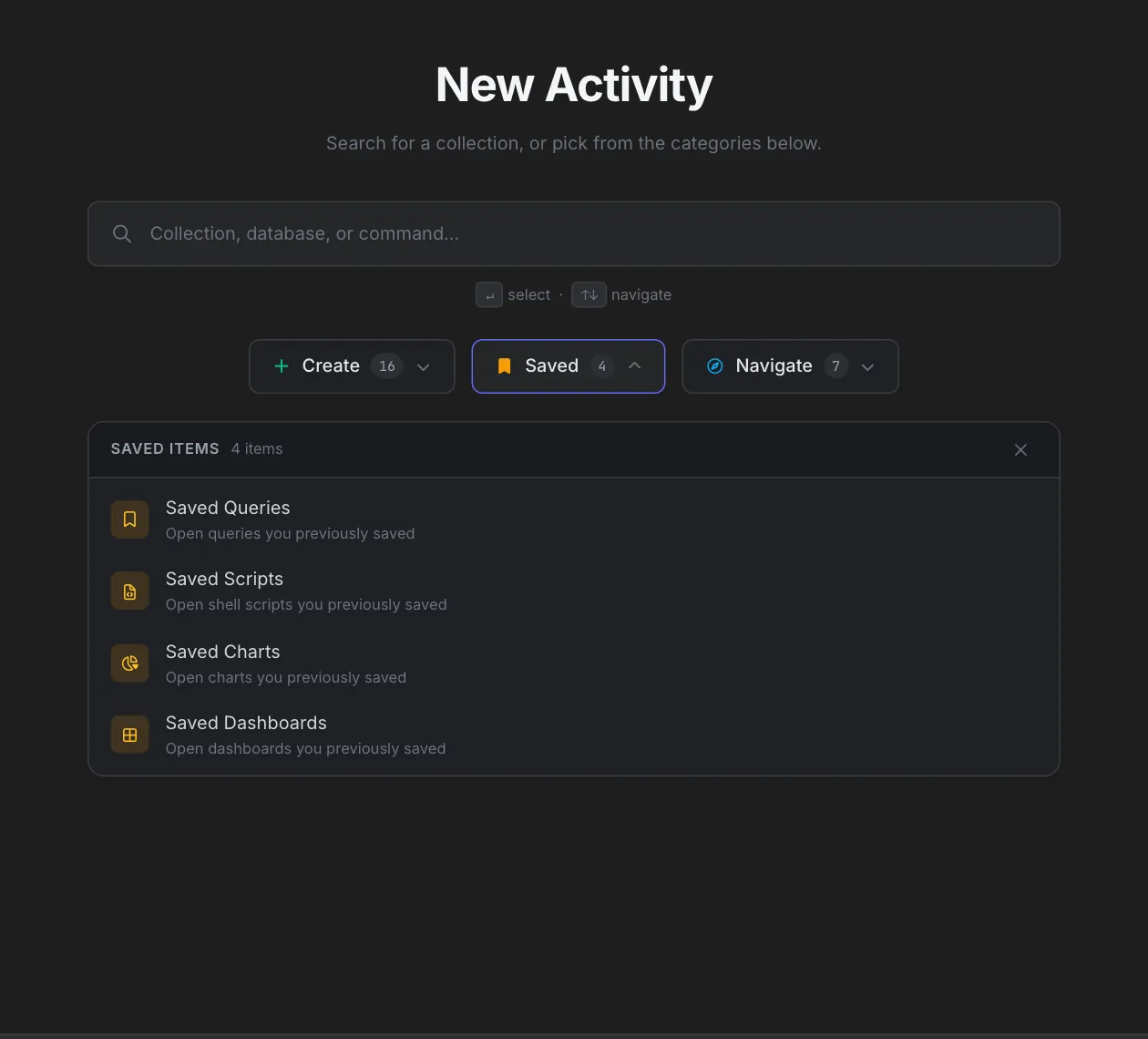
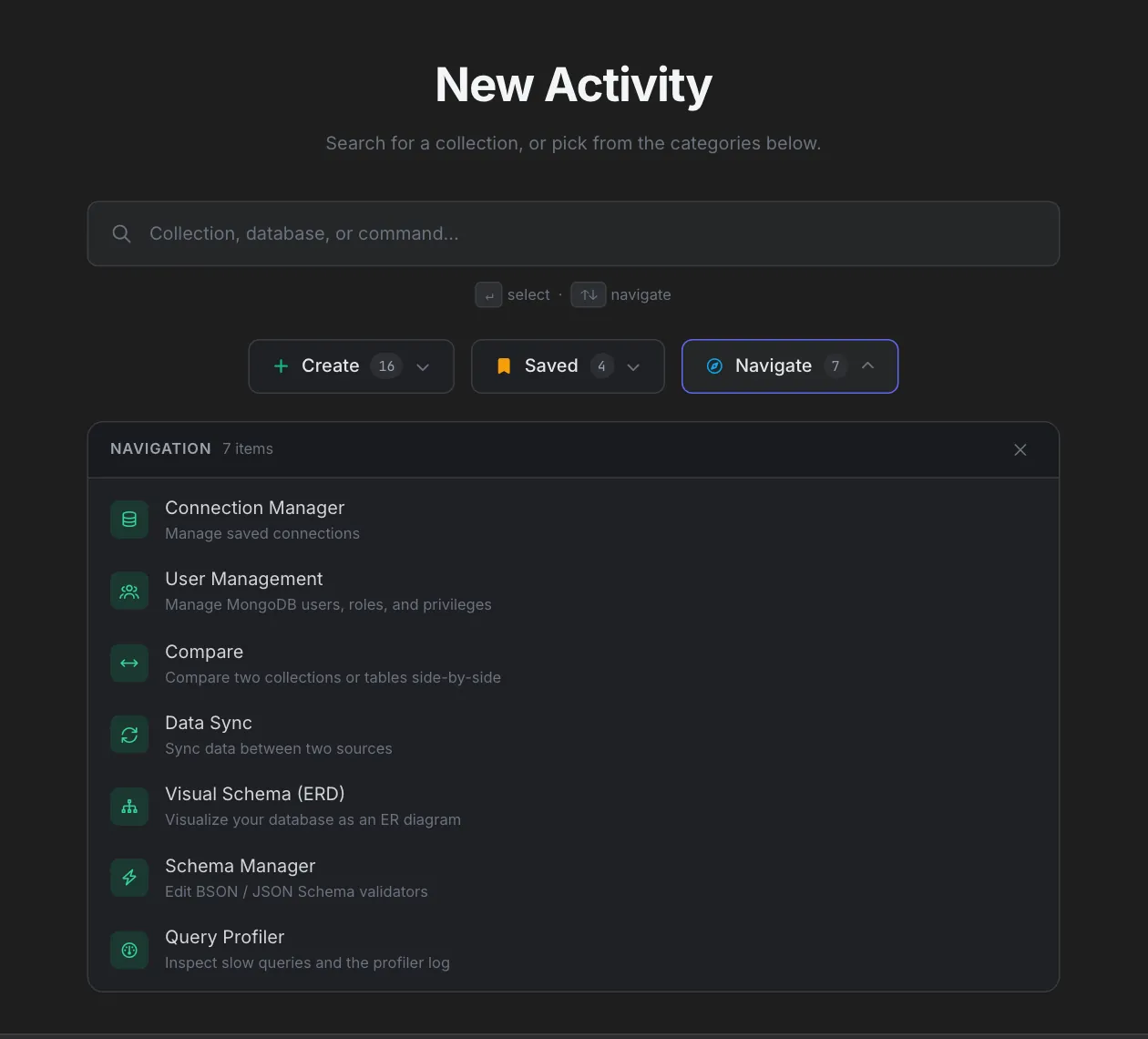
Three buttons sit directly under the search box. Each shows how many items it holds; click one to open its list underneath, and click it again (or the X in the list header) to close it. Only one menu is open at a time.
| Menu | What's in it |
|---|---|
| Create | Everything you can start: New Tab, New Connection, Create Database, Create Collection, Edit & Query Data, New Shell Script, New Redis Script, Generate Mock Data, aggregations, charts and more |
| Saved | Saved Queries, Saved Scripts, Saved Charts and Saved Dashboards |
| Navigate | The main tools from the activity bar, such as Connection Manager, User Management, Compare, Data Sync, Visual Schema (ERD), Schema Manager and Query Profiler |
The Saved menu is the quickest way back to your saved work:
The Navigate menu takes you to the app's main tools:
Opening a menu clears the search box, and typing a search closes any open menu, so only one list is on screen at a time.
What Blank Activity is for
Blank Activity is designed to sit between workflows, not inside one. Common uses:
- Cross-database work — jump from a Mongo collection in one connection to a Postgres table in another without going through the sidebar.
- Starting something new — use the Create menu to spin up an aggregation, a chart, a shell script, or mock data.
- A launcher next to a busy panel — open a blank tab in a second panel and use it to start one-off queries or exports.
- Team onboarding — the three menus give a new user a map of the app with names and descriptions, without needing to memorize icons.
Why only three categories?
The Command Palette has more categories. A new tab shows just Create, Saved and Navigate because the others are already at your fingertips elsewhere:
- Workspace, Settings, and Account live in the title bar, the activity bar and the Ctrl+K palette — a new tab isn't the natural place to switch workspaces, toggle themes, or log out.
- Collections / Tables usually has too many entries for a menu. Instead, collections and tables appear in the search results as you type.
How search works
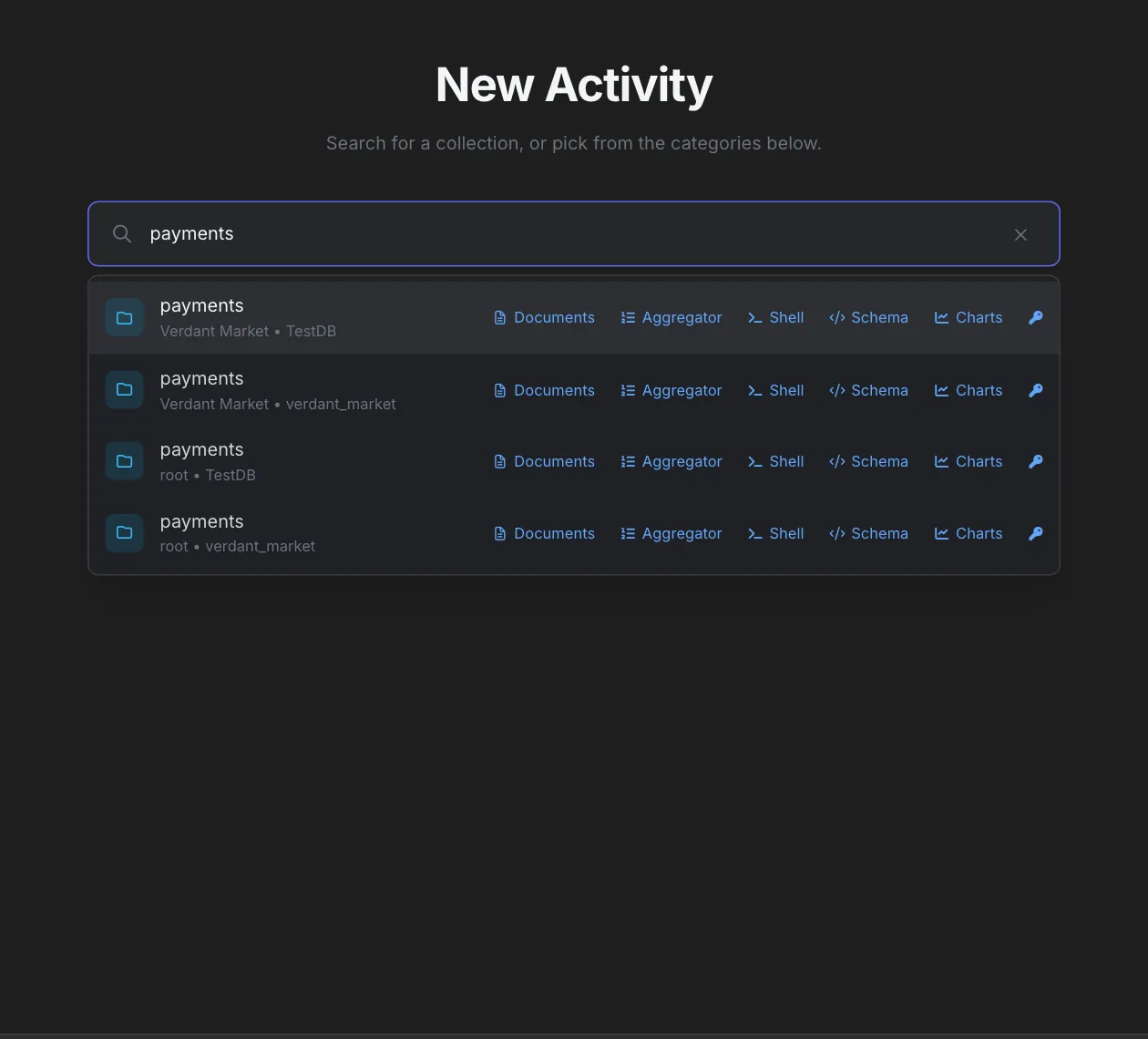
Type part of a name and matching collections, tables and commands appear right under the search box.
What search covers
Search covers collections and tables from your live connections plus everything in the Create, Saved and Navigate menus. Workspace, Settings and Account commands don't appear here — use the Command Palette for those.
What counts as a match
Matching ignores upper/lower case and looks at each item's name, category and description, plus extra keywords chosen for that item — so you can find things by what you want to do, not just by their exact name.
Large workspaces
Results stay quick even when your connections hold thousands of collections and tables. If a short search matches a lot, keep typing to narrow the list.
Default suggestions
Click into the empty search box and you'll see a list of your collections and tables straight away, so you can start browsing without typing anything.
Search results vs. menus
- Typing a query closes any open menu so the search results take over.
- Opening a menu clears the query and the search results.
Quick links on collection and table results
Collection and table results carry the same row of quick links as the Command Palette — Documents, Aggregator, Shell, Schema, Charts, Indexes, Export and Import for MongoDB; Rows, Schema, Editor, Constraints, Export and Import for SQL. Click one to go straight to that view, for example the aggregation builder or the indexes, without opening the collection first.
How selection replaces the tab
Opening a result doesn't add another tab. The blank tab is replaced by what you opened, in the exact same panel and position — so if you split into four panels and click "+" on the third, the new collection view lands in that third panel. If what you picked opens a dialog instead (like New Connection), the blank tab simply closes.
Keyboard shortcuts
While the search box has focus, these keys work on the results:
| Key | Action |
|---|---|
| Enter | Open the highlighted result. |
| ↑ / ↓ | Move the highlight up or down (wraps around). |
| Esc | Clear the search. If it's already empty, nothing happens (the blank tab stays open). |
For app-wide shortcuts, such as Ctrl+W to close a tab or Ctrl+Shift+T to reopen one, see Keyboard Shortcuts.
Tips
- Split a panel, then hit "+". The new tab stays in the panel whose "+" you clicked, and so does whatever you open from it.
- Check the counts. The number on each menu button shows how many items are available on your plan — a quick way to spot why an item is missing.
- Empty search still shows something. Click the search box on a fresh tab to see your collections and tables without typing.
- Use quick links to skip steps. Search a collection, then click Indexes or Aggregator on its row instead of opening the default view first.
- Missing Settings or Workspace? That's by design — use the activity bar, the title bar or Ctrl+K / Cmd+K for anything outside Create / Saved / Navigate.
Related Features
- Command Palette — the same search as a blank tab, but with every category and a global Ctrl+K shortcut.
- Layout System — how tabs, panels, and split views hold the Blank Activity you open.
- Workspace Manager — multiple workspaces of tabs, each of which can have its own Blank Activity tabs.
- Saved Queries — reachable from the blank tab's Saved menu.
- Sidebar — the Navigate menu mirrors the main tools in the activity bar.
Ready to try VisuaLeaf?
Download and start managing your MongoDB and SQL databases with ease.
Download Free Trial