Shell Session Manager
Shell Session Manager
Quick Start
The Shell Session List gives you a complete overview of all running MongoDB shell sessions across your connections.
- Press Ctrl+K (⌘+K on Mac) and search "Shell Sessions" — or pin it to the right activity bar with + for one-click access
- View all active and expired shell sessions with their details
- Click "Close" on active sessions or "Delete" on expired sessions to clean up
The list, titled Shell Sessions, covers MongoDB shells only. A note in the header reminds you that SQL work happens in the SQL Editor instead.

Understanding Session Status
Each shell session displays a colored status indicator that tells you its current state at a glance:
- Green (Active) - Session is currently running and responding. The indicator pulses to show live activity.
- Yellow (Inactive) - Session is idle but still open. It may have been inactive for some time but hasn't expired yet.
- Red (Expired) - Session has exceeded the 24-hour activity limit or has been closed. These sessions can be safely deleted.
Session Information
Each session card displays comprehensive information to help you identify and manage your shell connections:
Session Details
| Field | Description |
|---|---|
Activity Name |
The name of the shell activity tab this session belongs to |
Connection |
The MongoDB connection this shell session is using |
Session ID |
Unique identifier for the shell session (useful for troubleshooting) |
Created |
When the shell session was first started |
Last Access |
Most recent time the session was used or accessed |
Runtime |
How long the session has been running (days, hours, or minutes) |
Session Statistics
At the top of the Shell Session List, you'll find helpful statistics about your sessions:
- Avg - Shows the average runtime of all active sessions in hours. This helps you identify if sessions are running longer than expected.
- Closed today - Displays how many sessions you've closed during the current day. Resets at midnight.
Note: The "Closed Today" counter is stored locally on your device and will reset if you clear your browser data.
Managing Sessions
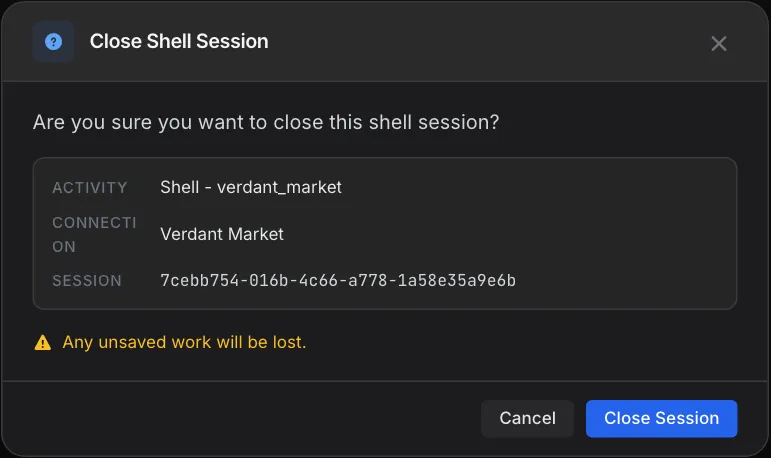
- Close Session - Available for active and inactive sessions. Closes the shell session immediately and terminates the connection. The Close Shell Session dialog shows the activity, connection and session ID so you can confirm you picked the right one. Any unsaved work in the shell will be lost.
- Delete Session - Available only for expired sessions (marked in red). Permanently removes the session record from the list. This action cannot be undone, but it only removes expired sessions that are already closed.
Session Expiration
Shell sessions automatically expire under these conditions:
- 24-Hour Inactivity - Sessions that haven't been accessed for 24 hours are marked as expired
- Manually Closed - Sessions you've closed will immediately show as expired
- Status Change - Sessions with "CLOSED" or "INACTIVE" status from the server are marked as expired
Expired sessions display a red warning banner that says "This session has expired and can be safely deleted." You can remove these sessions from the list using the Delete button.
Pro Tips
- Regular cleanup - Regularly check the Shell Session List to close sessions you're no longer using. This frees up server resources and keeps your workspace organized.
- Monitor runtime - Use the average runtime statistic to identify sessions that might be running longer than expected. Long-running sessions could indicate forgotten connections.
- Session ID for support - The Session ID is useful when reporting issues or troubleshooting. Copy it from the session card if you need to reference a specific shell session with support.
- Real-time updates - Sessions update in real-time. You don't need to refresh the list - it automatically receives updates about session status changes.
Related Features
- MongoDB Shell - The interactive MongoDB shell where your sessions run commands and scripts
- Connection Manager - Manage the MongoDB connections that your shell sessions connect to
Ready to try VisuaLeaf?
Download and start managing your MongoDB and SQL databases with ease.
Download Free Trial