How to Open a SQLite Database: Query and Explore Your Data
Open a SQLite database in VisuaLeaf and explore it step by step: browse tables, query and join records, read JSON values, export results to Excel, and create charts.


You have a SQLite file and want to see the information inside it. To open a SQLite database, select the file in software that can read SQLite, such as VisuaLeaf.You can then browse the tables and use SQL to find the information you need.
SQL is the language you use to tell a database what you want. A query is one of those requests. It might ask for ten inspection records, the name of a technician, or the number of checks that failed.
This guide uses an example inspection database. You’ll open the file, browse its tables, join related records, read JSON values, export results to Excel, and create a chart. If you follow along with your own database, replace the example table and column names with yours.
First, understand what is inside the file
SQLite stores data in a database file. You don't need to set up a separate database server to open it.
Inside the file, the data is organised into tables. A table looks a little like a spreadsheet: it has rows and columns.
| Database term | Meaning | Example in this database |
|---|---|---|
| Table | Stores related records in rows and columns | inspections stores the inspection records |
| Row | Contains the details of one record | One inspection, including its ID, status, and risk score |
| Column | Stores one particular detail for each record | status contains the status of each inspection |
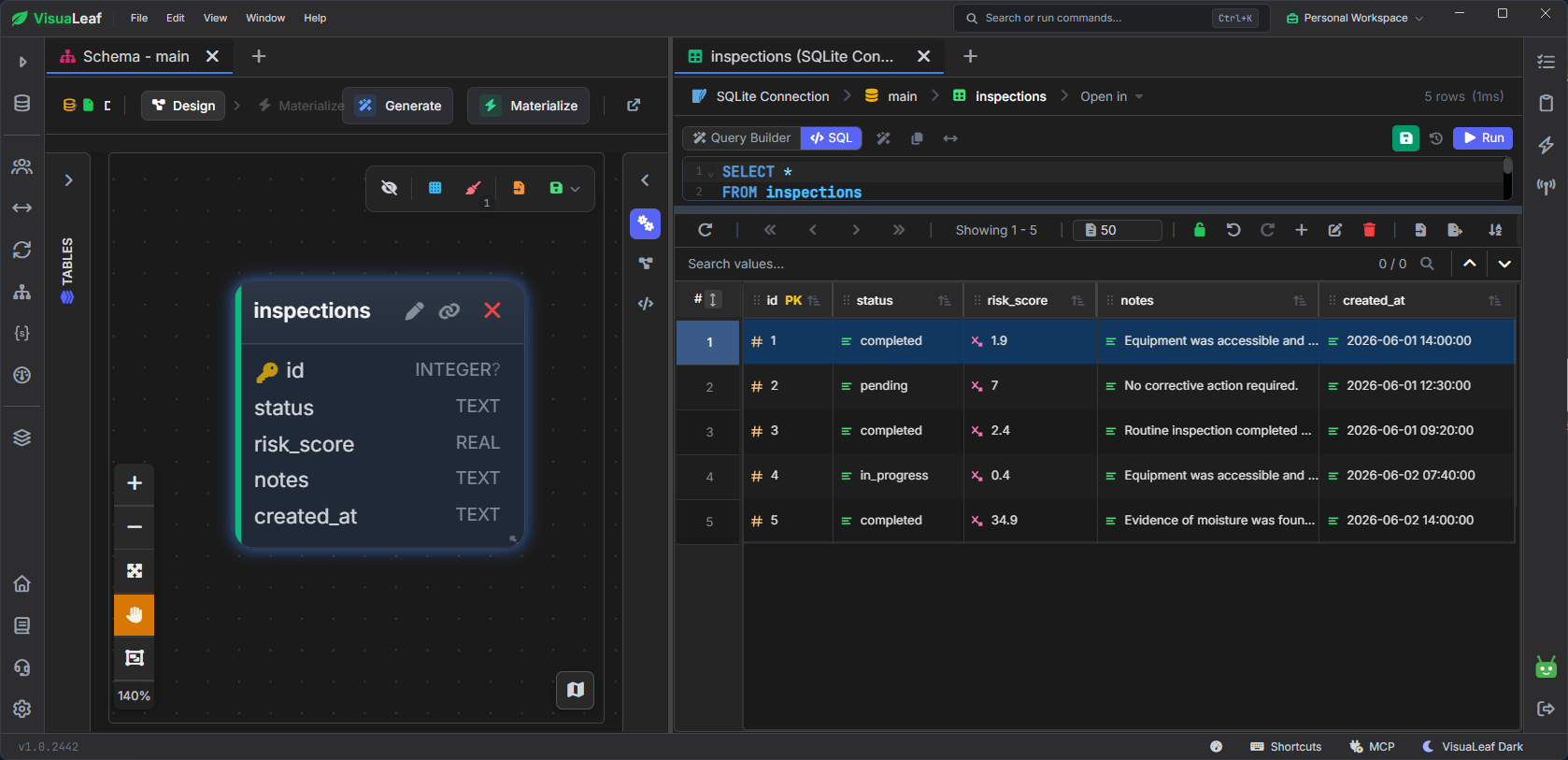
inspections table’s columns on the left and five inspection records on the right.The information is split across several tables:
- sites holds details about the places being inspected,
- technicians holds details about the people doing the inspections,
- inspection_items holds the results of individual checks.
An inspection can therefore have one row describing the visit and several other rows describing its checklist items.
Open your SQLite database in VisuaLeaf
SQLite files often end in .db, .sqlite, or .sqlite3.
In VisuaLeaf:
- Create a connection and choose SQLite.
- Select your existing database file.
- Connect, then expand
mainand Tables in the sidebar. - Open a table to see its records.
You select a file instead of entering a server address, port, or database username. If your database is already connected, go straight to its tables.
main is SQLite's name for the primary database opened by that connection. You don't need to create another database with that name.
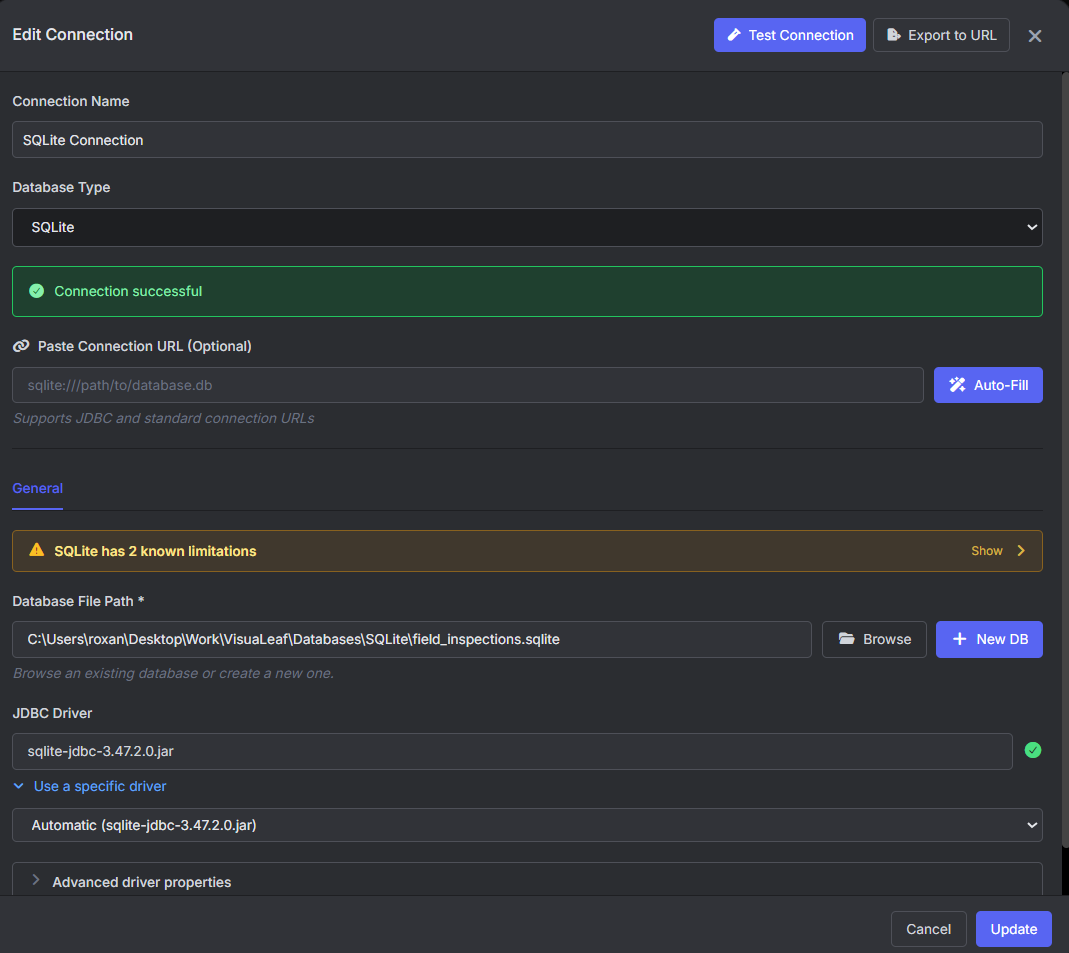
field_inspections.sqlite database in VisuaLeaf.If you don’t have a SQLite database yet, click New DB in the connection form to create one. It starts empty, so you can add your own tables and data. The examples below use our existing inspection database.
Read a few inspections with SQL
Open inspections in the data view to browse its rows. You can also choose exactly which columns to display using the SQL Editor:
SELECT id, status, risk_score
FROM inspections
ORDER BY id
LIMIT 10;
Read this query one line at a time:
SELECT id, status, risk_scorechooses the three columns to show.FROM inspectionstells SQLite which table to read.ORDER BY idsorts the records by their identifier, from smallest to largest.LIMIT 10asks for at most ten rows.
This query reads data. It doesn't change the records.
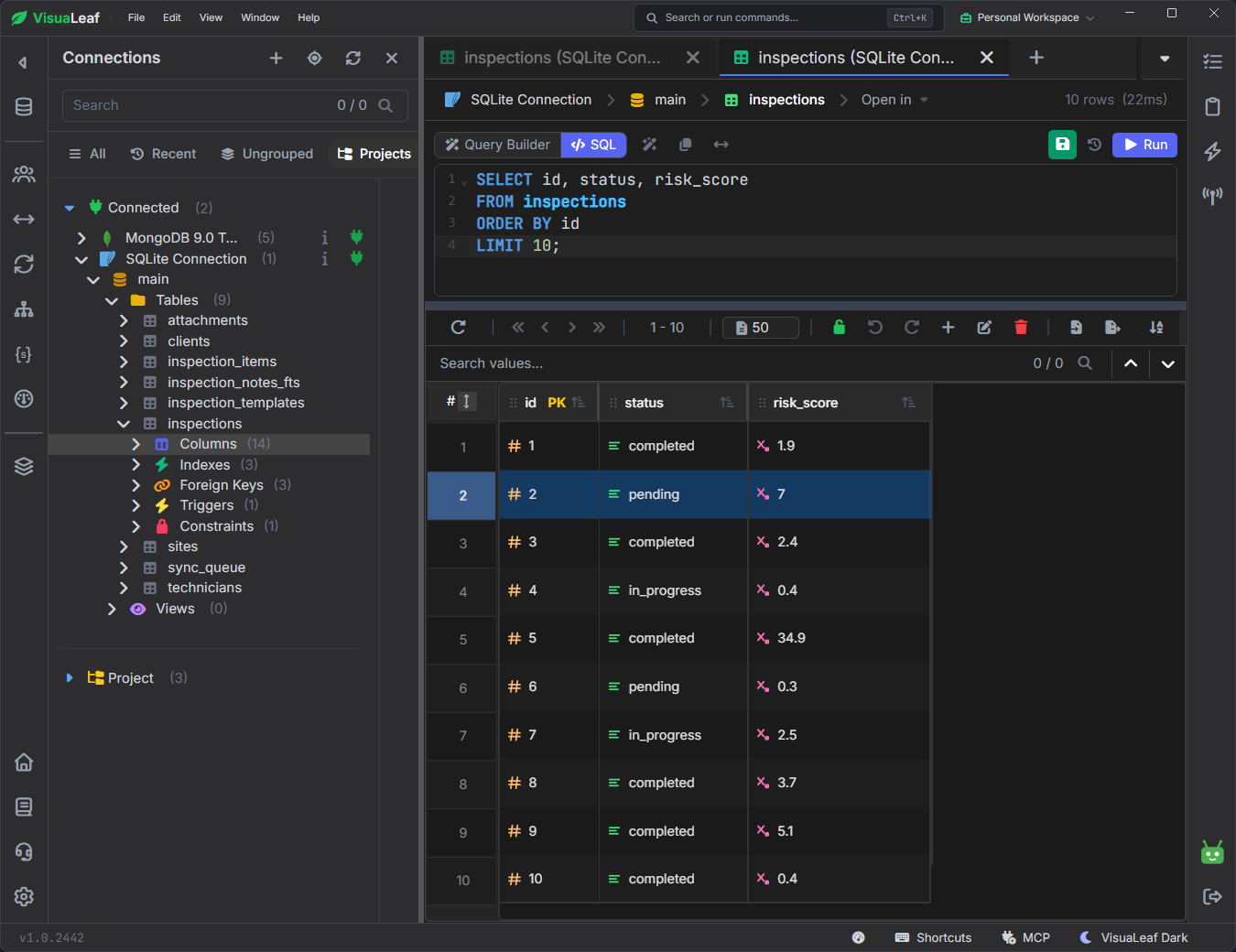
The id column is the inspection's primary key: the value that identifies that row. Keep it in your results so you can find the same inspection again.
Look at the values before writing a filter. A column called status doesn't tell you which words the application stores there. Check the records rather than guessing whether a status is called complete, completed, or something else.
What do the column types mean?
Open Table Management for sites. It shows how each column is defined.
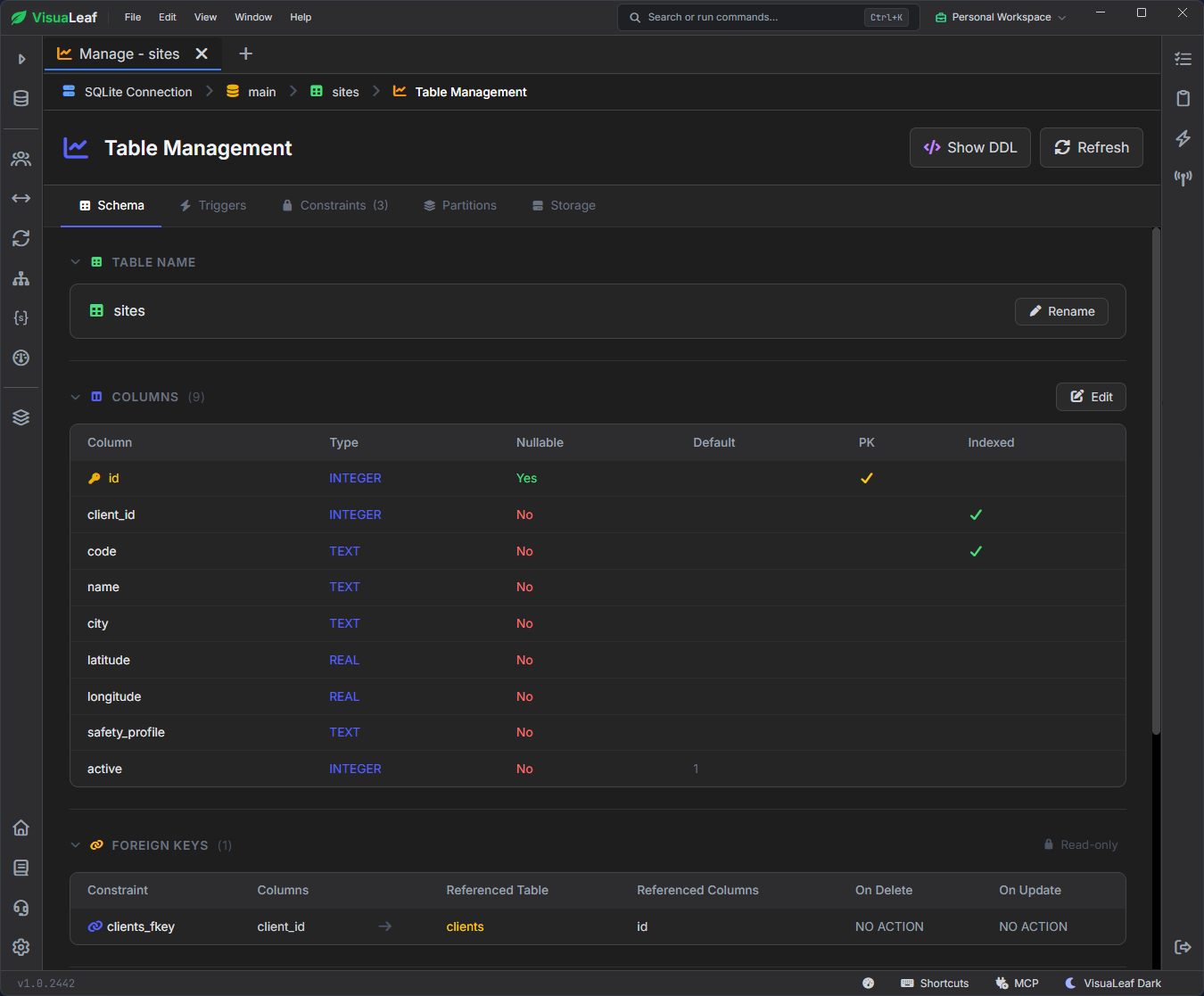
sites table in VisuaLeaf, showing each column’s data type, whether it allows missing values (NULL), and its default value.The screenshot includes three common SQLite types:
| Data type | What it stores | Example columns |
|---|---|---|
INTEGER |
Whole numbers, such as 1, 2, or 3 | id |
TEXT |
Text, such as names and cities | name, city |
REAL |
Numbers with decimals, such as 44.43 | latitude, longitude |
The active column has a default of 1. That means SQLite supplies 1 when a new row leaves this column out of the insert.
A default alone also allows someone to enter another value. To restrict active to 0 and 1, the table would need a constraint, which is a rule that data must follow. For example, CHECK (active IN (0, 1)) checks that the value is one of those two numbers. A separate NOT NULL rule rejects a missing value.
Click Show DDL to see the SQL that defines the sites table. DDL means Data Definition Language. This definition shows the column types and rules, such as primary keys, foreign keys, NOT NULL, and default values.
You can also inspect the table's indexes. An index is a lookup structure, a little like the index at the back of a book. It can help SQLite find certain values without reading every row. Having an index on a column does not automatically connect it to another table.
SQLite is flexible with data types. In a regular table, a column marked INTEGER may still accept text. The declared type tells you what the column is intended to store, but it does not always enforce that type.
Understand foreign keys and join related tables
The inspections table stores site_id and technician_id to identify where each inspection took place and who performed it. The site and technician details live in their own tables.
A primary key identifies a specific row. For example, sites.id identifies each site.
A foreign key is a rule that connects a value in one table to a matching key in another. Here, inspections.site_id refers to sites.id.
If an inspection has site_id = 7, it belongs to the site whose id is 7. You can look up that site’s name and city in sites, without copying those details into every inspection row. Several inspections can have the same site_id because you can inspect the same site more than once.
The same idea applies to technician_id: it refers to the technician’s id in technicians.
The ER diagram shows these connections as lines between the tables.
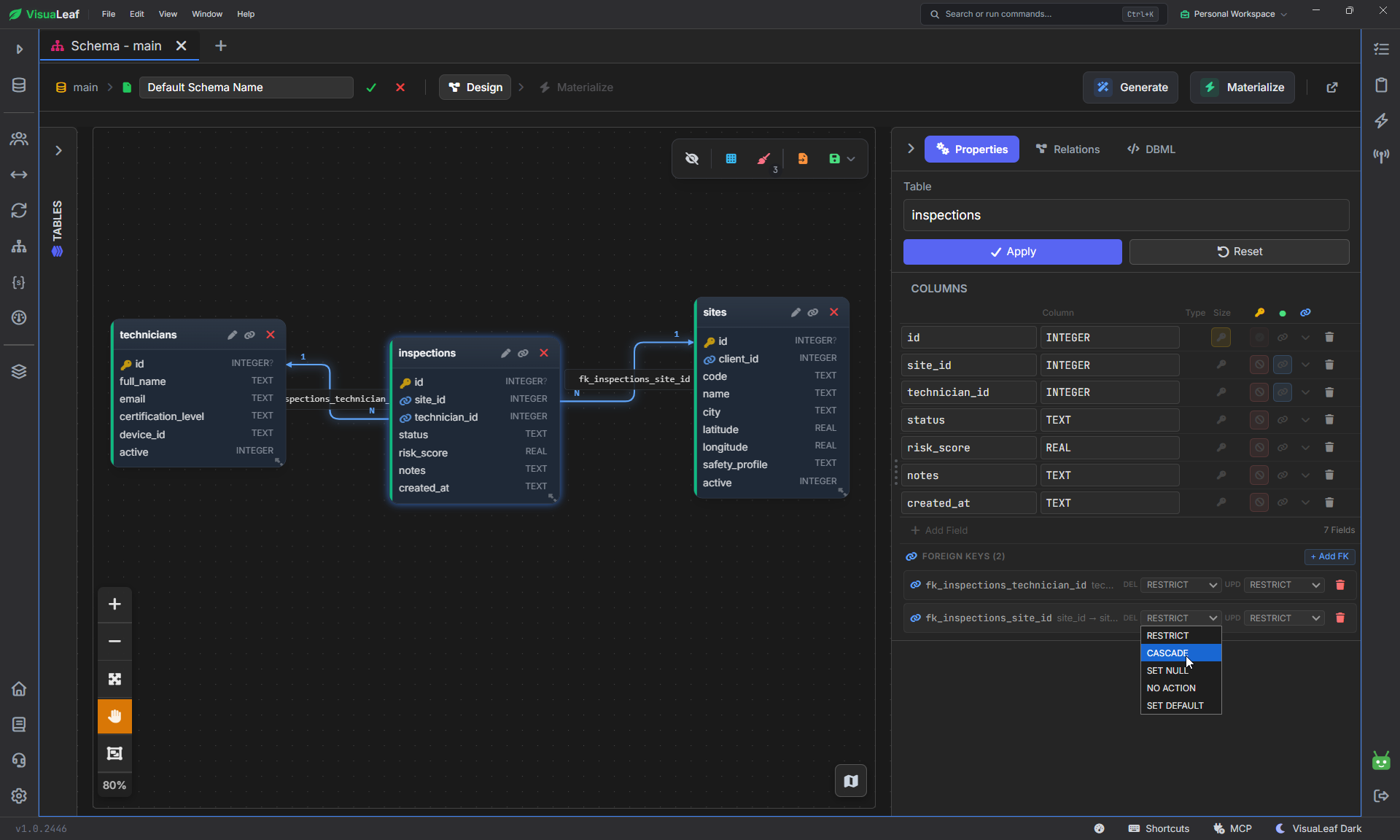
A join uses those matching values to bring information from different tables into one result:
SELECT
    inspections.id,
    sites.name AS site,
    technicians.full_name AS technician,
    inspections.risk_score
FROM inspections
LEFT JOIN sites
    ON inspections.site_id = sites.id
LEFT JOIN technicians
    ON inspections.technician_id = technicians.id
ORDER BY inspections.id
LIMIT 10;
A name such as sites.name means “the name column in the sites table.” Writing the table name first makes it clear which table we mean.
The query starts with inspections, matches each one to its site, and then matches it to its technician. The result puts the inspection ID, both names, and the risk score together.
LEFT JOIN keeps the inspection in the result even if a matching site or technician is missing. SQLite shows NULL for the missing information. NULL means no value. A normal inner JOIN would leave out inspections without a match.
A null name alone doesn't prove a record is missing: the related row could exist but have no name. Check the matching IDs before deciding what is wrong.
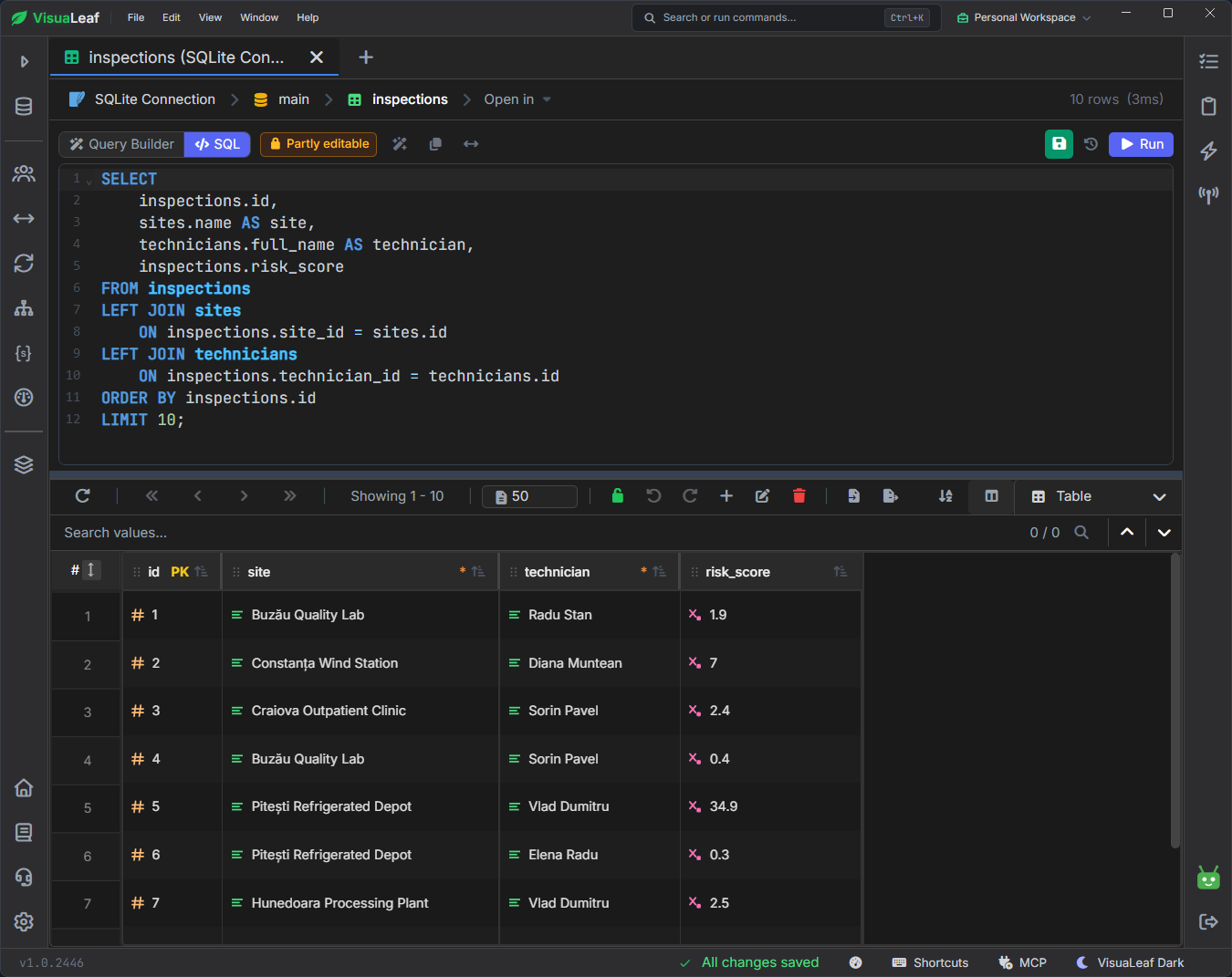
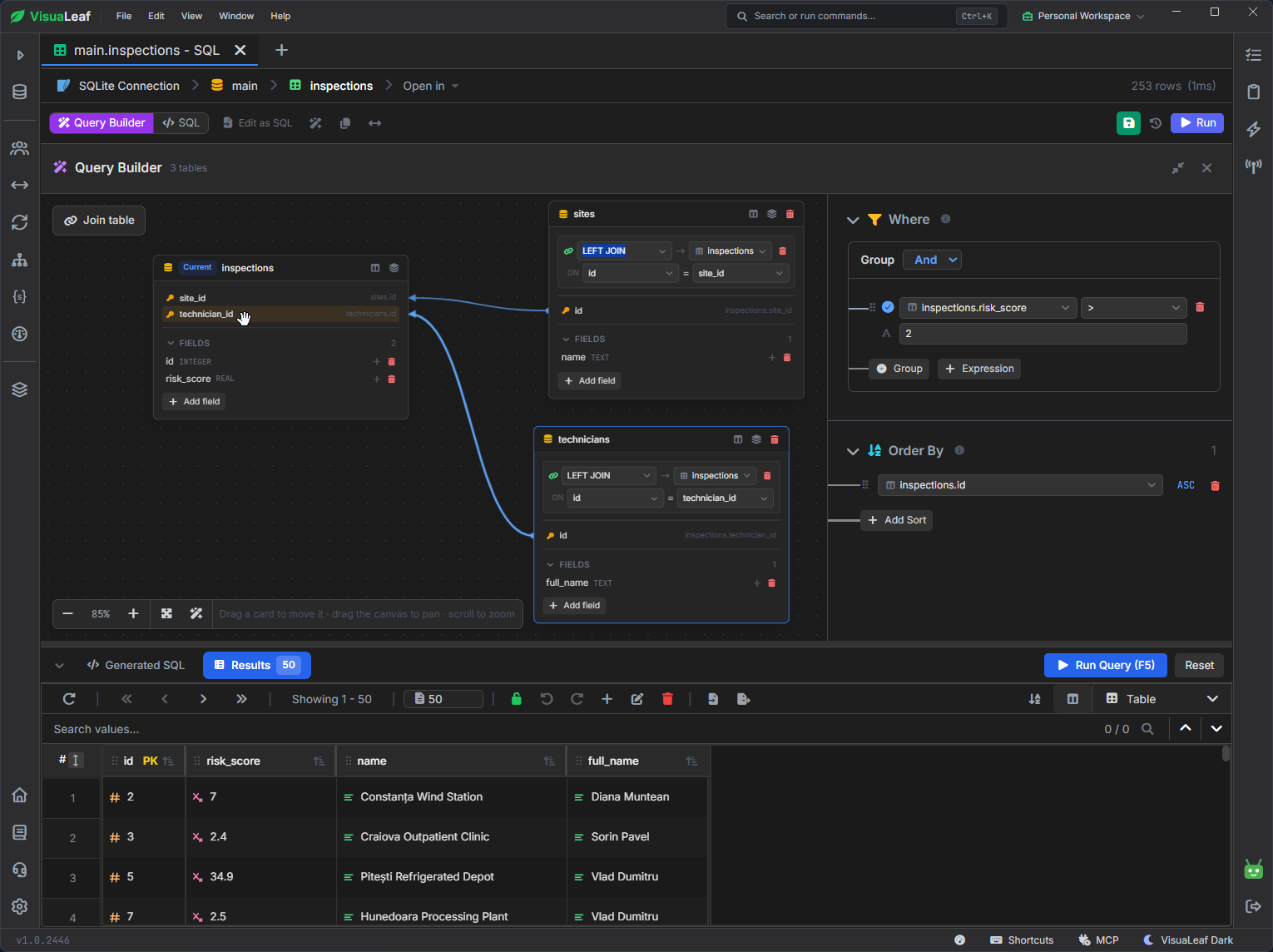
You can also create this query visually with VisuaLeaf’s Query Builder, without writing SQL. Select the tables, connect their matching columns, and choose which fields to include in the result.
Is SQLite checking the relationships?
SQLite can have foreign keys defined while their enforcement is turned off. To check the current connection’s setting, run:
PRAGMA foreign_keys;A result of 1 means checking is on; 0 means it is off. To enable it, run this before making changes, outside an active transaction:
PRAGMA foreign_keys = ON;This setting applies to the current connection. It helps prevent new invalid references, but it does not fix existing ones.
Query JSON data in SQLite
One database column can hold several related details as JSON. In our inspections table, device_info stores the device platform, app version, battery percentage, and whether the inspection was recorded offline.
Start by viewing the original values:
SELECT id, device_info
FROM inspections
LIMIT 3;
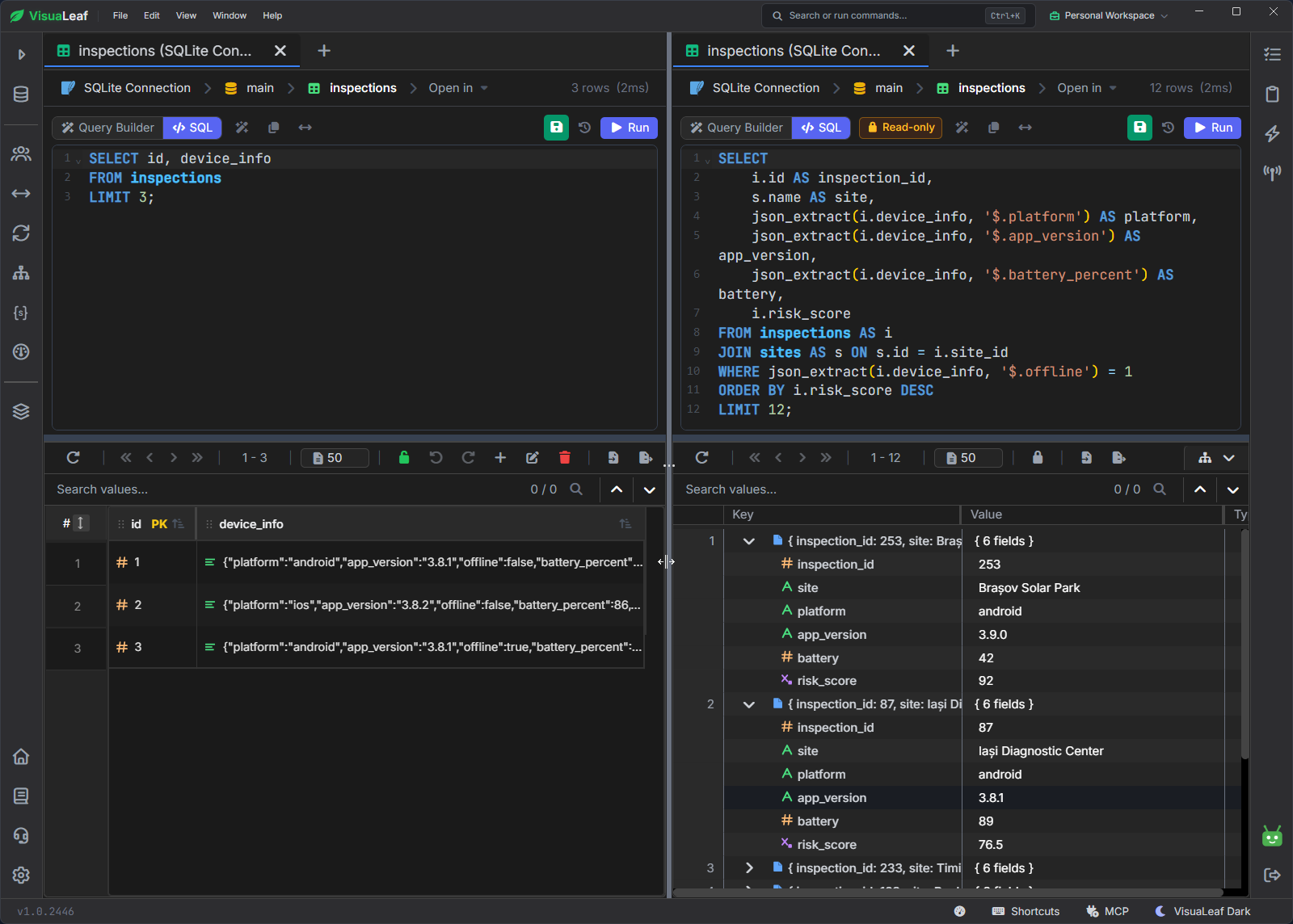
You can see the result on the left of the screenshot. Each device_info cell contains named values, such as "platform":"android". Here, platform is the name and android is its value.
To display the platform separately, use json_extract():
SELECT
    i.id AS inspection_id,
    s.name AS site,
    json_extract(i.device_info, '$.platform') AS platform,
    json_extract(i.device_info, '$.app_version') AS app_version,
    json_extract(i.device_info, '$.battery_percent') AS battery,
    i.risk_score
FROM inspections AS i
JOIN sites AS s ON s.id = i.site_id
WHERE json_extract(i.device_info, '$.offline') = 1
ORDER BY i.risk_score DESC
LIMIT 12;
Read that expression in three parts:
device_infois the column containing the JSON.'$.platform'tells SQLite to find the value namedplatforminside it.AS platformnames the result column.
This creates a column in your query results. It does not add a new column to the database or change the stored JSON.
The longer query on the right extracts the platform, app version, and battery percentage. It also adds the site name using a join.
Its WHERE condition keeps inspections where offline is true. SQLite returns that JSON value as 1. Finally, ORDER BY ... DESC puts the highest risk scores first, and LIMIT 12 returns at most twelve rows.
Export SQLite query results to Excel
Once your query returns the information you need, you can export it to an Excel workbook. This lets you share the results with someone who doesn’t use a database tool.
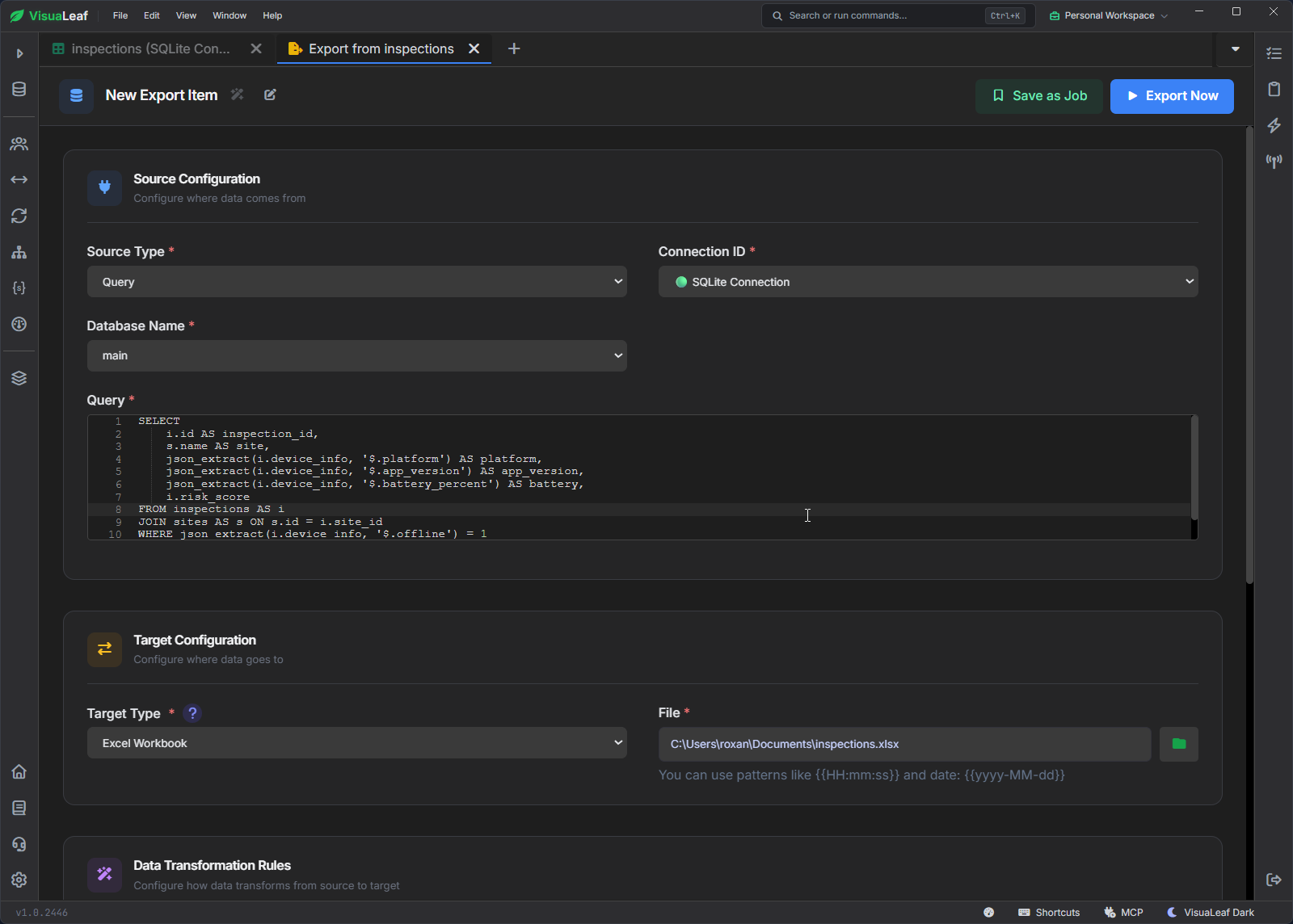
Open the export form for your query, then:
- Set Source Type to Query.
- Select your SQLite connection and the
maindatabase. - Check the SQL in the Query field.
- Set Target Type to Excel Workbook.
- Choose a file location and name, such as
inspections.xlsx. - Click Export Now.
For our JSON query, the exported columns contain the inspection ID, site, platform, app version, battery percentage, and risk score.
The export follows your query’s filters and limits. If you keep LIMIT 12, it exports at most twelve rows. Remove that limit if you want all matching inspections.
The Excel file contains a copy of the query results. Editing it does not update your SQLite database.
Count and chart failed checks by category
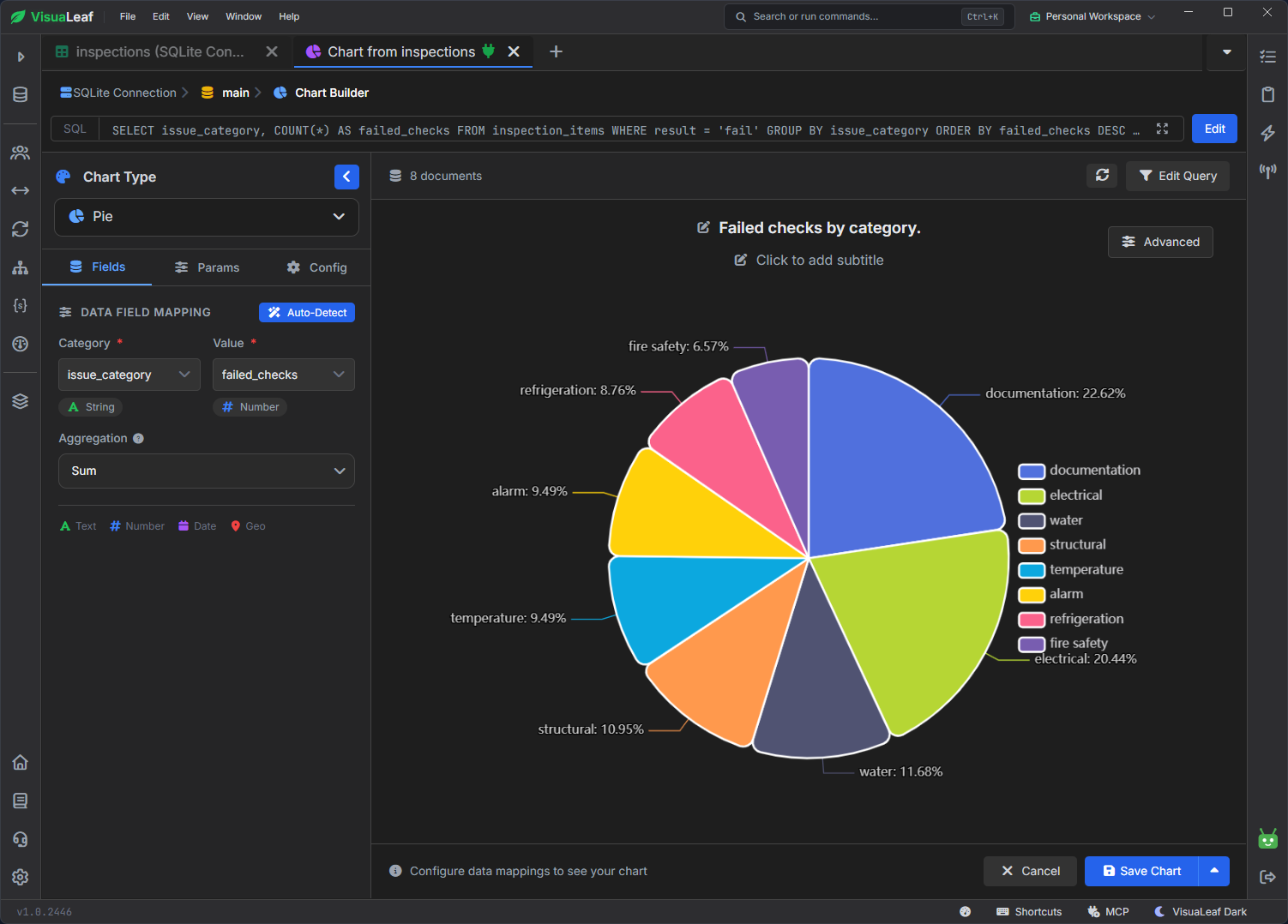
Use GROUP BY to group failed checklist items by category, then COUNT(*) to count them:
SELECT
    issue_category,
    COUNT(*) AS failed_checks
FROM inspection_items
WHERE result = 'fail'
GROUP BY issue_category
ORDER BY failed_checks DESC
LIMIT 8;
The query returns up to eight categories with the most failed checks.
In VisuaLeaf’s Chart Builder, choose Pie, set Category to issue_category, and Value to failed_checks. Each slice shows that category’s share of the failed checks returned by the query.
These totals count checklist items, not inspections. One inspection can contain several failed items. Remove LIMIT 8 if you want to include every category with failed checks.
Conclusion
Start by opening your SQLite file and checking its tables and columns. Then use a small SELECT query to read a few records before adding filters, joins, or calculations.
Once the results contain what you need, you can export them to Excel or turn them into a chart. Check your filters and row limits first—they determine which data appears in the final result.