mongodump Tasks Automate and Schedule MongoDB Backups
Run mongodump from PowerShell, automate MongoDB backups in VisuaLeaf, schedule recurring tasks, inspect BSON files, and verify them with mongorestore.


Running a MongoDB backup once is not difficult. With MongoDB Database Tools installed, the complete PowerShell command can be as short as this:
& "C:\Program Files\MongoDB\Tools\100\bin\mongodump.exe" `
  --uri="mongodb://127.0.0.1:27017" `
  --db="gui_test_db" `
  --gzip `
  --out="C:\MongoDBBackups\gui_test_db"
This example uses an unauthenticated local MongoDB deployment. Authenticated or remote deployments also require the appropriate credentials, authentication database, TLS settings, and connection options.
mongodump is MongoDB's command-line utility for creating a binary export of a database or collection. The problem is rarely the first run. It is repeating the same backup every day or week, keeping the settings consistent, using a fresh destination, and checking whether the operation actually completed.
That is where a saved task becomes useful. In VisuaLeaf, the same binary dump can be configured once, run manually when needed, scheduled, and checked later from its execution history.
Save the Same mongodump as a VisuaLeaf Task
Open Task Manager, create a new job, and choose the binary dump/restore operation. Select Export to Dump for the operation.
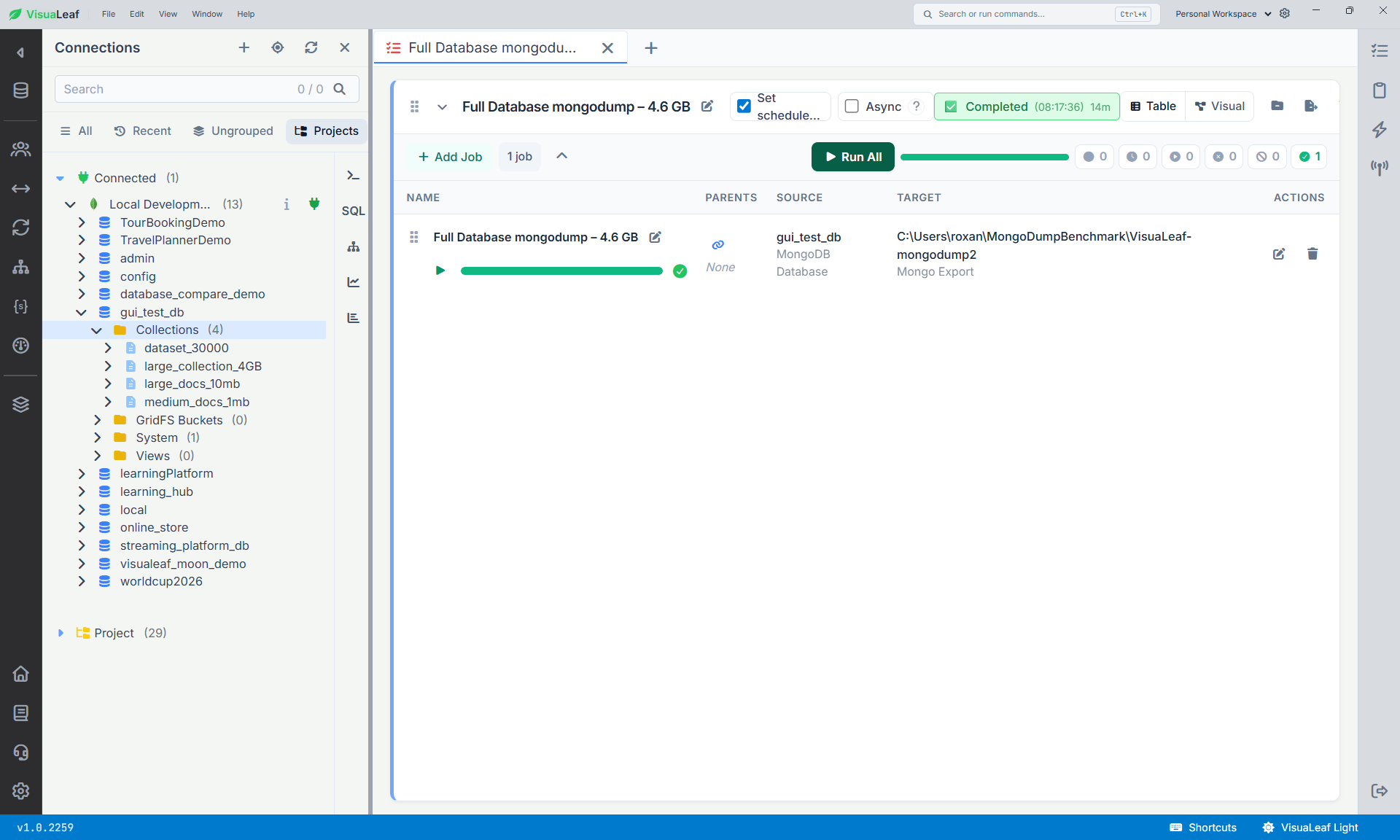
gui_test_db database saved as a reusable mongodump task in VisuaLeaf.The task should have a name that still makes sense when you return to it later. I used:
Full Database mongodump – 4.6 GB (Gzip)
This is more useful than a generic name such as Backup or New Job. It tells me the scope, approximate source size, and whether compression is enabled.
For the source, I selected the complete gui_test_db database running locally on port 27017. Its uncompressed data size was approximately 4.6 GB, spread across four collections:
dataset_30000large_collection_4GBlarge_docs_10mbmedium_docs_1mb
The source panel displayed the database statistics before the job ran. This gave me a quick check that I had selected the full database before creating several gigabytes of output.
Back Up a Database or One Collection
The correct scope depends on why you need the backup.
Choose a collection dump when you only need one dataset, want to move a collection between environments, or need a smaller restore unit. Choose a database dump when the job should include all collections and their metadata.
Be deliberate here. A successful task using the wrong source is still the wrong backup.
Choose the Output Folder and Enable Gzip
I saved the VisuaLeaf output in its own folder and enabled Compress with Gzip. A separate folder for every run keeps completed backups distinct and prevents CLI files, task files, or partial attempts from being mixed.
The job summary also showed auto threads and no timeout. Auto threads leaves the worker configuration to VisuaLeaf. The gear icon opens the advanced settings if the task needs a specific thread limit or timeout. I left both settings at their defaults for this workflow.
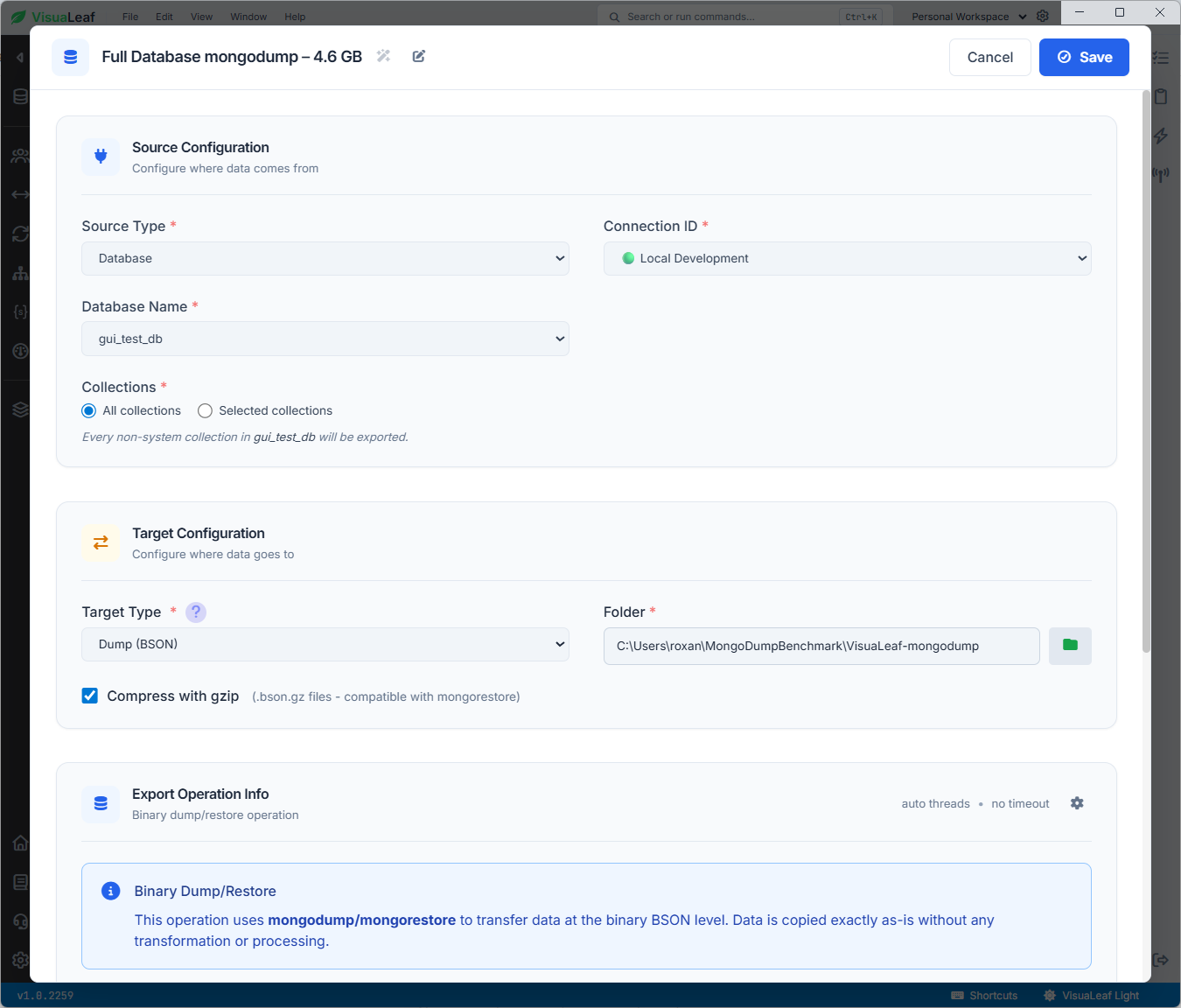
gui_test_db backup configured as a binary dump task in VisuaLeaf.After choosing the source and destination, save the job. The connection, database, folder, compression, and operation settings remain attached to the task, so the next backup does not require rebuilding the command.
Schedule and Monitor the MongoDB Backup
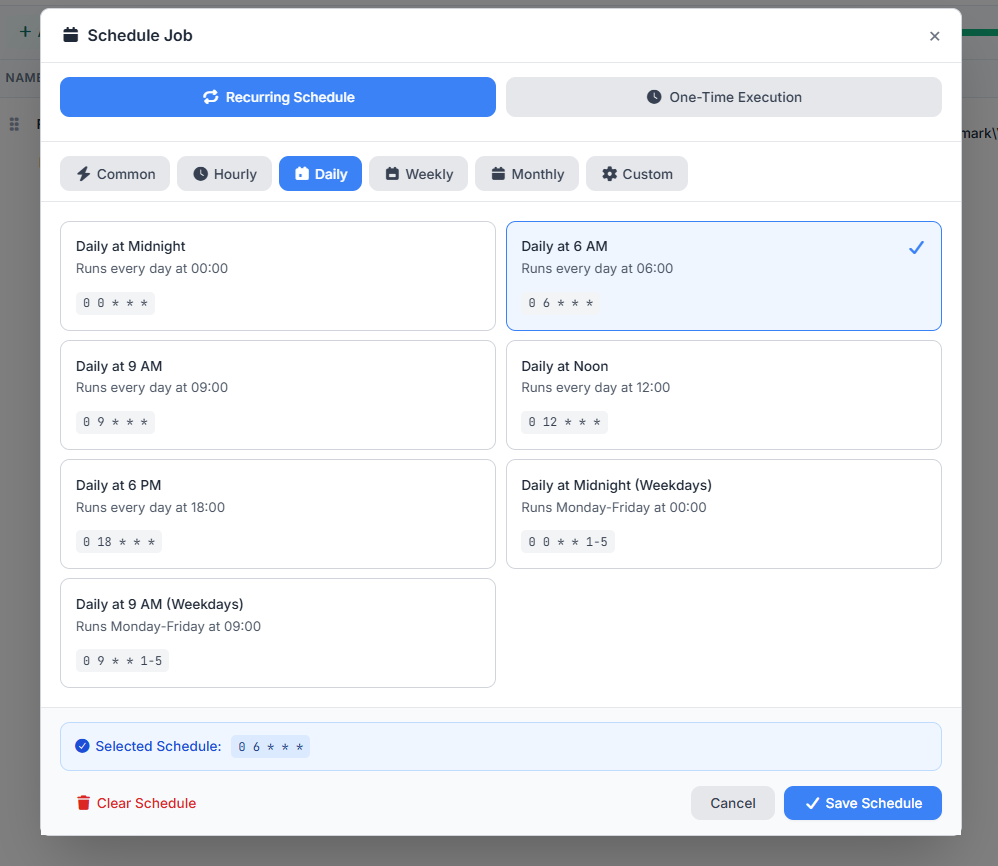
You can still start a saved job manually, but scheduling is the main reason to turn this workflow into a task. VisuaLeaf's Task Manager documentation lists one-time, hourly, daily, weekly, monthly, and custom cron schedules.
Choose the frequency based on how much recent data the application could afford to lose. A weekly backup is easy to manage, but it may be inadequate for a database that changes throughout the day.
Use a dated destination for recurring runs and decide how many older backups to keep. Otherwise, the task may work perfectly while the backup drive quietly runs out of space.
After a run, Execution History provides a detailed dump summary. In my test, it recorded:
- Total duration, collections, documents, and database size.
- The thread used for each collection.
- Document count and size per collection.
- Individual collection duration and processing speed.
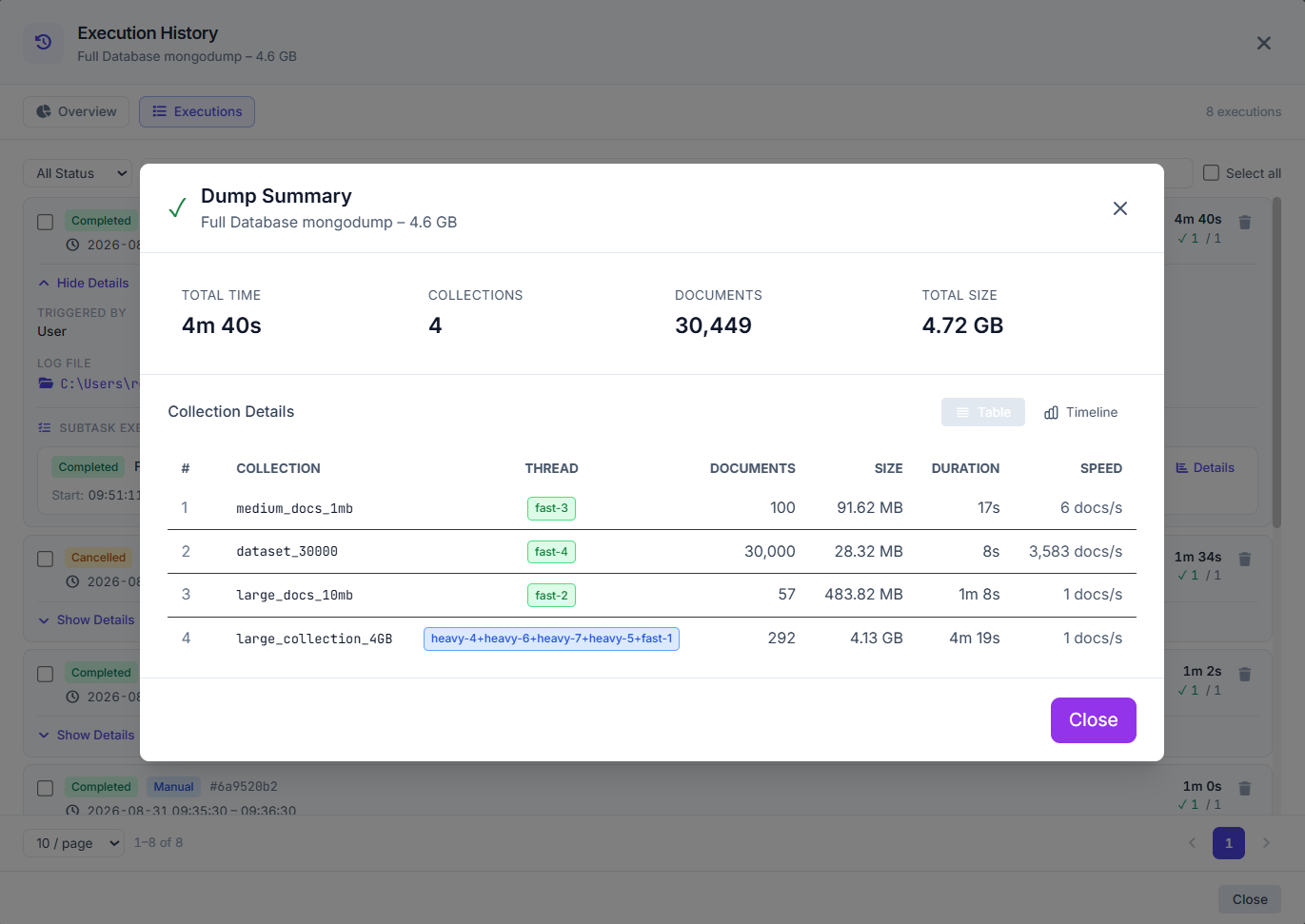
Performance note: On the same Windows machine, with Gzip enabled and the same 4.72 GB database, the VisuaLeaf task completed in 4 minutes 40 seconds. The equivalent direct mongodump CLI run took 6 minutes 12 seconds, so VisuaLeaf finished about 25% faster in this test. Results may vary depending on the hardware, storage, data, and task settings.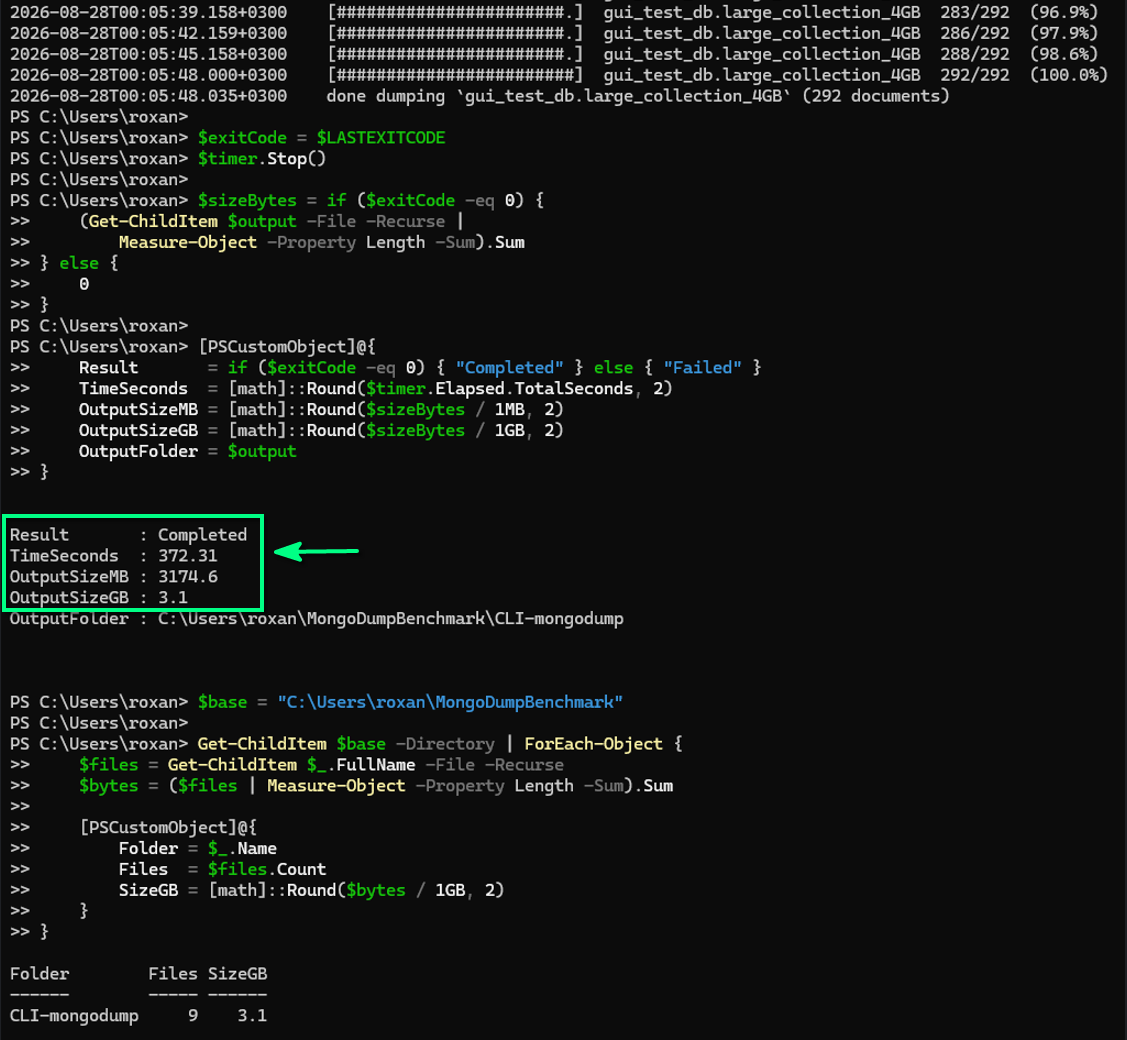
mongodump CLI run completed in 6 minutes and 12 seconds and produced 3.1 GB of compressed output.Before treating the exported files as a valid backup, check that the execution status is Completed. A cancelled or failed run may still leave partial files in the destination.
What Files Does the Backup Create?
A compressed directory dump creates one .bson.gz data file and one .metadata.json.gz file for each collection. The VisuaLeaf output for gui_test_db contained:
dataset_30000.bson.gz
dataset_30000.metadata.json.gz
large_collection_4GB.bson.gz
large_collection_4GB.metadata.json.gz
large_docs_10mb.bson.gz
large_docs_10mb.metadata.json.gz
medium_docs_1mb.bson.gz
medium_docs_1mb.metadata.json.gz
The BSON files contain the documents. The metadata files contain collection options and index definitions used during restoration. MongoDB describes this directory structure in its official [mongodump](https://www.mongodb.com/docs/database-tools/mongodump/) documentation.
The 4.6 GB test database produced approximately 3.18 GB of compressed output in VisuaLeaf. That result is specific to this data. A similarly sized database containing images, encrypted values, or already compressed content may shrink much less.
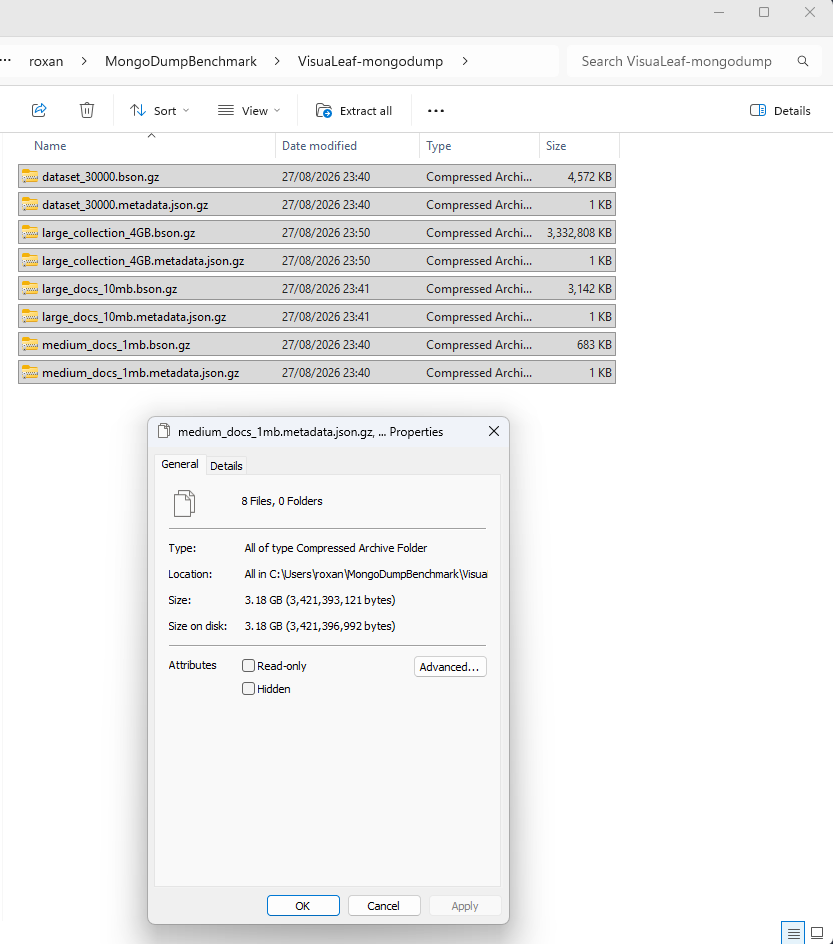
gui_test_db backup contains eight BSON and metadata files totaling 3.18 GB.Can You Run mongodump in MongoDB Compass?
No. MongoDB Compass can export an individual collection as JSON or CSV, but MongoDB explicitly says Compass is not a backup tool. It does not create a full binary database dump containing compressed BSON files and collection metadata. For that, MongoDB directs users to its separate Database Tools. See the official Compass import and export documentation.
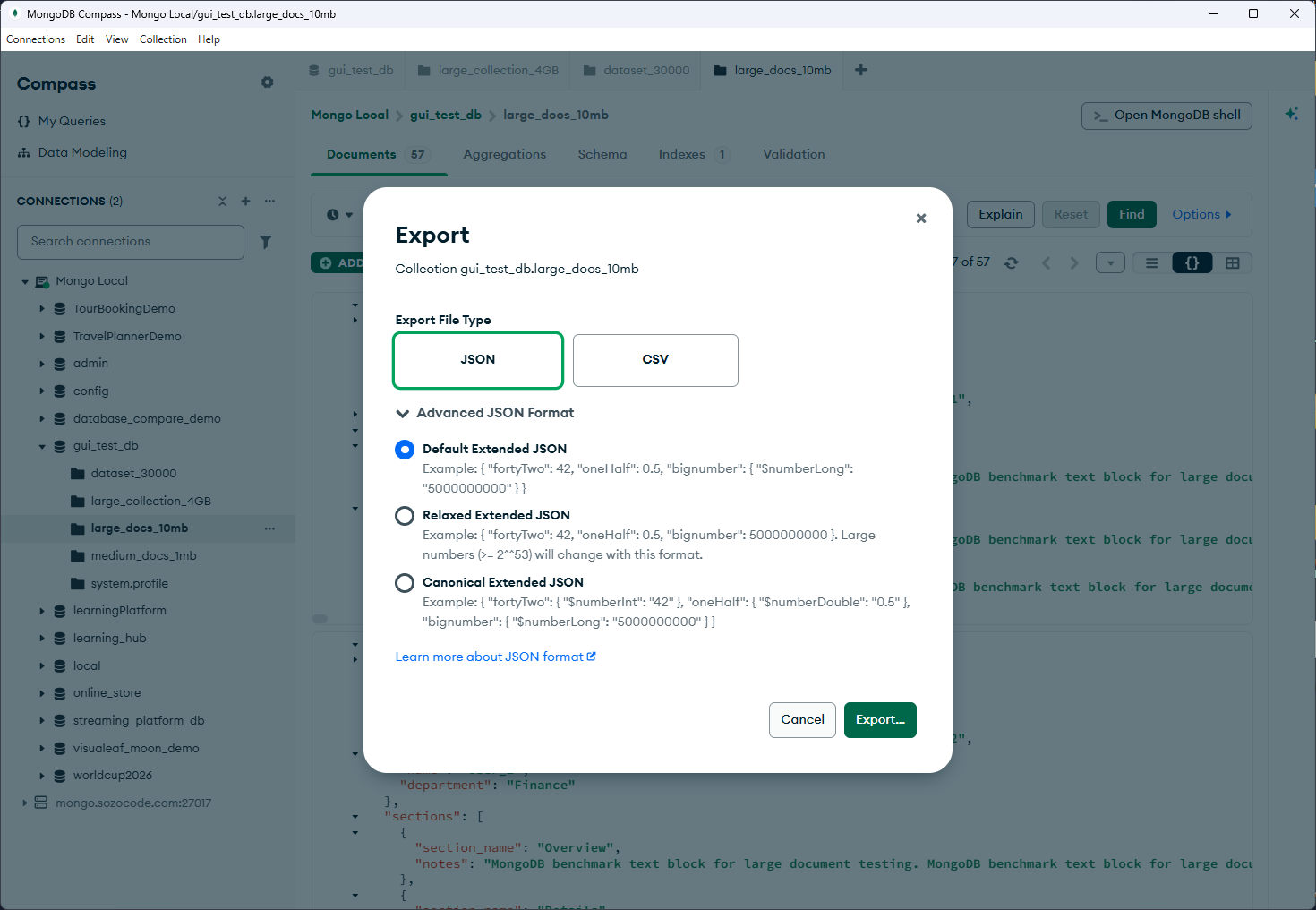
This is an important difference between exporting data and creating a backup. JSON can preserve MongoDB types when the correct Extended JSON format is used, while CSV can lose type information. Neither Compass export is the same workflow as a BSON database dump intended for mongorestore.
Restore the BSON Backup in VisuaLeaf
Creating compressed BSON files is only half of a backup test. You also need to confirm that MongoDB can restore them.
To avoid changing the original gui_test_db database, I created a separate VisuaLeaf restore job. Under Source Configuration, I selected Restore (BSON) and chose the folder containing the .bson.gz and .metadata.json.gz files.
For the target, I selected the same MongoDB connection and entered a new database name: gui_test_db_restore. Because that database did not exist, VisuaLeaf indicated that it would create it when the restore job ran.
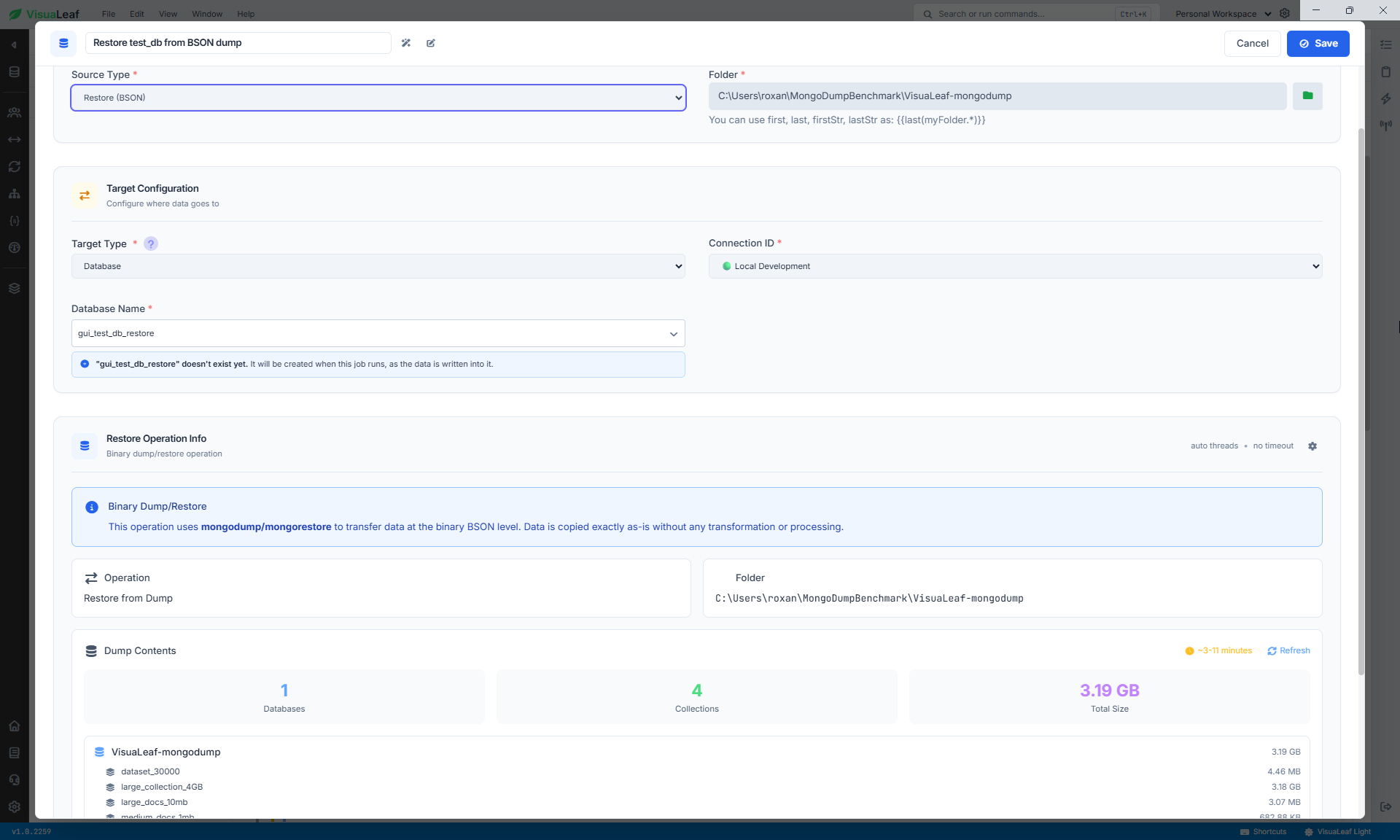
This operation uses the binary dump-and-restore workflow. It reads the BSON data and collection metadata without converting the documents to JSON or CSV.
When restoring to a different deployment, check version compatibility first. MongoDB requires the source and destination to use the same major version or feature compatibility version. See the official mongodump behavior documentation.
After the job finishes, check the restored database rather than relying only on the Completed status. The restore took 7 minutes and 34 seconds and recreated all four collections with 30,449 documents:
- Four collections.
- 30,449 documents in total.
- 30,000 documents in
dataset_30000. - 292 documents in
large_collection_4GB. - 57 documents in
large_docs_10mb. - 100 documents in
medium_docs_1mb. - The expected collection indexes and options.
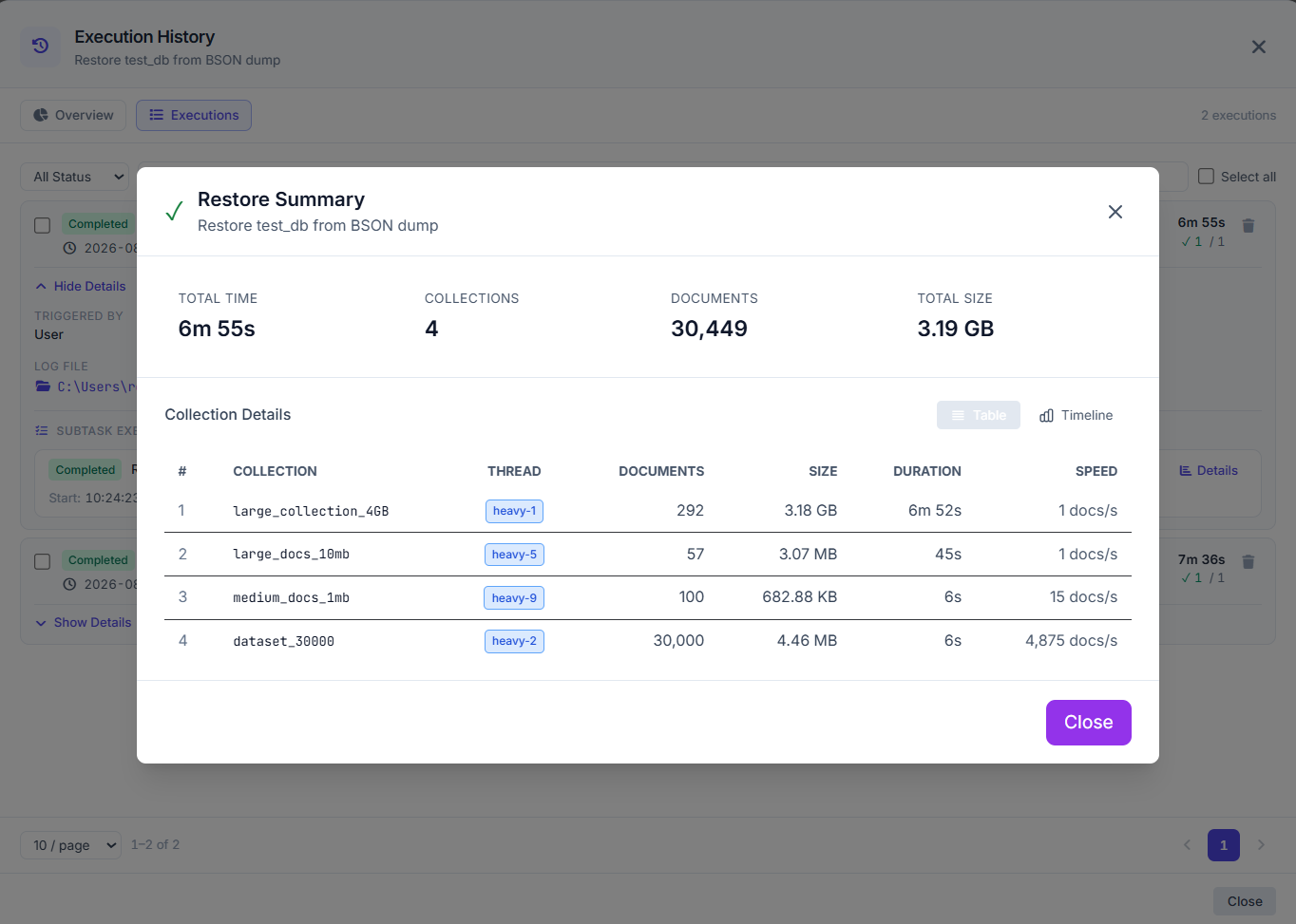
The document counts matched the source, confirming that the BSON files could be restored successfully. A production restore test should also verify indexes, collection options, and several real application queries.
Do not restore a test dump over the only copy of your original database. Use a new database name or a separate development environment.
A backup is not verified until the restore finishes successfully and the restored data matches the source.
If mongodump Does Not Run on Windows
Two small Windows problems appeared during this test.
If PowerShell says that mongodump is not recognized, MongoDB Database Tools may be installed without its bin directory being added to PATH. Using the complete path to mongodump.exe, as shown in the opening command, avoids that problem.
A connection error can also mean that the command is using the wrong host or port. One attempt used localhost:27019, while the current MongoDB instance was listening on 27017. Check the connection used by VisuaLeaf or MongoDB Compass before retrying.
Cancelling a dump may leave partial files in the destination. Delete those incomplete files or use a new output folder before starting another backup.
MongoDB Backup Limitations to Plan For
A mongodump backup still needs consistency planning, safe storage, and restore testing.
| Limitation | Why it matters | What to do |
|---|---|---|
| Writes continue during the dump | A database-scoped dump may not represent one exact point in time. | --oplog cannot be combined with this --db command; it requires a full replica-set member dump. Use another backup method when exact point-in-time consistency is required. |
| Collection names differ only by capitalization | Directory dumps may conflict on case-insensitive Windows and macOS file systems. | Avoid ambiguous collection names or use archive output with the CLI. |
| The backup stays on the MongoDB machine | Disk failure, device loss, or ransomware could affect the database and backup together. | Keep another copy on separate or off-machine storage. |
| The backup is never restored | A Completed status and BSON files do not prove that the backup is usable. | Restore into a separate database and verify document counts, indexes, and collection options. |
| Old backups are never removed | Scheduled dumps can eventually fill the destination disk. | Define a retention policy and monitor available storage space. |
MongoDB positions mongodump and mongorestore mainly for smaller deployments; larger or business-critical systems may require a different backup strategy.
Conclusion
A reliable MongoDB backup workflow does not end when files appear in a folder. It ends when those files can be restored, and the resulting database has been verified.
The command line remains useful for one-off dumps and scripts. In VisuaLeaf, you can save both export and restore jobs, schedule repeated backups, and review their status, duration, history, and logs. You still need off-machine copies, retention rules, consistency planning, and restore tests, but the recurring steps are easier to manage from one place.