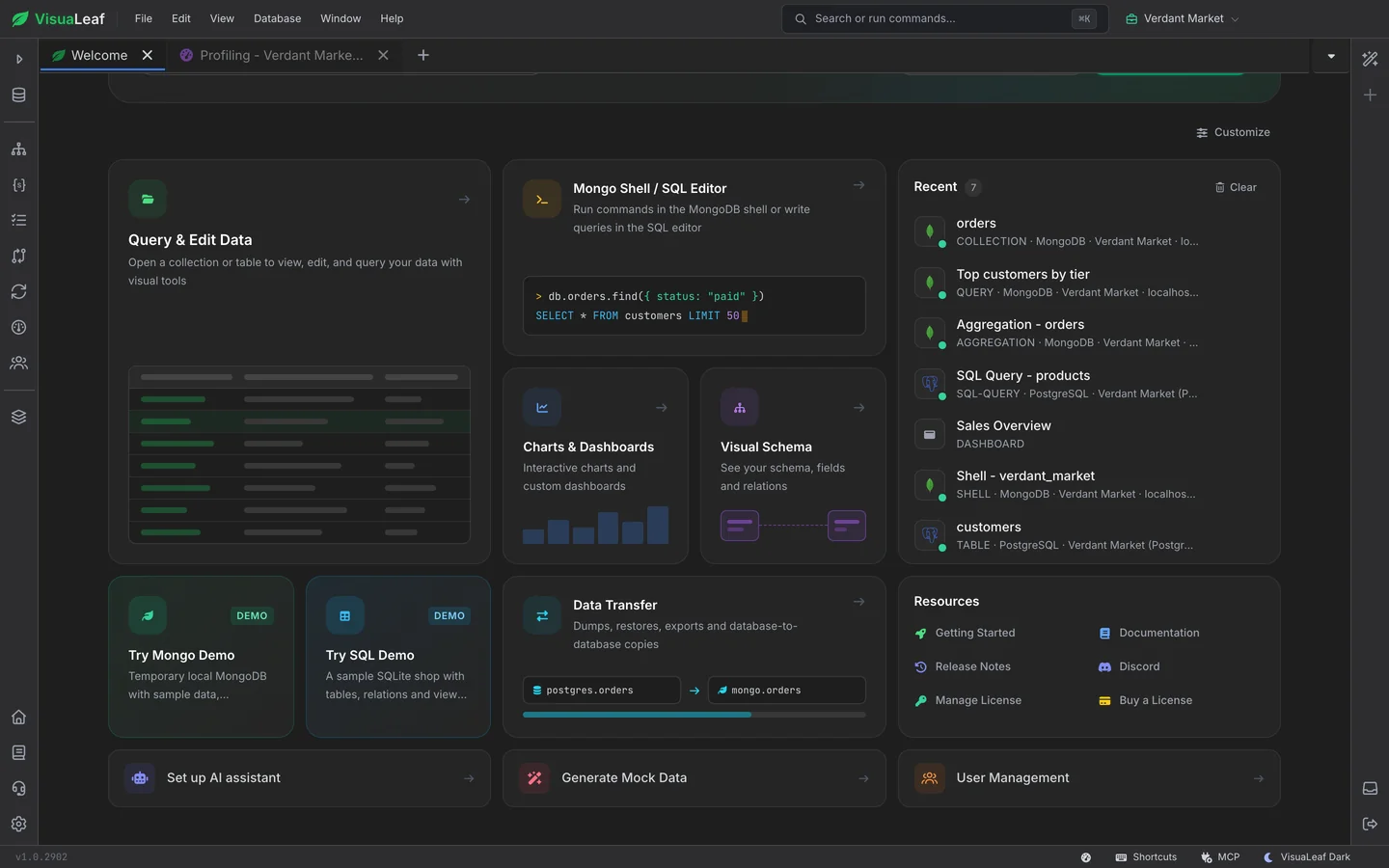
Spend all day in a database client and the small things add up. VisuaLeaf gives you workspaces for every project, as many windows as you have screens, split panes, a ⌘K bar that reaches everything and a shortcut for almost every action, the same on MongoDB, PostgreSQL, MySQL, SQL Server and 40+ other databases.
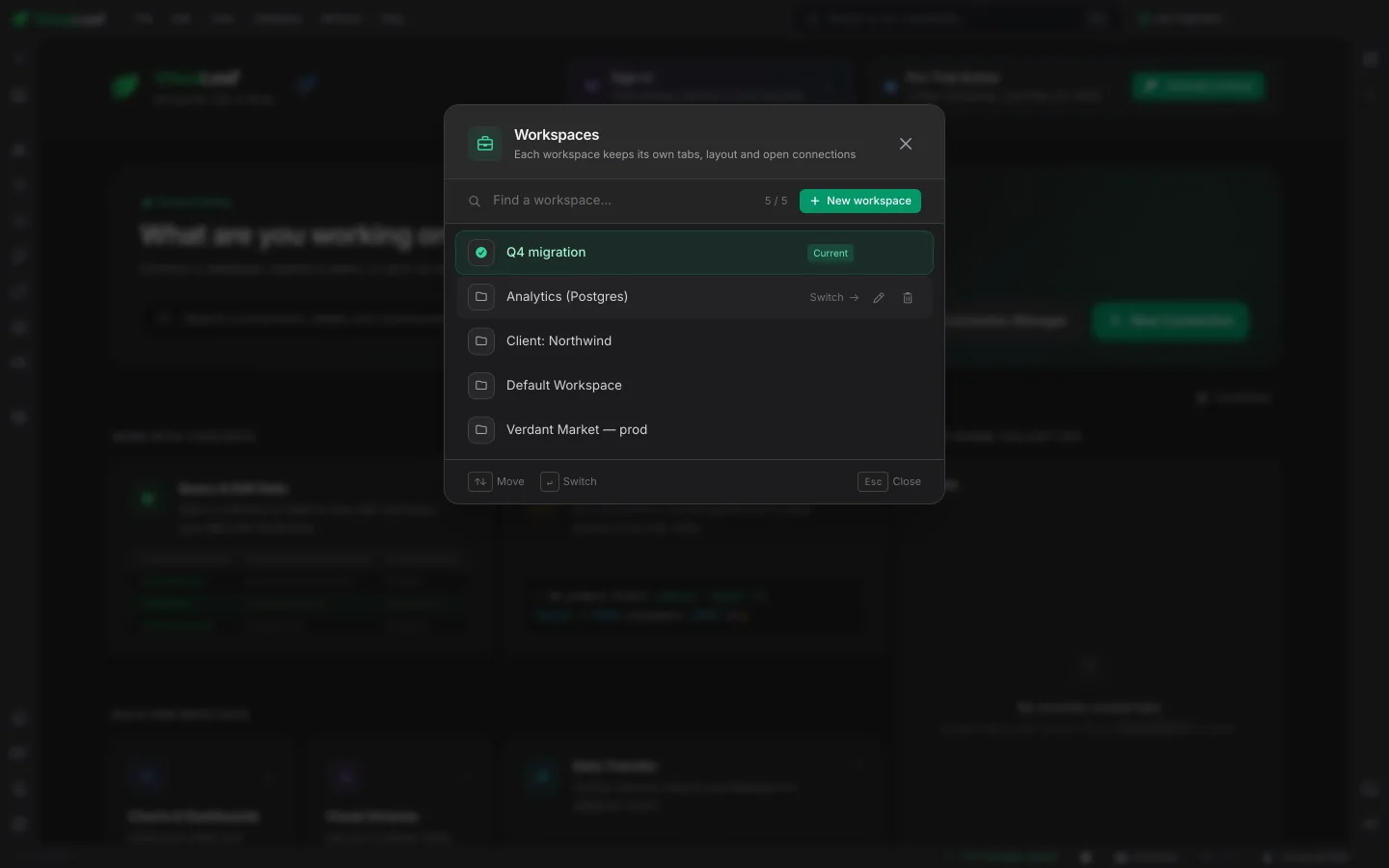
A workspace remembers its own tabs, layout and open connections. Keep one for production, one for analytics and one per client, and switch between them from the top bar. Each one comes back exactly the way you left it, so changing projects never means rebuilding your screen.
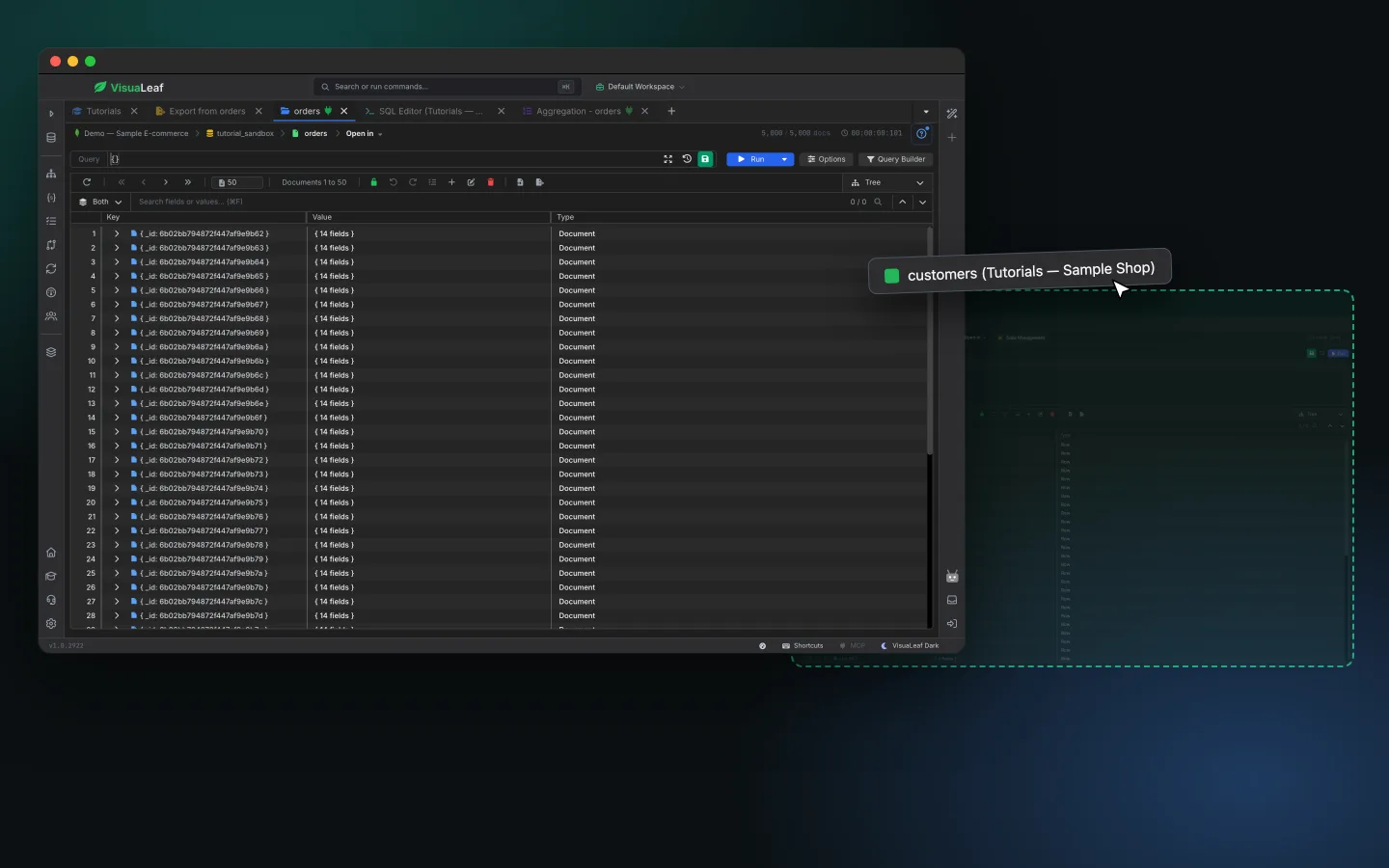
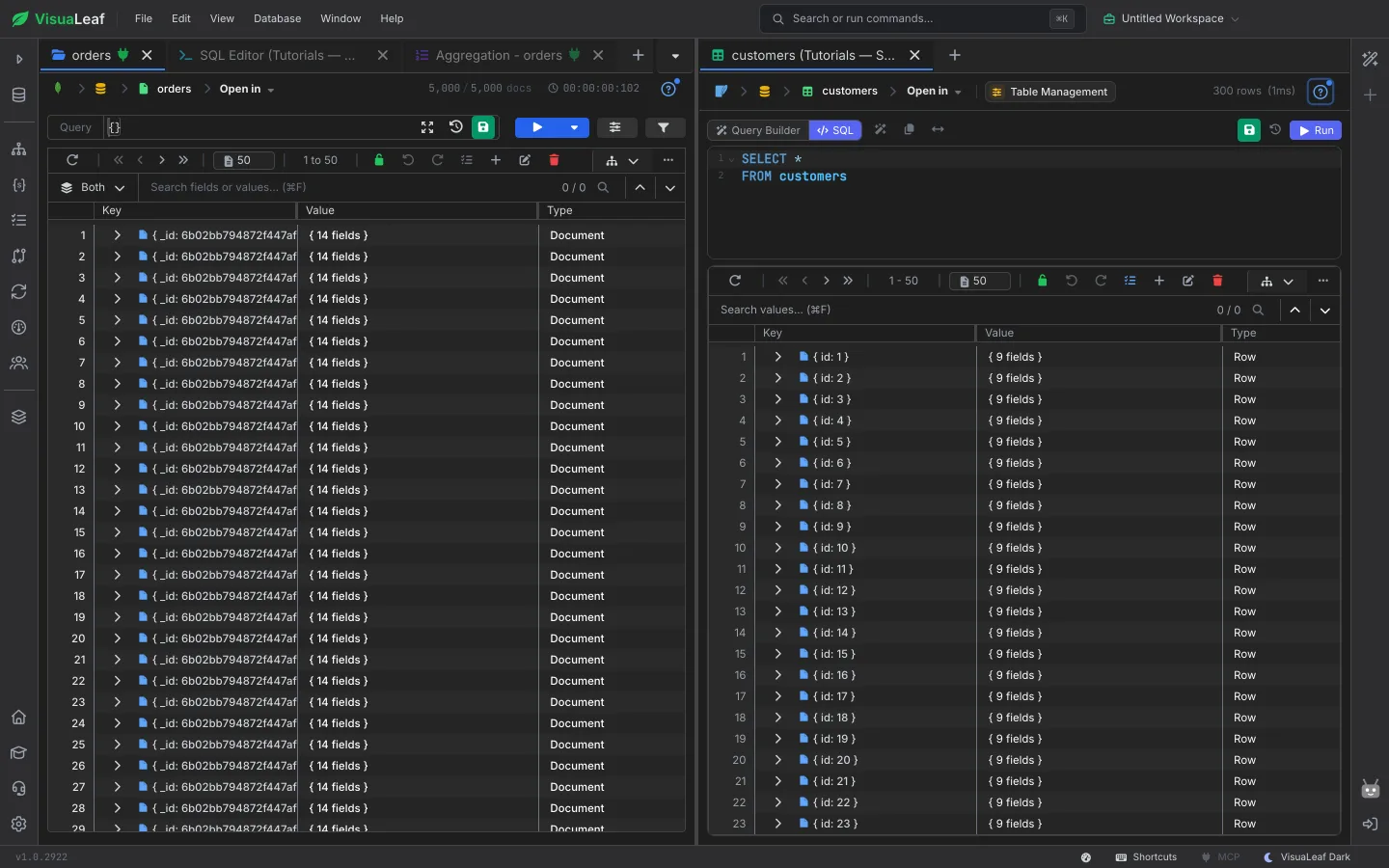
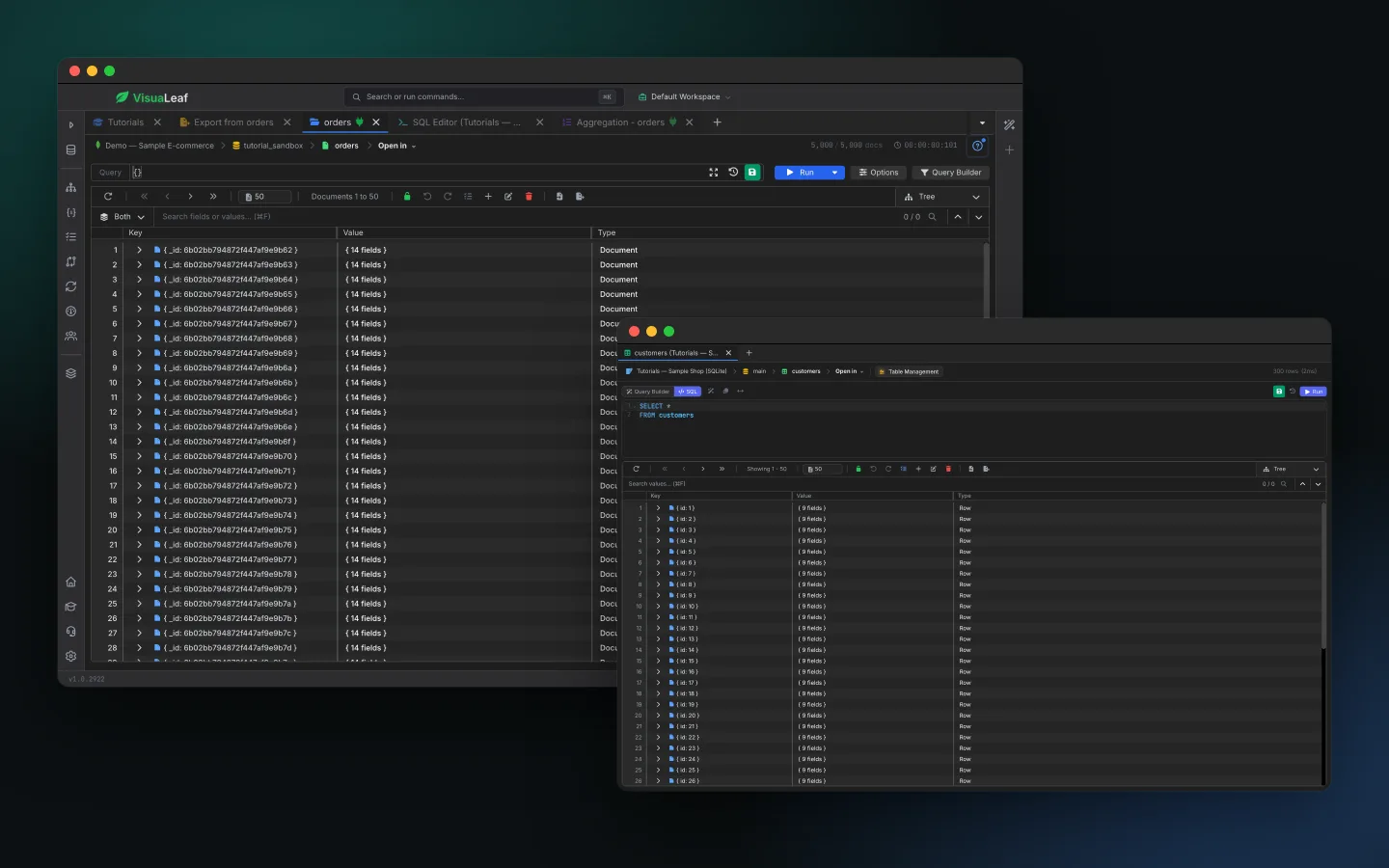
Pull a tab past the edge of the window and drop it: it opens in a window of its own, with its data, query and scroll position intact. Put a MongoDB collection on one screen and a SQL table on the other. Drag a whole tab group to move every tab in it at once, and send tabs back to the main window when you are done.
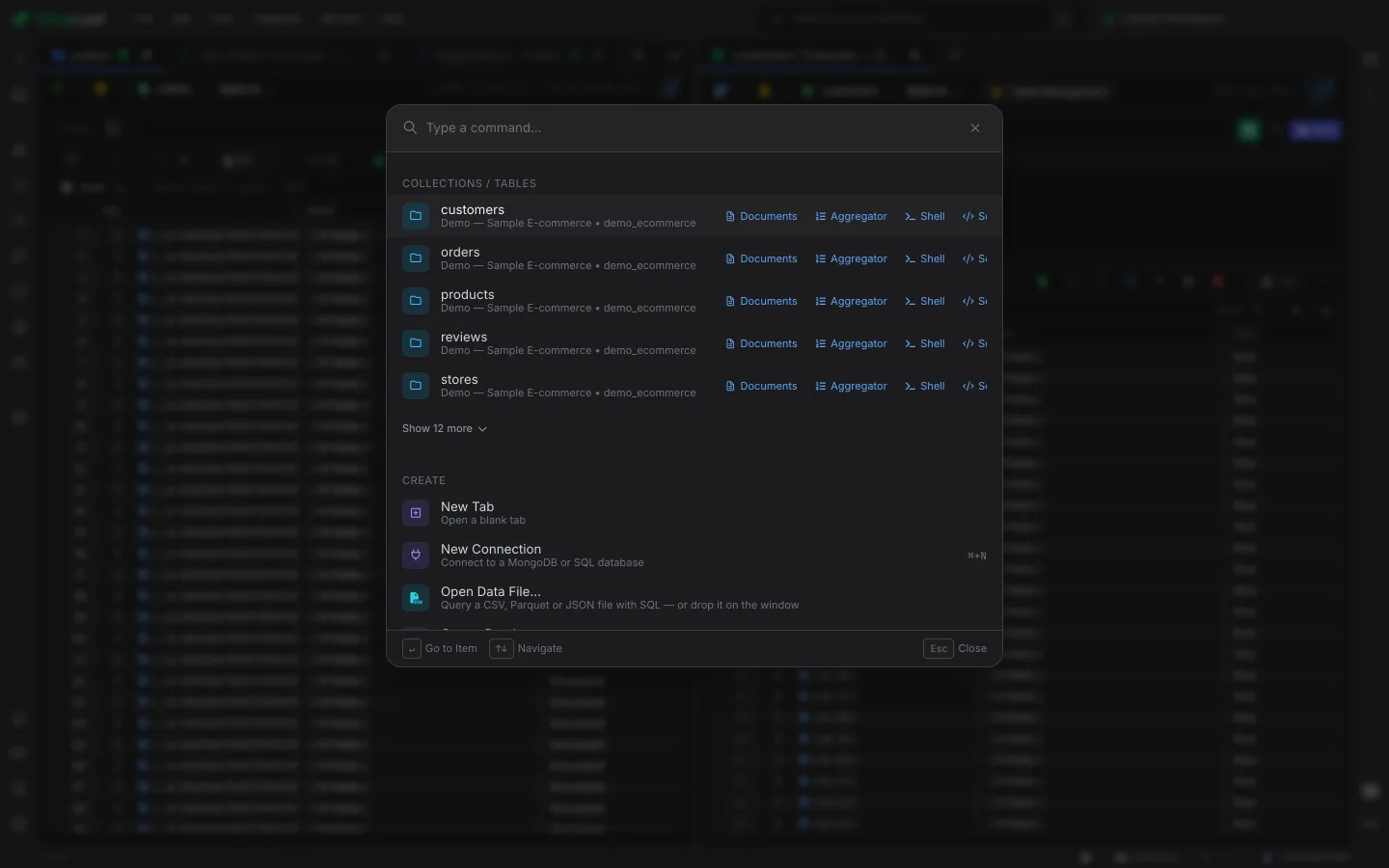
Press ⌘K (Ctrl+K) and type. Jump straight to any collection or table on any connection, then open it as documents, in the aggregation builder or in the shell. Create a connection, open a data file, run a command or find a tutorial, all without touching the mouse.
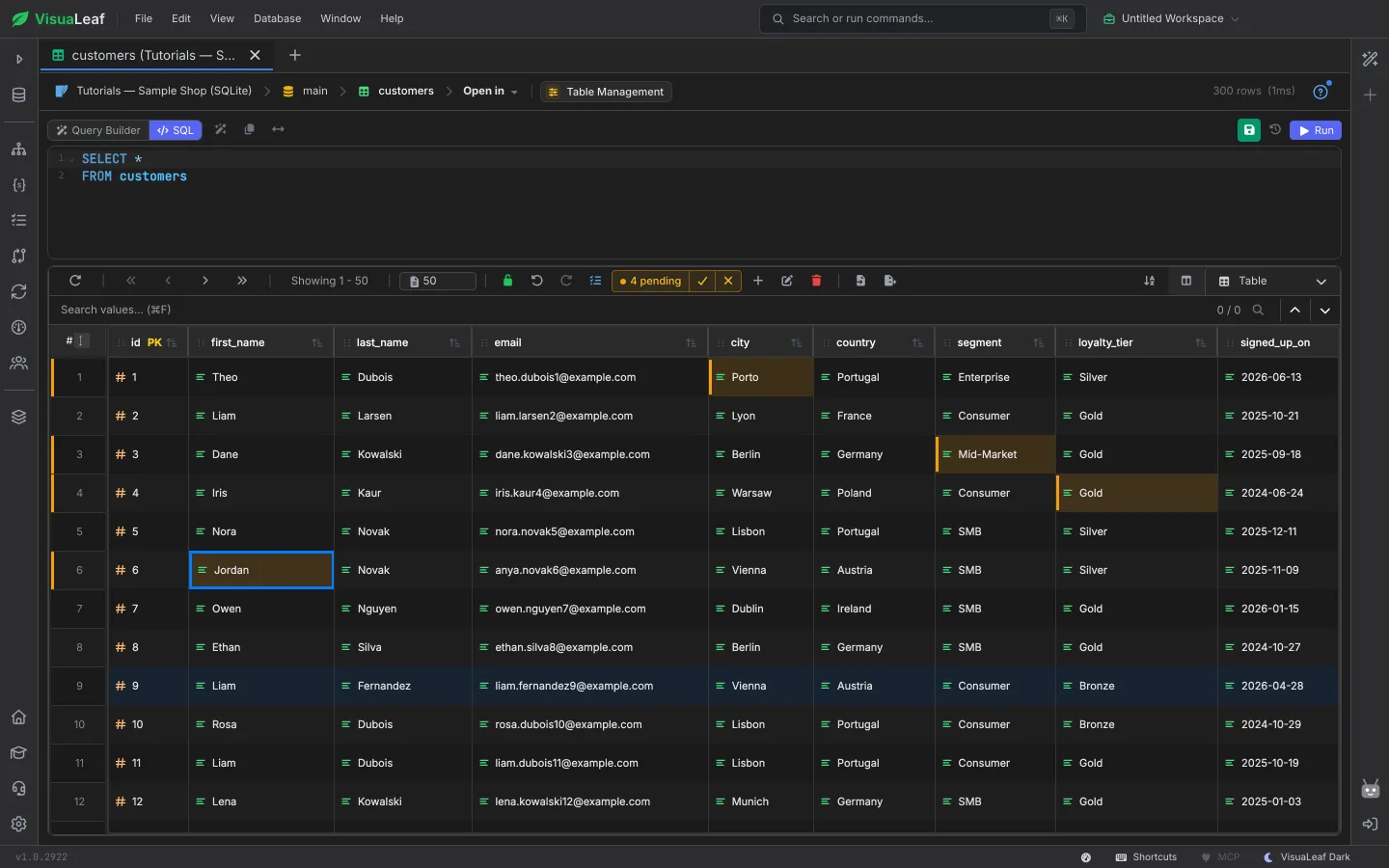
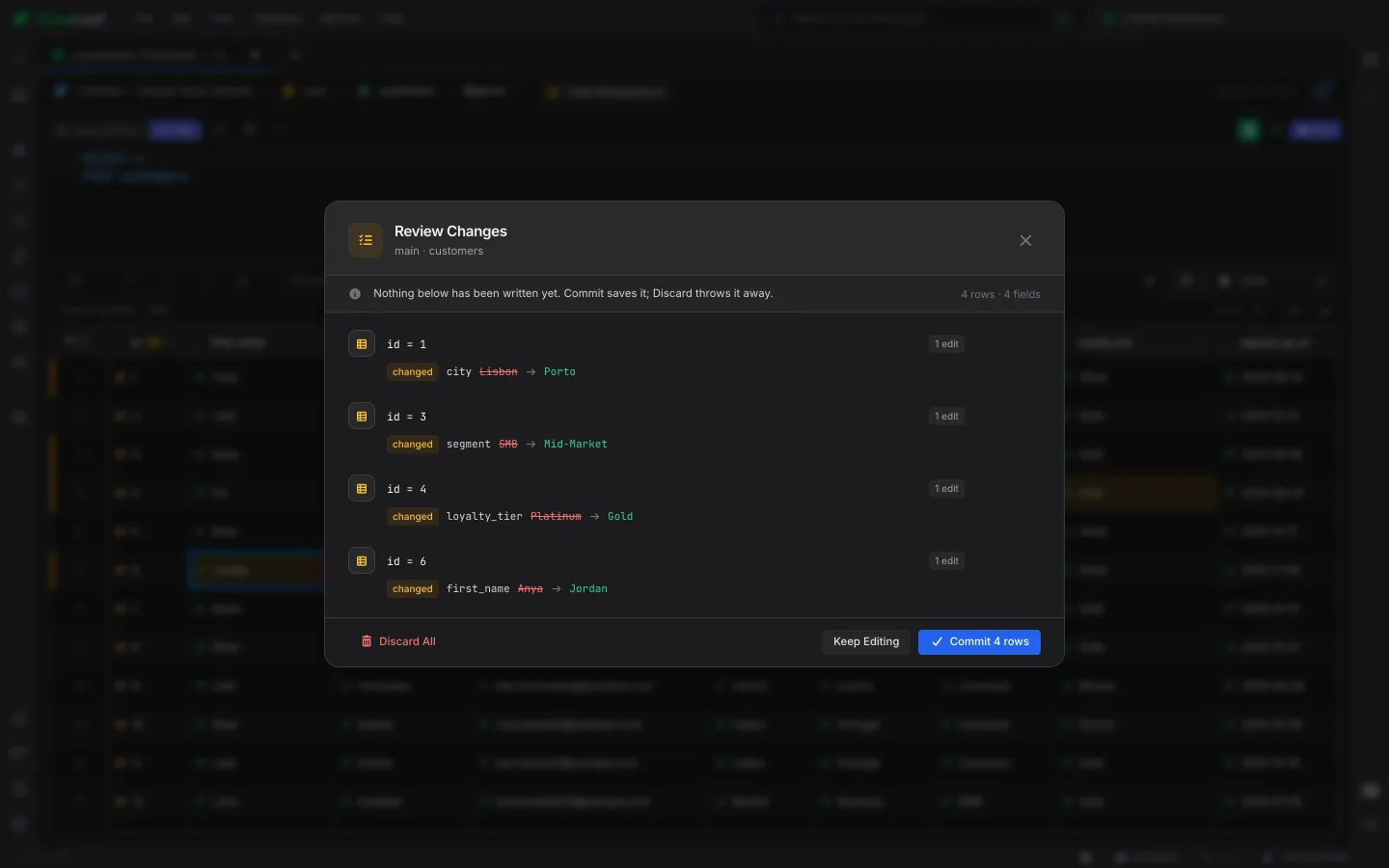
Turn on Review before saving and grid edits wait instead of being written straight away. Every changed cell is highlighted and the toolbar keeps count, 4 pending, with Commit and Discard one click away. Undo takes back a pending edit without touching the database. On by default for SQL tables, one click to turn on for MongoDB.
Open the pending list to see each row or document you changed, every field with its old value struck through and its new value beside it. Revert one row, discard everything, or commit them all at once. If someone else changed the same field in the meantime, the commit stops for that row instead of overwriting their work.
Split the window right or down and put two tabs next to each other: a MongoDB collection beside a SQL table, a query beside its results, production beside staging. Each pane keeps its own tabs, and you can drag tabs between panes.
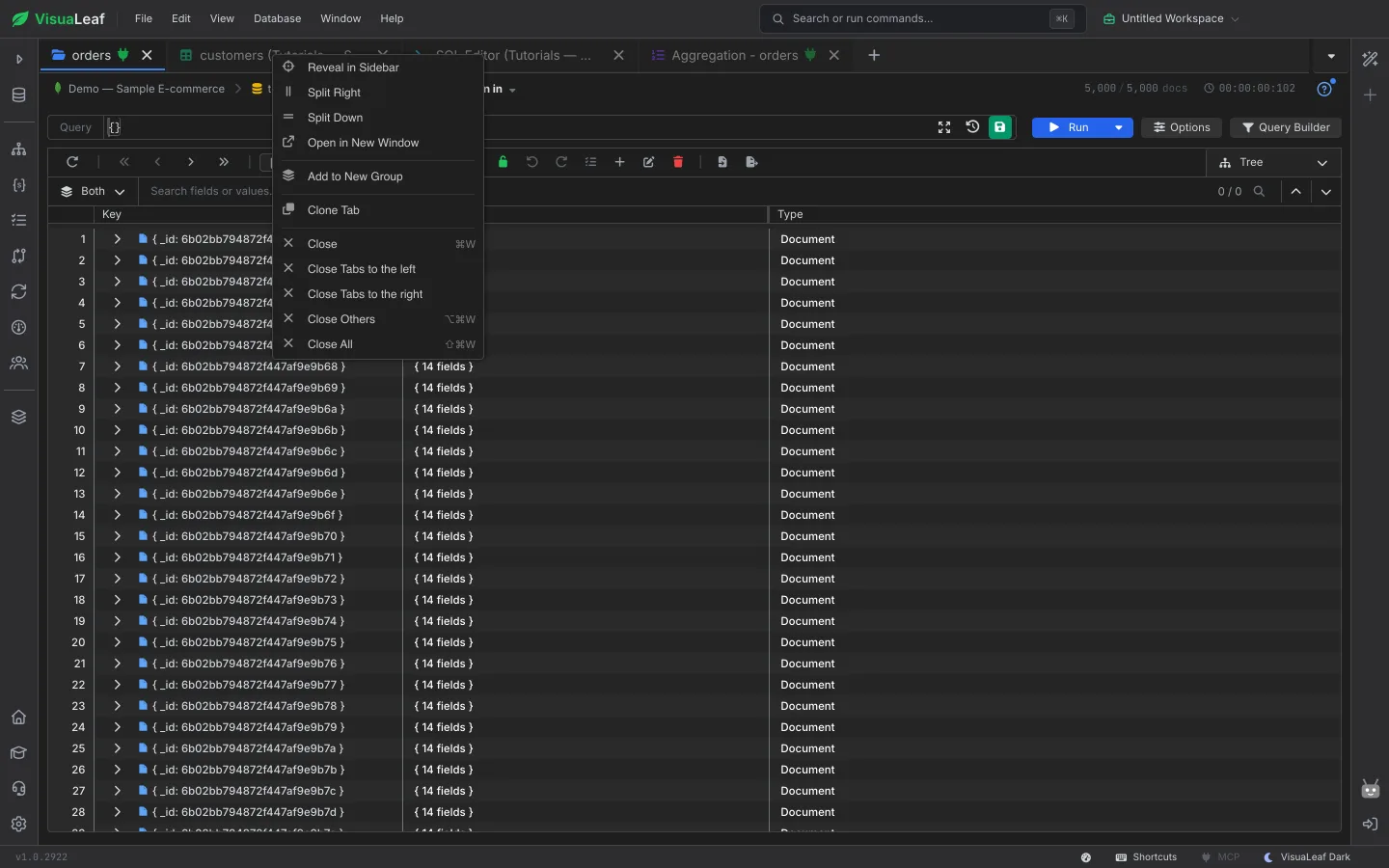
Right-click any tab to split it right or down, open it in a new window, clone it, find it in the sidebar or add it to a coloured tab group. Groups keep related tabs together and move, close or pop out as one.
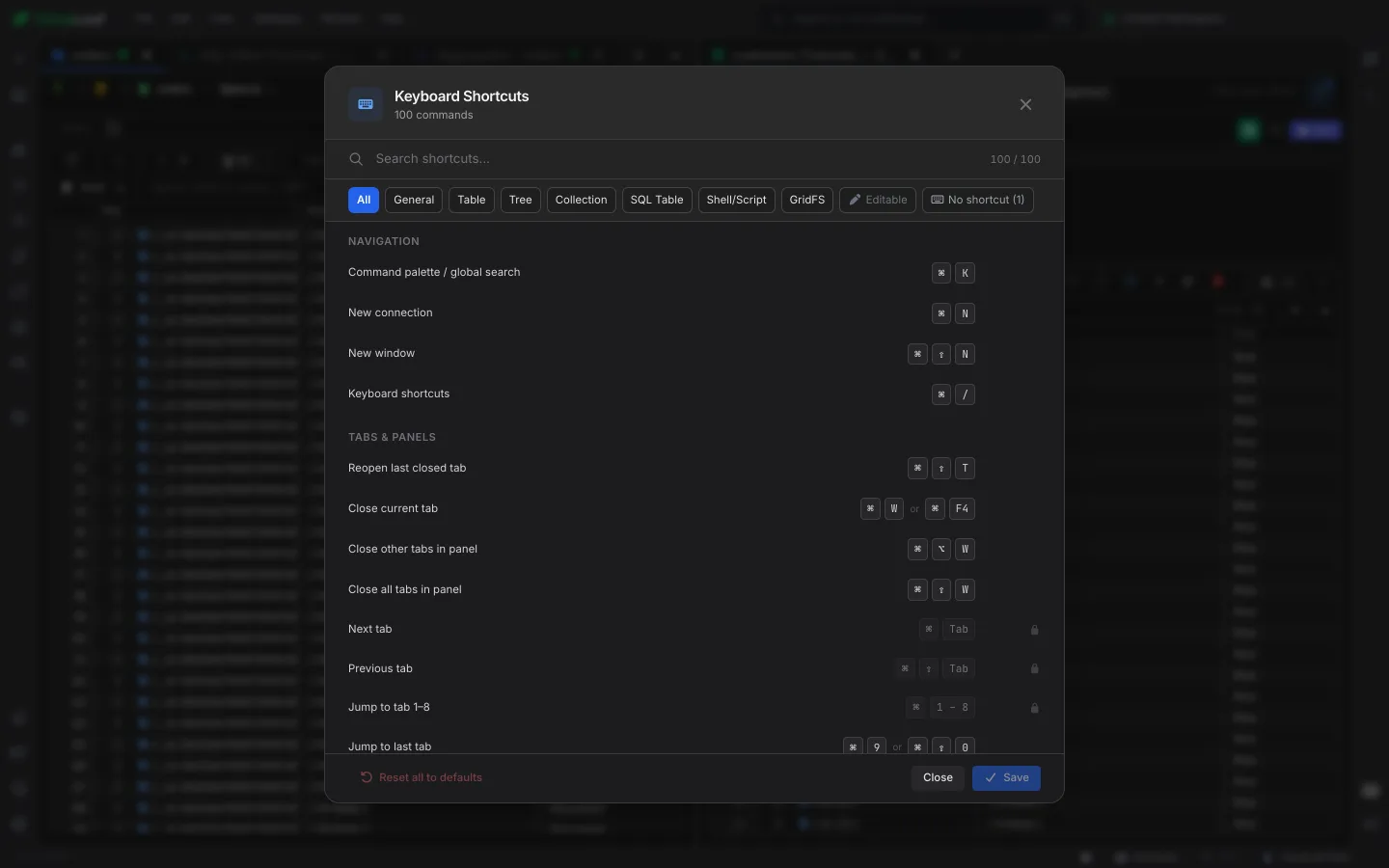
About 100 commands have a keyboard shortcut: open the action bar, reopen a closed tab, jump to tab 1 to 8, run a query, move through the grid. Search them, filter by where they work, and rebind the ones you want to change.
Yes, in the desktop app. Drag a tab outside the window, right-click a tab and choose Open in New Window, or press ⌘⇧N (Ctrl+Shift+N) for a new window. Tabs can be moved back to the main window at any time.
A named set of tabs, layout and open connections. Switch between workspaces to keep one per project or client, and everything comes back the way you left it.
Yes. Help → Keyboard Shortcuts lists about 100 commands. Search them, filter by where they apply, and rebind the editable ones.
Yes. With Review before saving on, edits in the MongoDB and SQL grids are held as pending changes. Changed cells are highlighted, and nothing is written until you click Commit. Discard throws them away, and Review lists every field's old and new value.
Multiple windows, tab groups, pending changes, the ⌘K action bar and keyboard shortcuts are in every plan, including the free Community Edition. Workspaces are included in Basic and Pro.
Get started free with our Community Edition. Includes a 14-day trial of Pro features.