How to Browse and Edit Redis Safely Without `KEYS *`
Learn how to browse Redis without KEYS *, inspect data types and TTLs, filter keys and values, test ACL permissions, and edit data safely in VisuaLeaf.


You open Redis looking for a user, a queue, or a session that refuses to expire. Before you can fix anything, you need to find the key, identify its type, choose the right command, and check its TTL.
That is manageable for one key. It becomes tedious when the database contains strings, hashes, lists, sets, sorted sets, and streams, and each one needs a different way to inspect or edit it.
VisuaLeaf keeps that workflow in one place: scan keys by name and type, open them in the correct view, filter hash values, inspect TTLs, make supported edits, test ACL permissions, and use the Redis CLI only when you need an exact command.
Browse Redis keys without loading everything at once
Why not start with KEYS *? It asks Redis to inspect the entire keyspace in one operation. On a busy instance, that work can delay other requests. Redis therefore recommends using KEYS with extreme care in production.
SCAN returns keys incrementally instead. A focused scan from the Redis CLI might begin with:
SCAN 0 MATCH user:* COUNT 100Redis returns a cursor that is used for the next scan, and the process continues until the cursor returns to 0. VisuaLeaf handles that cursor and the repeated scan calls for you.
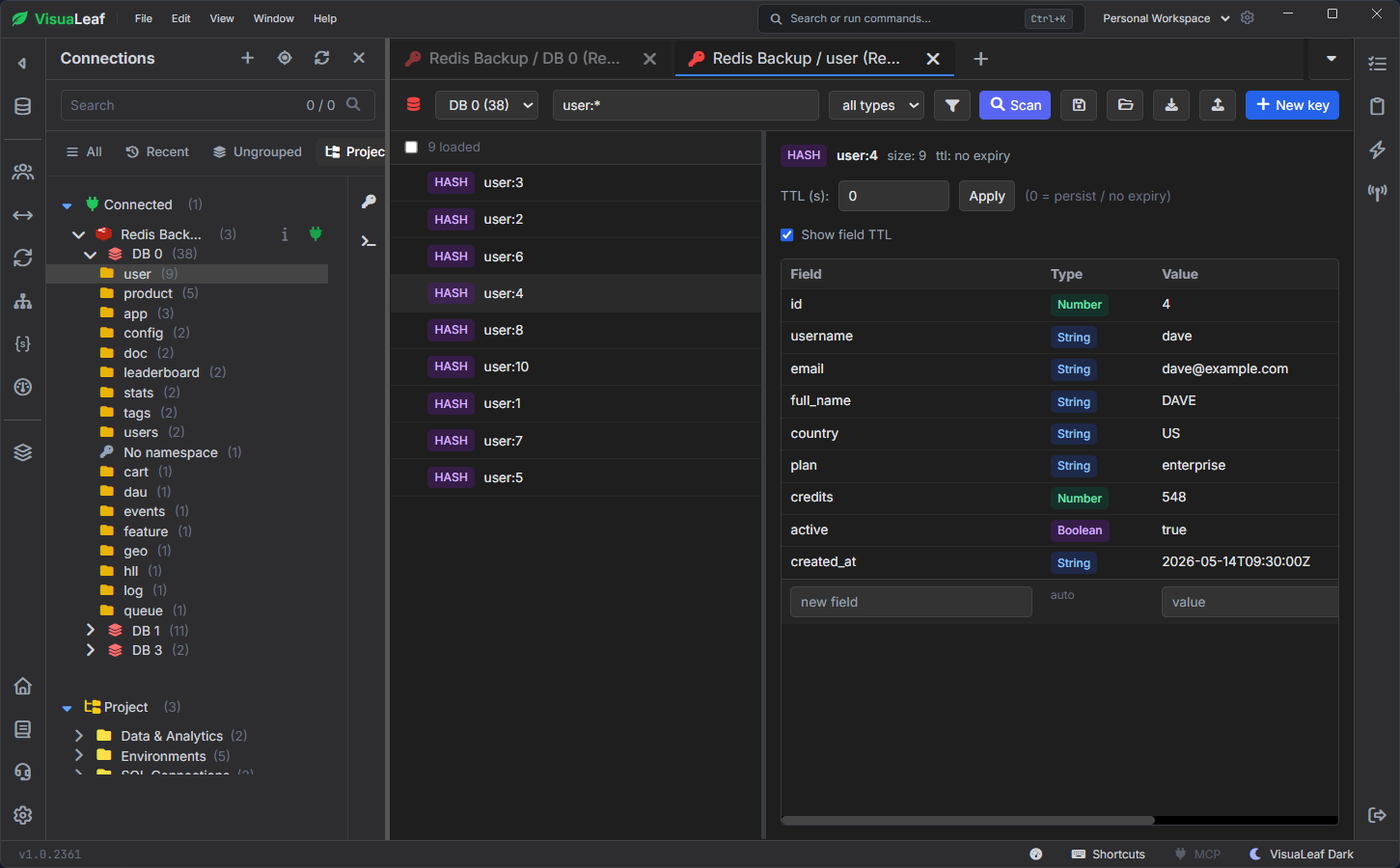
Open the Redis database, enter a pattern such as user:*, and click Scan. If you already know what you need, you can also filter the results by data type.
In this example, the user:* pattern returns nine matching hash keys. Each result is labeled with its Redis type, so you know what kind of data you are opening.
Keys are also grouped by namespace in the connection tree. Instead of navigating one long list, you can expand groups such as user, product, config, or queue.
Select a key to open its contents on the right. VisuaLeaf shows the value together with useful details such as its type, size, and expiration status.
Work with each Redis data type in the right view
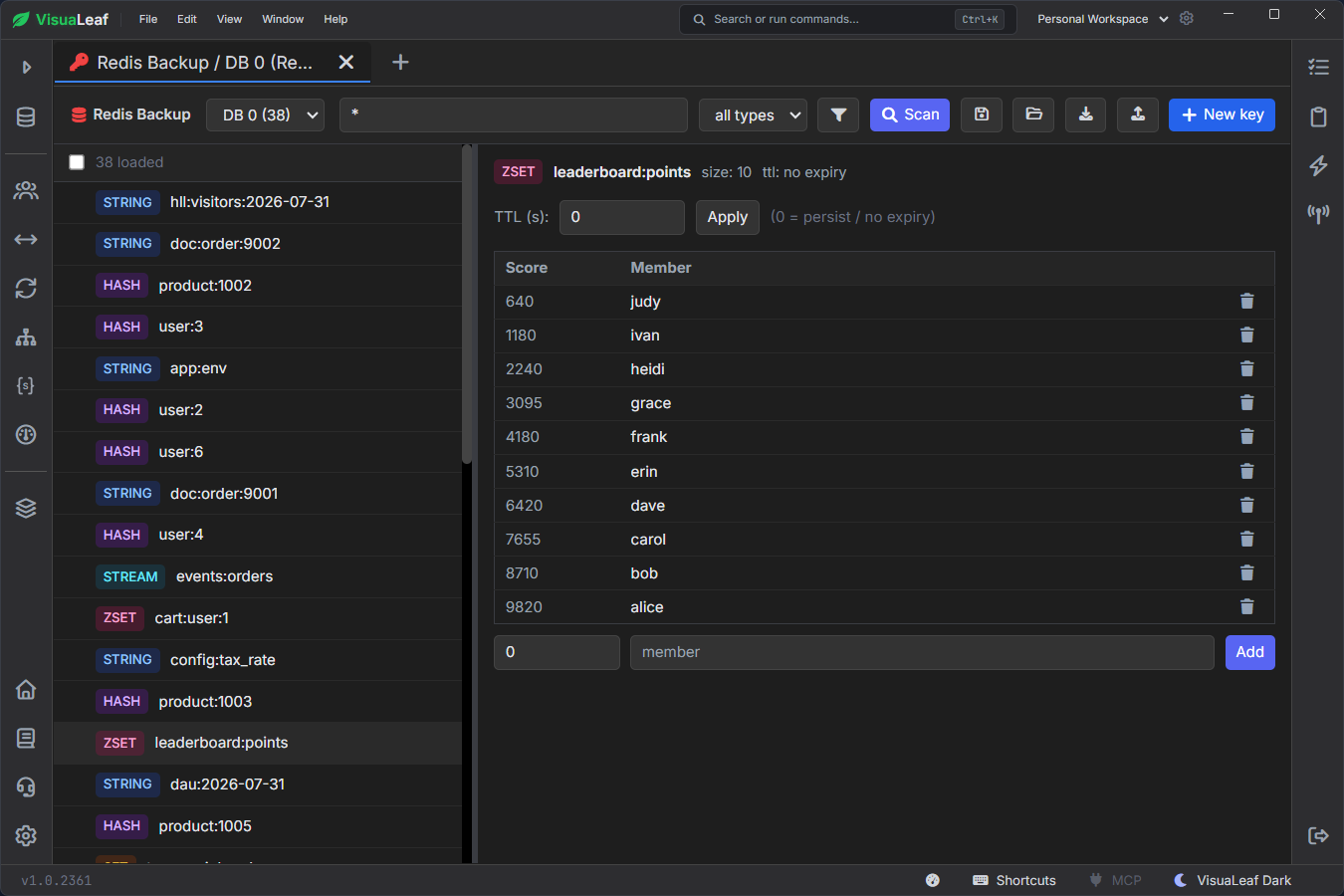
Once you find a key, the next step depends on its data type. A hash cannot be opened with GET, while a sorted set contains scores that a normal set does not have.
VisuaLeaf identifies the type and opens the appropriate view automatically. You can inspect the data without remembering a different command for every structure.
| Redis type | Common Redis commands | How VisuaLeaf helps |
|---|---|---|
| String | GET, SET, INCR, APPEND |
Shows the value and TTL together. String values can be edited directly. |
| Hash | HGETALL, HSET, HDEL |
Displays fields in a table where you can add, edit, or remove fields and inspect available field TTLs. |
| List | LRANGE, LPUSH, RPUSH, LSET |
Shows values in their list order. Lists are currently read-only in the visual browser, so changes can be made in the CLI. |
| Set | SMEMBERS, SADD, SREM |
Displays unique members and lets you add or remove them visually. |
| Sorted set | ZRANGE, ZADD, ZREM |
Shows members with their scores, making rankings easier to inspect and update. |
| Stream | XRANGE, XADD, XDEL, XTRIM |
Displays stream entries and their IDs. Streams are currently read-only in the visual browser, with advanced operations available in the CLI. |
This is particularly useful when you are exploring a database you did not create yourself. You can see what each key contains before deciding whether to edit it visually or use an exact Redis command.
Filter Redis keys by name and value
A key pattern helps when the information you need is already part of the key name.
For example:
user:*
product:*
queue:orders:*
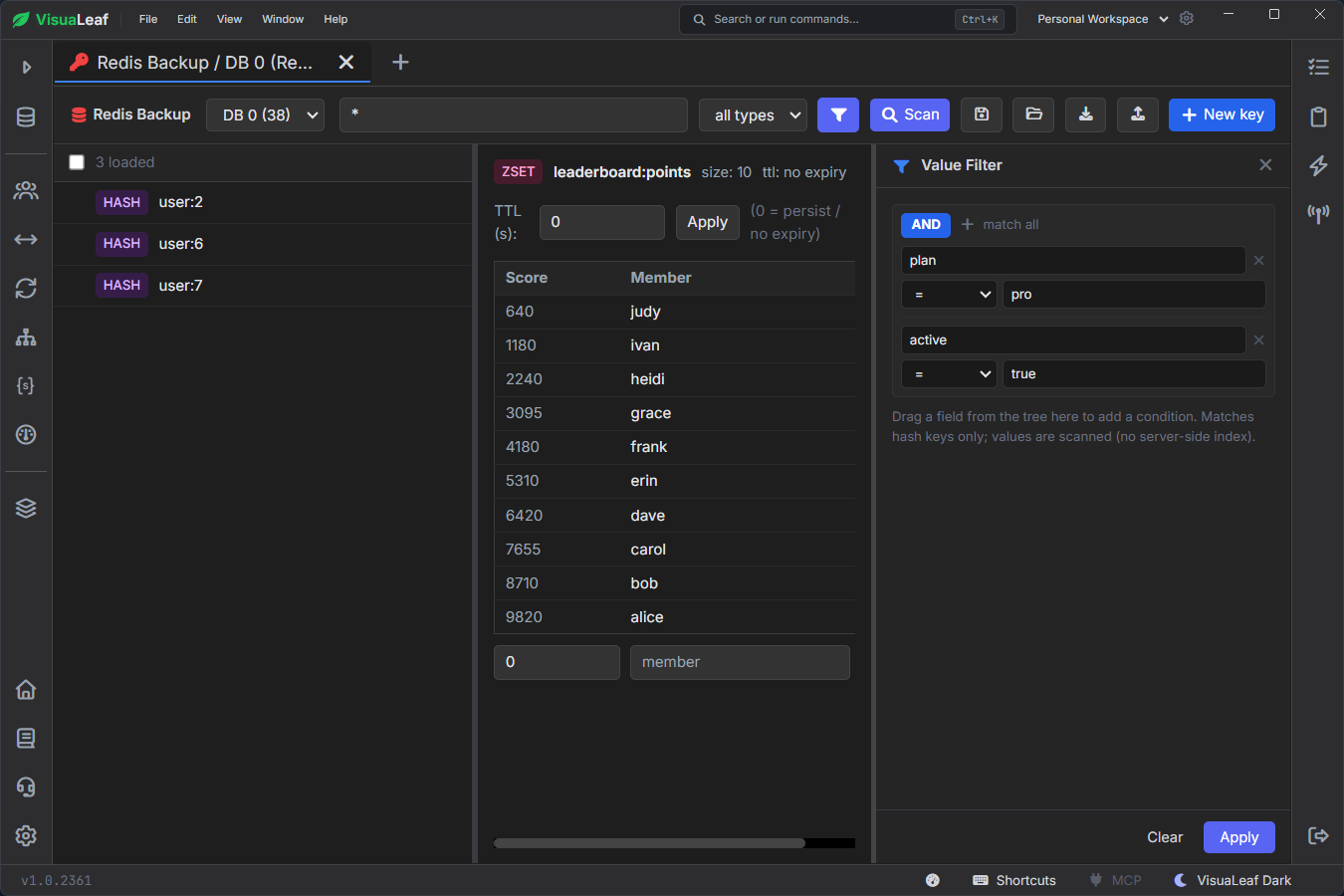
Sometimes the key name is not enough. You may need all user hashes where the plan is pro and the account is active.
In VisuaLeaf, open the value filter and add:
plan = proactive = true
The results are reduced to the matching hash keys, and you can open each record without running HGETALL repeatedly.
Value filtering reads the candidate values; it is not a server-side Redis index. Start with a focused key pattern and data type before applying value conditions, especially on a large production database.
Check and change TTLs from the same view
A key can contain the correct value and still create a problem if it never expires.
This matters for data such as:
- sessions
- cached responses
- temporary tokens
- background-job locks
- rate-limit counters
When you open a key in VisuaLeaf, its TTL is shown beside the type and size. You can immediately see whether it has a remaining lifetime or no expiry.
If you check the same key from the Redis CLI, TTL returns the remaining lifetime in seconds. A result of -1 means the key has no expiration, while -2 means the key does not exist.
To add or change the expiration, enter the number of seconds and click Apply. In the VisuaLeaf TTL field, 0 means that the key should persist without an expiration.
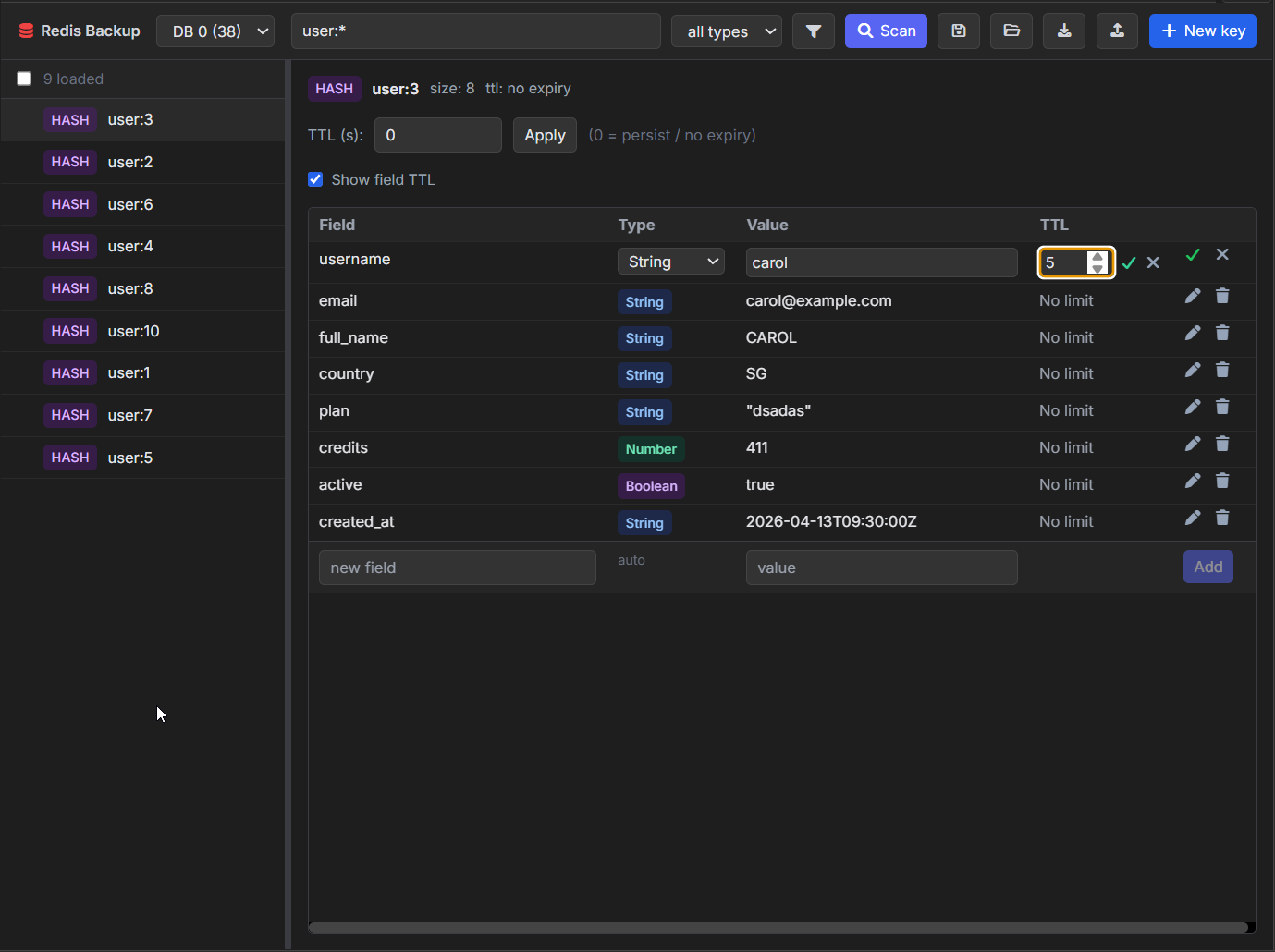
Hashes can also show field-level TTLs when the connected Redis version supports them. This helps distinguish between the lifetime of the whole hash and the lifetime of an individual field.
Check the TTL again after editing important data. If you use the CLI to replace a string with SET, remember that the old expiration can be removed unless you supply a new TTL or use KEEPTTL.
Edit Redis values with their structure still visible
For small corrections, editing in the data view is easier than rebuilding the correct command manually.
Depending on the Redis type, you can:
- edit a string value
- add, update, or remove a hash field
- add or remove a set member
- change a sorted-set member or score
- change the key TTL
The surrounding data remains visible while you work. When editing a user hash, for example, you can see username, email, plan, credits, and active together instead of changing one field without the rest of the record for context.
Lists and streams remain visible but read-only in the current visual editor. Their order and entry IDs matter, so commands such as LSET, XADD, or XTRIM are better handled explicitly in the CLI.
For any production edit, it is still worth following three basic checks:
- Confirm the connection, database, and exact key.
- Note the existing value and TTL.
- Read the key again after saving.
A visual editor makes the operation easier to follow, but it should not replace the same care you would use with a command.
Test ACL permissions before running a command
A Redis user may be allowed to read one key pattern but not another, or run GET but not SET.
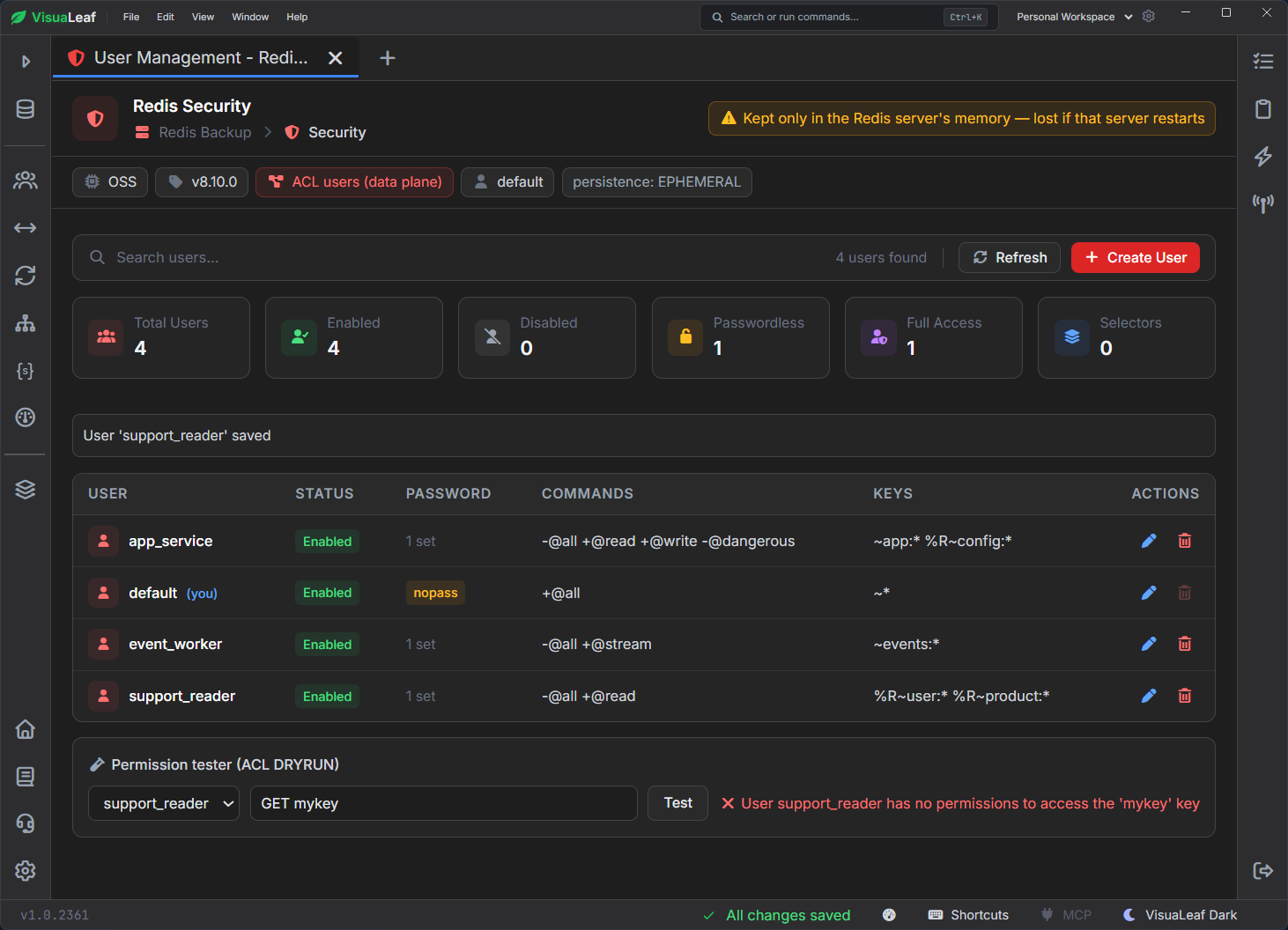
The Permission tester (ACL DRYRUN) in VisuaLeaf lets you choose a user and test a complete command without executing it.
For example:
GET user:6
or:
HSET user:6 plan enterprise
The result tells you whether that user has permission to run the command. No value is read or changed by the tested command.
This is useful when creating a restricted application user, checking why a command is denied, or reviewing permissions before deploying a change. It tests ACL access only; it does not confirm that the key exists or that the proposed value is correct.
Use the CLI when you need an exact command
Not every Redis task needs a visual control.
The CLI is still the right place for:
- changing lists or streams
- running commands with advanced options
- inspecting stream consumer groups
- checking memory usage
- running a saved Redis script
- working with a data type that is not available in the visual browser
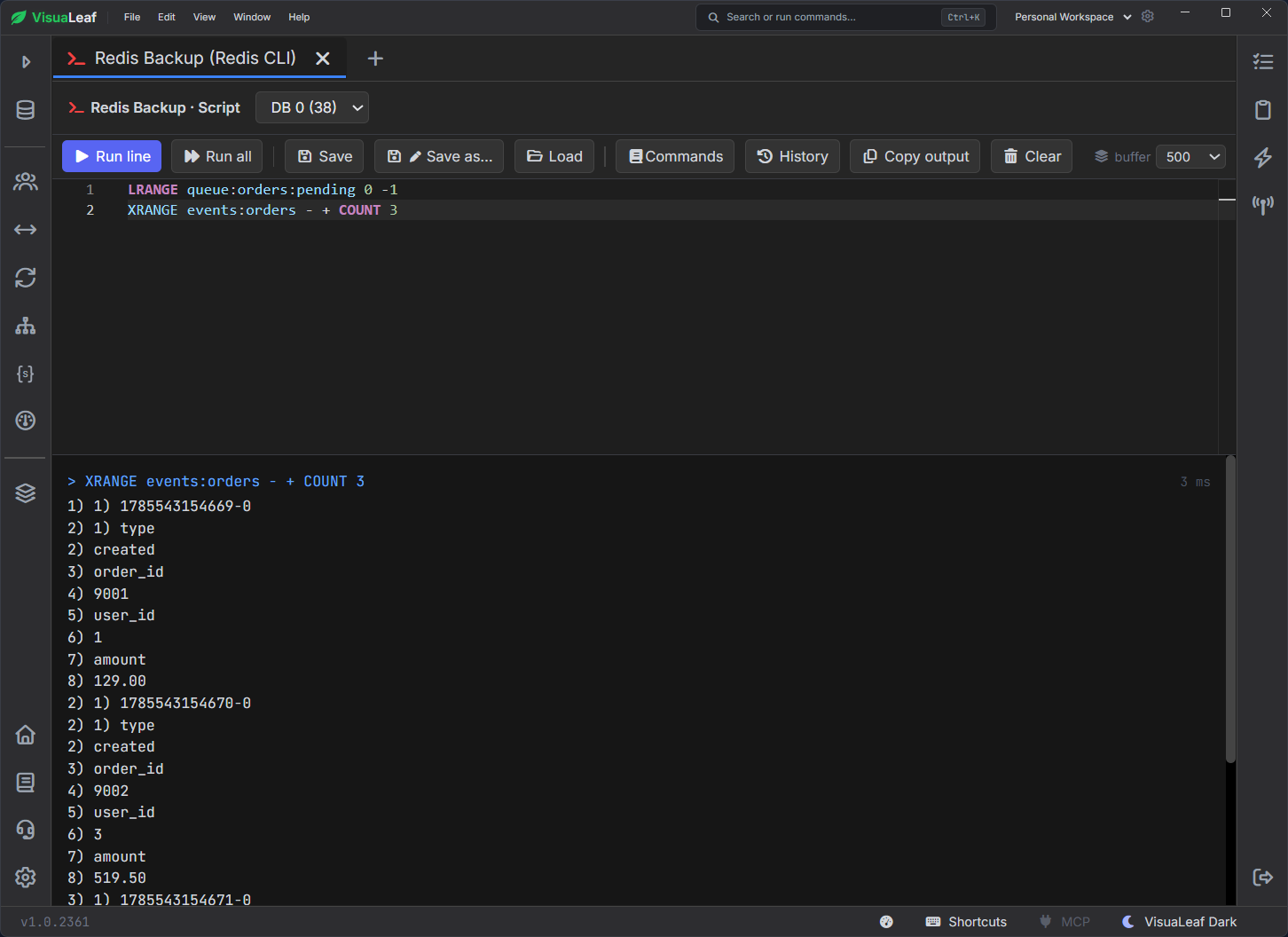
VisuaLeaf includes a Redis CLI inside the same workspace. It uses the selected connection and database, and keeps the editor, result, command history, and command reference together.
For example, you can inspect a hash with:
HGETALL user:4
Or work with the two read-only visual types using exact commands:
LRANGE queue:orders:pending 0 -1
XRANGE events:orders - + COUNT 100
You can run one line or the whole script, save useful commands, and copy the output without opening a separate terminal.
Download the Redis browsing safety checklist
Before working on a production database, keep this short checklist nearby:
It covers the checks that are easiest to miss:
- verify the connection and database
- scan a focused key pattern
- confirm the Redis type
- check the current value and TTL
- use the correct editor or command
- test ACL permissions when needed
- verify the result after an edit
Browse and edit Redis with VisuaLeaf
Redis is easier to work with when you can see the key type, value, and TTL before making a change. VisuaLeaf keeps that everyday workflow visual while leaving the CLI available for commands that need more control.
Try it out today.