How to Mask Sensitive Data in SQL: Make a Safe Database Copy
Learn how to mask sensitive data in SQL by copying a MySQL database into a safe dev copy with VisuaLeaf Data Transfer, hiding names, emails, and card numbers in one task.


Data masking replaces sensitive values, like names, emails, and card numbers, with hidden versions. The result is a database copy you can share with developers or testers without exposing real people. In this tutorial, you'll copy a MySQL database into a new one and mask its private columns on the way, using Data Transfer in VisuaLeaf.
Before you start
- VisuaLeaf is connected to a MySQL 8 server.
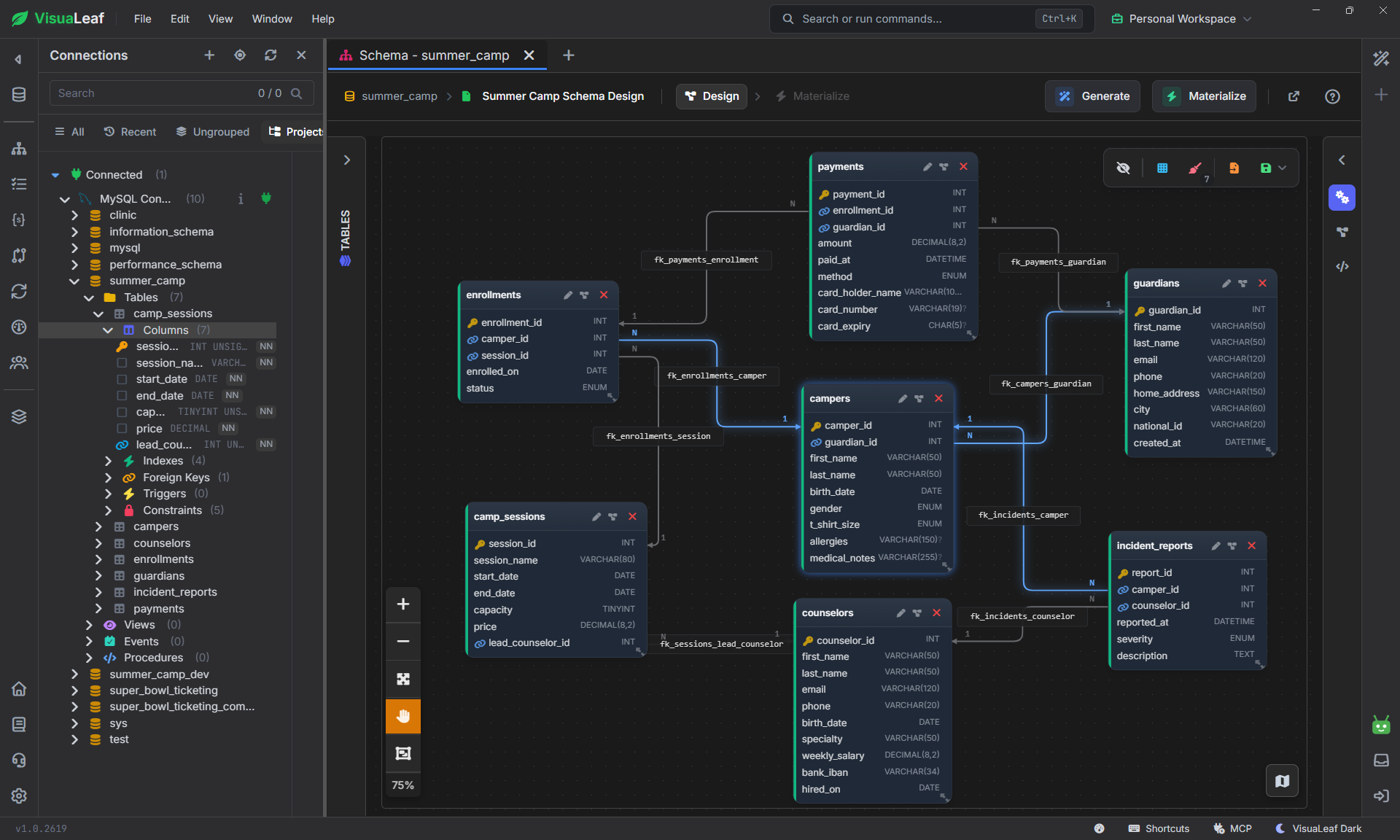
- The sample database
summer_camp. It has 7 linked tables:guardians,campers,counselors,camp_sessions,enrollments,paymentsandincident_reports. - One rule: never mask the original database. You always mask a copy.
Step 1: Create the target database
The masked copy needs a place to go:
CREATE DATABASE summer_camp_dev
  CHARACTER SET utf8mb4
  COLLATE utf8mb4_0900_ai_ci;
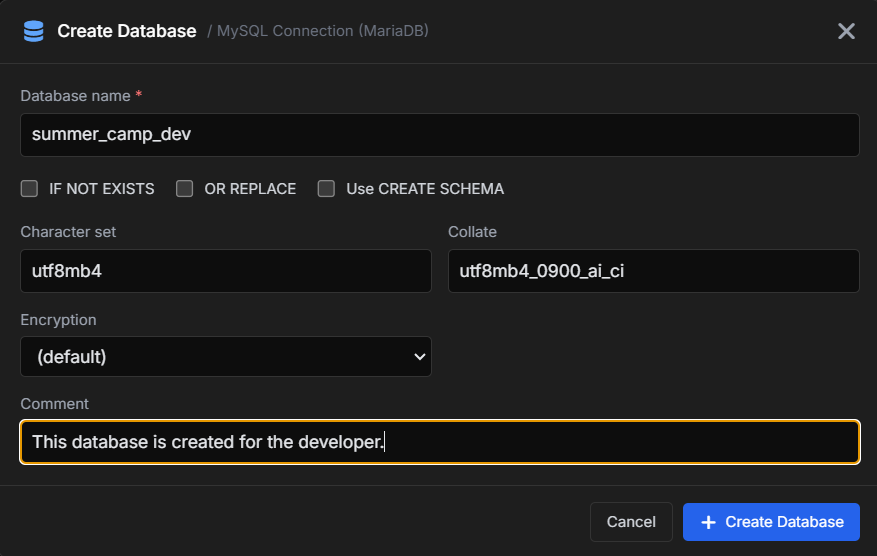
Or, without writing SQL, use the Create Database form: type summer_camp_dev as the name, keep utf8mb4 as the character set, and add a comment so everyone knows what this database is for. Then click Create Database.
Step 2: Your first job: mask names and emails
In Data Transfer, click New task and name it Mask summer_camp. Then click Add job. The job editor has three parts: Source, Target, and Mapping.
First, tell the job where the data comes from and where it goes:
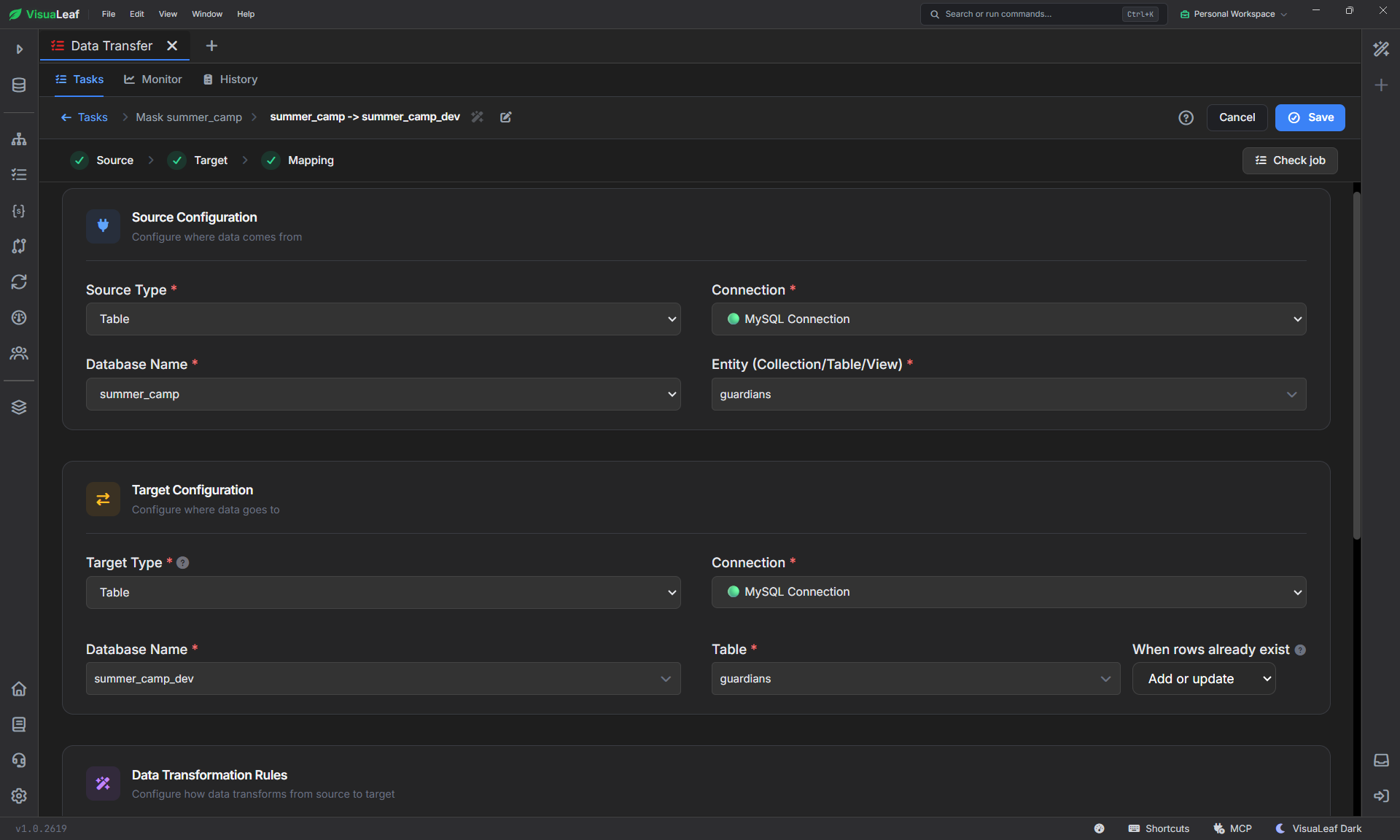
- Source: type Table, database
summer_camp, tableguardians - Target: type Table, database
summer_camp_dev, tableguardians
Leave When rows already exist on Add or update. If you run the job again, existing rows are updated instead of duplicated.
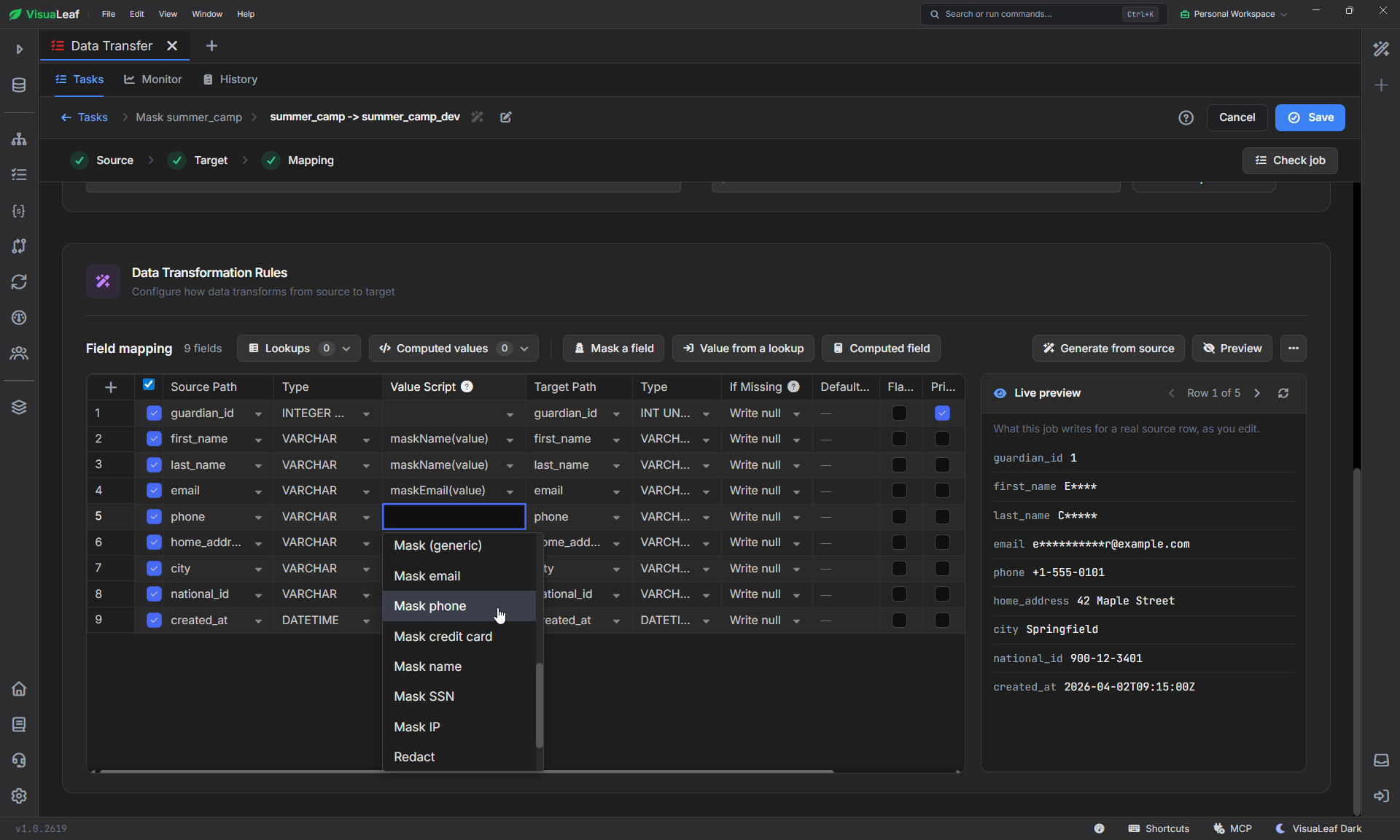
Scroll down to Data Transformation Rules. In Field mapping, every row is one column of the table. In the Value Script column, pick a mask from the list: Mask name for first_name and last_nameand Mask email for email.
For more options, like keeping the last characters or replacing a value with fixed text, use the Mask a field button above the table.
The Live preview on the right shows what the job will write for a real row: Emily becomes E****, and her email becomes e***********r@example.com.
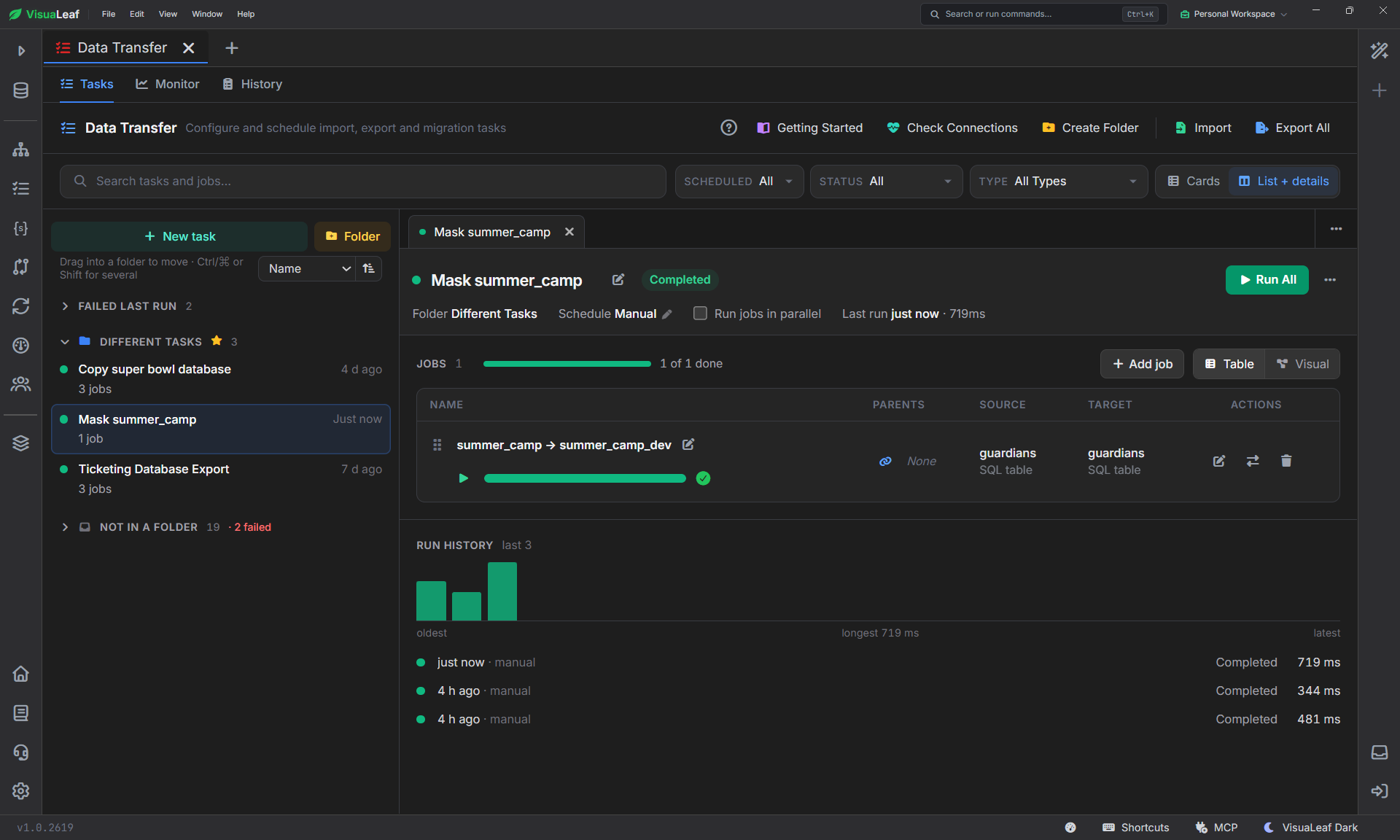
Click Save, then run the job with the play button next to it. When it finishes, the job shows a green check and the task shows Completed.
See the difference
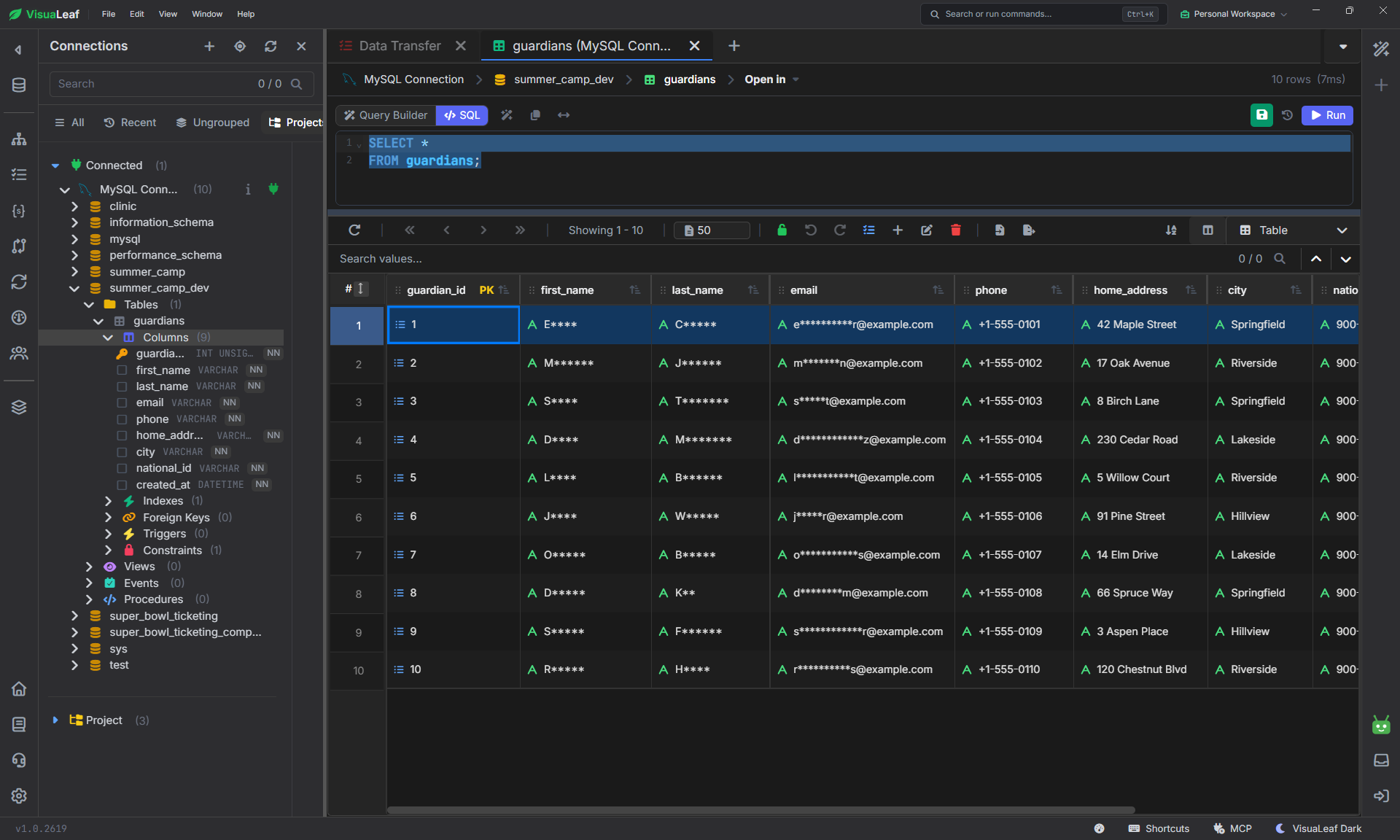
In the Connections panel, double-click guardians under summer_camp_dev. The table opens with a ready-made SELECT * FROM guardians query and the data below it. Names and emails are masked. Phone, address, and city are still real, because we haven't masked them yet.
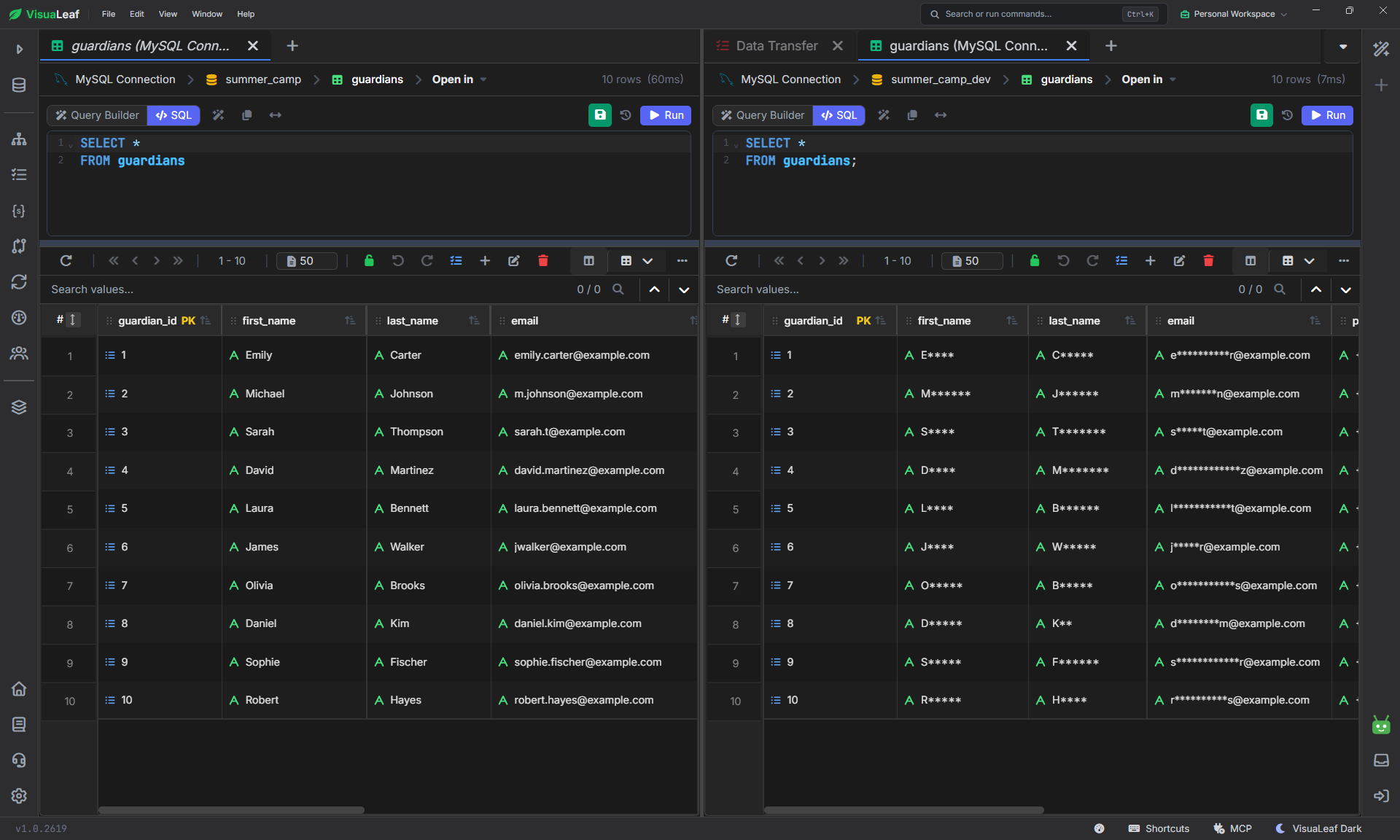
To compare, open guardians from summer_camp as well and put the two tabs side by side.
Step 3: A second job: mask a different kind of data
Add another job for campers (source summer_camp.campers, target summer_camp_dev.campers). Mask first_name and last_name as Name, and allergies as Replace with text, for example Sample note. Run it.
We did guardians first on purpose: every camper points to a guardian, so the guardians must already exist in the copy. More on that in Step 5.
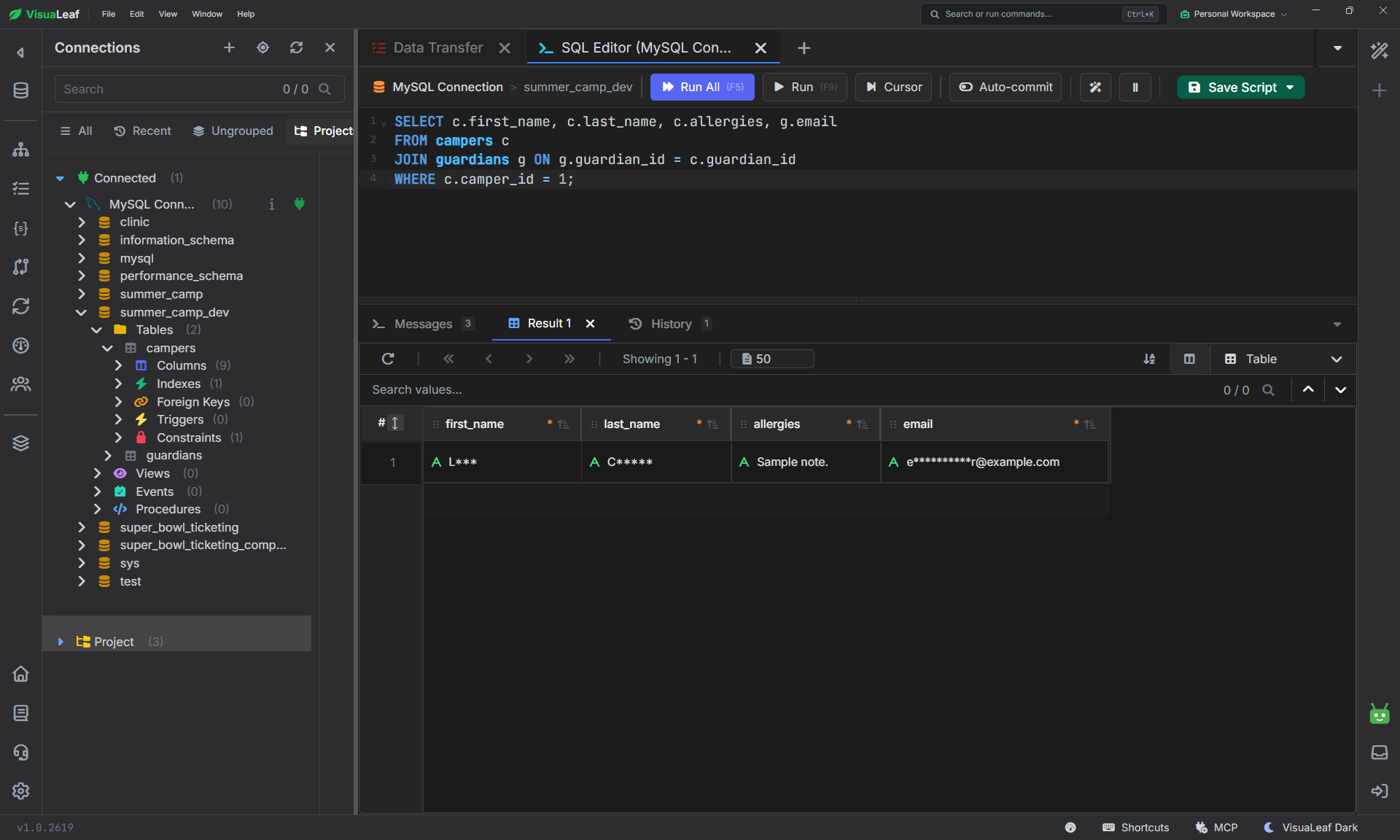
Since both tables are now insummer_camp_dev, you can check them together. Type this in the query box of the open table and click Run:
SELECT c.first_name, c.last_name, c.allergies, g.email
FROM campers c
JOIN guardians g ON g.guardian_id = c.guardian_id
WHERE c.camper_id = 1;
The values are masked, but the JOIN still returns a row. The links between tables survived because we didn't touch the IDs.
Step 4: Add jobs for the other tables
Repeat for the remaining 5 tables. Don't run anything yet: first you add the masks to the jobs, so the data is masked while it's copied, in a single pass.
The full list of masks:
| Table | Column | Mask |
|---|---|---|
| guardians (existing job) | phone | Mask phone |
| guardians (existing job) | national_id | Mask SSN |
| guardians (existing job) | home_address | Replace with text |
| counselors | first_name, last_name | Mask name |
| counselors | Mask email | |
| counselors | phone | Mask phone |
| counselors | bank_iban | Keep first / last characters (last 4) |
| payments | card_holder_name | Mask name |
| payments | card_number | Mask credit card |
| payments | card_expiry | Mask (generic) |
| incident_reports | description | Replace with text |
camp_sessions and enrollments hold nothing private, so they're copied as they are. Don't mask the ID columns (camper_id, guardian_id...): they link the tables together.
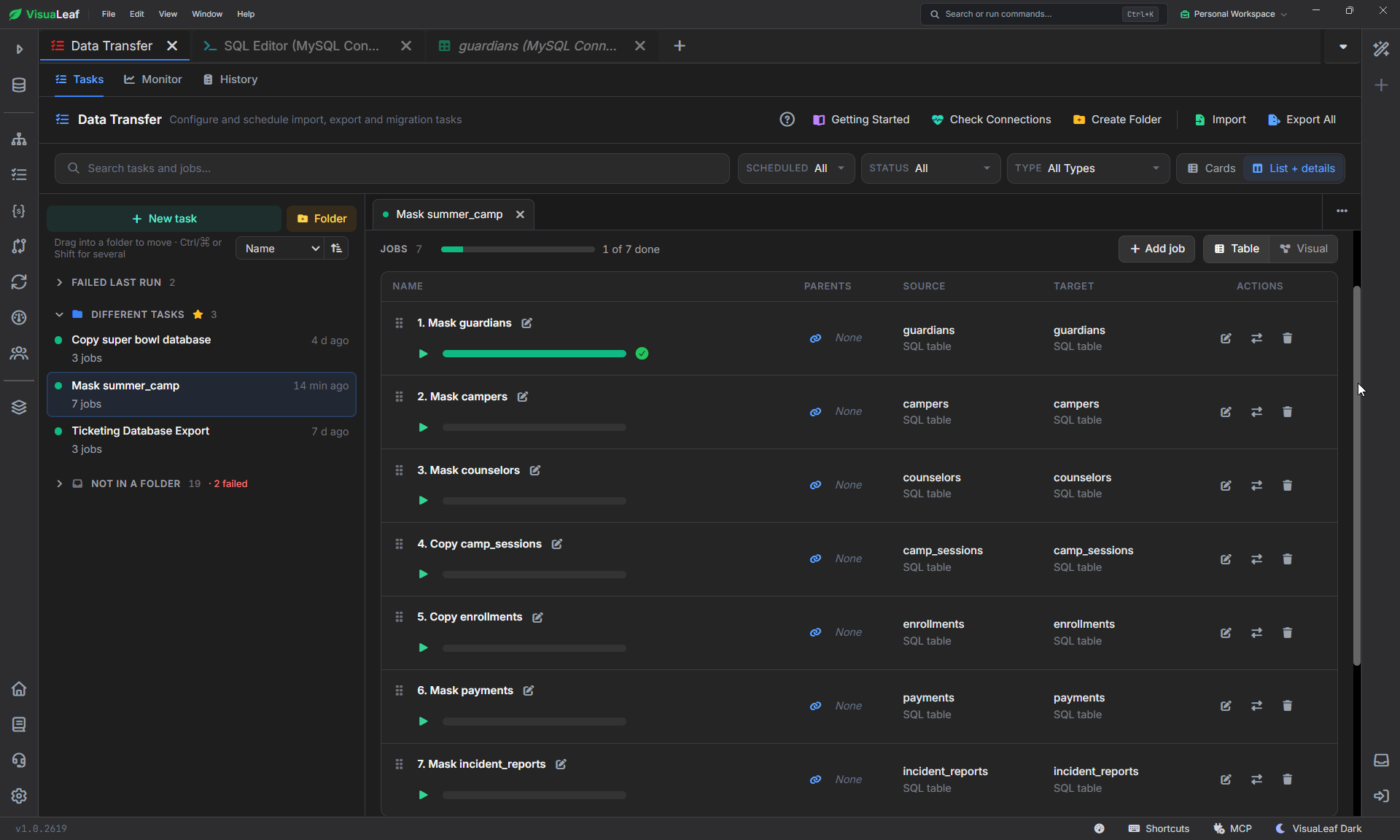
Step 5: Set the run order and run
A child table can only be copied after its parent table exists in the target. Every camper points to a guardian, so guardians is the parent of campers.
Set this with the Parents column on each job. The easiest way is the Visual view: click a job card, and in Job Details, under Parent dependencies, tick the jobs that must finish first. You can also drag from the right edge of one card onto another. Arrange the cards in this order:
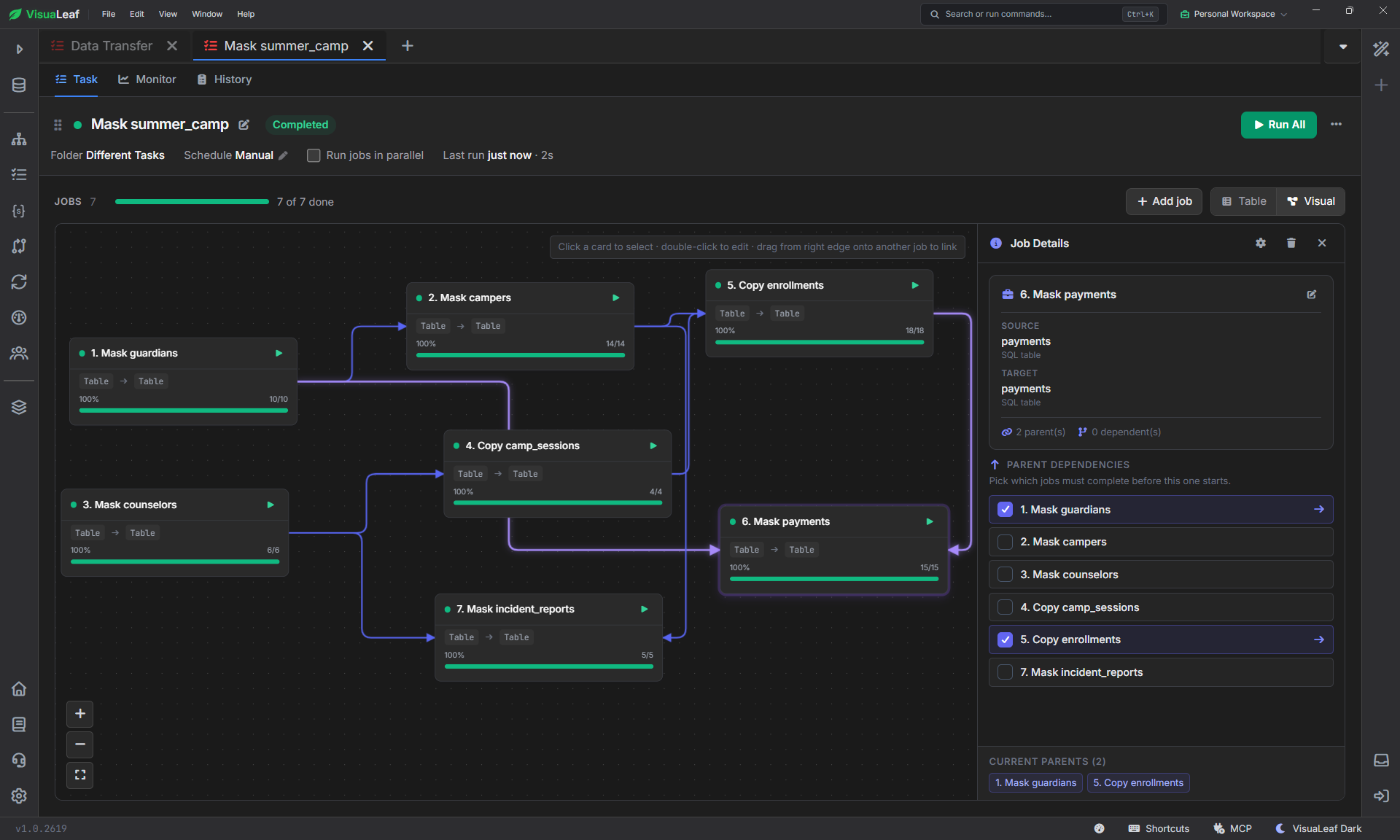
Then click Run All and check that every job shows Completed in Monitor or History.
Step 6: Check for leaks
Open the masked tables again, like in Step 2. Then check free-text columns, which often hide names you masked elsewhere:
SELECT COUNT(*) FROM summer_camp_dev.incident_reports
WHERE description LIKE '%Carter%';
The result should be 0.
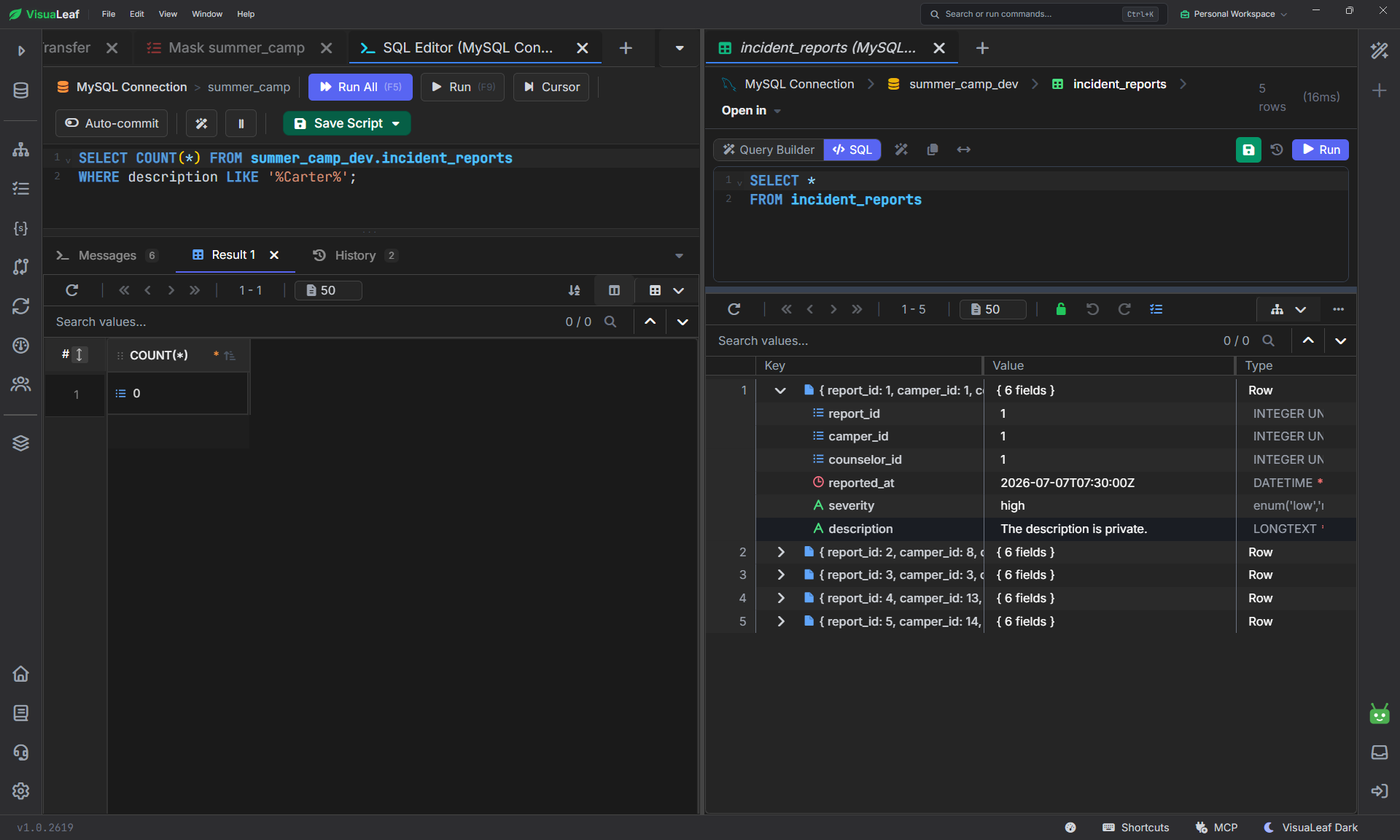
Bonus: Schedule the task
The task's Schedule is set to Manual by default. Click the pencil next to it, pick Weekly, choose Every Monday at 9 AM, and click Save Schedule, and VisuaLeaf refreshes summer_camp_dev with freshly masked data on its own.
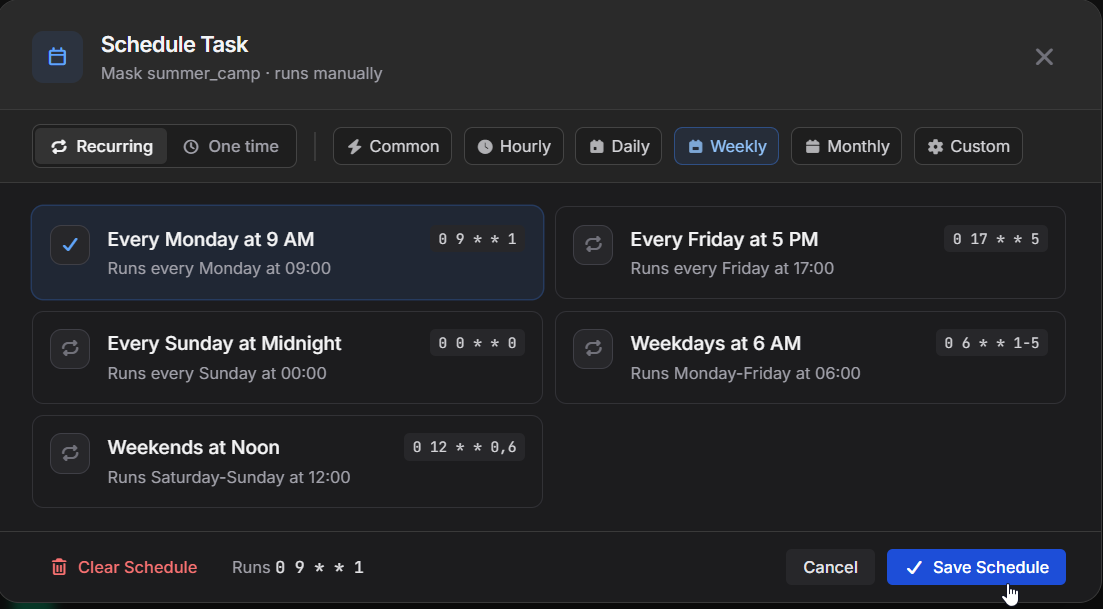
Because the jobs use Add or Update, each scheduled run updates the existing rows instead of adding duplicates.
Export the masked data
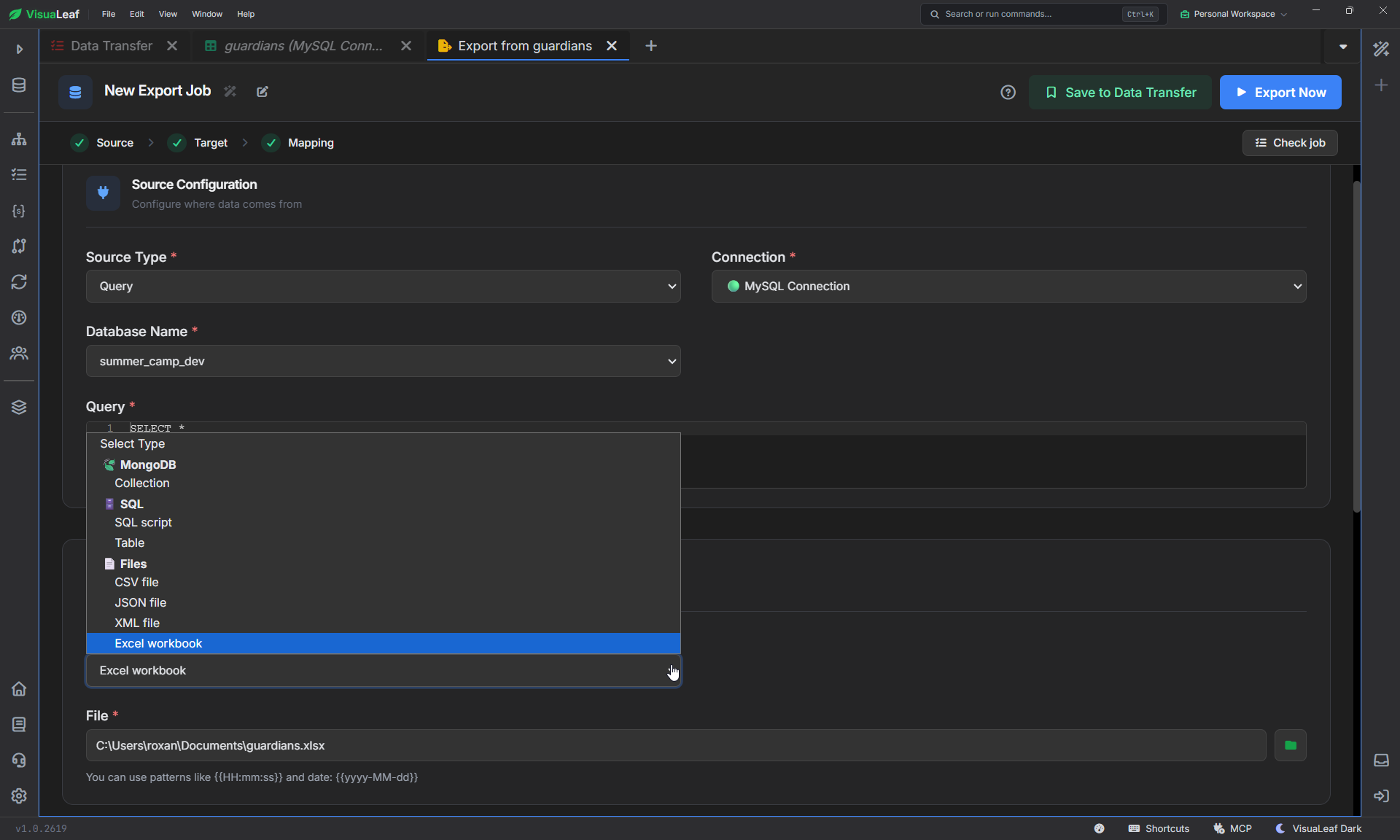
Sometimes a developer needs a file, not a database connection. Since summer_camp_dev is already masked, you can export it safely with a new Data Transfer job.
One table. Set the source to Table, for example summer_camp_dev.guardians. Then pick a file as the target: CSV file, JSON file, XML file, or Excel workbook.
The entire database. Set Source Type to Database and Database Name to summer_camp_dev. Then pick a Target Type:
- SQL dump (tables and data): one
.sqlfile that rebuilds the whole masked database. This is the easiest thing to send to someone. - CSV files, JSON files, XML files or Excel workbooks: one file per table.
- Database or a MongoDB Collection: copy the masked data to another server.
Things to watch out for
- Unique columns. Two masked emails can end up identical and break a UNIQUE constraint. Use a consistent ID (hash) when a column must stay unique.
- Required columns. Don't write this field as NULL (see If Missing), so it fails on NOT NULL columns.
- Empty values. Check in the Live preview whether Replace with text also fills NULL rows.
Wrapping up
You now have summer_camp_dev: a full copy of the database with the same tables, the same links and realistic data, but no real names, emails, card numbers or health notes. The original was never touched, and everything was masked in a single pass while the data was copied.
The same steps work for any database: find the columns you'd never want leaked, pick a mask for each, keep the IDs, set the parents, and check the Live preview before you run. Once the task is saved, you can rerun it, schedule it, or export the result whenever someone needs safe data.
Ready to try it on your own database? Download VisuaLeaf for Windows, macOS or Linux, and create your first masking task in a few minutes.