MongoDB Sharding: Manage a Sharded Cluster Visually
Connect an existing MongoDB sharded cluster to VisuaLeaf to inspect data distribution, manage balancing, and change a shard key visually.


MongoDB sharding helps a database handle growth by dividing a large collection into smaller blocks called chunks and distributing them across multiple shards.
A shard key, such as customerId or region, determines how the documents are divided.
In this guide, I’ll show you how to connect an existing MongoDB sharded cluster to VisuaLeaf and manage it visually. You’ll see where your data is stored, how it is distributed, whether the balancer is running, and how to review or change the shard key.
For this example, I used a 405 MB orders collection distributed across two shards.
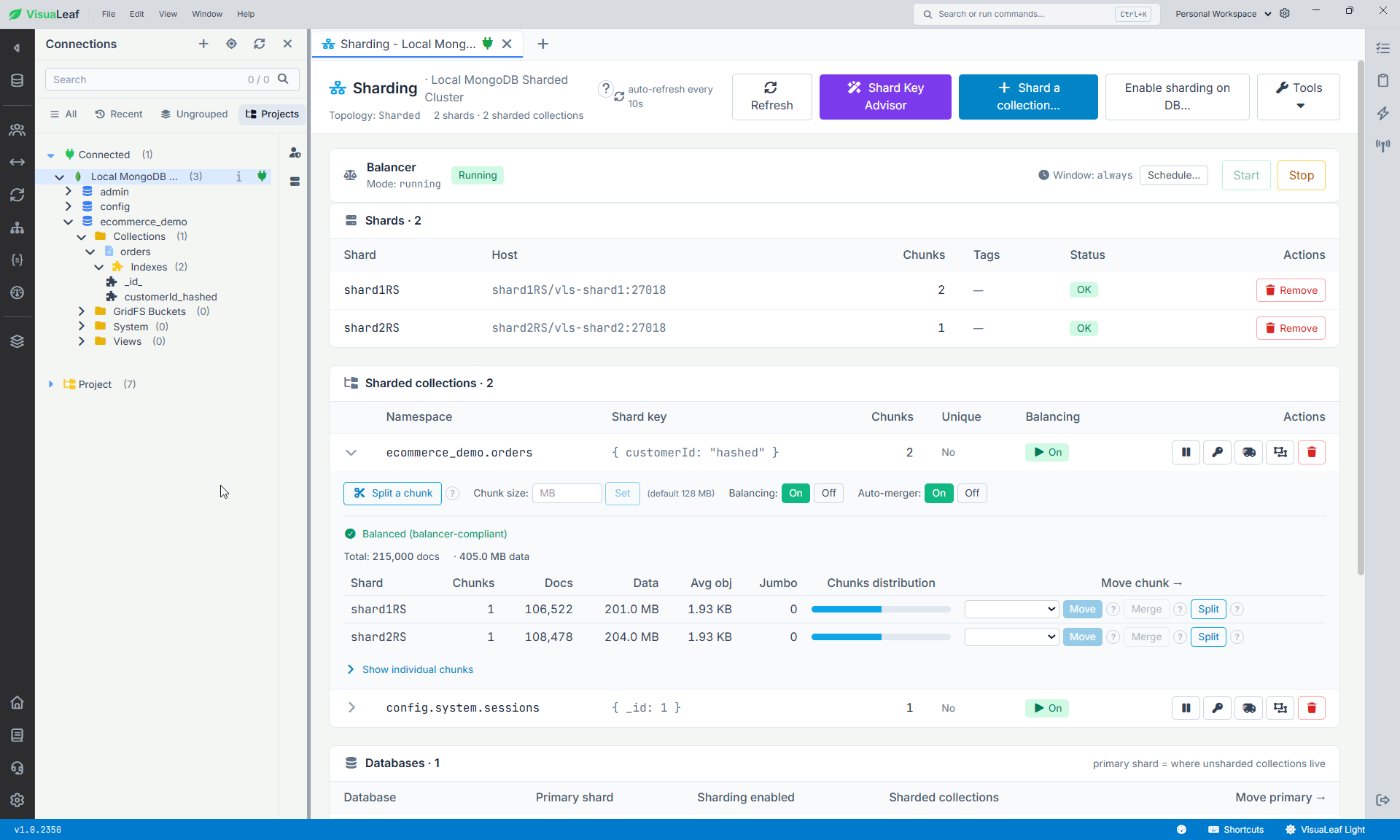
orders collection is balanced across two shards using customerId as a hashed shard key.How a MongoDB sharded cluster is organized
A MongoDB sharded cluster has three core components:
- Shards store subsets of the data. Each production shard should be a replica set.
**mongos**is the query router used by applications and database clients.- Config servers store the cluster metadata and configuration.
MongoDB divides sharded collections into chunks according to a shard key. The balancer can move those chunks between shards when MongoDB detects enough difference in data distribution.
MongoDB explains these roles in its documentation for sharded cluster components.
The important connection detail is mongos. To see and manage the complete cluster, connect VisuaLeaf to a mongos endpoint, not directly to an individual shard or config server.
Connect VisuaLeaf to an existing MongoDB sharded cluster
For my local test, mongos was exposed on port 27020, so I used:
mongodb://127.0.0.1:27020
For a remote environment, use its real mongos hostname, authentication, TLS settings, and required connection options.
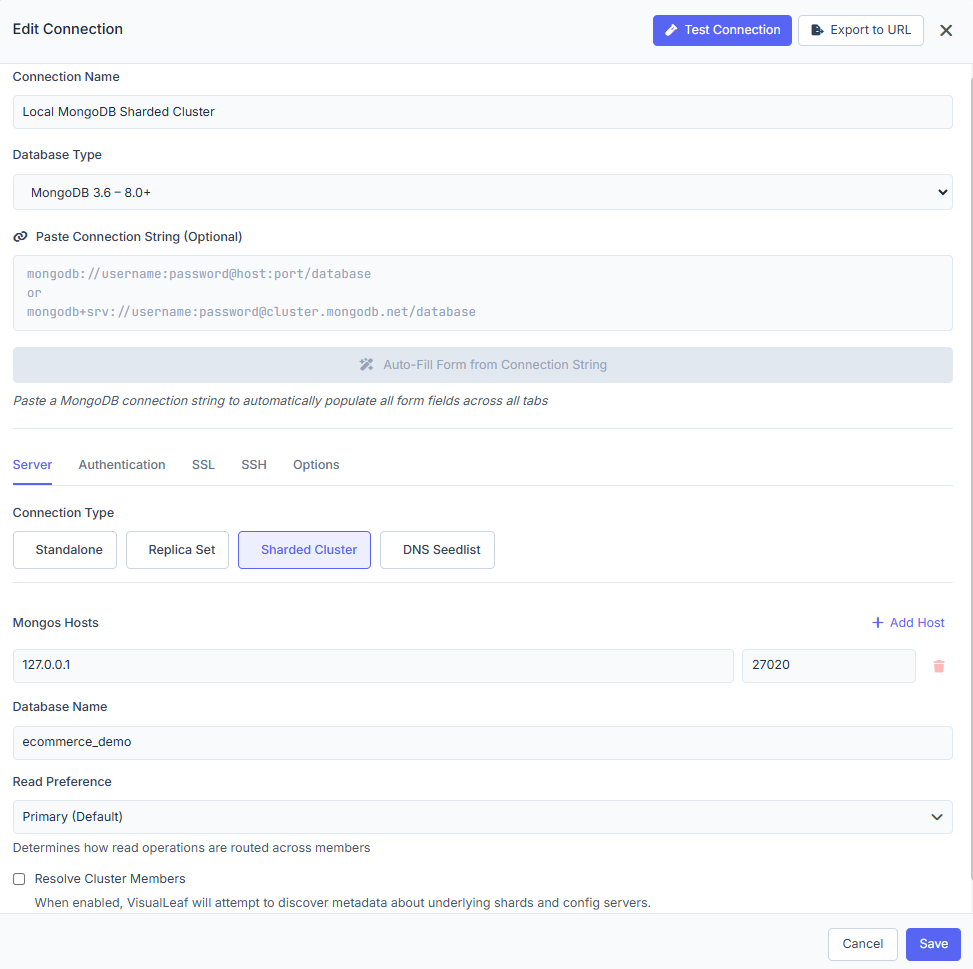
mongos router by entering its host, port, and database name.Once the connection is active:
- Right-click the MongoDB connection.
- Select Sharding.
This opens the sharding controls for the complete cluster.
Check shards, collections, and cluster health
The dashboard immediately identifies the connection as a sharded topology. Its overview includes:
- Shard names and hosts
- Health status for every shard
- Chunk counts
- Sharded collections and their shard keys
- Databases with sharding enabled
- Global balancer status
- Zone assignments
In the test cluster, shard1RS and shard2RS both reported OK. The application collection appeared as ecommerce_demo.orders, with { customerId: "hashed" } shown directly beside it.
The dashboard also listed config.system.sessions. That is an internal MongoDB collection, not part of the ecommerce application. This distinction matters when using collection-level actions: select ecommerce_demo.orders, not the system collection.
Inspect MongoDB chunk distribution
Expand ecommerce_demo.orders to see how the collection is distributed. VisuaLeaf shows the following values for each shard:
- Chunks
- Documents
- Logical data size
- Average document size
- Jumbo chunks
- Individual shard-key ranges
It also adds a visual distribution bar, which makes a large imbalance easier to notice than a block of shell output.
The original test contained 50,000 documents and about 14 MB of data. That was enough to verify the connection, but not a convincing example of a large collection. After adding more sample orders, the logical size reached approximately 405 MB.
The collection uses a hashed customerId shard key. Hashed sharding supports more even distribution because MongoDB distributes hashed values instead of placing similar source values next to each other. The trade-off is that range queries on the original field can become scatter-gather queries.
Do not expect both shards to contain the same number of documents. A small difference is normal. The more useful questions are whether the shards are healthy, whether data is distributed reasonably, and whether any chunks are marked jumbo.
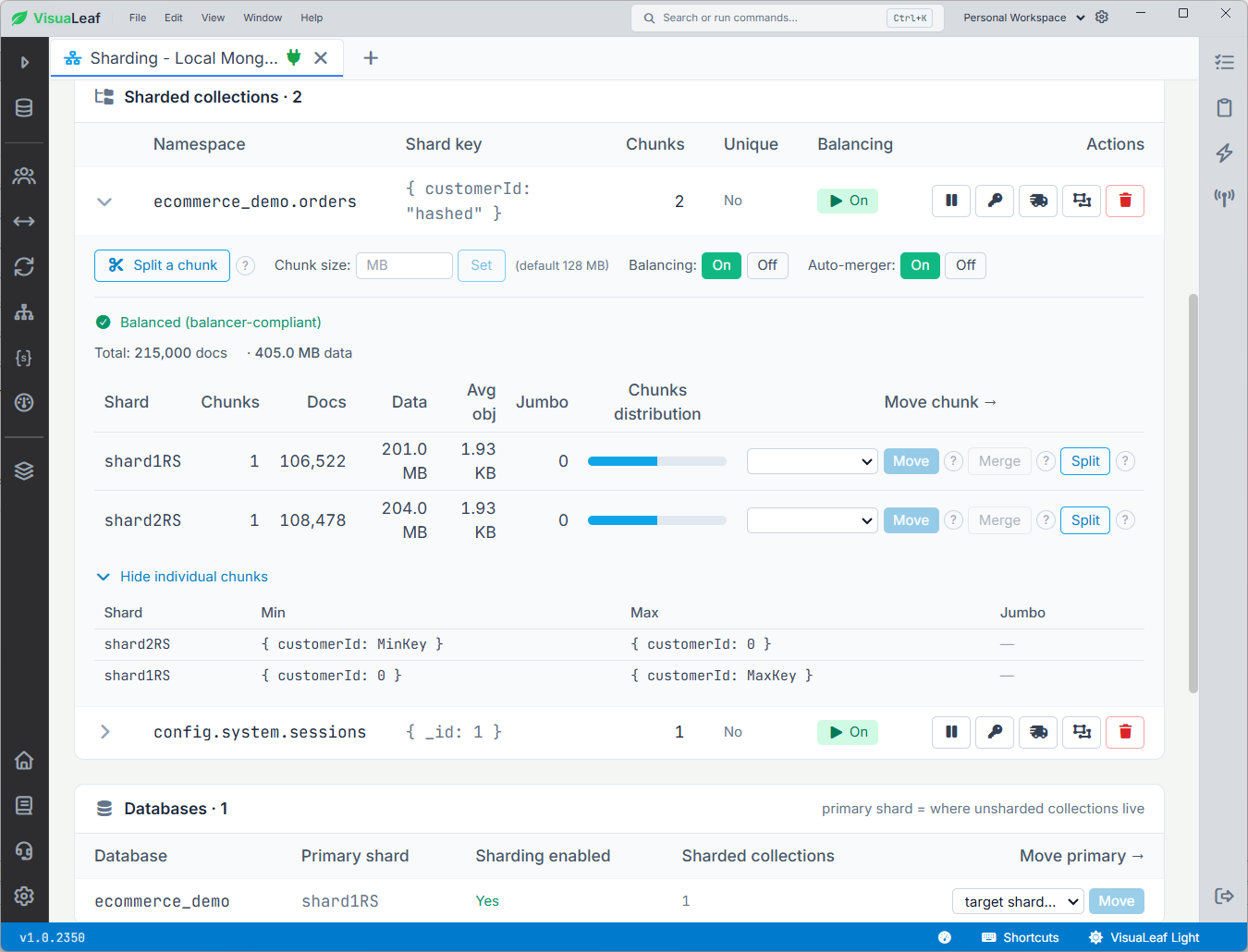
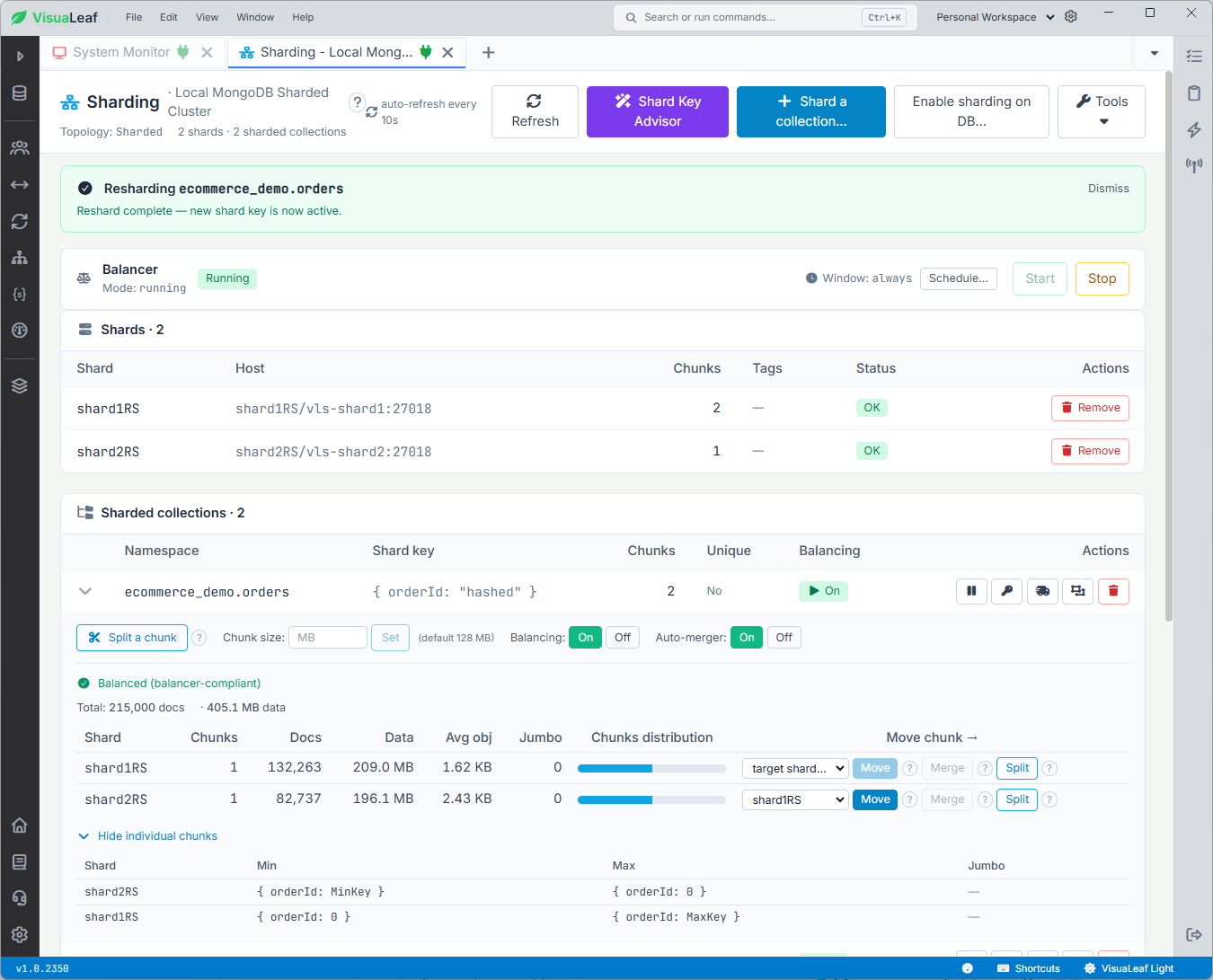
orders collection is balanced across two shards, with approximately half of its documents and data stored on each shard.Control the MongoDB balancer and chunks
The MongoDB balancer runs in the background and moves data when the difference between shards reaches MongoDB's migration thresholds. From the dashboard, you can see its current state, start or stop it, and configure a balancing schedule.
Collection-level controls are available separately. For ecommerce_demo.orders, the expanded view shows whether balancing and auto-merge are enabled. It also exposes actions for splitting, merging, and moving chunks.
These controls run real MongoDB administrative operations. Moving or splitting data can increase network, storage, and replication work, so don't use them just to make the distribution bars look equal. In a healthy cluster, the balancer should handle routine distribution.
MongoDB advises against leaving the balancer disabled for long periods because an uneven distribution can affect cluster performance. Teams can instead schedule balancing for a quieter period when migrations would have less impact. See MongoDB's balancer documentation for the current behavior and thresholds.
Review or change the MongoDB shard key
Collection size alone is not a reason to change a shard key. Resharding becomes useful when the existing key causes hotspots, distributes data unevenly, or does not match the application’s common queries.
MongoDB recommends checking cardinality, value frequency, monotonic growth, and query patterns when choosing a shard key.
In VisuaLeaf, you can use:
- Shard Key Advisor to evaluate possible keys
- The key icon beside a collection to open the resharding form
For this test, I changed the shard key from { customerId: "hashed" } to { orderId: "hashed" }. The form generated the MongoDB command before I ran it.
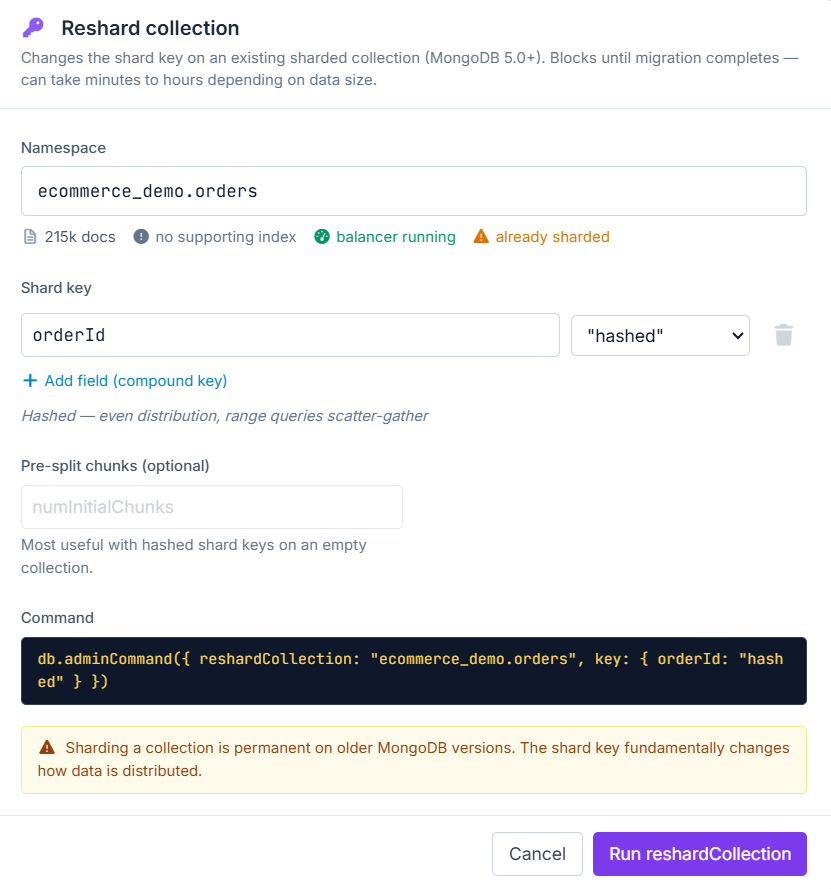
reshardCollection command before the new shard key is applied.After starting the operation, VisuaLeaf displayed its progress directly in the sharding dashboard. MongoDB created a temporary system.resharding... collection and copied all 215,000 documents using the new shard key.
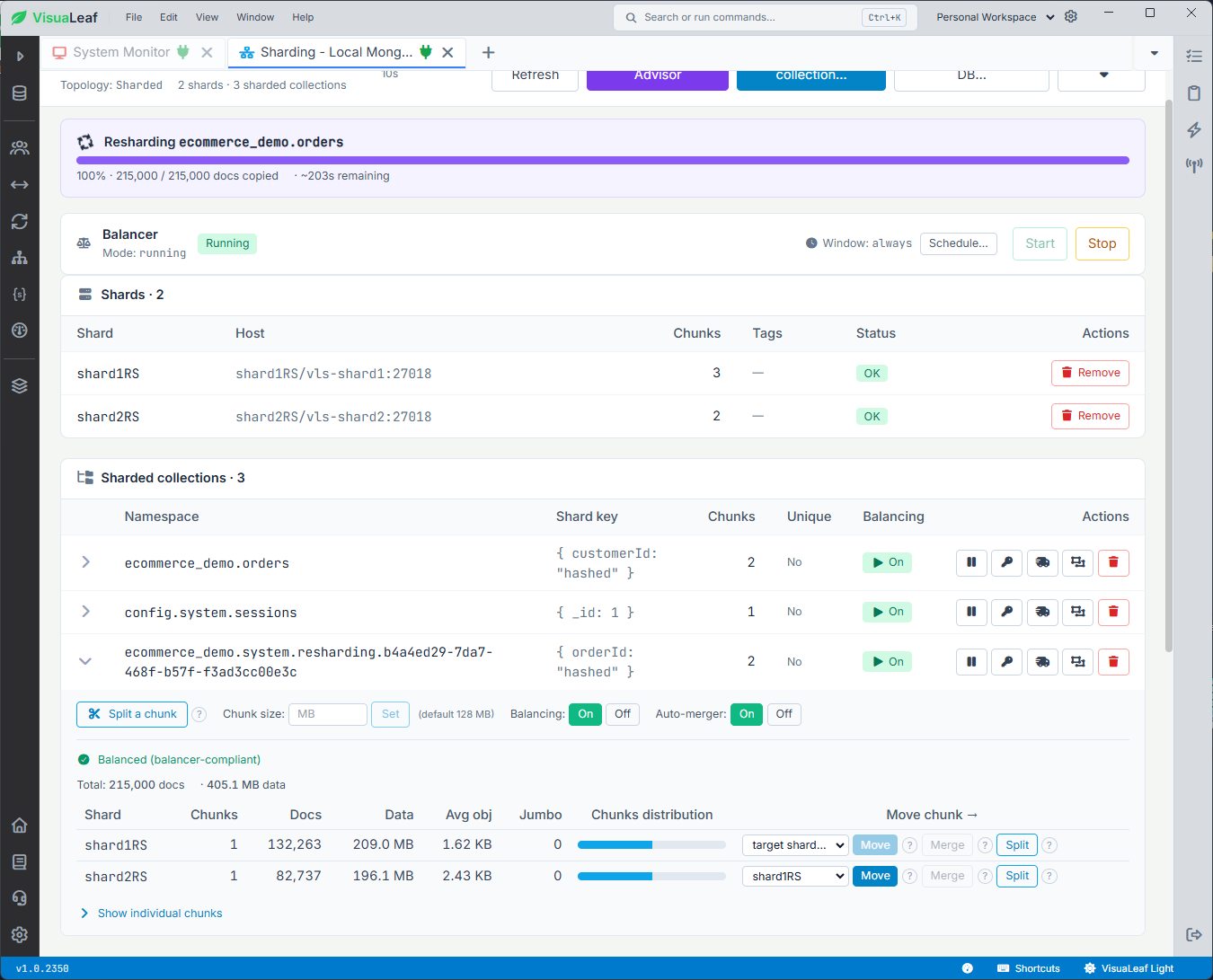
orderId as the new hashed shard key.Once the operation finishes, the temporary collection disappears and ecommerce_demo.orders displays { orderId: "hashed" } as its shard key.
Changing a shard key can require significant time and temporary storage on a large production collection. Test the operation first and review MongoDB’s resharding requirements.
Monitor the MongoDB cluster during activity
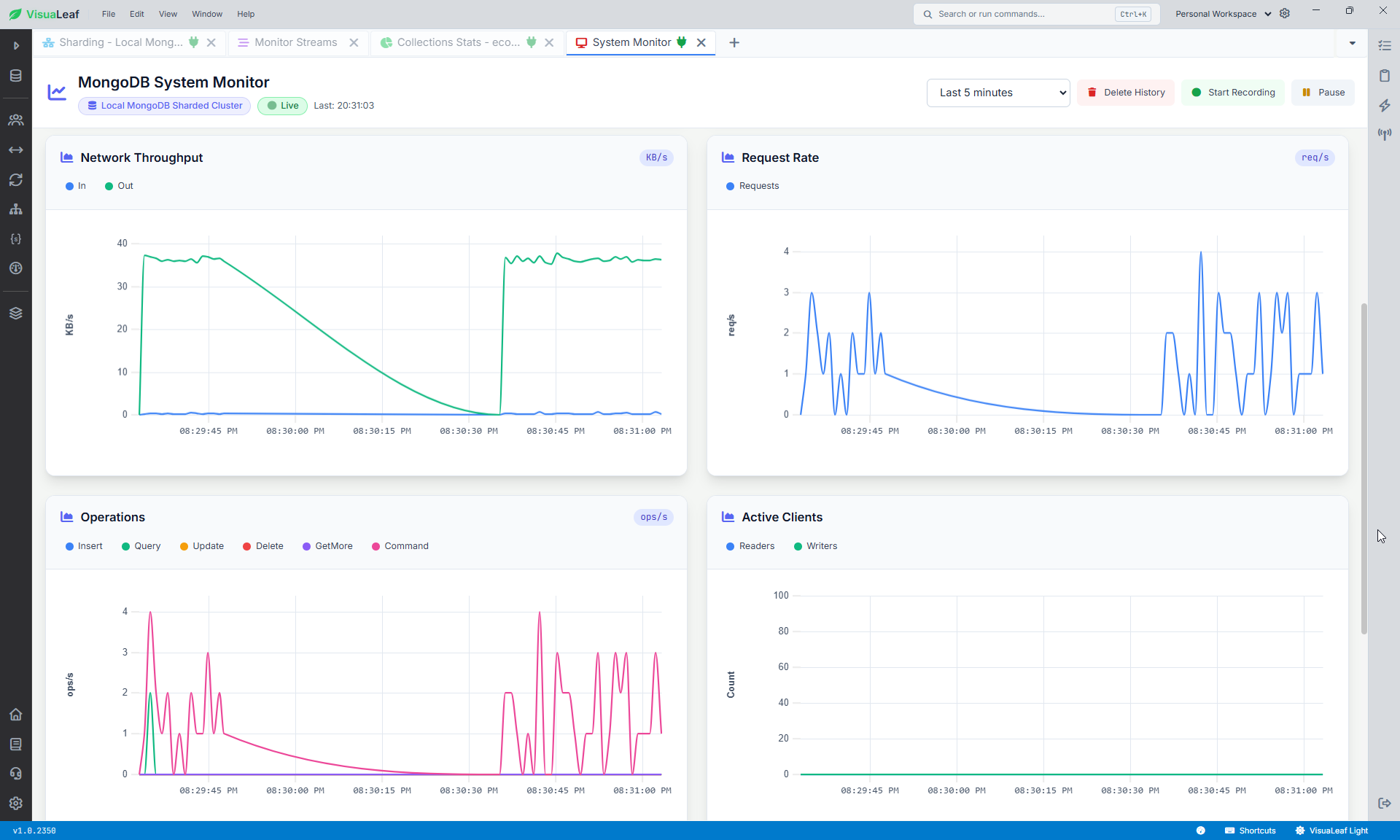
The Sharding dashboard shows where the data lives. System Monitor shows what the connection is doing.
During the sample-data load, I opened System Monitor for the sharded connection. It displayed connections, new connection rate, network throughput, and request activity while documents were inserted through mongos.
This is useful when testing a load, observing balancing activity, or checking whether an administrative operation corresponds with increased requests or network traffic.
Where VisuaLeaf fits
VisuaLeaf works on top of an existing MongoDB sharded cluster. It does not provision shard replica sets, config servers, or mongos routers.
Once connected through mongos, you can visually inspect and manage the cluster—including sharding a collection, controlling the balancer, managing chunks and zones, and changing a shard key. VisuaLeaf simplifies these operations, but decisions about data distribution and shard-key selection still belong to the user.
Conclusion
In this test, I connected a two-shard MongoDB cluster to VisuaLeaf, checked how a 405 MB collection was distributed, and changed its shard key from customerId to orderId. I could follow the entire resharding operation from the same workspace, including its progress and effect on the cluster.
If you already manage a MongoDB sharded cluster and want a more visual workflow, download VisuaLeaf and connect it to your mongos endpoint.
Working with MongoDB Atlas?
If your MongoDB deployment is hosted in Atlas, you can also use VisuaLeaf to compare collections between local MongoDB and Atlas or copy and sync a local MongoDB collection to Atlas.