MongoDB Schema Design: Build or Reverse Engineer Visually
Design a MongoDB schema from scratch or reverse-engineer an existing database visually. Define fields, relationships, validators, and materialize it.


MongoDB collections can become difficult to understand once they contain nested objects, arrays, references, and documents with slightly different structures.
Looking at one JSON document at a time shows you the data, but not the complete model. It is harder to see how collections connect, which fields use inconsistent BSON types, or whether a value is embedded or referenced elsewhere.
The opposite problem happens when the database does not exist yet. You may know which collections and fields you need, but reviewing the design across separate JSON files or application models is not easy.
VisuaLeaf’s Visual Schema supports both directions:
- Generate a diagram from an existing MongoDB database.
- Design a new schema from an empty diagram.
- Keep the schema virtual or materialize it into real collections.
I tested both workflows using a travel-planning database containing collections such as travelers, places, flights, accommodations, restaurants, activities, carRentals, and vacationPlans.
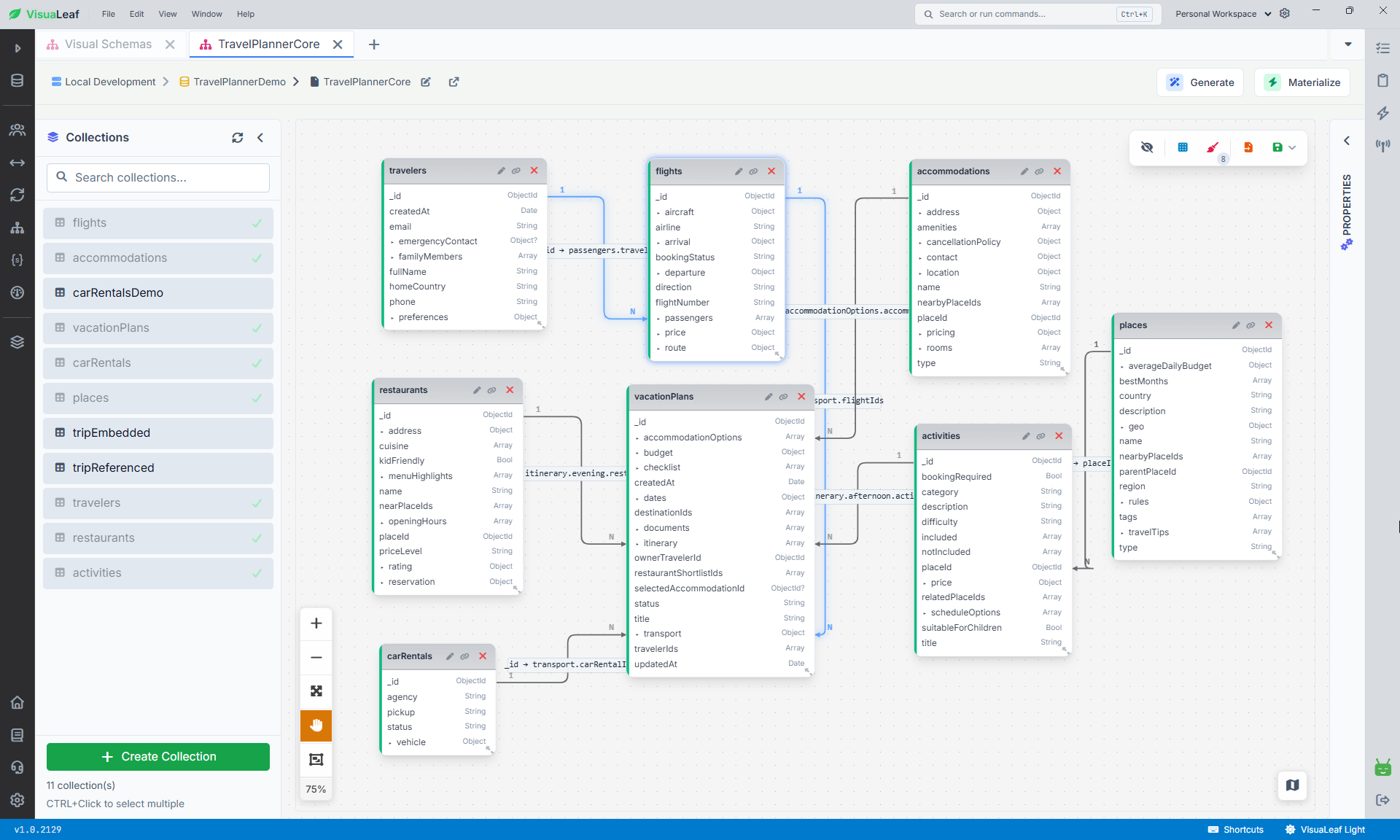
TravelPlannerDemo database.Although this guide focuses on MongoDB, VisuaLeaf’s Visual Schema can also be used with SQL databases. If you’re deciding which database model fits your project or want to compare their structures, read MongoDB vs PostgreSQL: What’s the Difference?.
Reverse engineer an existing MongoDB database
If your database already contains data, you can generate a Visual Schema from its collections.
Connect to MongoDB, open Visual Schema, and select the database you want to analyze. VisuaLeaf reads the existing documents and creates a diagram containing:
- collections and fields;
- detected BSON types;
- embedded objects;
- arrays and their nested fields;
- detected relationships between collections.
In my TravelPlannerDemo database, the generated diagram included the main travel collections and their nested structures.
For example, vacationPlans contains simple fields such as title, status, and createdAt, but it also includes more complex structures:
budgetanddatesas embedded objects;itinerary,checklist, anddocumentsas arrays;destinationIdsandtravelerIdsas arrays of references;ownerTravelerIdandselectedAccommodationIdas individual references.
Instead of opening several documents to understand how these fields fit together, I could inspect the structure in one diagram.
This is particularly useful when you are working with a database you did not design, or when the structure has changed, but its documentation has not.
Review the detected structure
Here’s the trap most of us fall into: reverse-engineering a database shows what’s currently stored, not what was actually intended.
MongoDB allows documents in the same collection to have different fields and BSON types. For example, most documents might store a date correctly:
{
  createdAt: ISODate("2026-07-18T09:30:00Z")
}
while an older import stores it as a string:
{
  createdAt: "2026-07-18"
}
These values may look similar in a table, but one has the BSON type date and the other has the type string.
The same problem can occur with identifiers. A field such as ownerTravelerId may contain an ObjectId in most documents but a string in others. That difference matters when you try to connect it to travelers._id.
The generated schema represents the data VisuaLeaf analyzed. Rare fields may also be absent if they do not appear in the sampled documents. Review unusual records and any fields with multiple detected types before using the diagram as your final model.
Review and add relationships
MongoDB does not store relationships as enforced foreign keys. It stores the reference value, but the meaning of that value often needs to be confirmed.
In the travel database, relationships can connect fields such as:
vacationPlans.ownerTravelerId → travelers._id
vacationPlans.travelerIds[] → travelers._id
vacationPlans.destinationIds[] → places._id
vacationPlans.selectedAccommodationId → accommodations._id
Other collections use similar connections:
accommodations.placeId → places._id
restaurants.placeId → places._id
activities.placeId → places._id
flights.passengers.travelerId → travelers._id
Check both ends before accepting or adding a relationship. An ObjectId does not match a string containing the same characters.
For example, these two values use different BSON types:
ObjectId("66af9138ad73c91224345c10")
"66af9138ad73c91224345c10"
The diagram can document a relationship, but it does not make MongoDB enforce it. Your application can still insert an ownerTravelerId that does not exist in travelers.
The generated diagram may also need some visual cleanup. In a database with many related collections, lines can overlap and detected connections may not represent the relationship you intended. Reposition the collections and review each relationship rather than accepting every connection without checking.
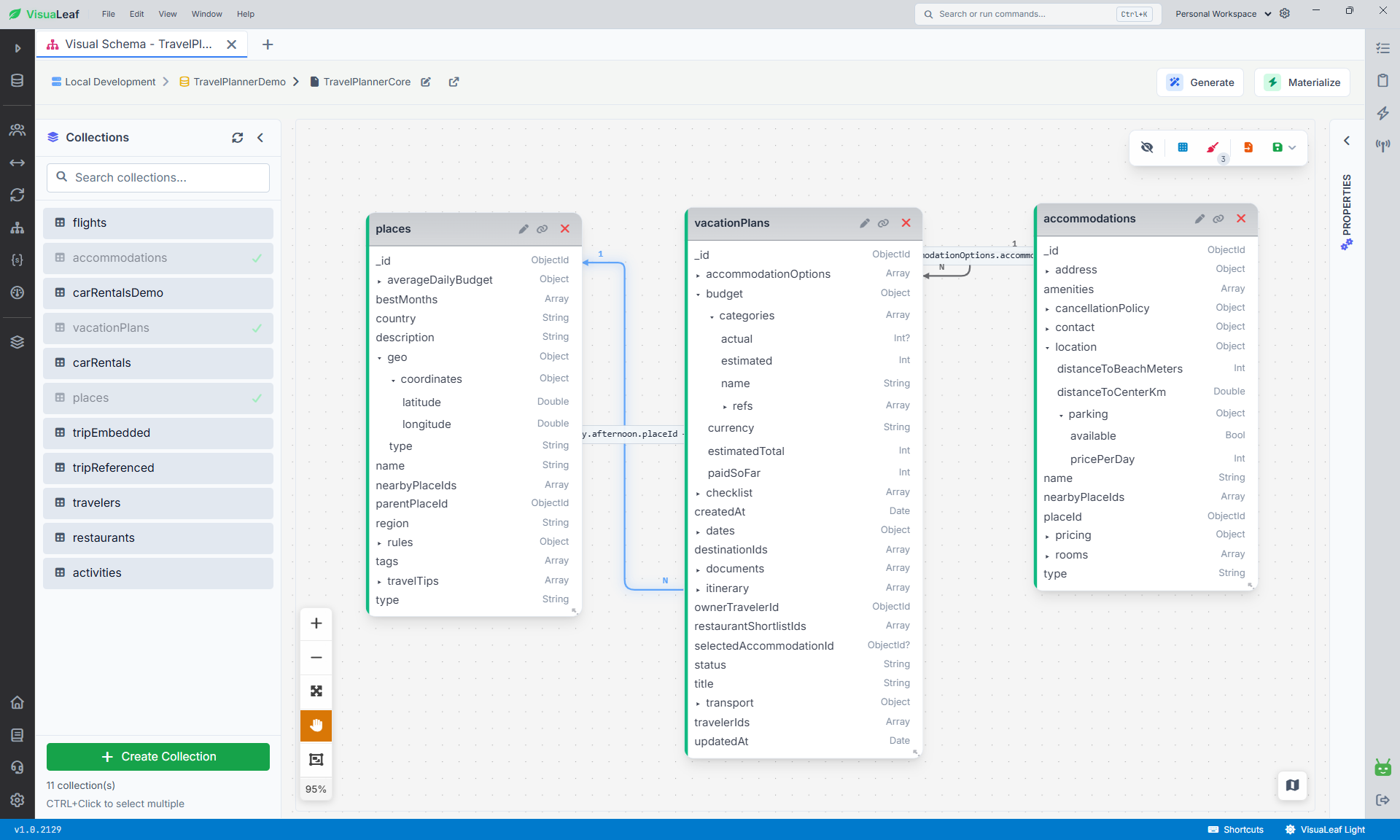
vacationPlans, places, and accommodations in VisuaLeaf.Modify the generated schema
A reverse-engineered schema does not have to remain a read-only picture of the current database.
You can use it as a starting point and then:
- add or remove fields;
- correct BSON types;
- define embedded objects and arrays;
- add missing relationships;
- remove incorrect relationships;
- reorganize the diagram.
In this example, I added a new optional travelStyle field to vacationPlans. I also manually connected destinationIds to places._id to represent the reference between the two collections.
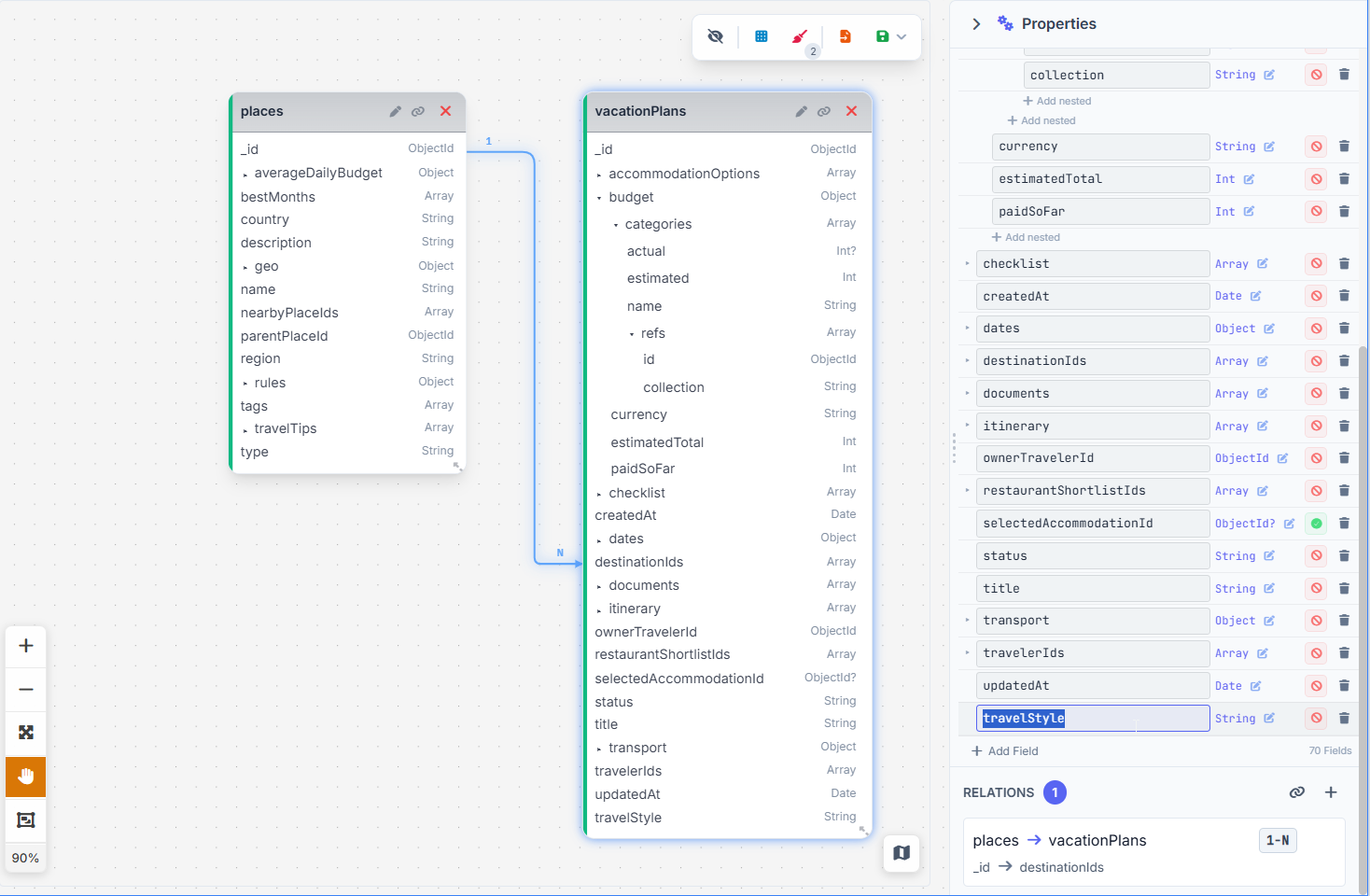
The same collection contains embedded data as well. The budget object belongs to one vacation plan, so storing it inside the document keeps the related values together. destinationIds, however, contains references to documents stored in the places collection.
vacationPlans
├── budget
│   ├── currency
│   ├── estimatedTotal
│   └── paidSoFar
├── dates
├── itinerary[]
├── ownerTravelerId
├── travelerIds[]
└── destinationIds[]
This shows both modeling approaches in the same collection: embedded data for information owned by the vacation plan and references for information stored elsewhere and reused.
Changing the virtual schema does not automatically migrate existing documents. If you rename a field, change its type, or move it into an embedded object, the records already stored in MongoDB remain unchanged.
The diagram describes the proposed model. Data migration remains a separate operation.
Design a new MongoDB schema from scratch
You can also use Visual Schema before the database exists.
Start with an empty diagram and add the collections you need. You can then define their fields, BSON types, embedded structures, arrays, and relationships.
For this example, I created a small tour-booking schema with two collections:
| Collection | Example fields |
|---|---|
departures |
_id, packageId, startDate, capacity, meetingPoint, status |
reservations |
_id, departureId, bookingReference, leadGuest, totalAmount, paymentStatus, createdAt |
The leadGuest field is an embedded object containing fields such as fullName and email. The relationship connects:
reservations.departureId → departures._id
This represents a one-to-many relationship: one departure can have multiple reservations.
Defining the schema visually makes several problems easier to notice:
- references pointing to the wrong field;
- incorrect BSON types;
- fields that should be grouped inside an embedded object;
- missing or unnecessary relationships;
- inconsistent field names between collections.
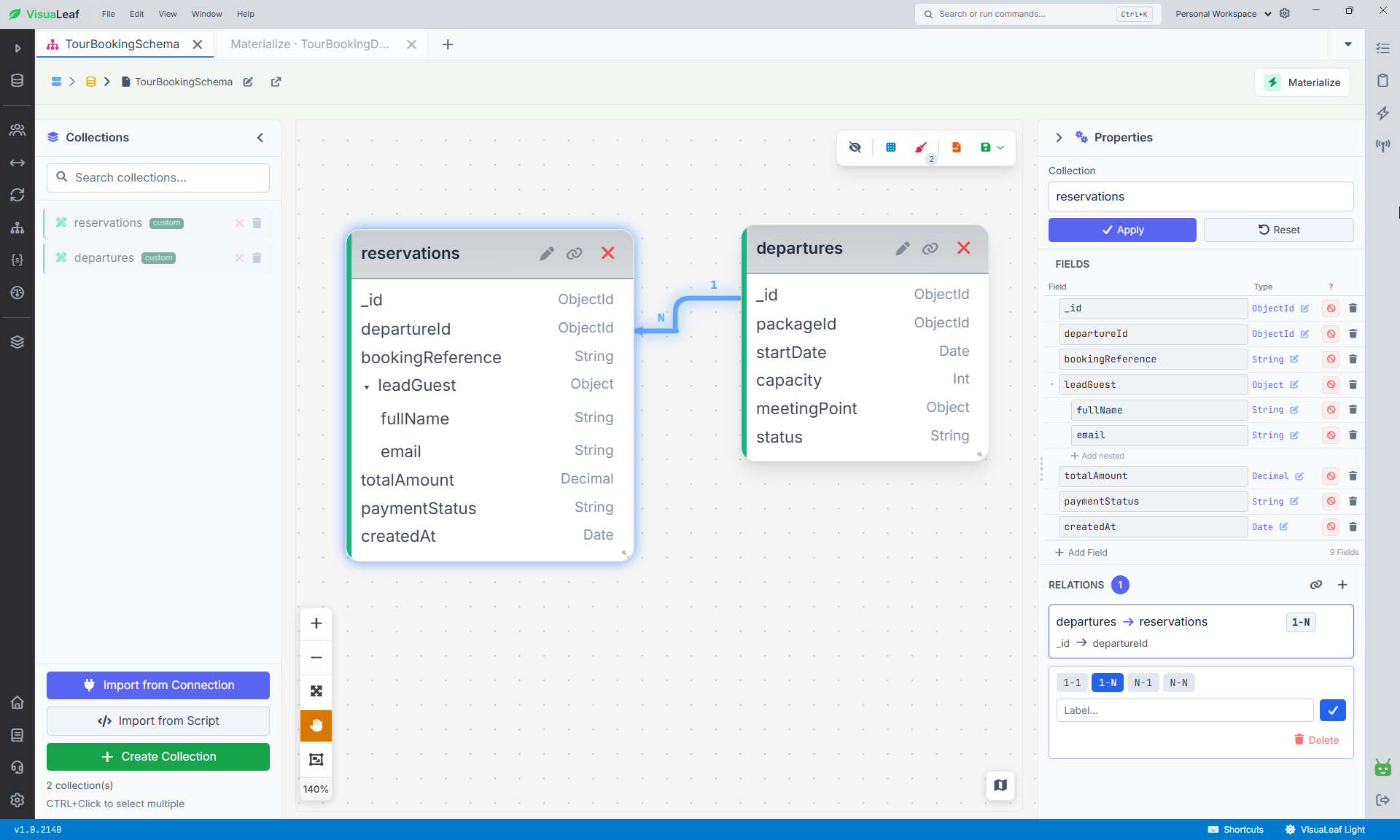
After completing the design, save the schema and bind it to the MongoDB connection where you want to create the collections. The diagram remains a virtual model until you materialize it.
Keep the schema virtual or materialize it
The diagram can remain virtual if you only need it for documentation, planning, or discussing changes with your team.
Nothing is created in MongoDB until you choose to materialize it.
When the design is ready, save it and bind it to the MongoDB connection and target database. You can then click Materialize to review the collections and generated validators before applying the schema.
This allows both workflows:
Existing MongoDB database → Visual Schema
and:
Visual Schema → MongoDB database
You can therefore reverse engineer an existing database such as TravelPlannerDemo, modify its virtual schema, and materialize the result into a separate test database.
You can also begin with an empty diagram, as I did with TourBookingSchema, and create a new database from that design.
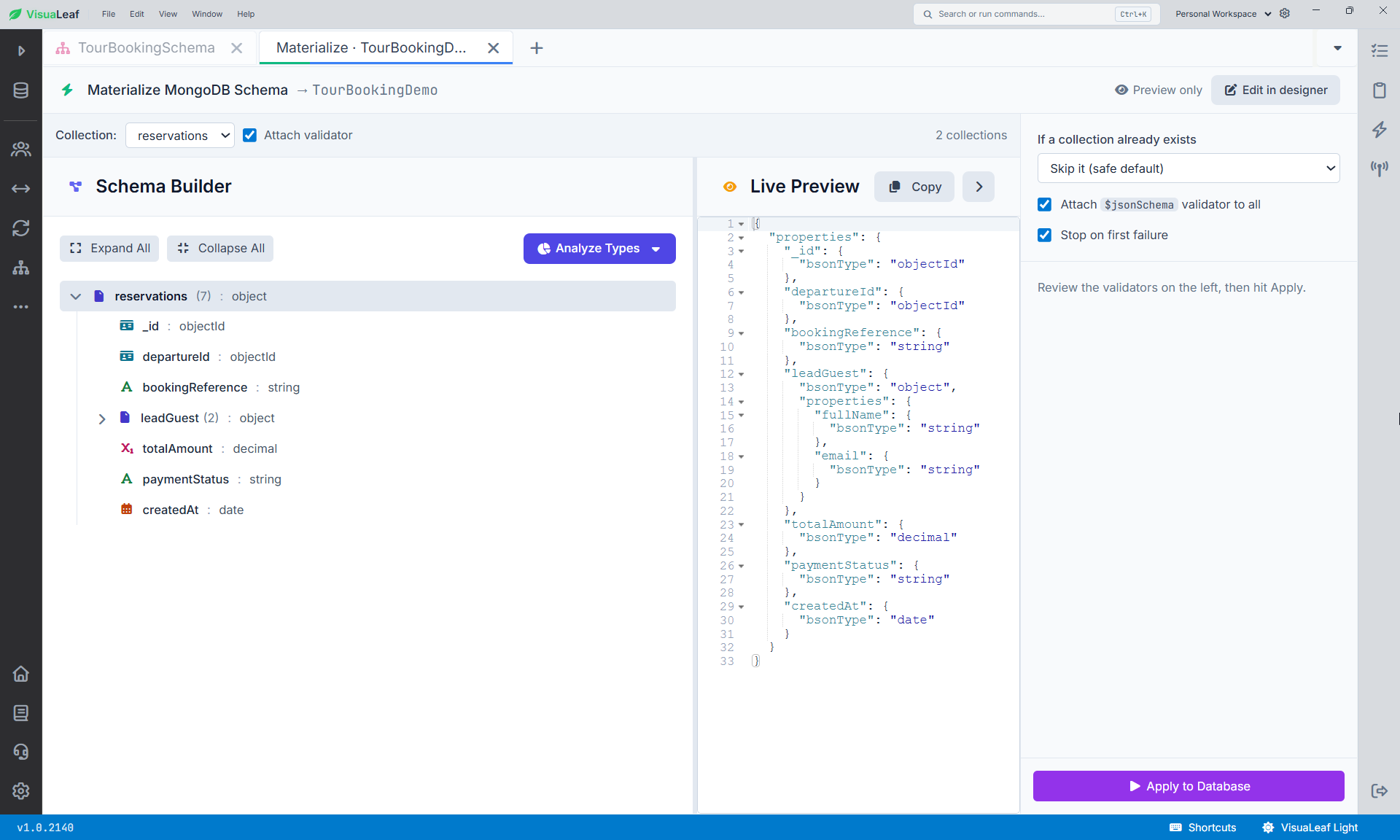
$jsonSchema validator and lets you review how the schema will be applied.Choose whether to attach validators
Materializing a schema does not require you to enforce every field and BSON type.
The materialization screen lets you review the JSON Schema generated for each collection. You can then decide whether MongoDB should use it as a $jsonSchema validator.
If you want to create the collections without enforcing the schema, leave Attach validator disabled.
These are separate decisions:
- The visual schema describes the intended structure.
- Materialization creates the collections in MongoDB.
- The generated JSON Schema describes the field and type rules.
- The attached validator makes MongoDB enforce those rules during writes.
A field is mandatory only if it is included in the schema’s required array. Otherwise, its BSON type is checked only when the field is present.
This distinction matters when your application still writes inconsistent data.
Suppose the generated schema expects:
{
  createdAt: {
    bsonType: "date"
  }
}
If the application sends this instead:
{
  createdAt: "2026-08-03"
}
MongoDB will reject the write when the validator is attached. A document validation failure commonly returns MongoDB error code 121.
The solution is not necessarily to remove validation. First check what your application actually sends. You may need to fix the value before inserting it or adjust the schema if both types are intentionally supported.
Review the materialization plan
Before clicking Apply to Database, check:
- the selected connection and database;
- which collections will be created;
- which collections already exist;
- collection and field names;
- BSON types;
- embedded objects and arrays;
- relationships in the visual diagram;
- generated JSON Schemas;
- which collections have the Attach validator enabled.
For the first test, use a new database instead of applying the model directly to an existing one.
For example:
TourBookingDemo
This makes the result easier to inspect and avoids mixing the materialized collections with the original TravelPlannerDemo data.
If you materialize changes against a database that already contains records, changing reservations.departureId from String to ObjectId in the diagram will not convert the stored values. Data migration remains a separate operation.
It also does not create enforced foreign keys. The relationship between reservations.departureId and departures._id remains part of the model, but your application must maintain valid references.
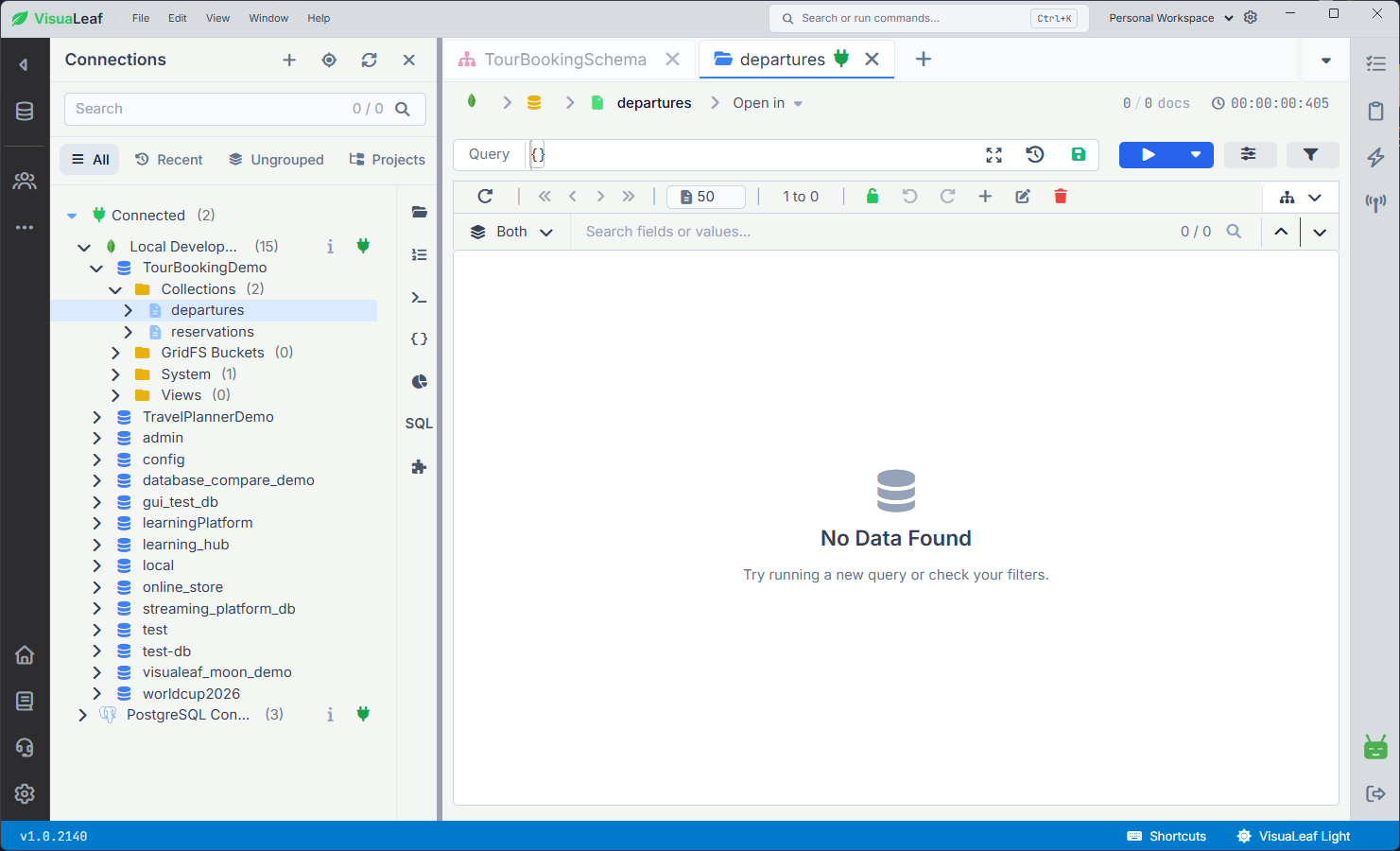
departures and reservations collections in TourBookingDemo.Verify the result
After applying the materialization plan, open the target database and confirm that the departures and reservations collections were created.
If you enabled Attach validator, inspect the validation settings and test them with:
- one valid document that should be accepted;
- one invalid document that should be rejected.
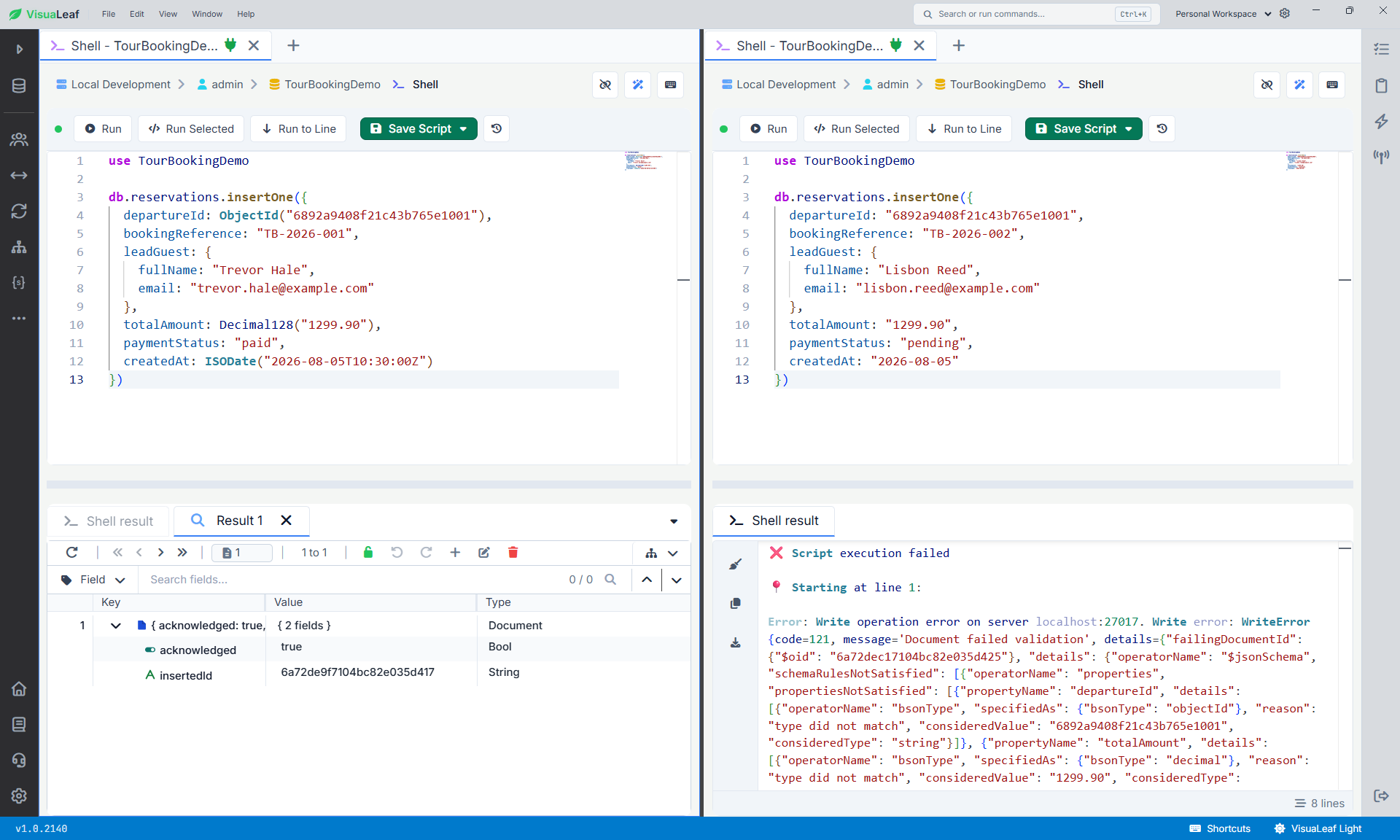
ObjectId, Decimal128, and Date is rejected with error code 121.If you left the option disabled, the collections should still exist, but MongoDB will continue accepting documents with different structures.
Also remember that a validator does not replace indexes. Fields used for lookups and filtering may still need indexes, such as:
db.reservations.createIndex({
  departureId: 1,
  createdAt: 1
})

db.departures.createIndex({
  startDate: 1,
  status: 1
})
Validators control document structure. Indexes support query performance and can enforce uniqueness when created with the unique option.
Relationships explain how collections connect, but MongoDB does not enforce them as foreign keys.
One schema, two directions
Visual Schema is useful when you inherit an existing MongoDB database and need to understand its structure. It is also useful before you create the first collection.
In my travel-planning example, I could generate a diagram containing travelers, places, flights, accommodations, activities, vacationPlans, and the other related collections. I could inspect nested structures such as budget and itinerary, review the references, and correct the model where necessary.
The same workspace also supports the opposite workflow. You can start with an empty diagram, design the collections visually, and then decide whether to keep the model virtual or materialize it into MongoDB.
When you materialize it, attaching the generated JSON Schema validators remains optional.
Want to turn your MongoDB database into a diagram—or your diagram into a database?
Download VisuaLeaf and generate a schema from your existing MongoDB database, or design a new one from scratch.