Compare MongoDB Collections Between Local and Atlas
Learn how to compare a local MongoDB collection with MongoDB Atlas using VisuaLeaf, review missing and modified documents, apply filters, and share comparison results with your team.


When you work with MongoDB, your data does not always stay in one place.
You may have one database running locally, another one used for staging, and another one hosted in MongoDB Atlas.
At the beginning, they may look the same.
But after a few tests, imports, updates, or small manual changes, they can slowly become different.
And this is where the annoying question appears:
Is my local collection still the same as the one in Atlas?
In VisuaLeaf, Collection Compare helps you answer that without opening both collections side by side and checking documents one by one.
For this example, I compared a local payments collection with the same collection from a production cluster in MongoDB Atlas. In VisuaLeaf, I selected the local collection as the source and the Atlas collection as the target.
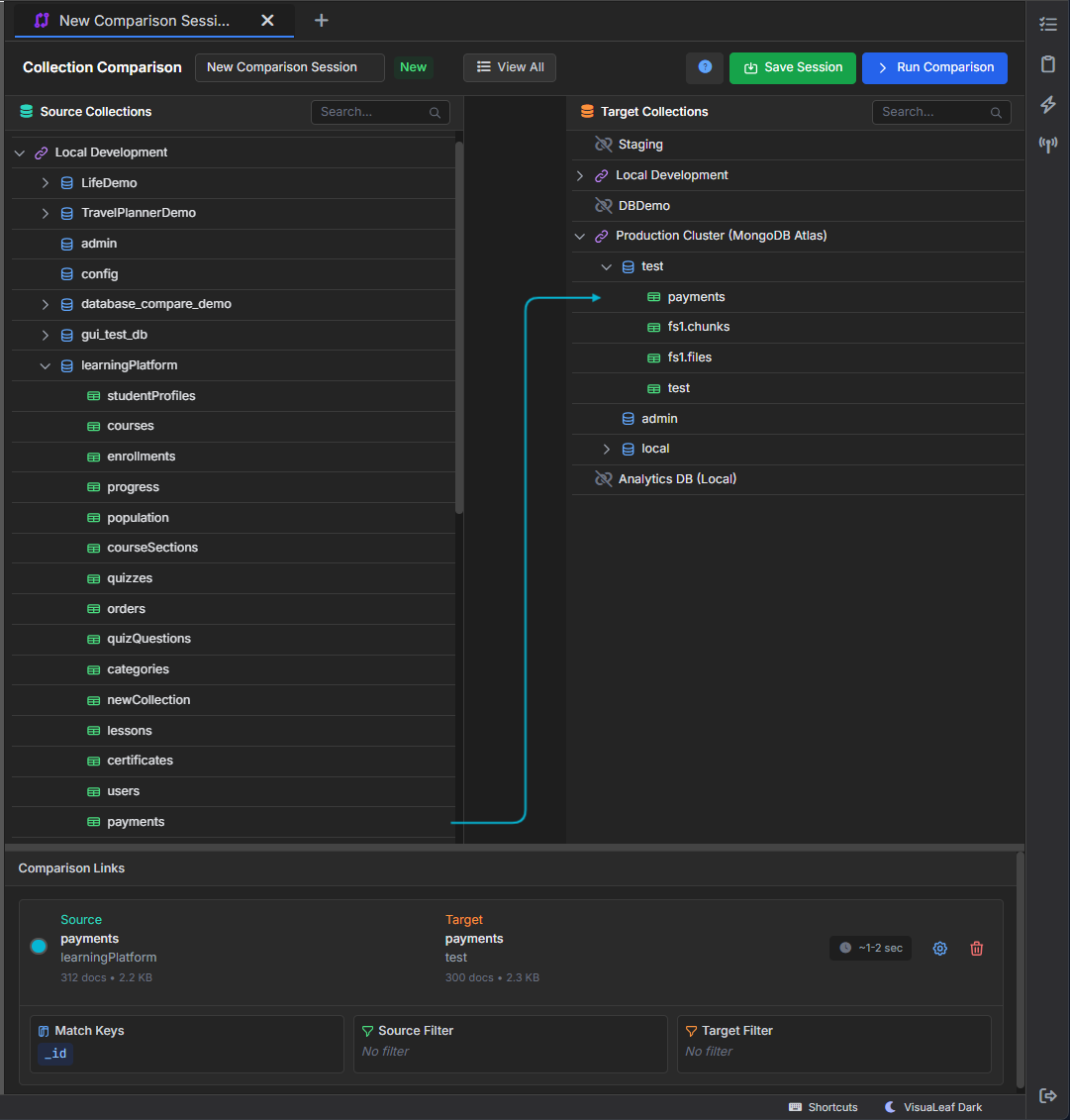
payments collection linked with MongoDB Atlas for comparison.Here is the Atlas payments collection I used as the target for this comparison.
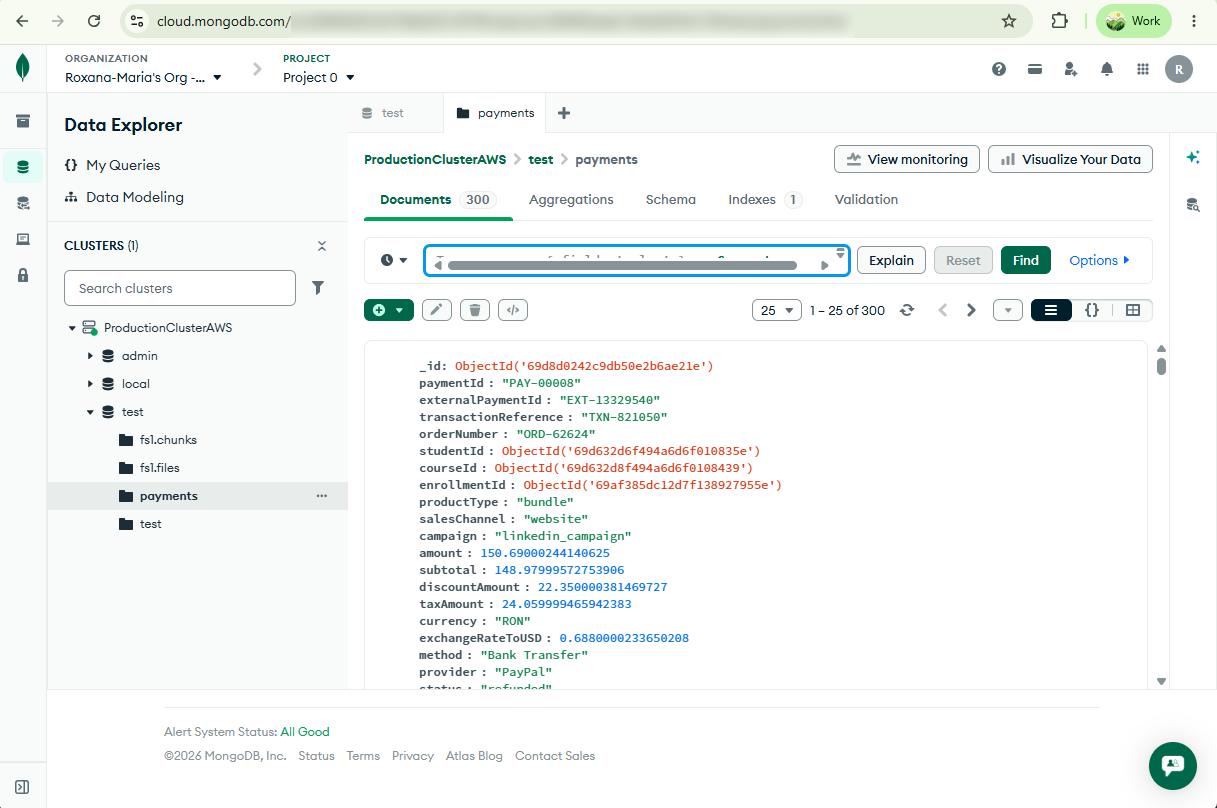
payments collection used as the comparison target.Why This Is Useful
This kind of comparison is useful because MongoDB projects usually have more than one environment.
You may test payments locally.
Someone else may update data in Atlas.
A staging database may have older documents.
A production collection may contain records that do not exist locally.
At some point, you need to know what is different.
Not in theory.
Not by guessing.
You need to actually see it.
In my example, the source collection is from local development, and the target collection is from MongoDB Atlas.
VisuaLeaf compares both collections and shows the result in a clear summary.
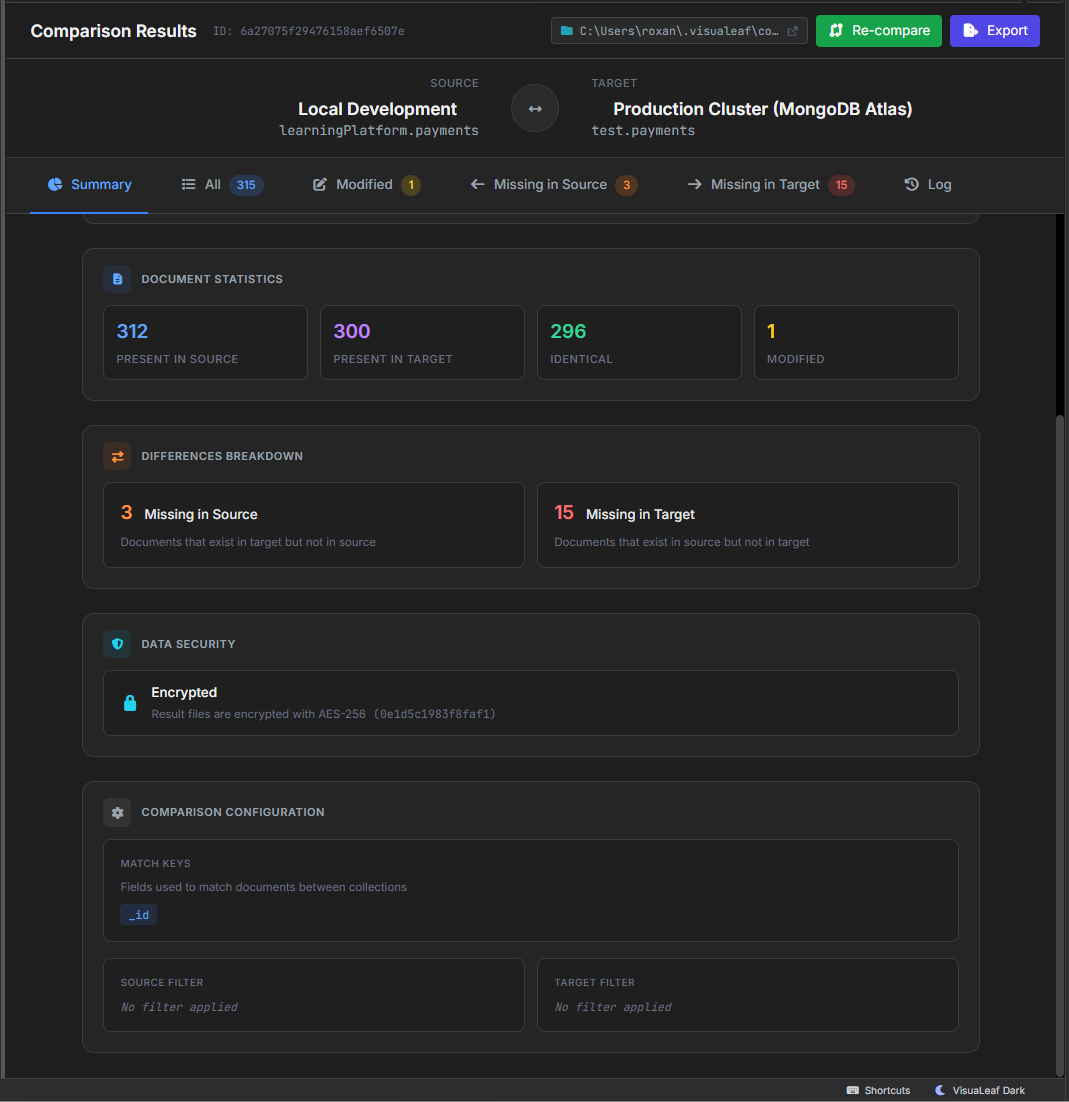
payments collections in VisuaLeaf.In this comparison, the local payments collection had 312 documents, while the Atlas collection had 300 documents.
Most of them were identical, but not all.
The result showed:
- 296 identical documents
- 1 modified document
- 3 documents missing in source
- 15 documents missing in target
This is already useful because you do not have to manually count or search for these differences.
You can immediately see where the collections do not match.
Use Filters When You Do Not Want to Compare Everything
Sometimes you do not need to compare the full collection.
For example, in a payments collection, I may not want to compare every failed, pending, or small test payment.
In this case, I can add a simple visual filter and compare only:
status = "completed"
amount > 1000
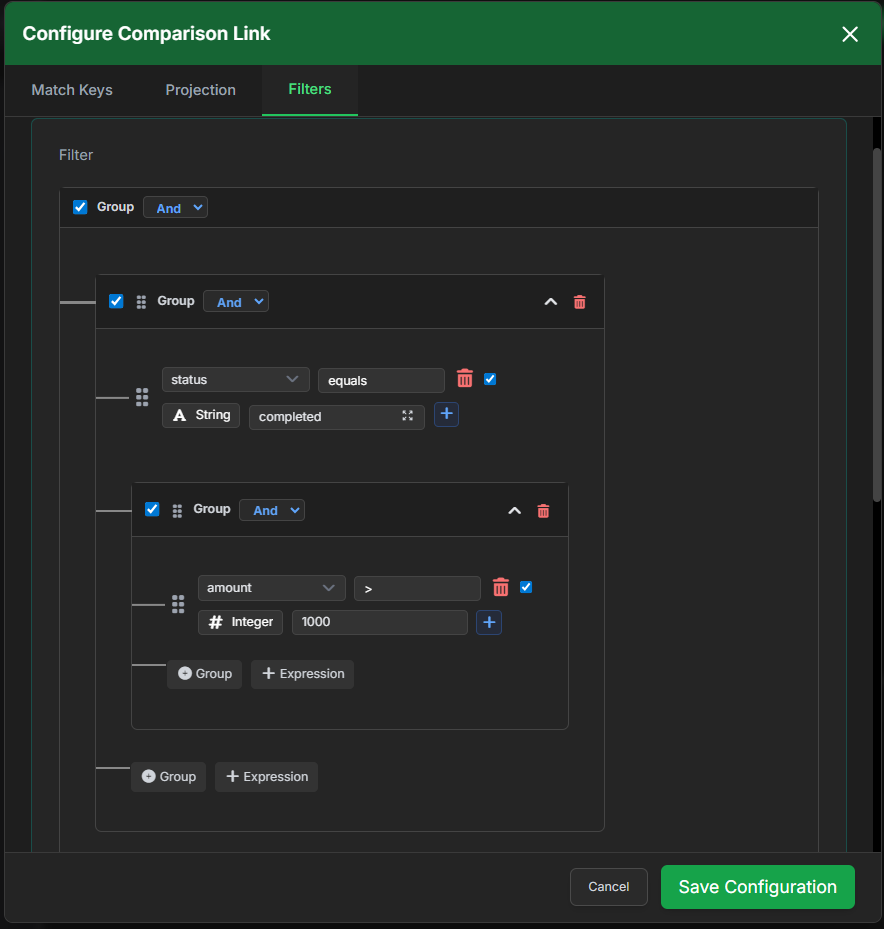
This keeps the comparison more focused.
Instead of checking the entire collection, VisuaLeaf compares only the payments that match these conditions in both the local database and MongoDB Atlas.
That makes the result easier to review, especially when the collection contains old data, test documents, or payments that are not relevant for the current check.
See What Exists Only in Atlas
One of the tabs shows documents that are missing in the source.
In this example, those are documents that exist in Atlas, but not in the local collection.
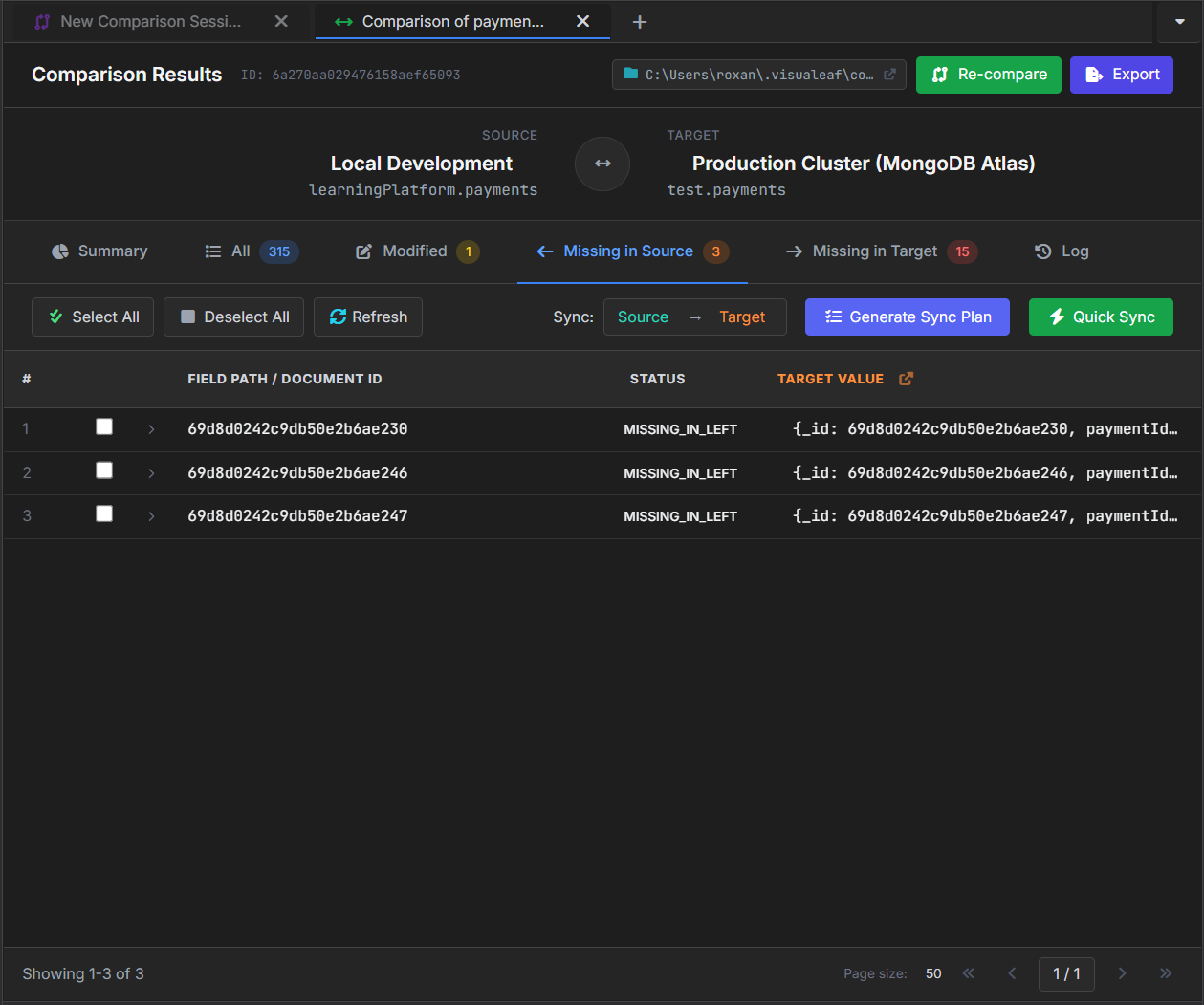
This can happen when production has new payments that were never copied locally.
It can also happen when someone inserted data directly in Atlas, or when the local database is simply behind.
The useful part is that VisuaLeaf does not only say “something is missing.”
It shows the document IDs and the fields, so you can inspect what is actually different.
See What Exists Only Locally
The opposite case is also common.
You may have documents locally that do not exist in Atlas.
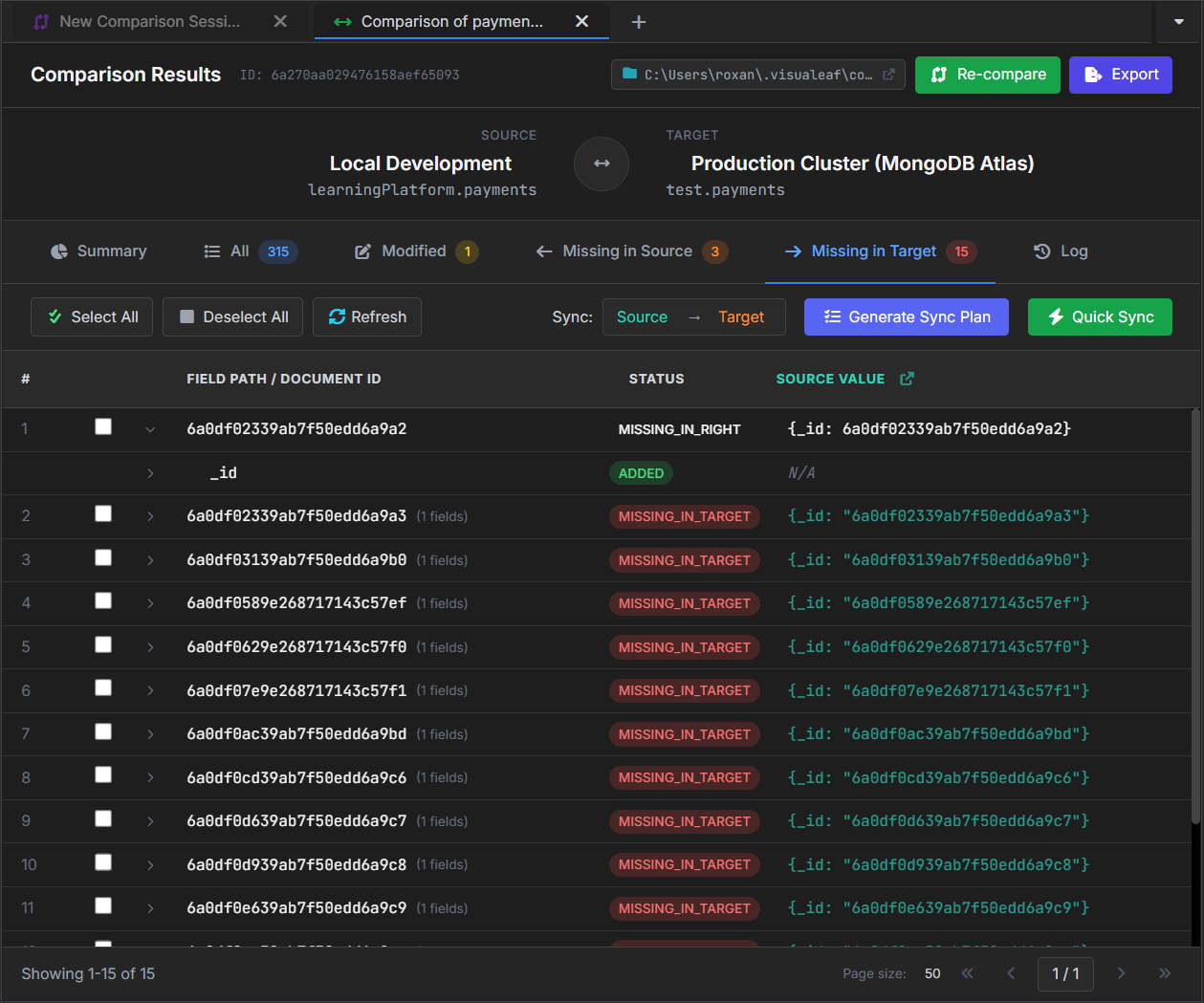
In my example, VisuaLeaf found 15 documents missing in the target.
That means these documents exist in the local payments collection, but not in the Atlas collection.
This is a very common situation when you test locally.
You insert some data, run a few queries, maybe prepare a demo, and later you forget which documents were only local.
With Collection Compare, you can see those differences directly.
Check Modified Documents
Missing documents are easy to understand.
But modified documents are often more important.
A document may exist in both collections, but one field may have a different value.
In my example, one payment document was modified.
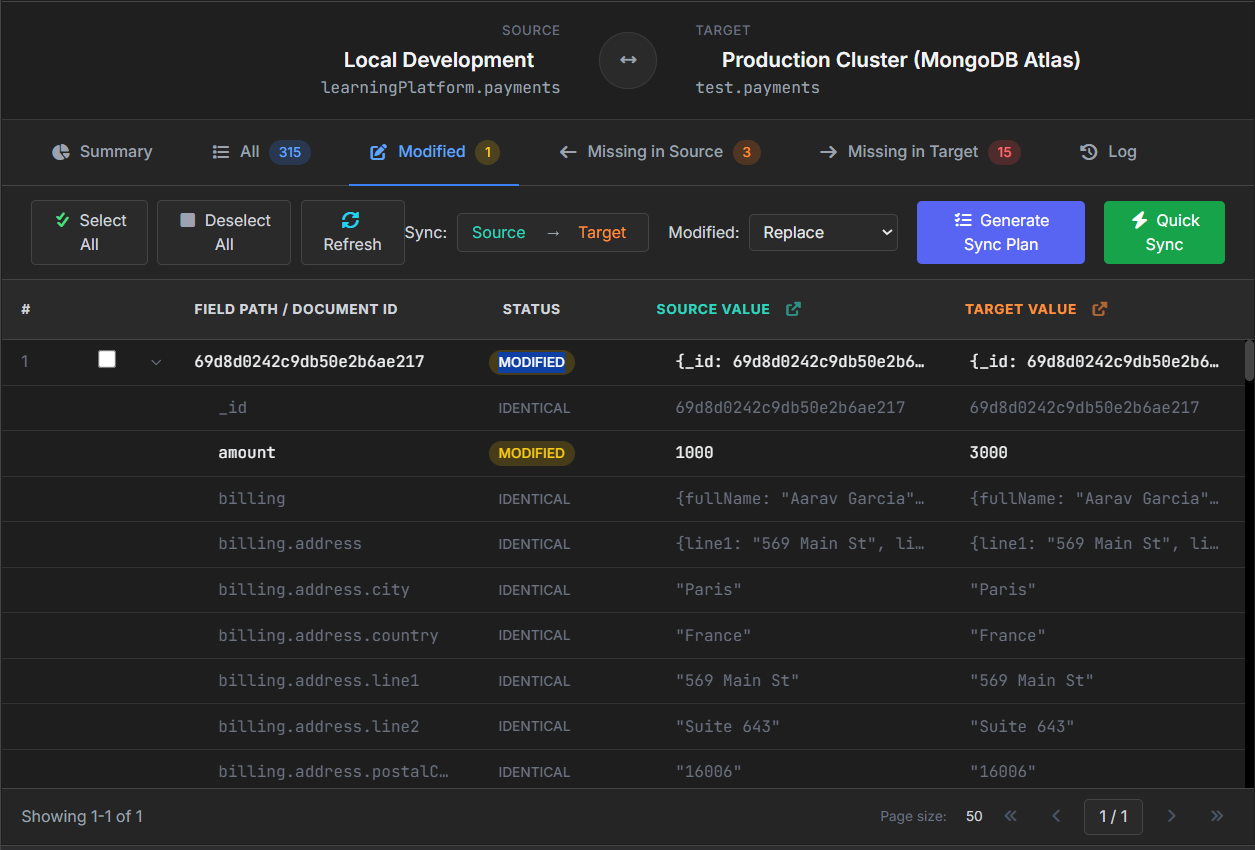
The document exists on both sides, but the amount field is different.
In the source, the amount is 1000.
In the target, the amount is 3000.
This kind of difference can easily create confusion.
Maybe a chart shows a different revenue total.
Maybe an aggregation result looks wrong.
Maybe a report does not match what you tested locally.
The query or aggregation may not be the problem.
The data may simply be different.
Generate a Sync Plan Before Changing Anything
After reviewing the differences, VisuaLeaf can also generate a sync plan.
This is important because you should not sync blindly, especially when you compare local data with MongoDB Atlas.
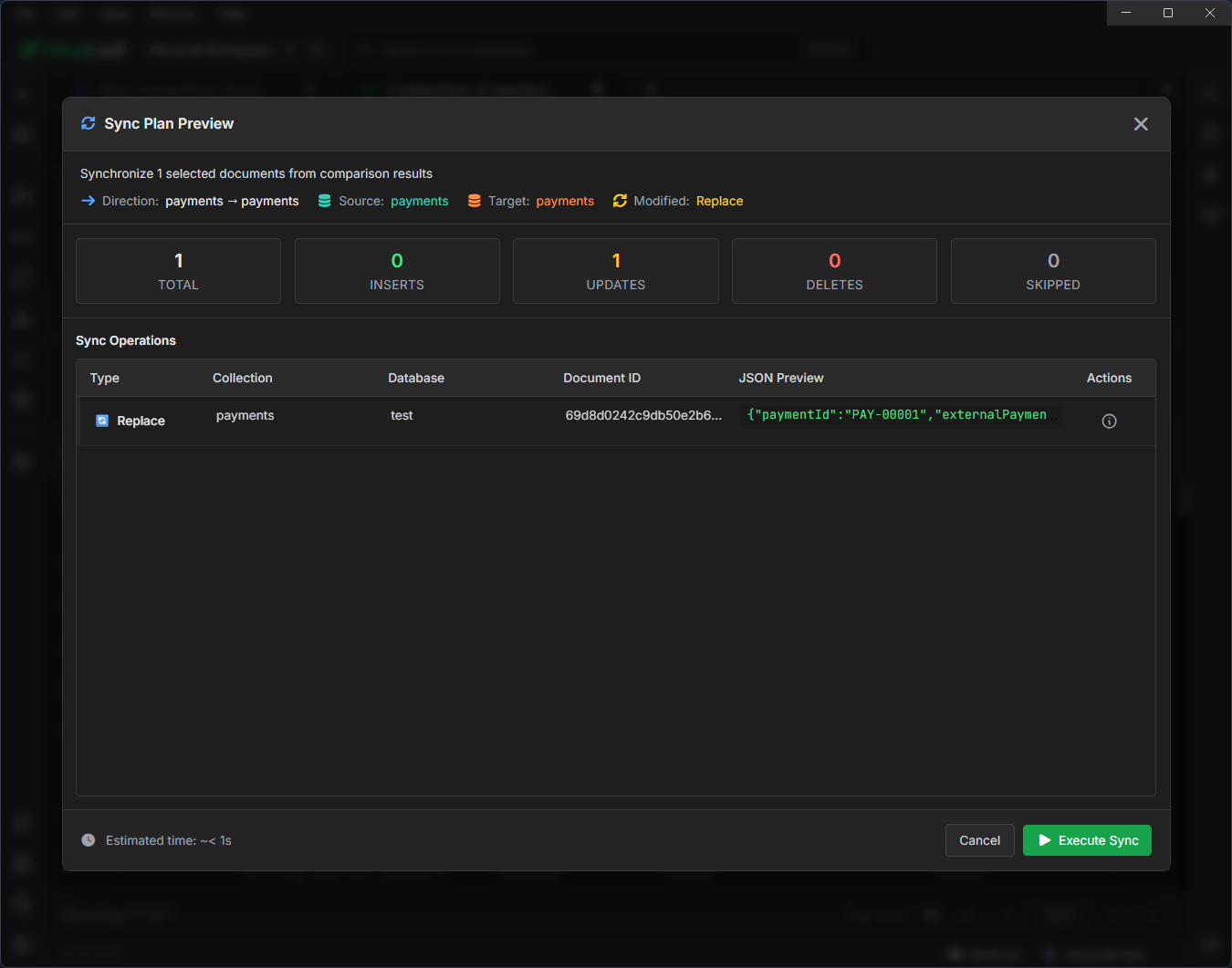
After the sync plan, VisuaLeaf also asks for confirmation before applying the change.
Here, I can still choose how the modified document should be synced. For example, I can replace the full document or merge only the changed fields.
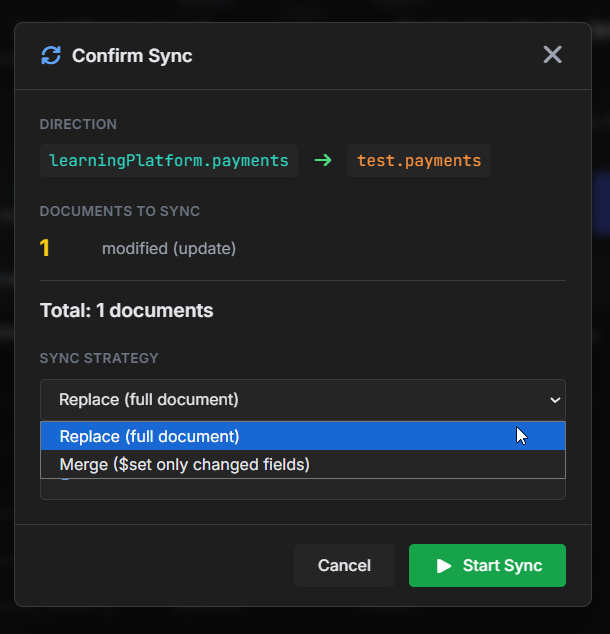
So the sync is not applied immediately. I can review the change first, choose the strategy, and only then start the sync.
Share the Comparison With Your Team
Collection Compare is also useful when you work with other people.
Maybe one person changed the local data.
Maybe another person updated Atlas.
Maybe someone wants to review the differences before anything is synced.
Instead of explaining everything in a message, you can export the comparison and share it with the team.
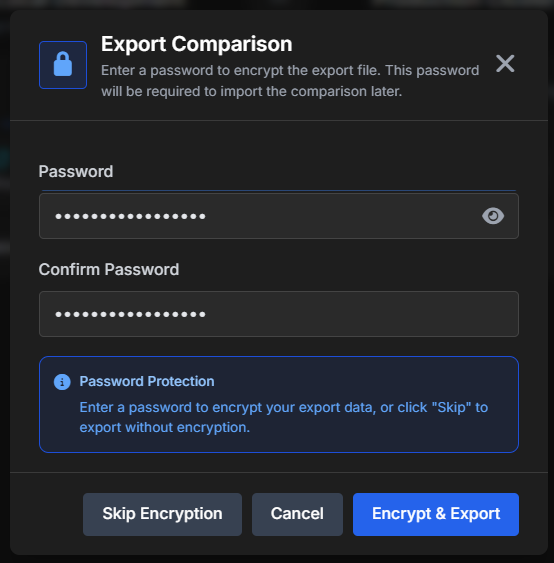
VisuaLeaf also lets you protect the exported file with a password, which is useful when the comparison contains real data.
This makes the review easier because everyone can look at the same result.
They can see what is missing, what changed, and what should be checked before moving forward.
Conclusion
Collection Compare is useful when two MongoDB collections look similar, but you are not sure if they really match.
In this example, the local payments collection and the Atlas payments collection were not identical. Some payments existed only locally, some existed only in Atlas, and one payment had a different amount.
With VisuaLeaf, those differences are easier to see before syncing, debugging, or sharing the result with a teammate.
That is the main point of the feature: you do not have to guess what changed between two collections. You can compare them, review the differences, and decide what to do next.
To try this workflow, you can download VisuaLeaf for free: https://visualeaf.com/download
You can also explore the Collection Compare feature here: https://visualeaf.com/features/collection-compare/