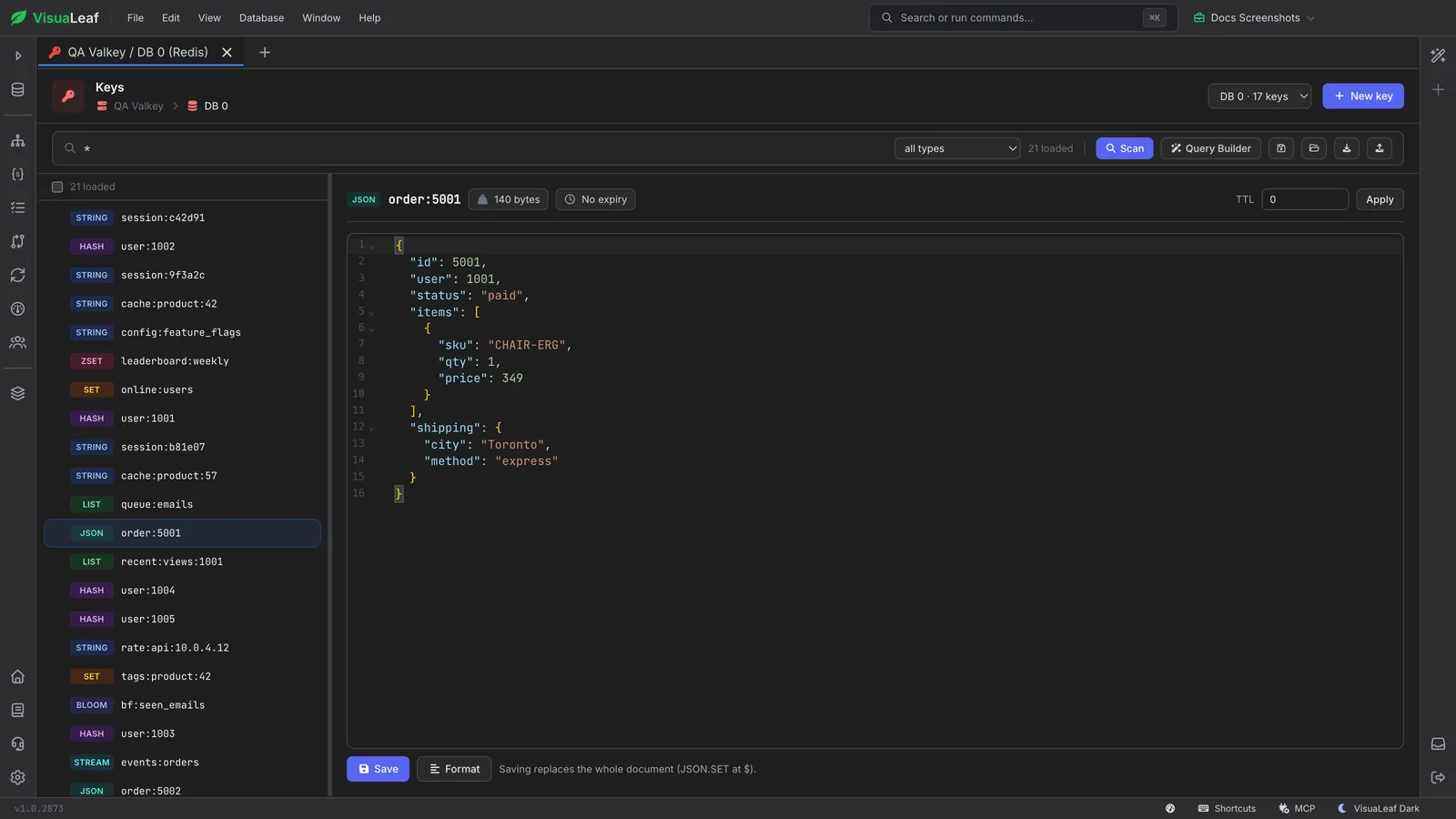
VisuaLeaf is one visual workspace for Valkey, the open-source, BSD-licensed key-value store that carries Redis forward: scan the keyspace by pattern without blocking the server, open hashes, lists, sets, JSON documents and Bloom filters in the editor that fits them, edit values and TTLs in place, run commands with a real console, and read COMMANDLOG — instead of piecing the picture together one valkey-cli call at a time.
Valkey is wire-compatible with Redis, which is why moving to it is easy — and why looking inside it is still a text protocol. VisuaLeaf turns a Valkey instance into a workspace: browse the keyspace by pattern, open a value in the editor that fits its type, watch TTLs, and see what the server itself is struggling with.
The obvious way to see what is in a database is the one that blocks the server, so exploring production means remembering to reach for SCAN and paging cursors by hand.
For compatibility Valkey reports a fixed redis_version, so a client built only for Redis shows the wrong product and the wrong version for every server you open.
valkey-json and valkey-bloom store documents and filters under their own TYPE names, which come back from most clients as opaque values.
Valkey 8.1 added COMMANDLOG to catch oversized requests and replies, but reading it still means COMMANDLOG GET and a wall of nested reply lines.
Scan the keyspace safely, open each type in the editor that fits it, edit values and TTLs, run commands, test ACL rules, and read COMMANDLOG — all in one workspace.
A Valkey connection does not open a table grid or a schema diagram, because Valkey has neither. It opens the workspaces below, each built around the way Valkey actually stores and guards data.
Scan the keyspace by glob pattern with cursor paging, never KEYS *, and read each key with its type and TTL before you touch it.
session:*, with incremental loading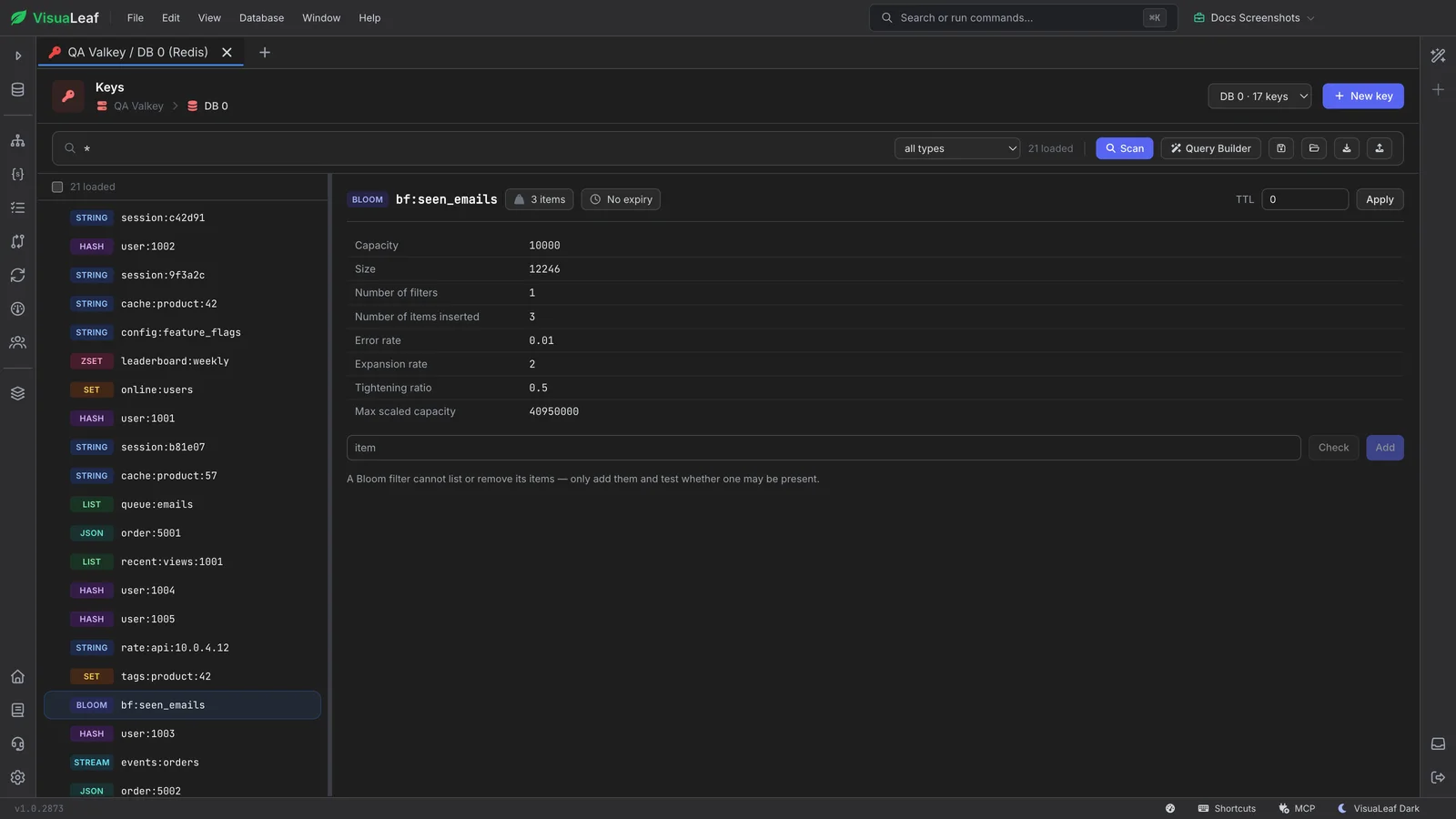
Drag a field out of the tree to build a condition and narrow the keyspace by what is inside the value, not just by key pattern. Stack conditions on a hash field, or on a JSON path inside one.
groups[0].type
A real command console for the times a GUI is the wrong tool, sitting in the same workspace as the browser you were just using.
JSON.* and BF.* run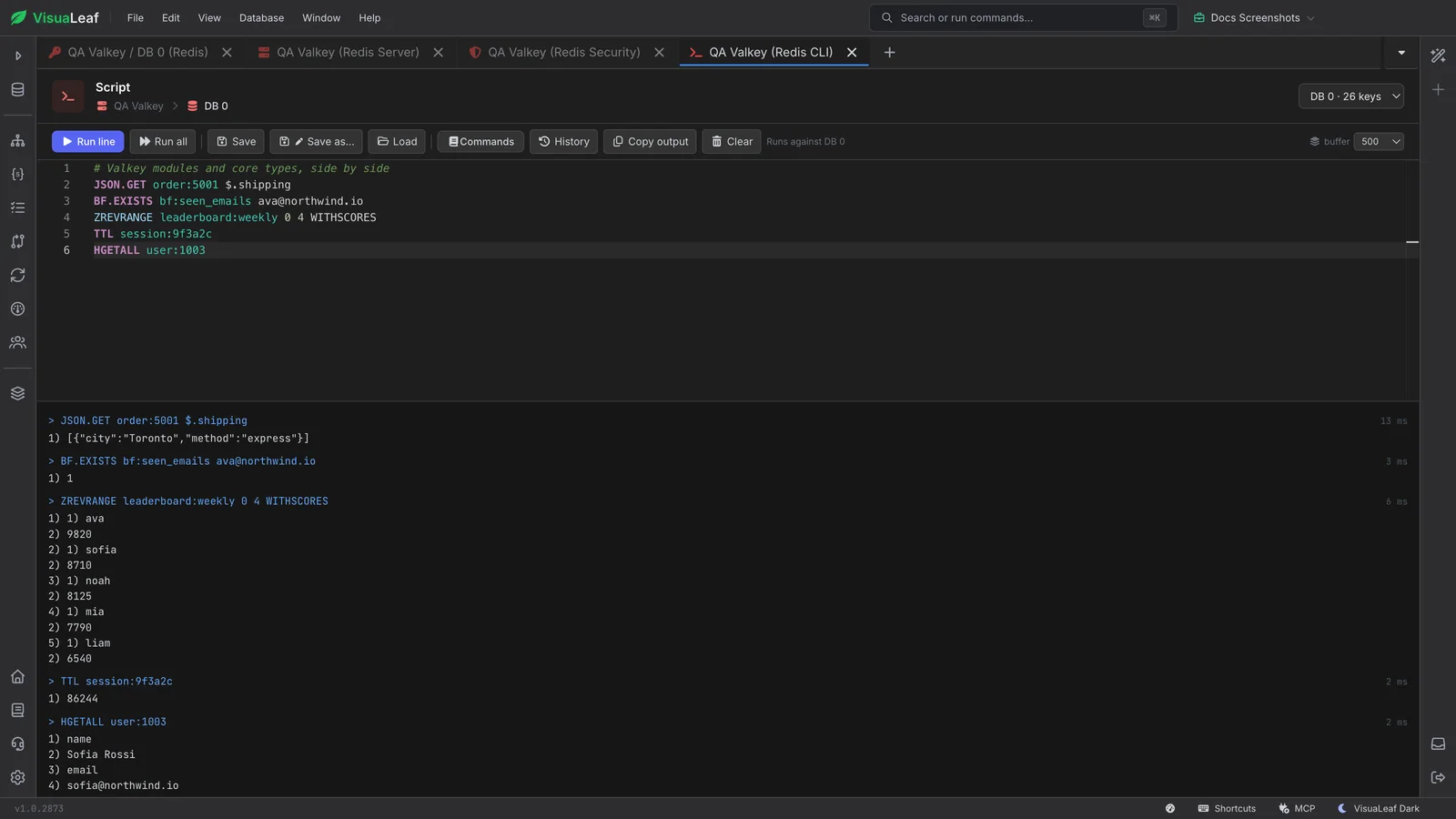
ACL rule strings are write-only in practice. This screen reads them back as permissions, and lets you check one before you trust it.
ACL DRYRUN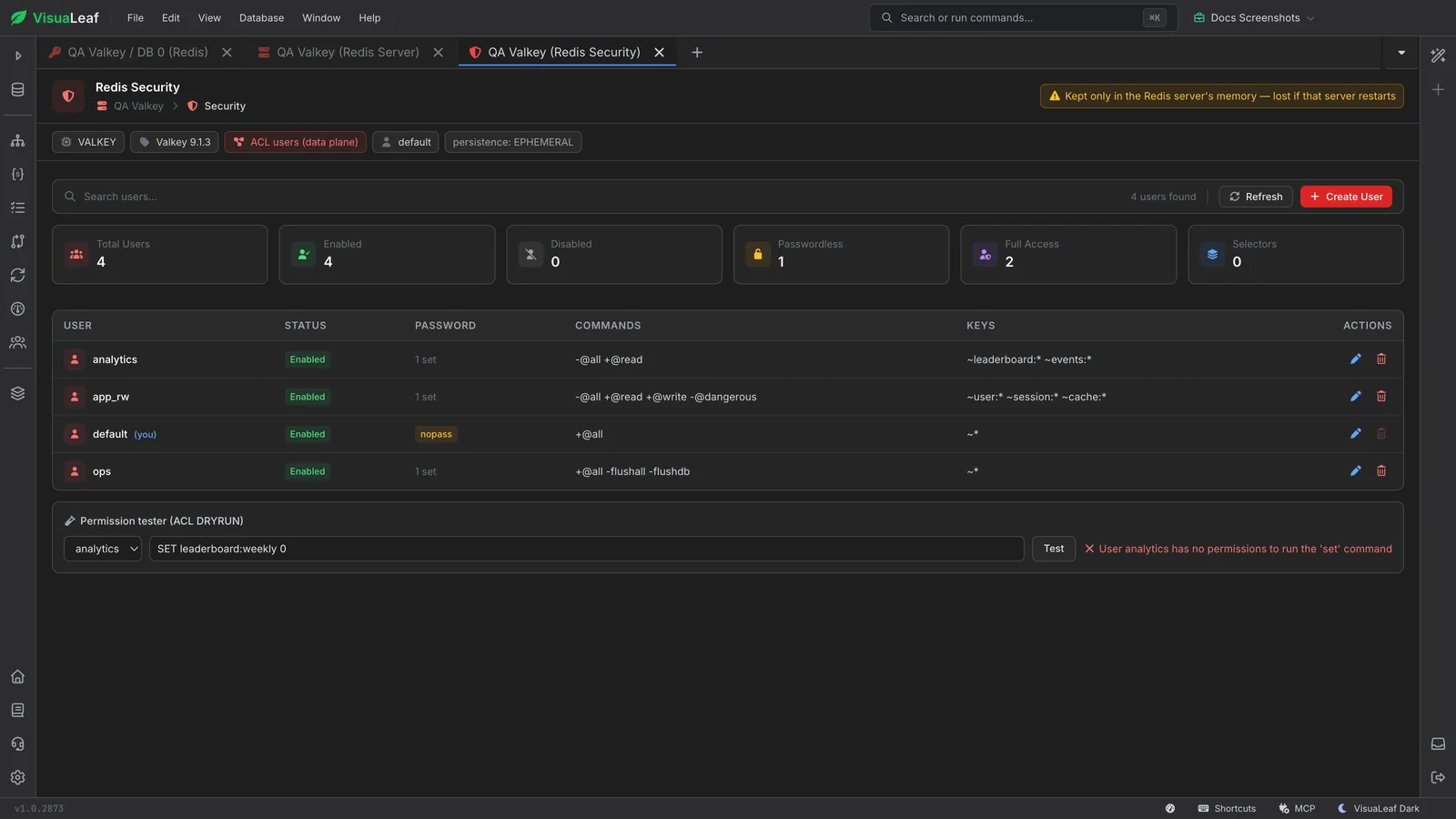
The INFO dashboard that knows it is talking to Valkey, on one auto-refreshing screen instead of a wall of key:value lines.
valkey_version, not the 7.2.4 compatibility leveljson, bf and search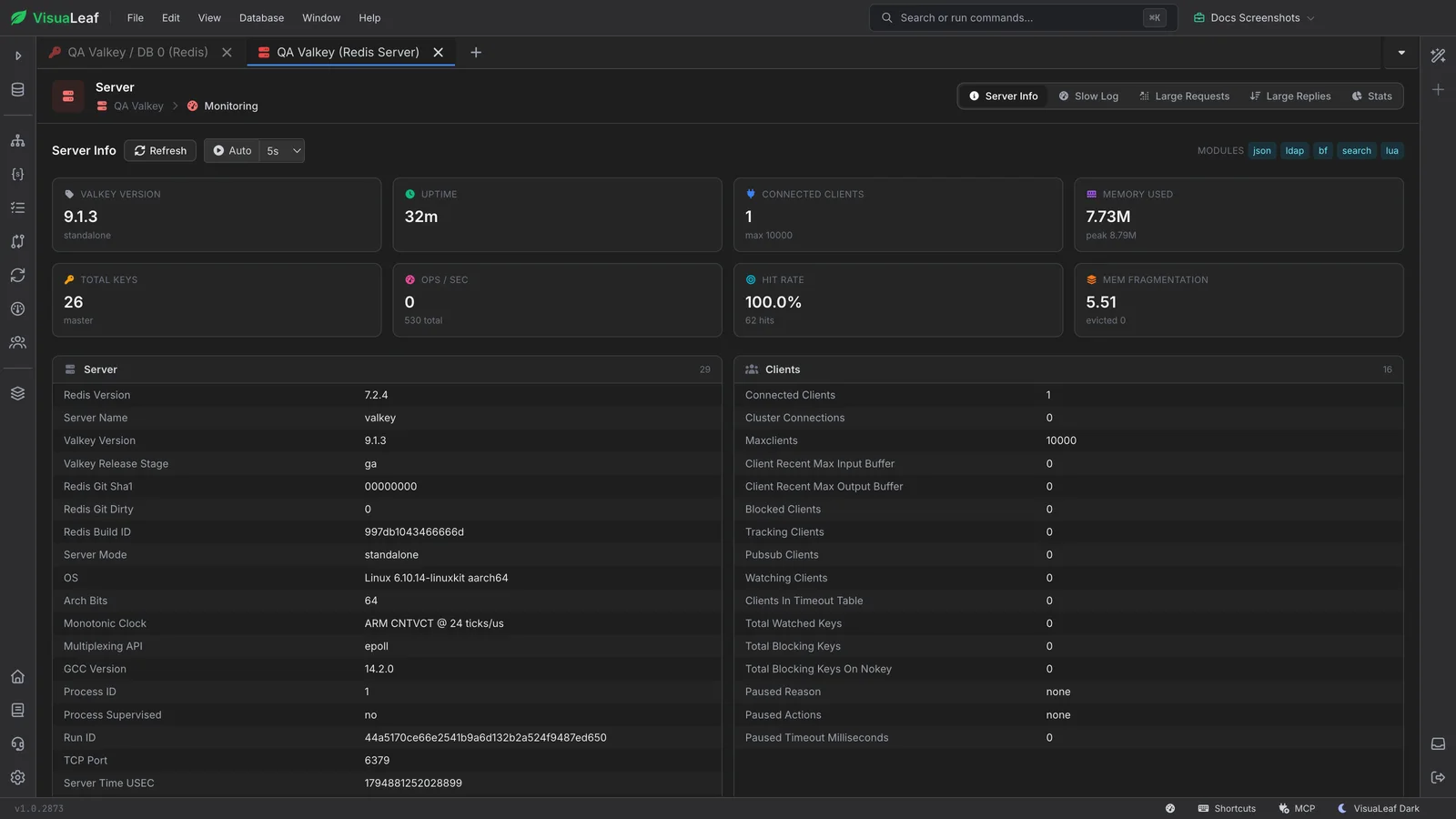
Valkey 8.1 added a log for the commands that hurt without being slow: the ones that send or return too much. VisuaLeaf reads it as a table.
COMMANDLOG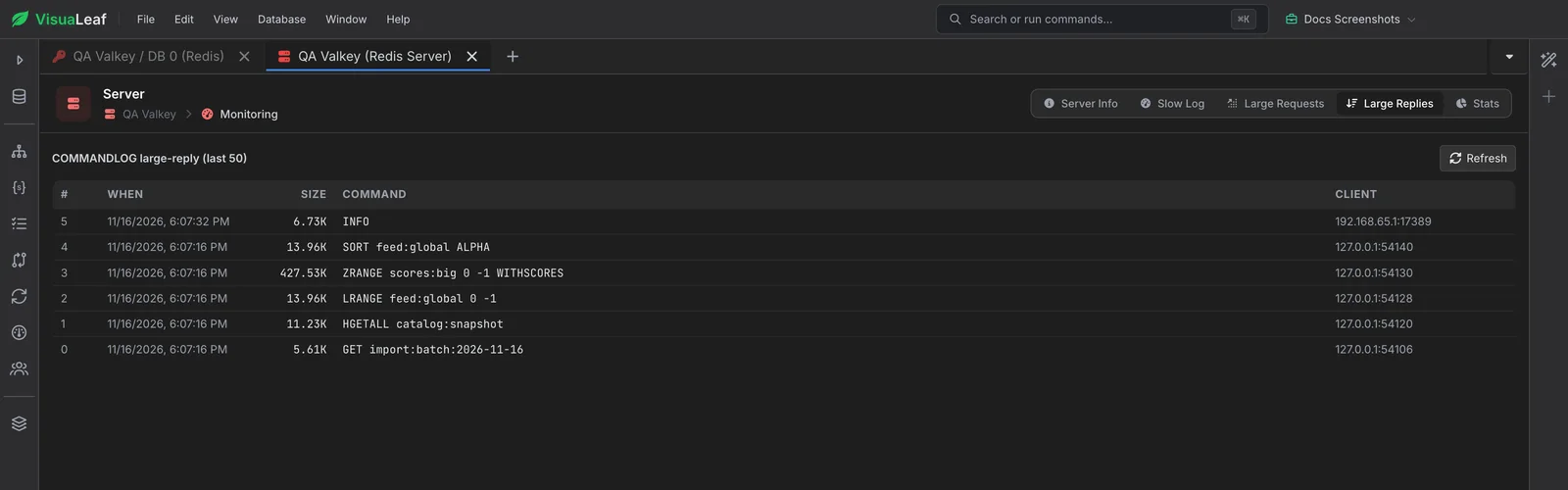
You cannot filter across values server-side in Valkey the way you can with SQL or an aggregation pipeline. VisuaLeaf gives you what is genuinely available instead: pattern scanning over keys, client-side Value Filter conditions on hash fields and JSON paths, and the CLI for module commands when the module is loaded.
There is no single grid that fits a Valkey value. Open a key and the pane that appears is the one that matches what the key holds.
| Valkey type | What opens |
|---|---|
| string | A text editor that detects JSON and switches to a JSON mode, so a cached payload reads as structure rather than one long line. |
| hash | Field and value pairs, editable in Tree, Form or raw JSON view. Per-field TTL is shown and settable where the server supports it. |
| list | An ordered, index-addressable editor, so position is preserved rather than flattened into reply lines. |
| set | A member list with add and remove, and undo on removal. |
| zset | Members beside their scores, sortable by score. |
| stream | Entries with their IDs and raw fields. A dedicated timeline editor is on the roadmap, not shipped. |
| json | A valkey-json document in a JSON editor with Format; Save writes the whole document back with JSON.SET at $. |
| bloom | A valkey-bloom filter’s capacity, size, error rate and items inserted, with Check and Add. A Bloom filter cannot list or remove its items, so neither does the editor. |
VisuaLeaf connects the steps Valkey users usually handle separately: scan the keyspace, narrow it by what is inside the values, drop into a console when you need one, and check who is allowed to run what.
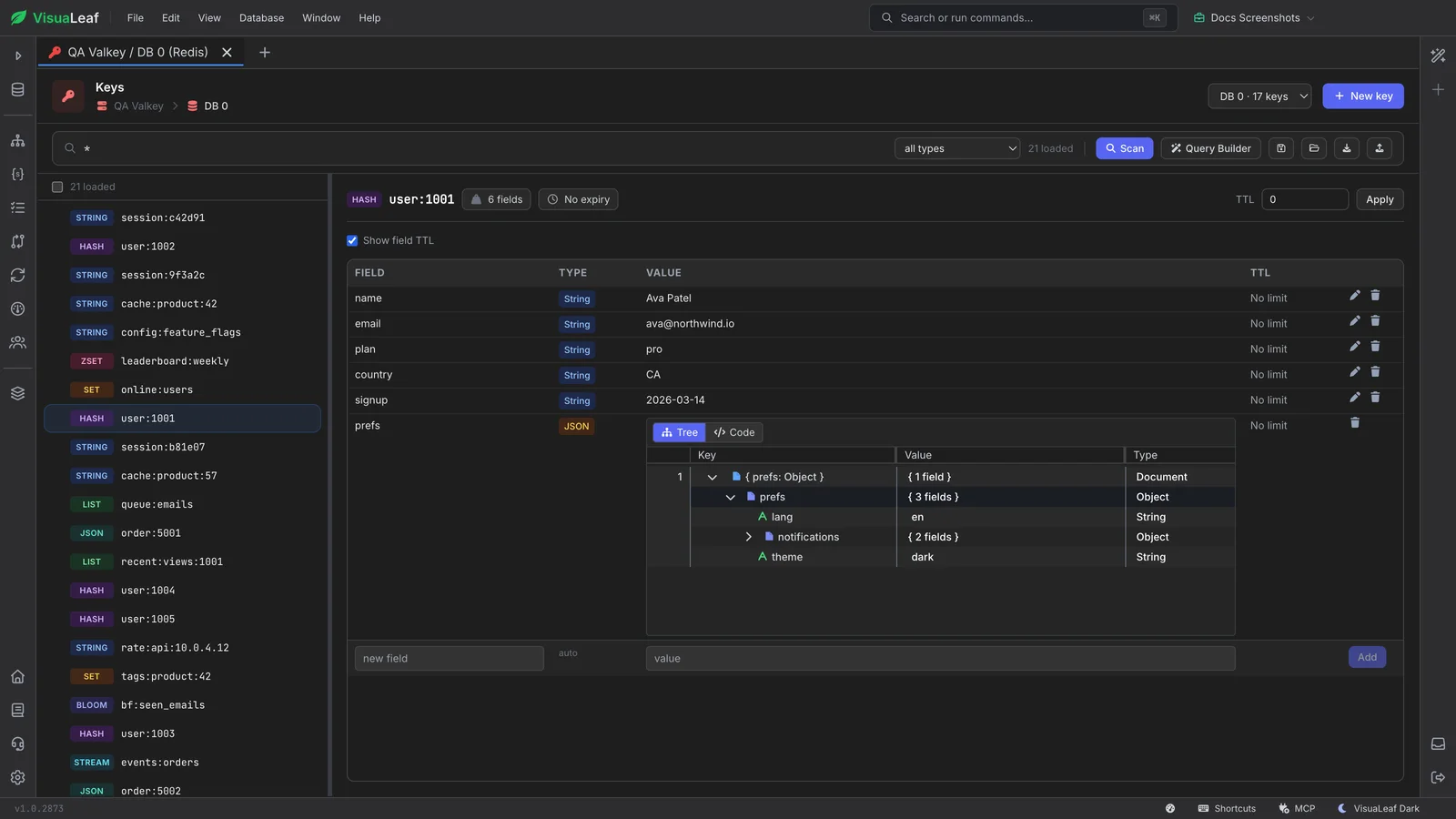
Scan the keyspace by pattern with cursor paging, filter down to one type, and read every key with its type and TTL before you touch it.
Drag a field out of the tree to build a condition and narrow the keyspace by what is inside the value, not just by key pattern. Hash keys only, and values are scanned client-side, since Valkey has no server-side index for this.
Drop into a real console when a GUI is the wrong tool, with a searchable command reference you can click straight into the prompt and a scrollback buffer you control.
Read ACL users back as permissions rather than rule strings, then check a command against a user with the ACL DRYRUN tester before you rely on it.
Whether you are migrating off Redis, debugging a cache, tightening ACLs, or learning what the data types actually do, VisuaLeaf gives you a clearer way to work with Valkey.
Inspect the keys your app writes, check a TTL, and fix a bad cache entry without opening a terminal.
Check a migrated keyspace side by side with the Redis it came from, read COMMANDLOG and the slow log, and review ACL users from one workspace.
Open sorted sets, streams and JSON documents as readable structures, and export what you find without writing a script.
Learn the Valkey data types visually, see what a hash or a stream really looks like, and try commands with instant feedback.
VisuaLeaf started as a MongoDB workspace and grew into a multi-database visual environment. One app, one workflow, across the databases your team actually uses.
And VisuaLeaf does not leave you staring at a wall of protocol replies. It visualizes everything — Valkey values become trees and typed editors, database schemas become interactive diagrams, and SQL and MongoDB query results become charts and dashboards.
VisuaLeaf is made by an independent software studio that ships often and listens to the developers who use it every day.
Download VisuaLeaf Community Edition and scan the keyspace safely, open every data type in the editor that fits it, edit values and TTLs, and read COMMANDLOG in one visual workspace.
Download Free Community Edition