Free MongoDB GUI Tool to Browse Data, Run Queries, and Create Indexes
Use a free MongoDB GUI tool to browse data, run queries, build aggregations, edit documents, use the shell, and create indexes visually.


MongoDB is much easier to understand when you can actually see your data, not just read it on a screen.
The whole point of VisuaLeaf is to make this happen.
VisuaLeaf gives you a way to work with MongoDB that's easy to look at, and it still uses the real MongoDB syntax. You can look at your databases, open up collections, check out the documents, run queries, change values, and use the MongoDB shell when you need to be in control.
This is really helpful for students learning MongoDB, developers testing data on their computers, or anyone who wants a better way to view their MongoDB collections.
The VisuaLeaf Community Edition has all the tools you need to get your work done every day: it lets you connect to databases, browse collections, run queries, edit things, access the shell, and do basic database management.
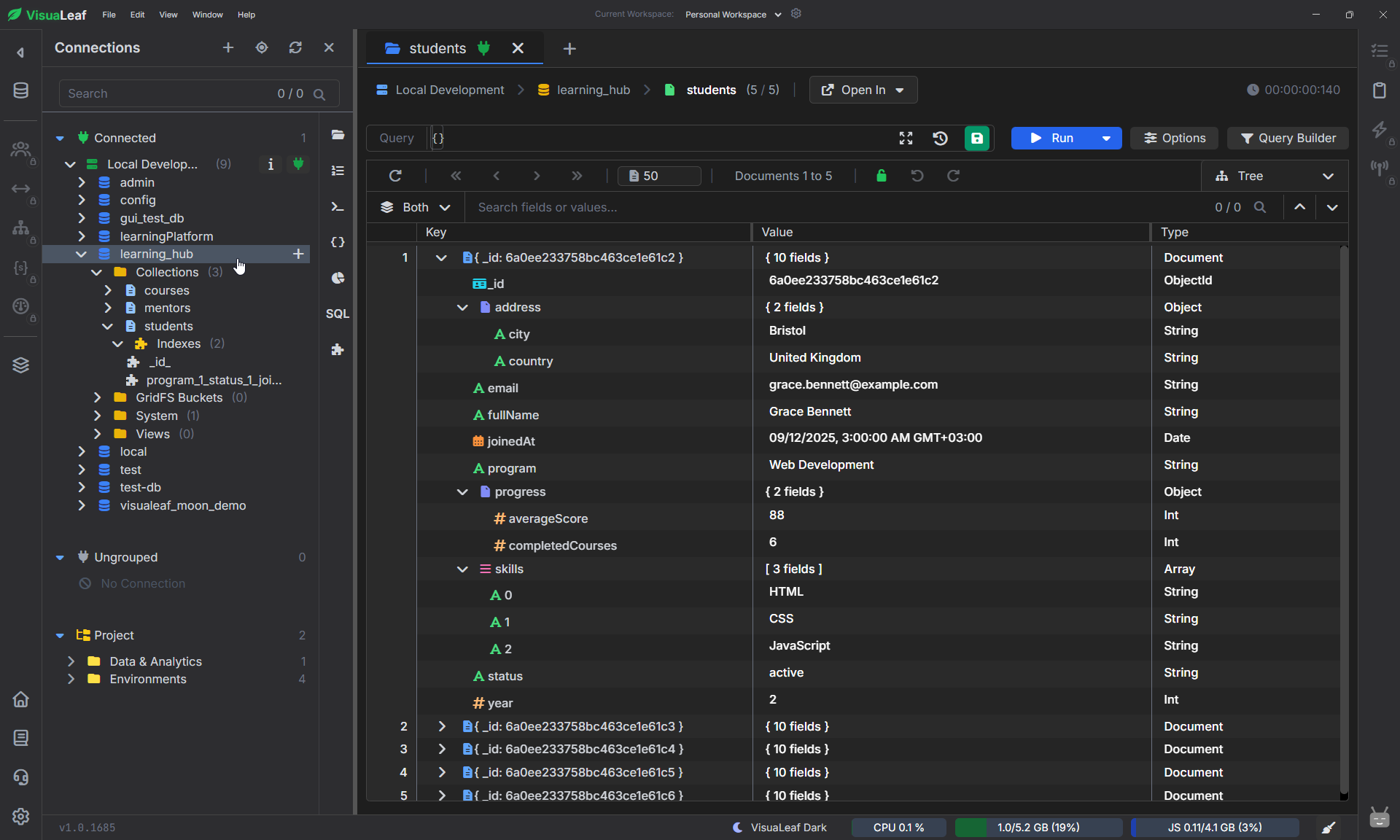
1. Connect to MongoDB
The first step is to connect to your MongoDB instance.
You can paste your MongoDB connection string. It will fill in the form for you. Then you can test if the connection works and save it for use. This method works for both MongoDB instances and remote clusters.
Once you save the connection, your databases and collections will show up in the panel. You can then explore them.
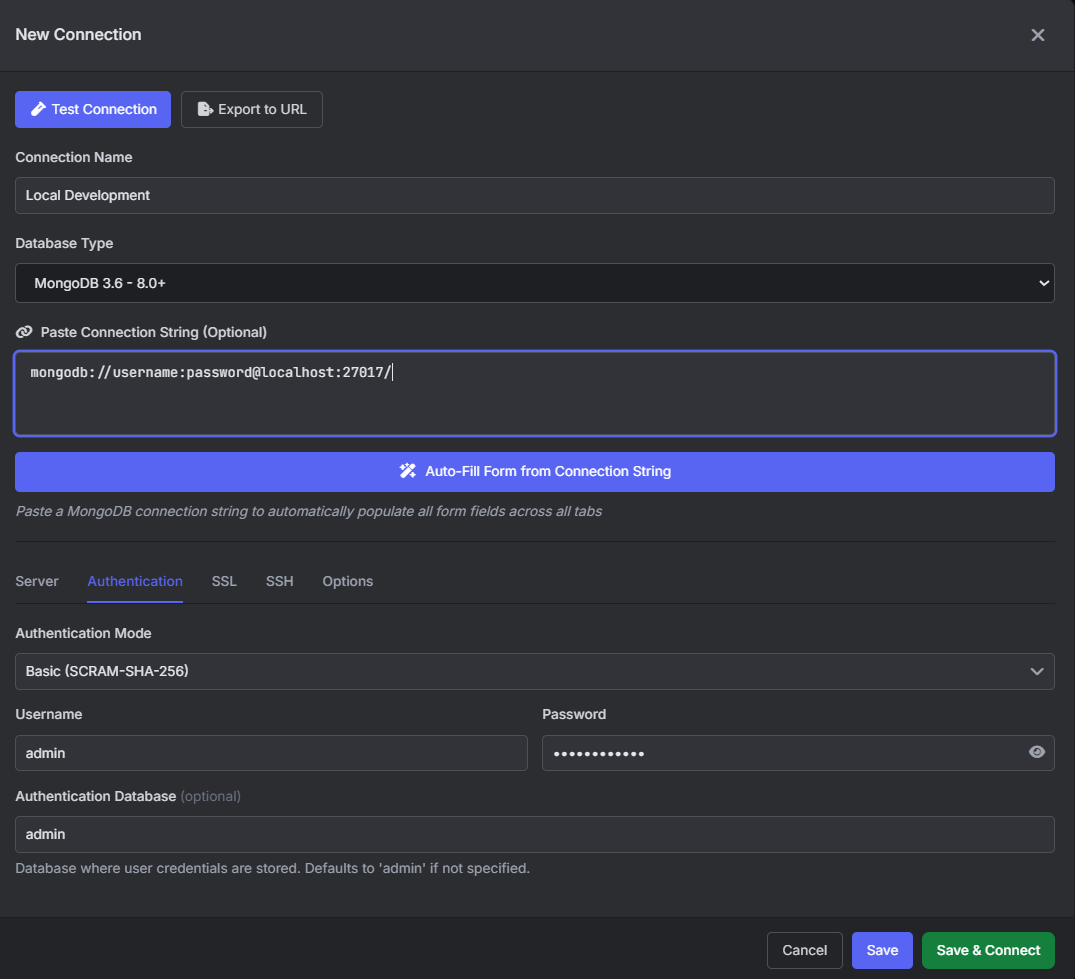
2. Browse Collections Visually
After you connect, you can open a collection, right from the sidebar.
For example, if you open the students collection, you will see all the documents in the workspace. You can expand each document. See the fields, values, and data types.
This is really helpful because MongoDB documents can be complex. A document can have things like nested objects, lists, dates, and different types of values.
When you expand everything step by step, the structure of the collection becomes much clearer with the students collection and its documents.
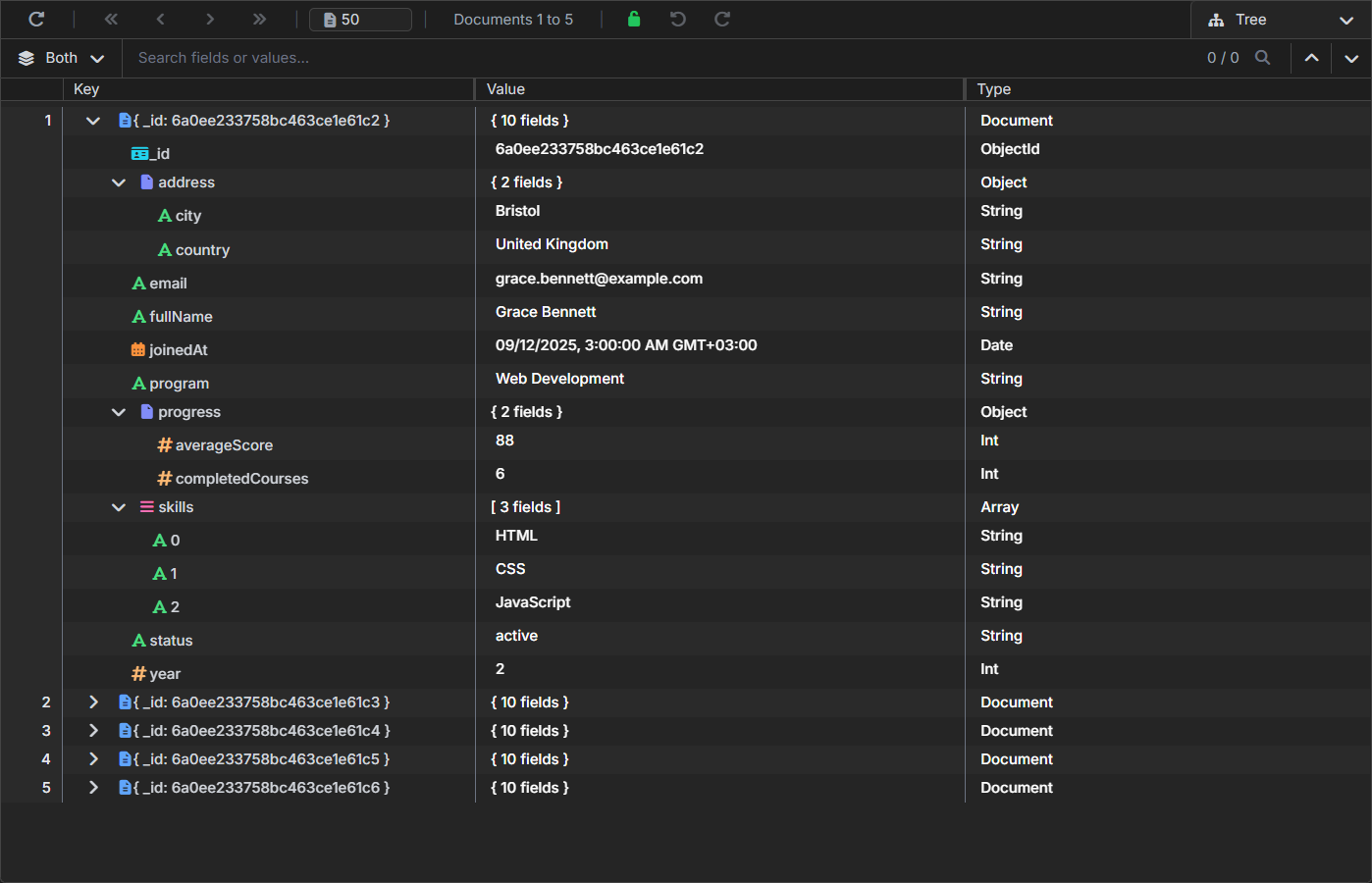
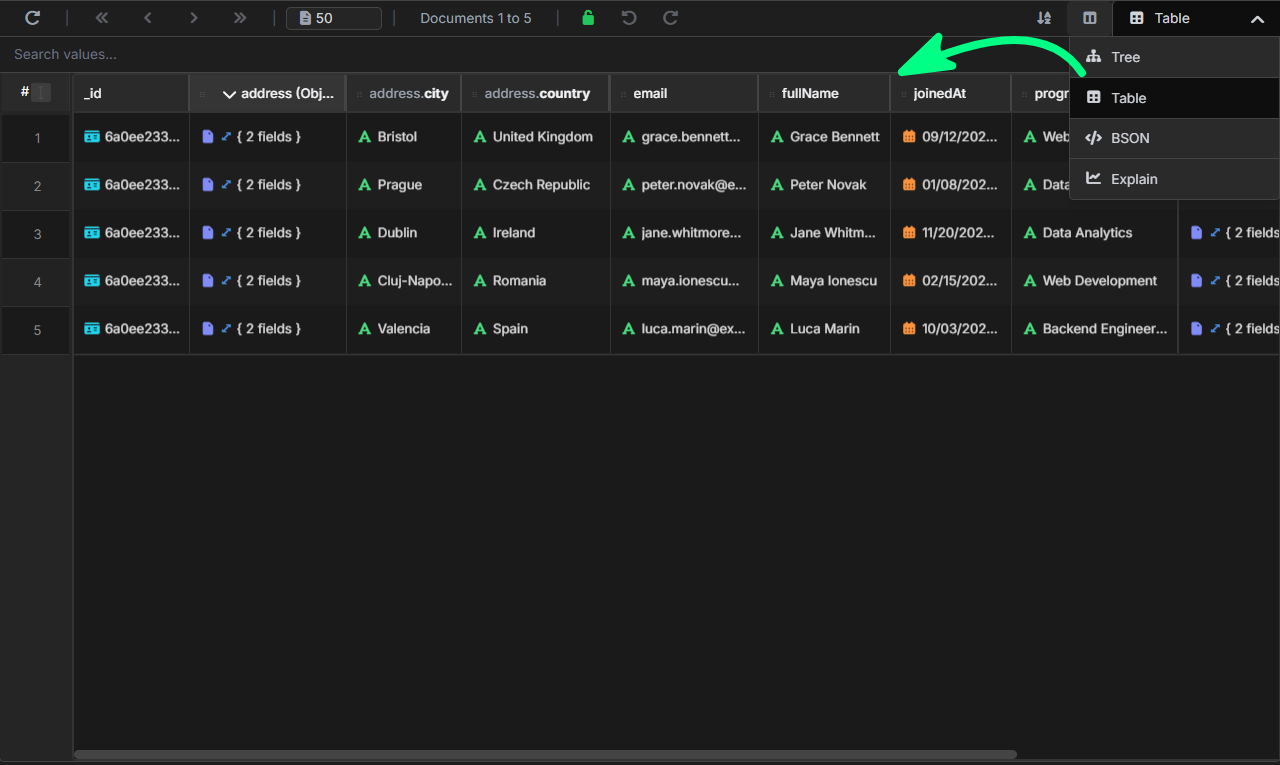
3. Viewing in Tree, Table, JSON, and BSON modes
Various operations require different views.
When you need to analyze nested documents, Tree View will do the job. For comparing multiple documents, use Table View. JSON mode gives you an understanding of the document format, while MongoDB-specific datatypes are more easily analyzed using BSON.
Therefore, instead of analyzing the same data set in one view only, you have access to all the available views depending on the operation performed.
4. Run MongoDB Queries
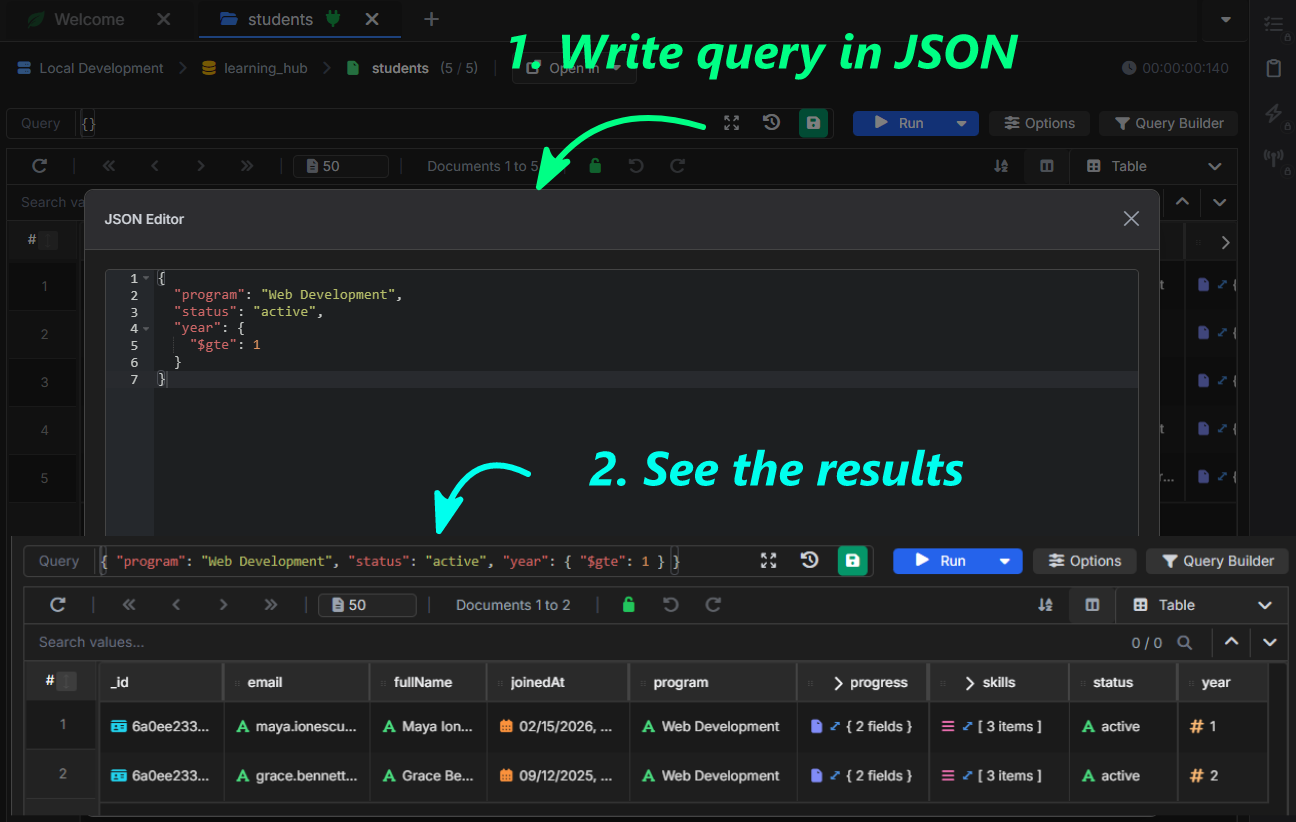
When you have a collection open, you can look at the data you want by writing a MongoDB query in JSON format.
For example, in a students collection, you may want to find students from the Web Development program who are in year 1 or above.
{
  "program": "Web Development",
  "status": "active",
  "year": {
    "$gte": 1
  }
}
This way, you are using MongoDB syntax, which is helpful if you are learning MongoDB queries.
You are not just clicking buttons without knowing what is happening. You write the MongoDB query, run the MongoDB query, and then look at the results to see what the MongoDB query did.
5. Run aggregation pipelines
Sometimes a simple query is not enough. I need to do more with my data.
Maybe I want to group documents, count how many there are, sort them in a way, or figure out some numbers like averages. That's where MongoDB aggregation pipelines come in handy.
In VisuaLeaf, I can build an aggregation pipeline visually. I add stages like Match Group and Sort. Then I configure each one. I can see the results as I go, which is really helpful.
For example, let's say I have a students collection. I can group students by program and calculate their average score:
[
  {
    "$match": {
      "status": "active"
    }
  },
  {
    "$group": {
      "_id": "$program",
      "students": {
        "$sum": 1
      },
      "averageScore": {
        "$avg": "$progress.averageScore"
      }
    }
  },
  {
    "$sort": {
      "students": -1
    }
  }
]
This is useful because you do not read documents one by one. You start to understand patterns inside the data.
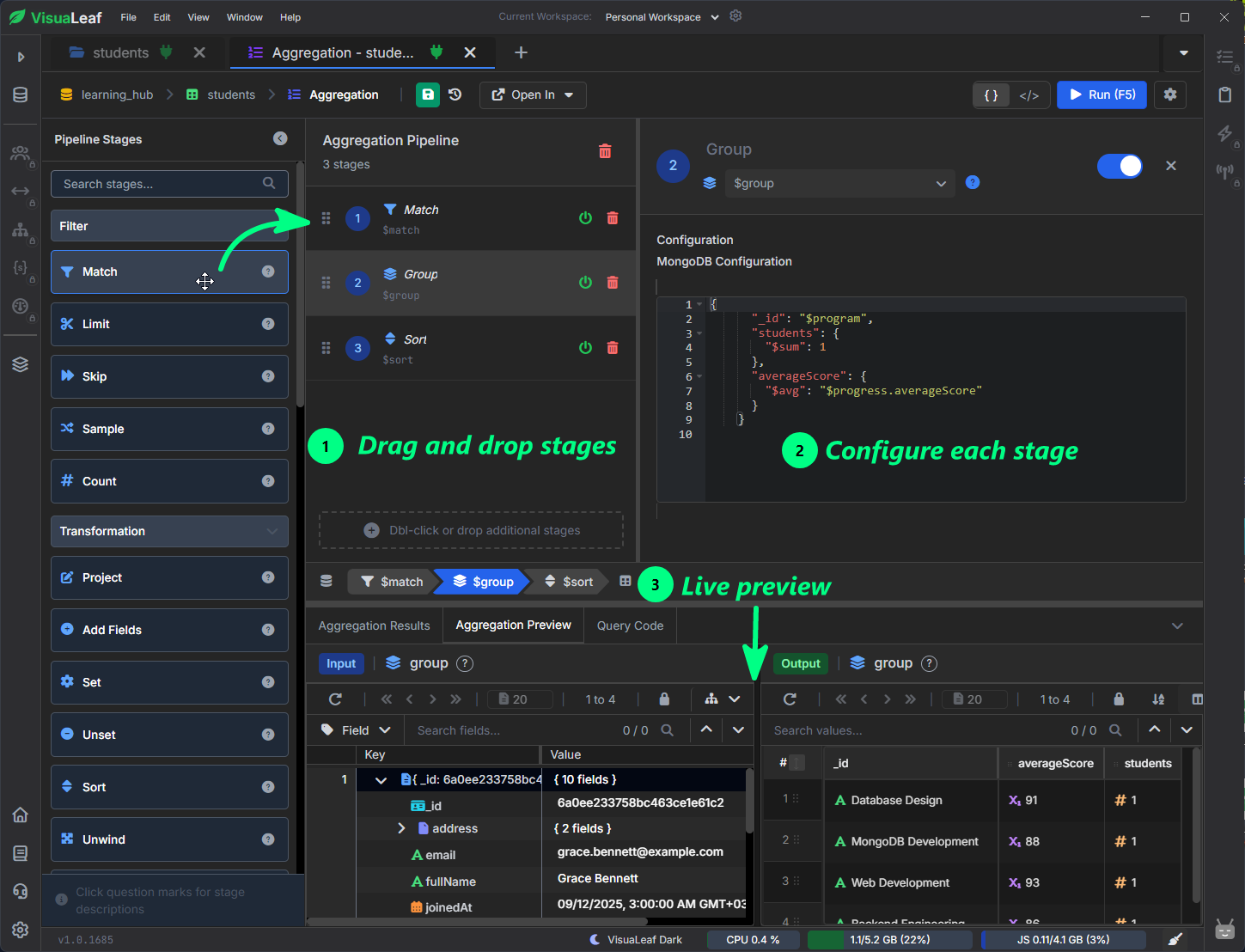
The results are shown to you in a way that makes it easier to follow what each stage of the data is doing.
Download VisuaLeaf Community Edition and work with MongoDB visually.
6. Use the MongoDB Shell When You Want Commands
Use the MongoDB shell when you want to type commands.
Some tasks still feel better when done from the shell.
That is why VisuaLeaf lets you write MongoDB commands directly without leaving your workspace.
For example, you can type a command, like this:
db.students.find({
  program: "Web Development",
  status: "active",
  year: { $gte: 1 }
})
This helps if you want to learn MongoDB syntax, not just click through a visual interface.
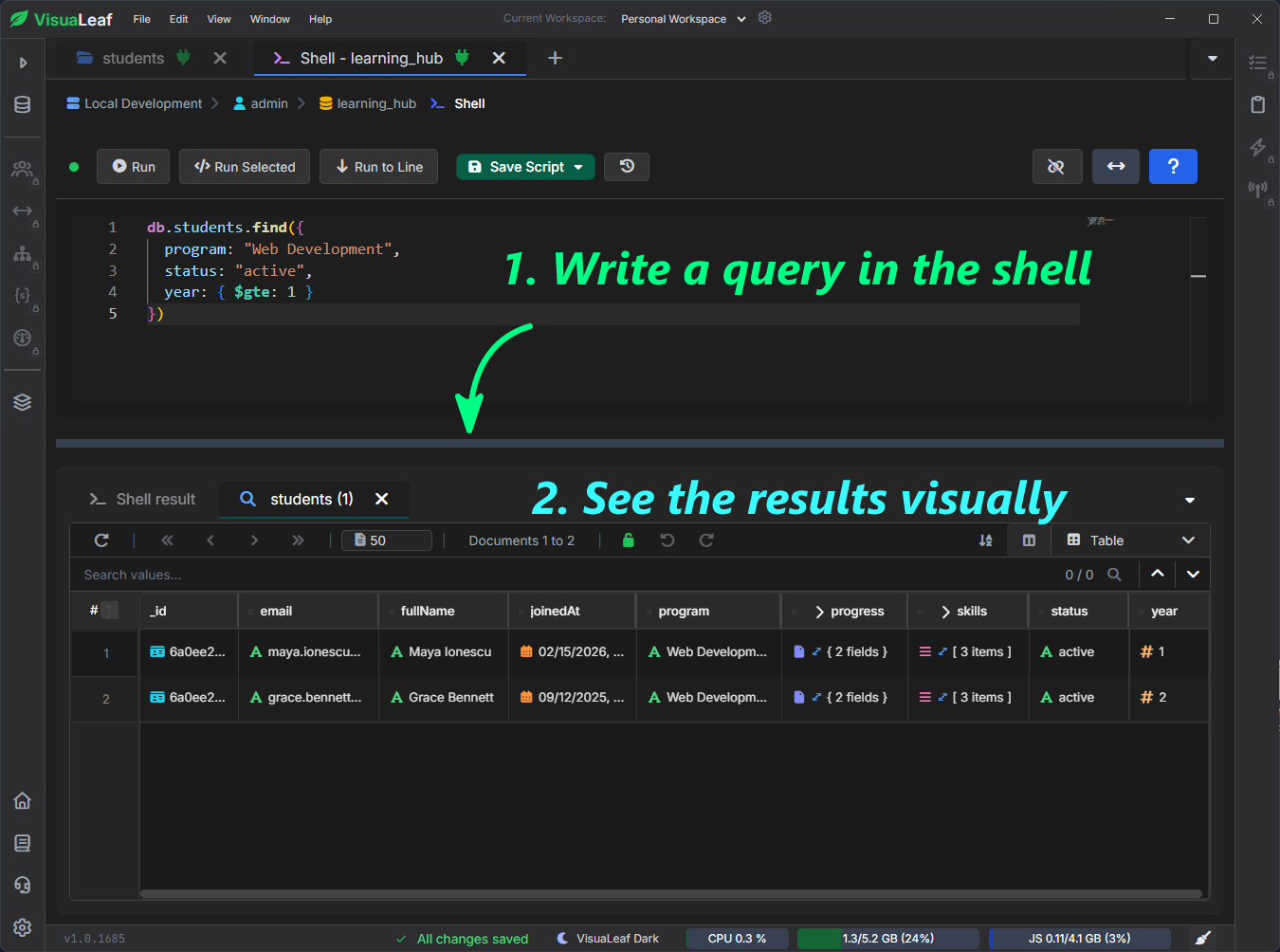
The difference is that you are not limited to the terminal. You can write a command, run it, and still look at your database visually in the tool.
For beginners, this is a balance: you learn MongoDB commands and see your data at the same time.
This way, you learn MongoDB.
7. Insert and Edit Documents
A student document in MongoDB is usually stored in JSON format, like this:
{
  "fullName": "Grace Bennett",
  "email": "grace.bennett@example.com",
  "status": "active",
  "program": "Web Development",
  "year": 2,
  "skills": ["HTML", "CSS", "JavaScript"],
  "address": {
    "city": "Bristol",
    "country": "United Kingdom"
  }
}
The thing about JSON is that it is flexible. It can be really easy to make mistakes when you are editing it by hand. You have to be careful.
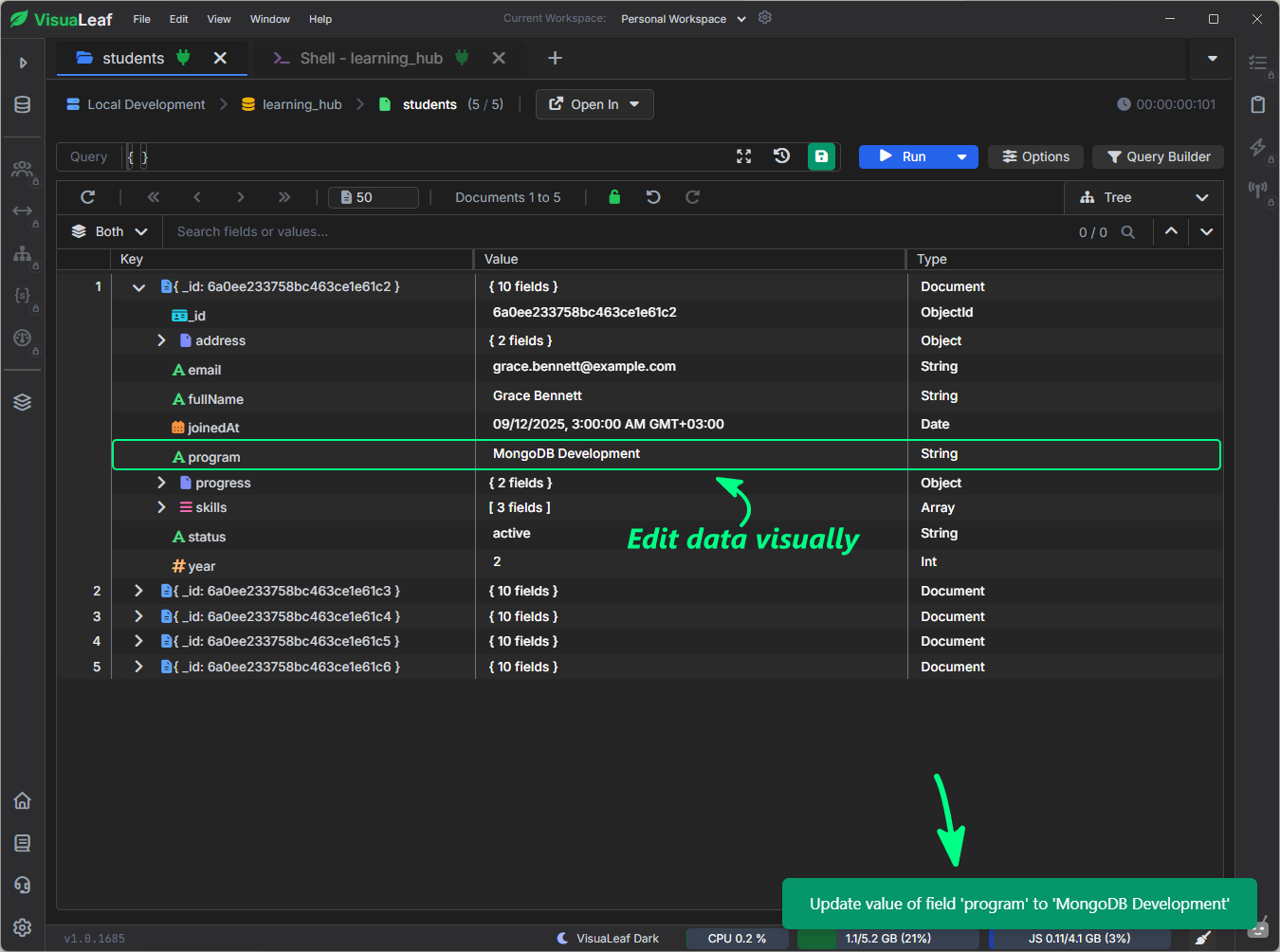
In VisuaLeaf, you can open the student document in Tree View or Table View. Update the values directly. For example, if a student decides to change their specialization, you can change the program field from Web Development to MongoDB Development without having to write an updateOne() command in the shell.
You can make changes by editing the value directly and then applying the update.
8. Create Databases and Collections Visually
When you start a project, you usually need a database first, then a collection.
You can make a database and a collection from the shell. It is easier to do it visually sometimes.
In VisuaLeaf, you can make a database from the sidebar. Then you can make a collection using a form where you add the collection name, and that is it.
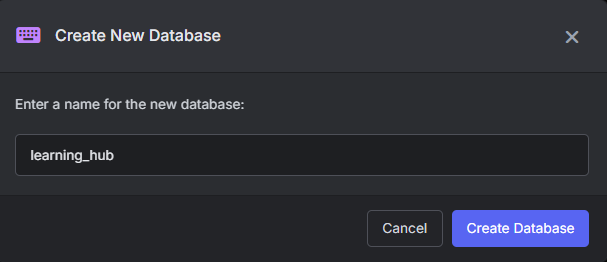
For collections, you may only need a name for the collection, and you can also add a comment if you want to.
This is especially helpful for people who are new to MongoDB because it shows the MongoDB structure more clearly:
Database → Collection → Document
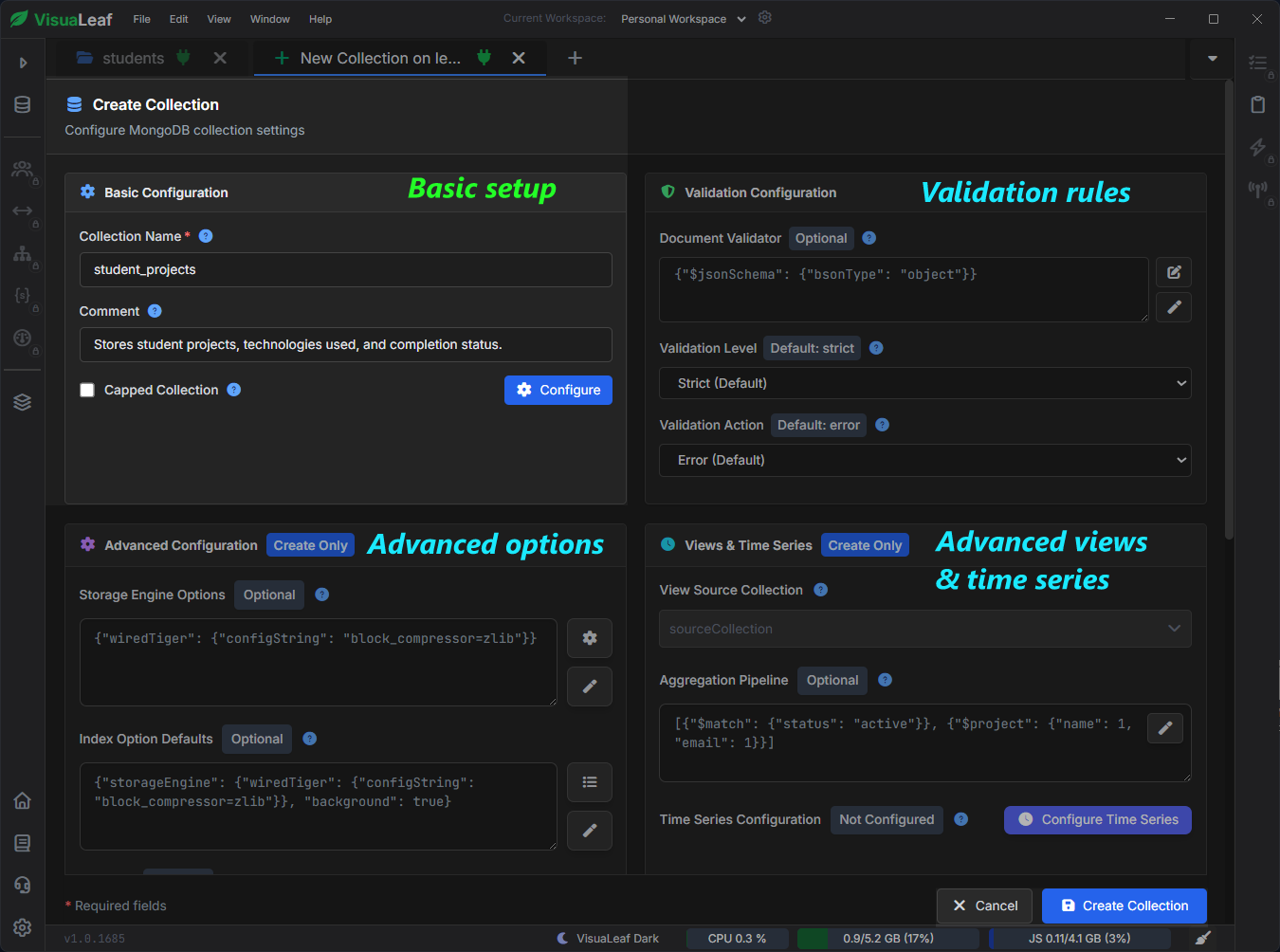
If your project needs more control, you can also set up advanced options for the collection, such as capped collections, storage engine options, validation rules, index defaults, collation, views, or time series settings for the collection.
9. Create and View Indexes
Indexes are super important when your MongoDB queries start to slow down.
When you do not have an index, MongoDB has to look through a lot of documents to find what you need. With the right index, MongoDB can find the data way faster.
You can make an index in the MongoDB shell using createIndex().
For example, if you often sort students by when they joined and filter them by program and status, you can make an index like this:
db.students.createIndex({
  program: 1,
  status: 1,
  joinedAt: -1
})
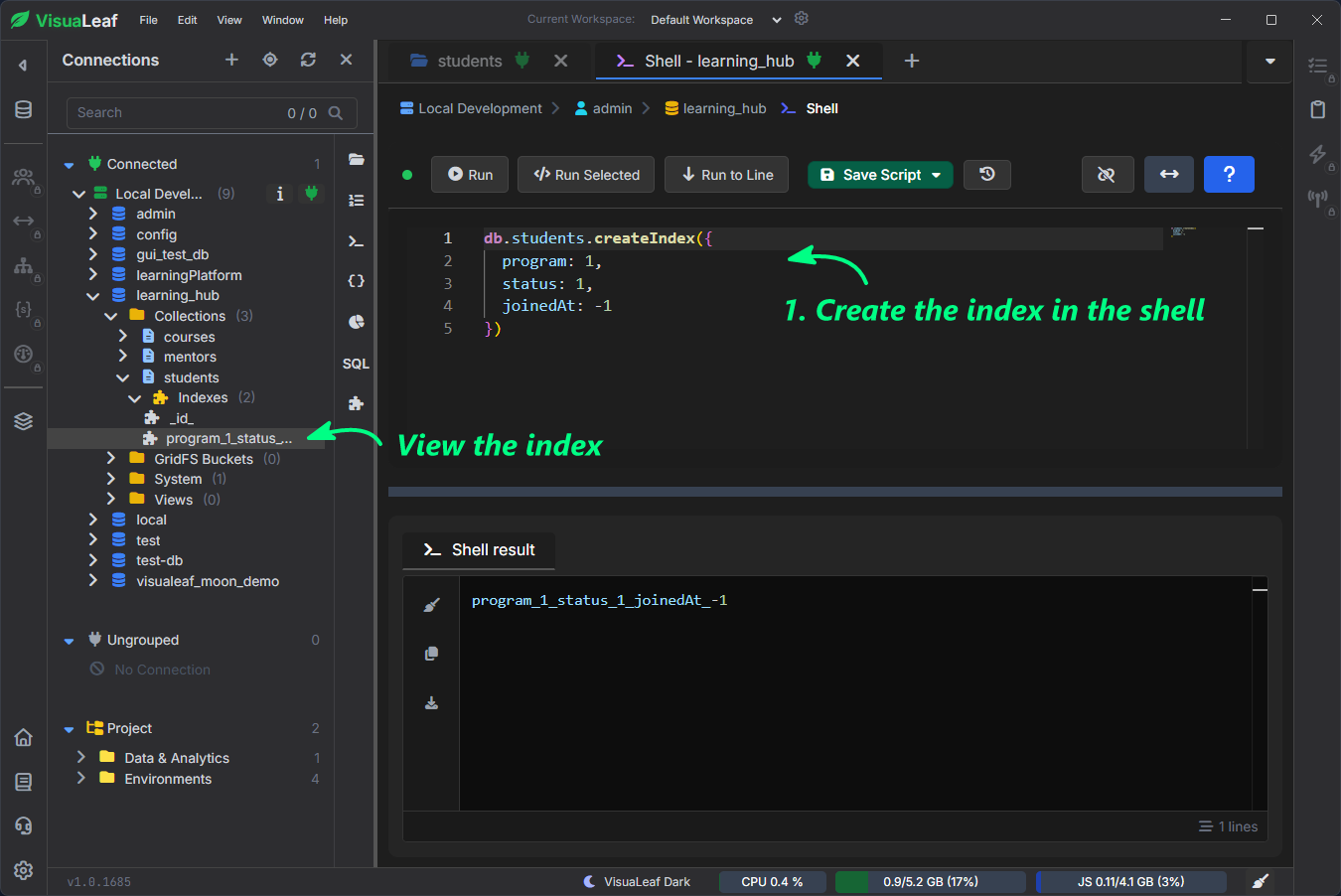
After you make the index, you can see it in the panel under the students collection.
This is really helpful because you learn the MongoDB command, and you also get to see which indexes are on the collection, in a visual way.
Who is this free MongoDB GUI tool for?
The VisuaLeaf Community Edition is a great tool if you want a free and easy way to work with MongoDB.
It is useful for people who want to make working with MongoDB simpler.
It can help people like:
- a student who is learning MongoDB
- a developer who is testing data on their computer
- a backend developer who works with MongoDB collections every day
- someone who wants to look at documents without only using the command line
- someone who wants to look at, change, search, and make groups of data visually, and also make indexes
The idea of the VisuaLeaf Community Edition is simple: you still get to learn real MongoDB, but you get a visual workspace to work with MongoDB.
Conclusion
It becomes easier to get clarity about the structure of data in MongoDB if it can be visually represented.
Using VisuaLeaf Community Edition, you can connect to MongoDB and perform various operations like querying databases, building aggregations, executing shell commands, editing documents, creating collections, and viewing indexes on one screen.
This makes it an effective free GUI for MongoDB that can be used by students and professionals for various purposes.
In addition to this, VisuaLeaf offers you the facility to experience advanced features like its query builder, task manager, query profiler, and analytics dashboard free for 14 days.
FAQ
Is VisuaLeaf an alternative to MongoDB Compass?
It can be, depending on what kind of workflow you prefer. MongoDB Compass is MongoDB’s official free GUI for exploring data, running queries and aggregations, and working with MongoDB visually. VisuaLeaf gives you another option if you want a different interface and a workspace focused on browsing collections, writing queries, using the shell, building aggregations, and seeing indexes in one place
Is VisuaLeaf a free MongoDB GUI tool?
Yes. VisuaLeaf Community Edition gives you a free way to work with MongoDB visually. You can connect to MongoDB, browse collections, run queries, build aggregation pipelines, use the shell, edit documents, create collections, and view indexes from one workspace.
Should I use VisuaLeaf or MongoDB Compass?
If you already use Compass and it fits your workflow, it is a strong tool. If you want to try a different MongoDB GUI with a more visual workspace, shell access, aggregation workflows, and a clean way to inspect collections and indexes, VisuaLeaf Community Edition is worth testing.
Can I use VisuaLeaf to learn MongoDB?
Yes. This is one of the best use cases. You can still write real MongoDB queries and shell commands, but you also see the results visually. That makes it easier to understand collections, documents, fields, indexes, and aggregation pipelines.
Can I create indexes in VisuaLeaf Community Edition?
You can create indexes using the MongoDB shell with createIndex(), then see the created indexes in the left panel under the collection. This way, you learn the real MongoDB command and still have a visual place to check the result.
Does VisuaLeaf support aggregation pipelines?
Yes. You can build aggregation pipelines and preview the results visually. This is useful when you want to group documents, calculate values, sort results, or better understand patterns in your MongoDB data.