Best MongoDB GUI Tools in 2026 for Windows, macOS, and Linux
Compare the best MongoDB GUI tools, database tools, and clients in 2026 for browsing collections, building queries, managing data, and working faster with MongoDB.


Choosing a MongoDB tool is not only about opening a collection and seeing documents.
Some tools are better for quick data browsing. Others are stronger for writing queries, building aggregation pipelines, checking performance, or understanding the structure behind messy JSON documents.
In this guide, we compare the best MongoDB tools in 2026 based on how they actually help in daily work:
- browsing and editing documents
- building queries
- creating aggregation pipelines
- visualizing schema structure
- checking indexes and performance
- working with dashboards, exports, or team workflows
Quick answer: If you need a MongoDB GUI for browsing data, writing queries, building aggregation pipelines, and understanding your schema visually, tools like MongoDB Compass, VisuaLeaf, Studio 3T, and NoSQLBooster are the main options to compare.
Compass is a good free starting point, Studio 3T is strong for advanced database work, NoSQLBooster is useful for shell-heavy users, and VisuaLeaf focuses on visual query building, aggregation, schema design, and daily MongoDB exploration.
These are the best MongoDB clients that we are comparing in this article:
- 1. MongoDB Compass
- 2. VisuaLeaf
- 3. Studio 3T
- 4. Mingo
- 5. Navicat for MongoDB
- 6. NoSQLBooster
- 7. NoSQL Manager
Each tool has a different focus. Some are better for beginners, some are better suited to visual workflows, and others are more advanced for database administrators or teams.
A Quick Look at the Top MongoDB GUI Options
If you want a quick overview, here's what the main MongoDB clients look like:
| Tool | Good For | Pricing |
|---|---|---|
| MongoDB Compass | Free MongoDB browsing, queries, and schema checks | Free |
| VisuaLeaf | Visual queries, aggregations, schema diagrams, and dashboards | Free Community Edition, from $10/month or $79/year |
| Studio 3T | Advanced MongoDB workflows, SQL support, and team features | Free Community Edition, from $499/year |
| Mingo | Fast daily browsing, filters, and clean document views | 31-day trial, from €7/month |
| Navicat for MongoDB | Admin tools, automation, BI dashboards, and modeling | Trial available, from $22.99/month |
| NoSQLBooster | Shell work, scripting, SQL-style queries, and debugging | Free edition, from $129 one-time |
| NoSQL Manager | Windows-based MongoDB administration and monitoring | Free version, Pro $180 |
MongoDB Compass
MongoDB Compass is the official GUI tool from MongoDB. It is a good option if you want to explore collections, check documents, test queries, and understand your database without relying solely on the shell.
Cross-Platform: Windows, macOS, Linux.
Best for: Exploring MongoDB collections, testing queries, checking schemas, and managing data visually.
Data Navigation & Document Editing
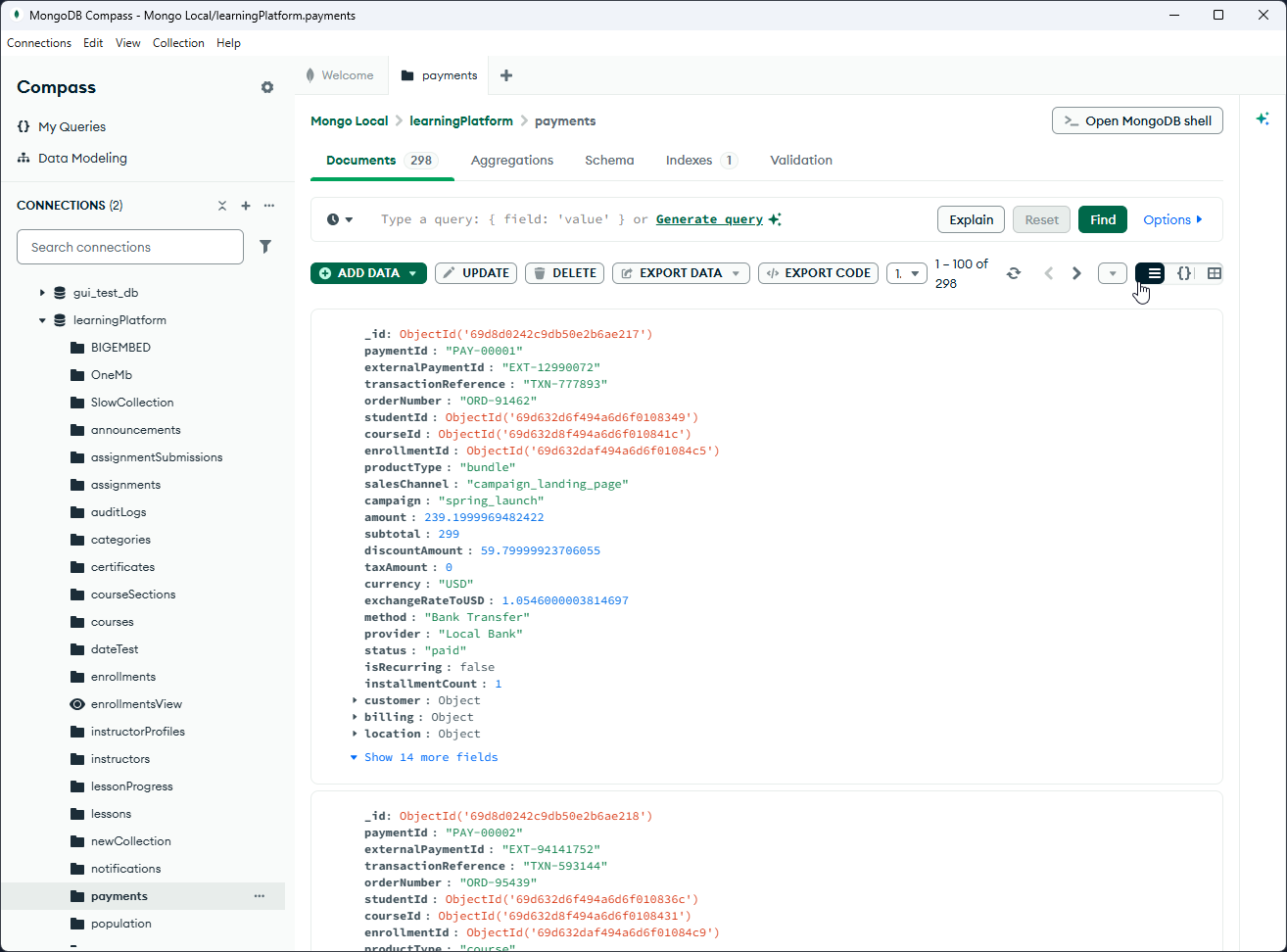
- Browse databases, collections, and documents from a visual interface.
- View documents in a structured way instead of reading everything from the terminal.
- Insert, edit, clone, and delete documents directly from the interface.
- Useful for checking real data quickly during development.
Querying & Aggregations
- Filter documents using the query bar.
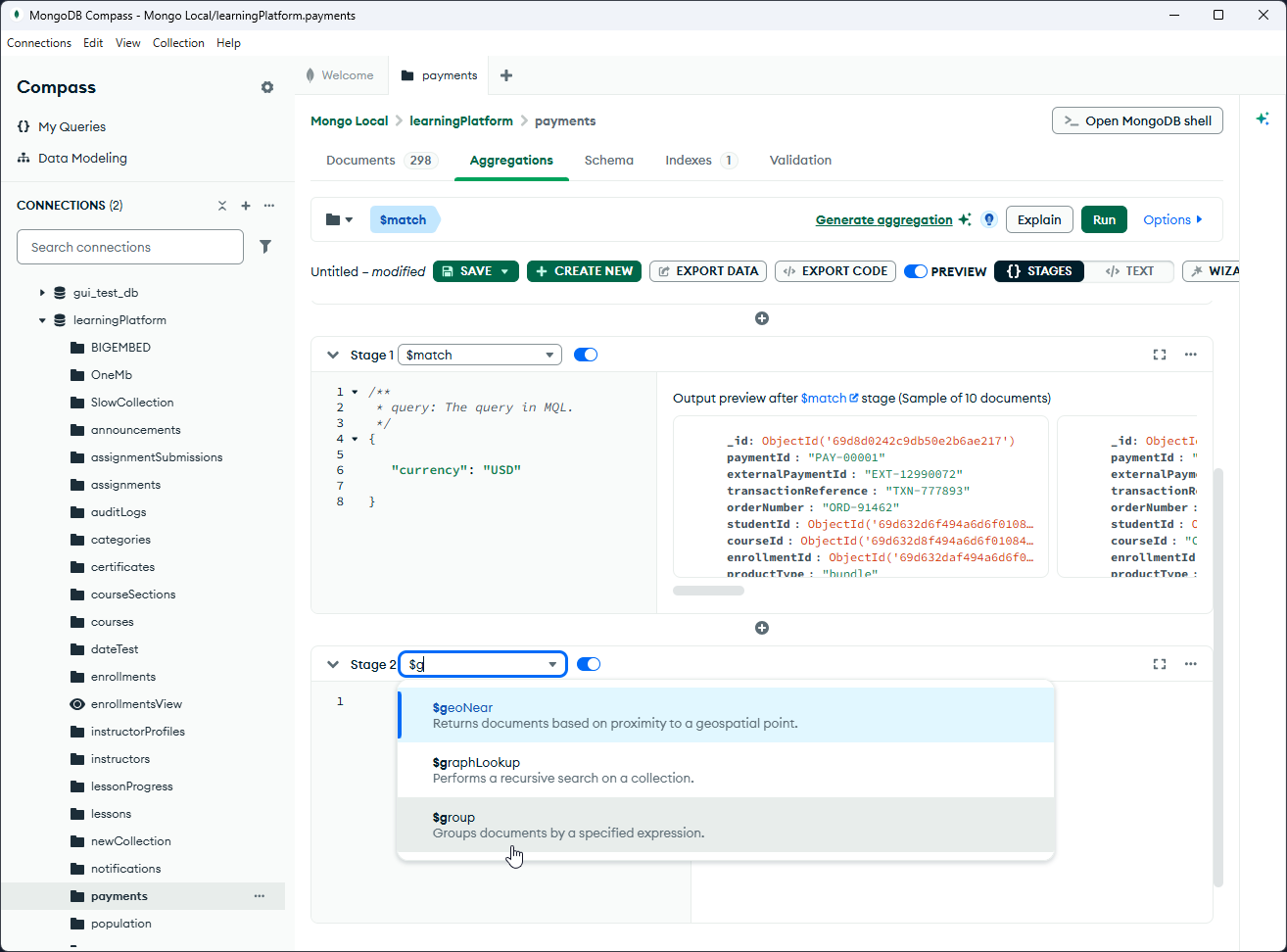
- Build aggregation pipelines using the Aggregations tab.
- Test stages like
$match,$group,$project,$sort, and$lookup. - View results after running the pipeline.
- It is good for testing queries, but it is not a full drag-and-drop visual query builder like some other tools.
Schema Analysis & Validation Rules
- Analyze the structure of a collection and see what fields appear in your documents.
- Check field types and understand how consistent your data is.
- Create, edit, and manage schema validation rules.
- Helpful when you want better control over what kind of documents can be inserted.
Import, Export & Shell
- Import and export data using JSON and CSV files.
- Use the embedded MongoDB Shell directly inside Compass.
- Manage indexes and use Visual Explain to check how a query is executed.
Pricing
Free.
Advantages
- Free and official MongoDB tool.
- Good for browsing collections and documents.
- Includes query filters, aggregations, schema analysis, validation rules, and indexes.
- Supports JSON and CSV import/export.
- Embedded MongoDB Shell is included.
Disadvantages
- Not a full visual query builder.
- Limited collaboration features.
- Can feel basic for advanced MongoDB workflows.
VisuaLeaf
VisuaLeaf is a MongoDB GUI built around visual workflows. It is useful if you want to build queries, create aggregation pipelines, explore schemas, and understand your data without having to write everything manually.
Cross-platform: Windows, macOS, Linux.
Best for: Query builder, aggregation pipelines, database structure design, visualization, and performance metrics.
Data Browsing & Document Viewing
- Explore databases, collections, and documents visually.
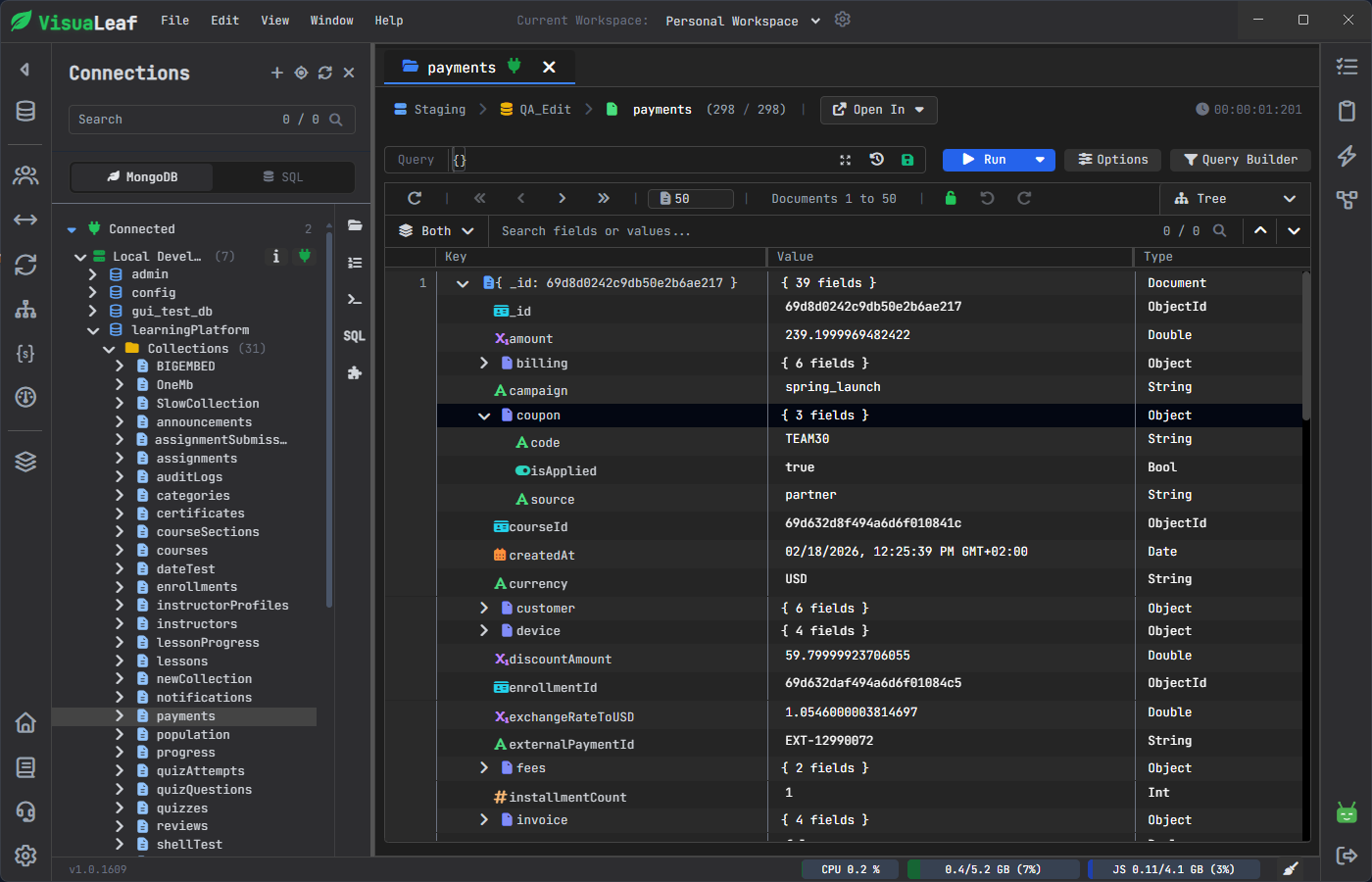
- View MongoDB documents in tree, table, JSON, or BSON format.
- Open nested fields more easily without reading a long JSON document.
- Recommended when you want to view data instantly and comprehend what your collection consists of.
Visual Query Builder
- Build MongoDB queries using fields, filters, and conditions.
- It helps those users who do not want to write their own MongoDB queries.
- Helps with multi-field filters and nested document fields.
- Shows the generated MongoDB query, so you can also learn how the query is written.
Aggregation Pipeline Builder
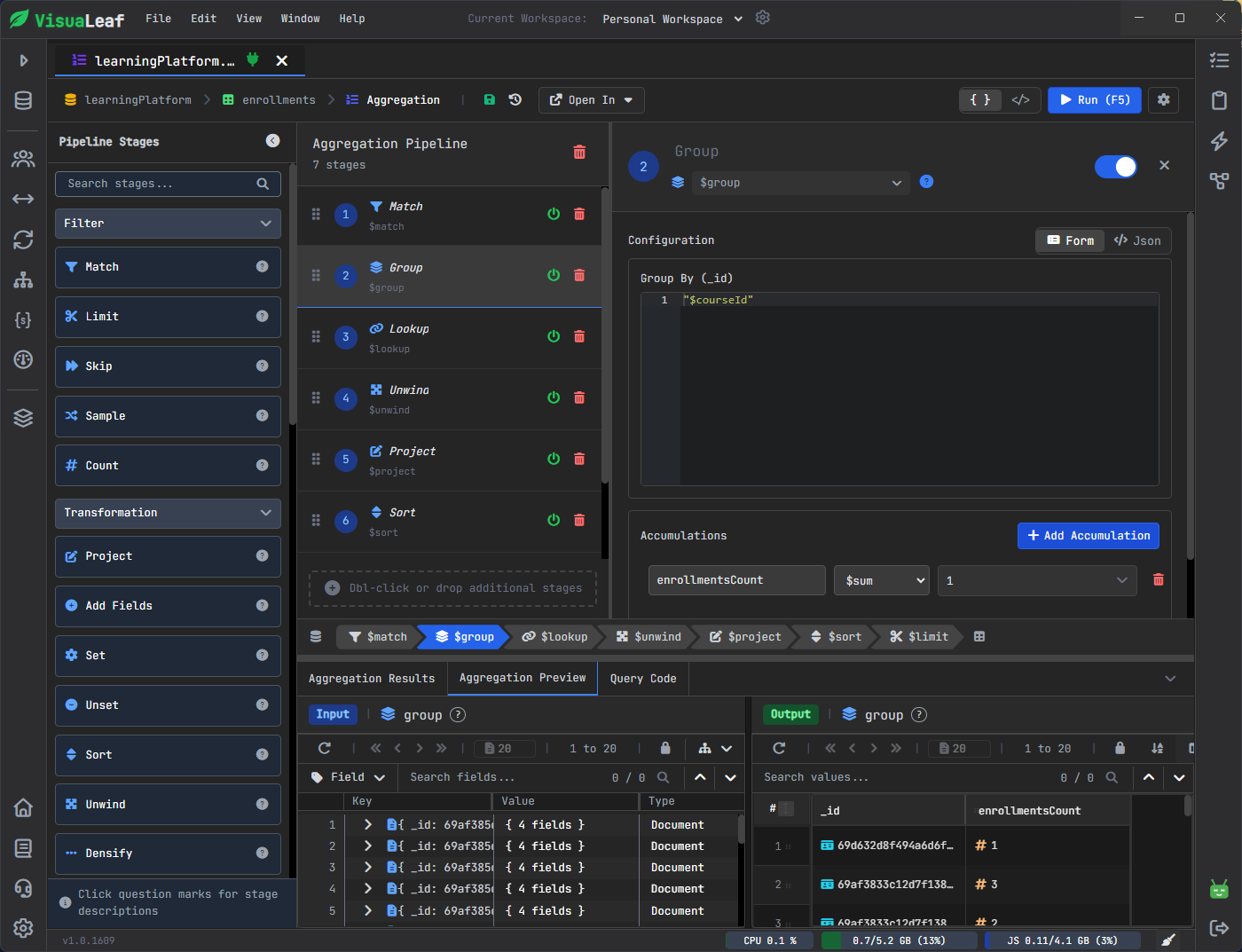
- Create aggregation pipelines visually with drag-and-drop functionality.
- Add stages like
$match,$group,$lookup,$unwind,$project, and$sort. - Preview the result of each stage while building the pipeline.
- This will help if you want to understand how the data changes at each stage.
Schema, Charts & Performance
- Visualize MongoDB collections and relationships with schema diagrams.
- Generate charts or dashboards based on collections, queries, or aggregations.
- Use the Query Profiler to identify slow queries.
- Get recommendations for indexes and learn the reason for the poor performance of a query.
Shell, SQL Mode & Other Tools
- Use the built-in MongoDB Shell with visual output.
- Write SQL-style queries using SQL Mode.
- Work with GridFS files.
- Compare collections and inspect the database structure.
- Manage users and roles from the RBAC Dashboard.
Pricing
- Free Community Edition.
- 14-day free trial for Professional features.
- Individual Basic plan starts from $10/month or $79/year.
- Individual Professional plan starts from $16/month or $149/year.
Advantages
- Strong visual approach for queries and aggregations.
- Good for understanding MongoDB schemas and relationships.
- Includes charts, dashboards, query profiler, and index suggestions.
- Useful for users who prefer a more visual way to work with MongoDB.
- Free Community Edition available.
Disadvantages
- Newer than some established MongoDB tools.
- Advanced visual and performance features are mainly available in the Professional plan.
- Users who prefer a shell-only workflow may need a little time to adapt.
Studio 3T
Studio 3T is considered one of the top MongoDB GUI database clients. The tool is designed for developers who need more than basic browsing. It brings visual tools, shell access, SQL support, and data management into one desktop application.
O.S: Windows, macOS, Linux.
Good For: MongoDB queries, aggregations, SQL-like querying, importing and exporting data, and teamwork.
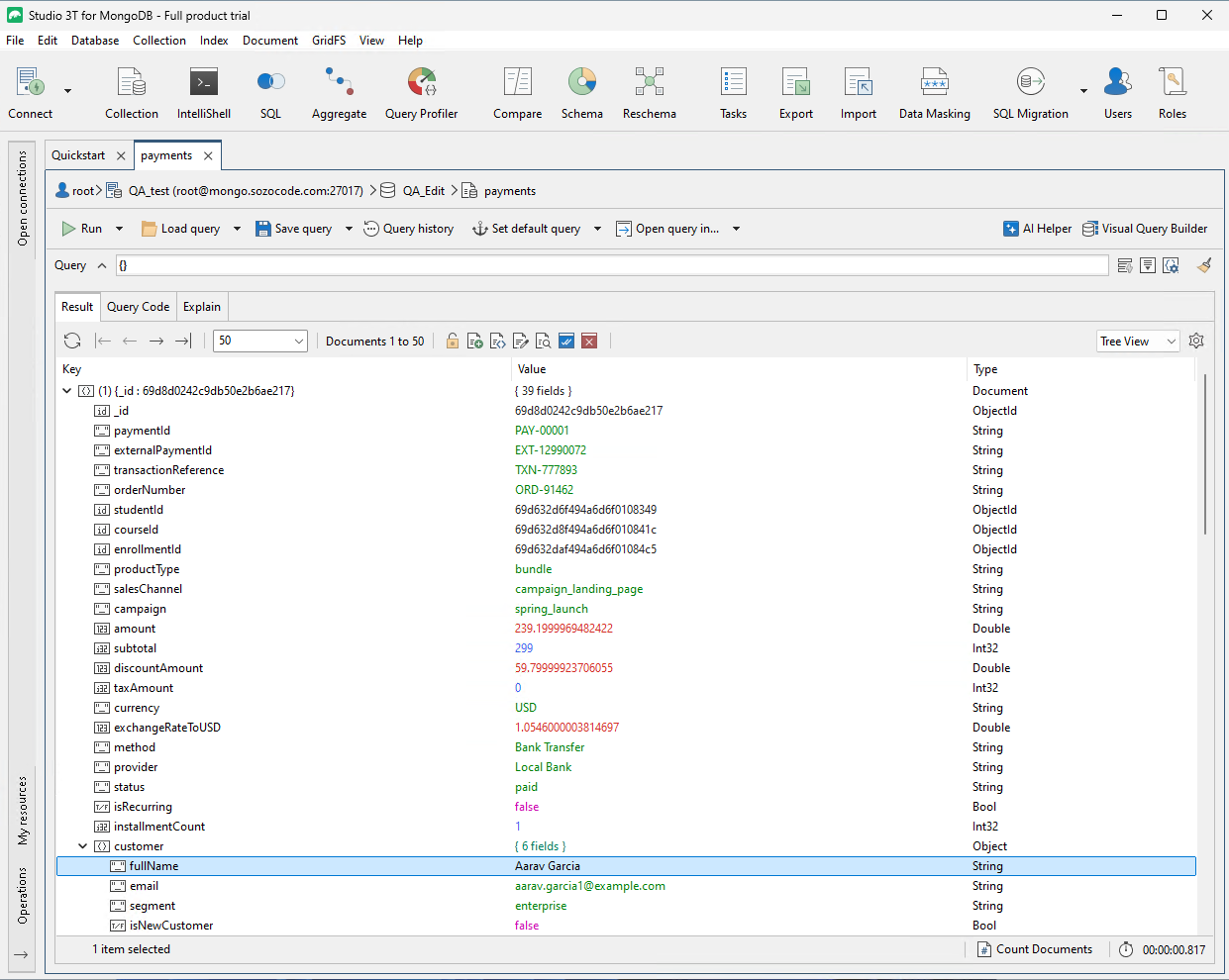
Browsing Data & Working with Documents
- Explore MongoDB databases, collections, and documents via the desktop application.
- Switch between JSON, Tree, and Table views to inspect documents clearly.
- Edit the document directly in the results window.
- Helpful when you work with large nested documents and need a clean way to inspect them.
Aggregation Pipelines & SQL Query
- Build aggregation pipelines one stage at a time using the Aggregation Editor.
- Verify the changes made to your data in each stage.
- Switch to SQL Query if SQL is your preferred programming language.
- Ideal for those who have experience with relational databases.
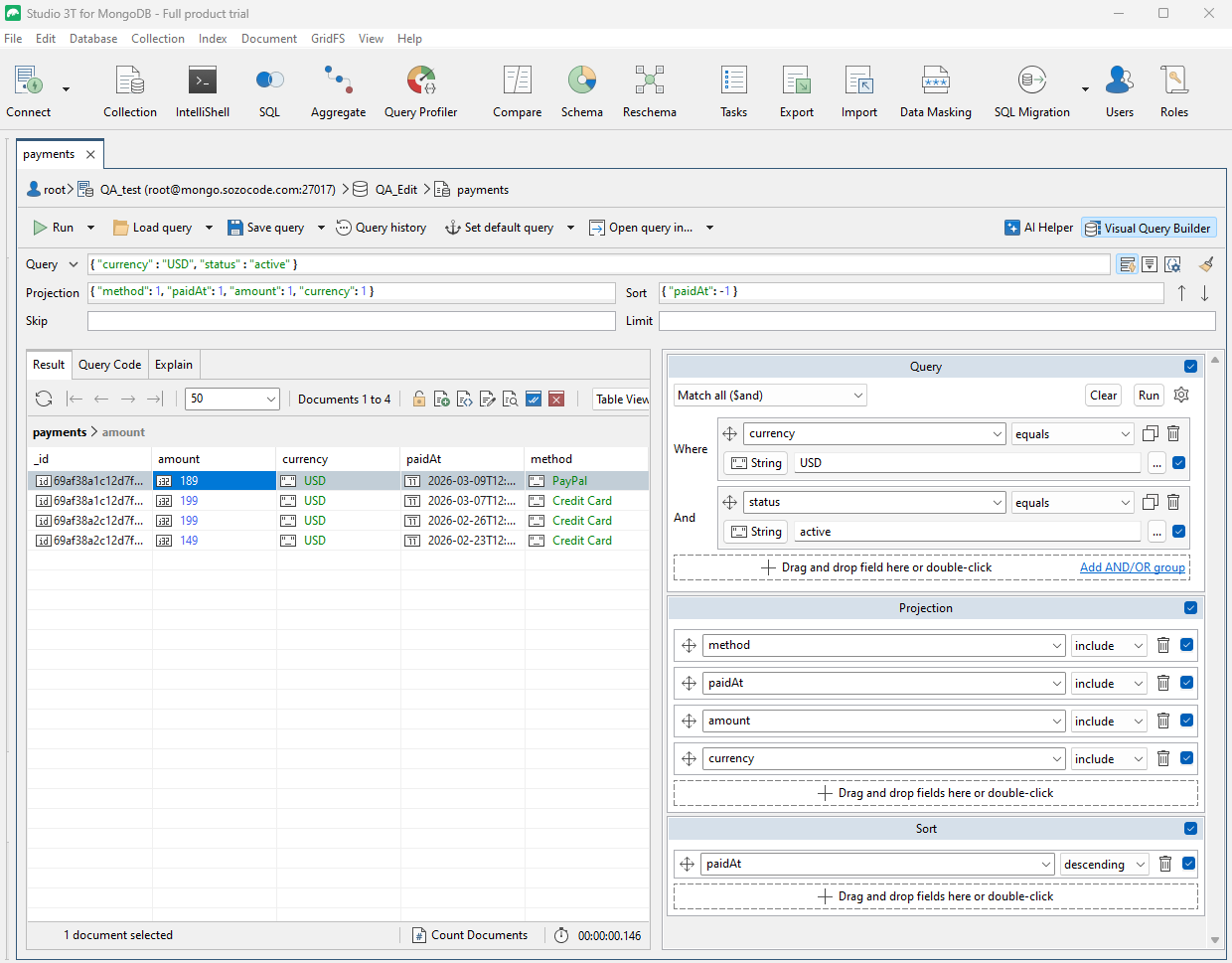
Query Builder & IntelliShell
- Design MongoDB queries visually in the Visual Query Builder.
- Use IntelliShell to write MongoDB queries with auto-completion capabilities.
- Suitable for individuals who prefer both a visual query builder and a robust shell environment.
Data Import/Export & Collaboration Features
- Import/Export data in various formats.
- Share queries, scripts, and connections with team members.
- Access to features like data masking, task scheduling, and schema modifications in the paid version.
- Beneficial for teams requiring greater control over MongoDB operations.
Pricing
- Free Community Edition for non-commercial use.
- 14-day free trial available.
- Paid plans start from $499/user/year for Professional.
- Ultimate plan is available from $699/user/year.
Pros
- Very powerful MongoDB GUI with many advanced features.
- Offers Visual Query Builder, IntelliShell, Aggregation Editor, and SQL Query.
- Can easily import, export, and handle complicated data sets.
- Suitable for teams and professional-level work with MongoDB.
- Provides a free Community Edition option.
Cons
- Expensive pricing on paid versions might be too much for individuals or small groups.
- Interface contains numerous functionalities, thus making it seem overwhelming initially.
- Some advanced tools are available only in higher-priced editions.
Mingo
Mingo is another MongoDB client with a clean interface and a simple way to browse collections. The tool seems to be more oriented towards work routine: to open the collection, filter documents, examine fields, make changes, or set up an aggregation if it’s needed.
O.S: Windows, macOS, Linux.
Ideal for: Quick document navigation, easy-to-use filtering, aggregation pipelines, and schema validation.
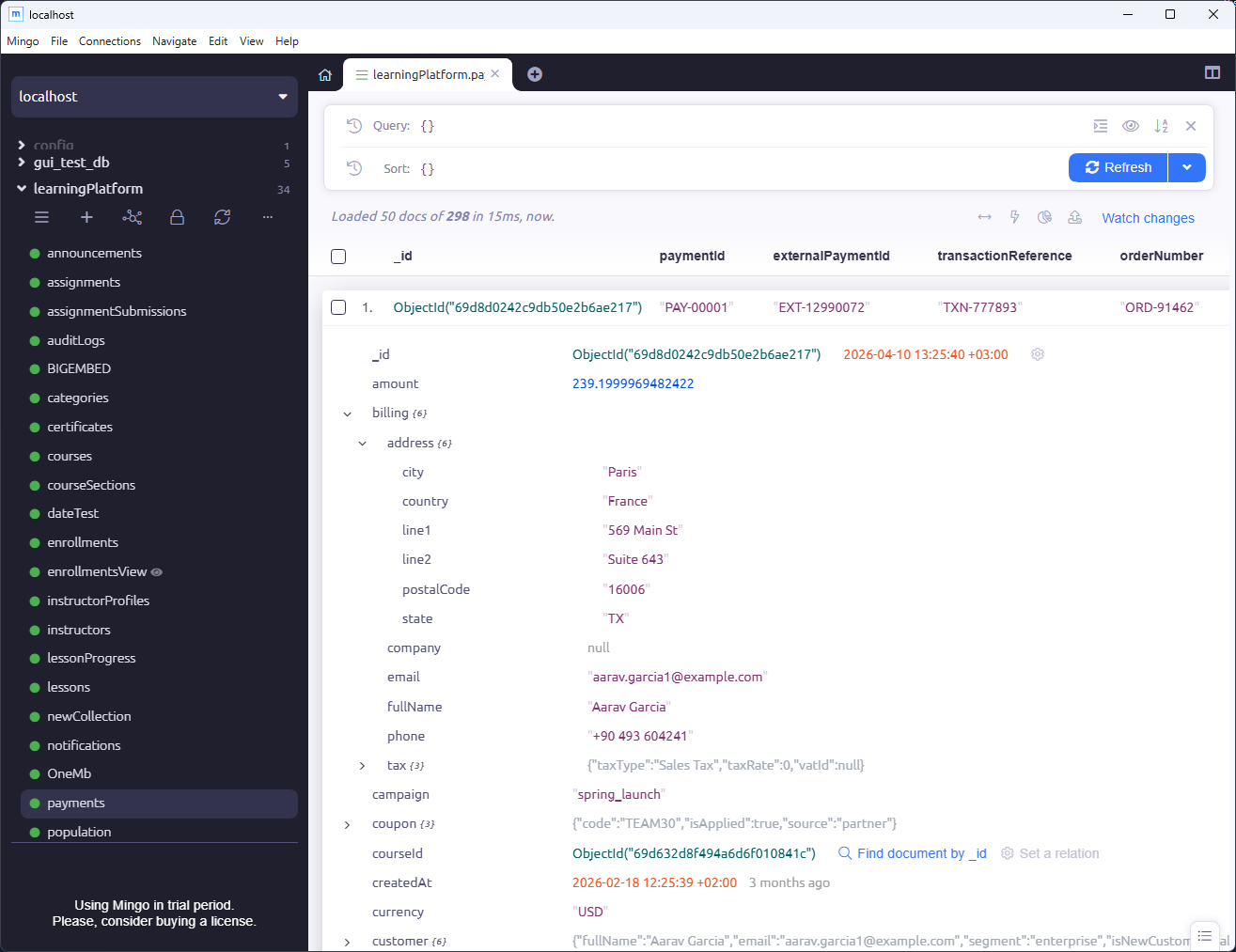
Document Browsing & Filters
- Explore the database and collection through the left panel.
- View documents in a table-like layout with fields shown as columns.
- Use the filter area to run MongoDB queries directly on a collection.
- Consider adding projections, sorting, and collations as required.
- Handy when you wish to quickly locate documents without accessing the terminal.
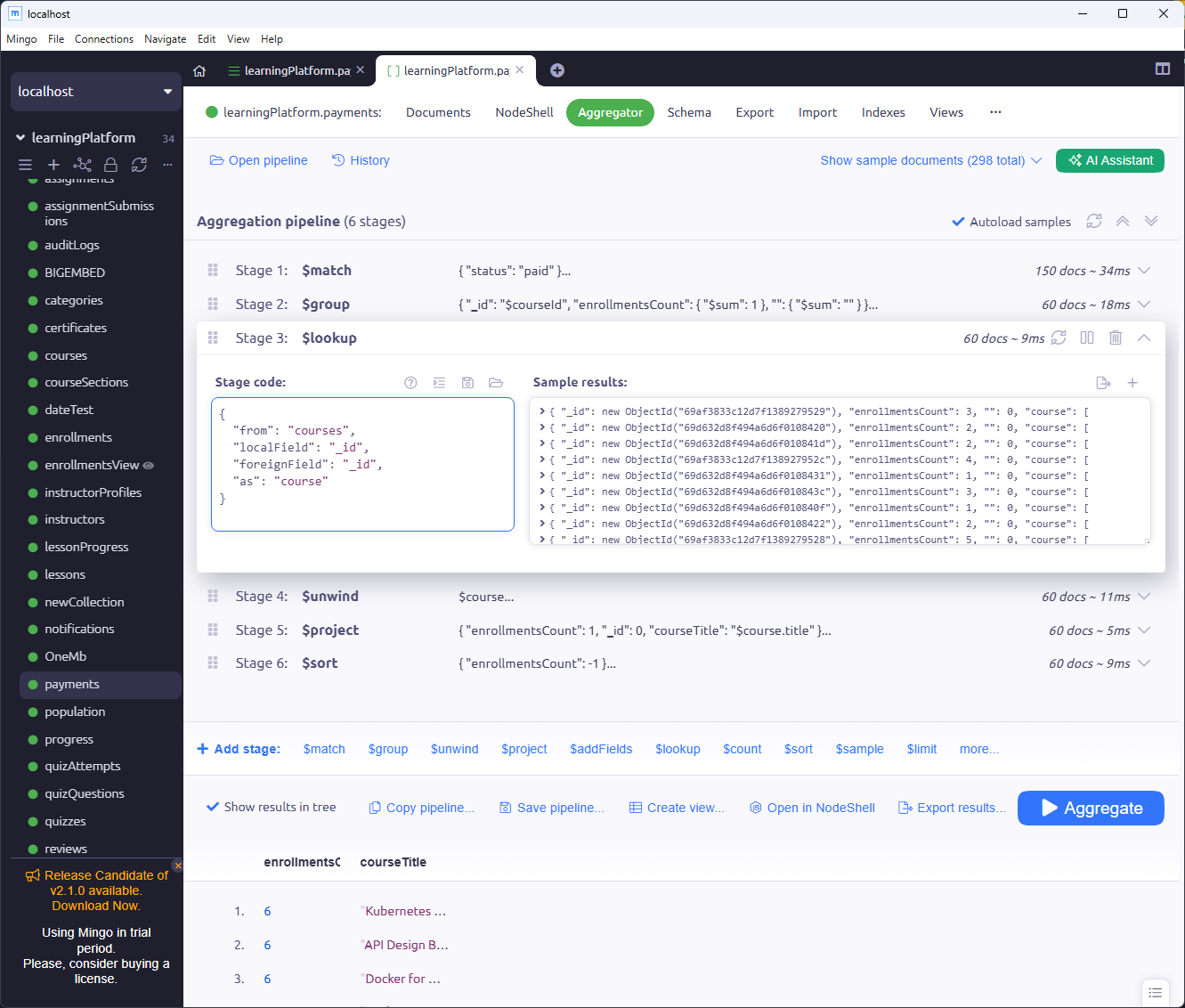
Aggregator & NodeShell
- Create an aggregation pipeline using the Aggregator tab.
- Work with stages like
$match,$group,$project,$lookup, and$sort. - Use NodeShell for scripts and more advanced commands.
- Best suited for users who want to combine both visualization and scripts.
Schema, Relations & Indexes
- Check the collection structure with the Schema tab.
- Review field types and how documents are shaped.
- Create relations between collections when your data uses references.
- Manage indexes from the Indexes tab.
- Helpful when you want to understand a database that already has a lot of collections.
Import, Export & Other Tools
- Import and export collection data.
- Use dump and restore tools for larger backup tasks.
- Compare and sync data between databases.
- Work with server tools such as monitoring and current operations.
Pricing
- 31-day free trial.
- Monthly plan starts from €7/user/month.
- Yearly plan starts from €60/user/year.
- A lifetime license is available for €299 one-time.
Advantages
- Clean interface and easy collection browsing.
- Good for quick filters and everyday document checks.
- Includes Aggregator, NodeShell, Schema, Indexes, Import, and Export tabs.
- Useful for developers who want a lighter MongoDB client.
- Pricing is simple compared with larger enterprise tools.
Disadvantages
- It does not have a full visual query builder.
- No free Community Edition is clearly offered, like in some other tools.
- NodeShell is useful, but it is not the same as the standard MongoDB Shell.
- Less focused on team collaboration and enterprise workflows.
Navicat for MongoDB
Navicat is part of the larger Navicat product family. It is built for database management, development, administration, modeling, automation, and business intelligence.
It is a good option for users who want a polished commercial database tool and may already use Navicat for other database systems.
Platforms: Windows, macOS, Linux
Ideal for: Users who want MongoDB management together with BI, automation, and data modeling features.
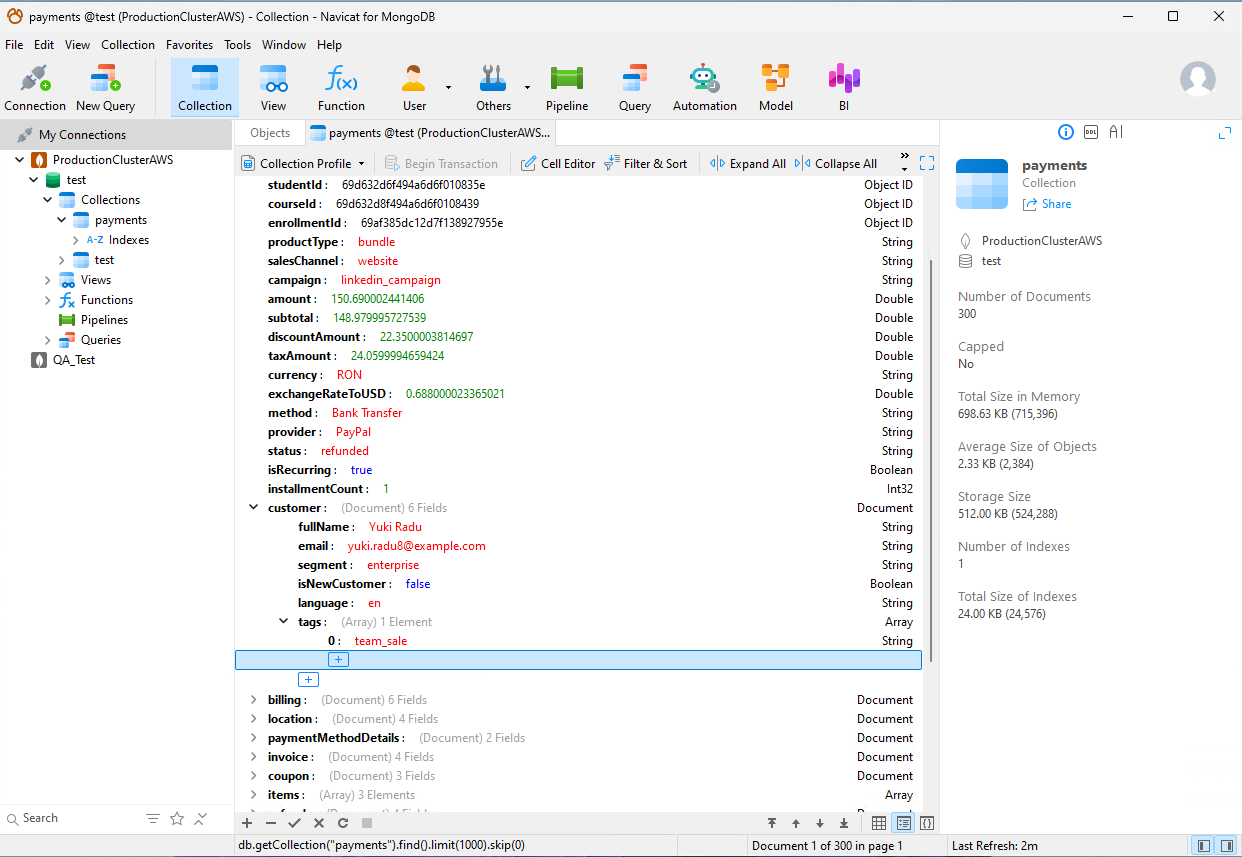
Data Management
- View MongoDB documents in Grid View, Tree View, or JSON View.
- Insert, update, and delete documents from the interface.
- Work with MongoDB transactions.
- Manage databases, collections, indexes, users, roles, and other objects.
- Useful if you want a more classic database management experience.
Object Designer & GridFS
- Use Object Designer to manage MongoDB objects from a visual interface.
- Work with collections, views, indexes, and other database elements.
- Use GridFS support when your database stores larger files.
- Useful for users who want more control over the database structure.
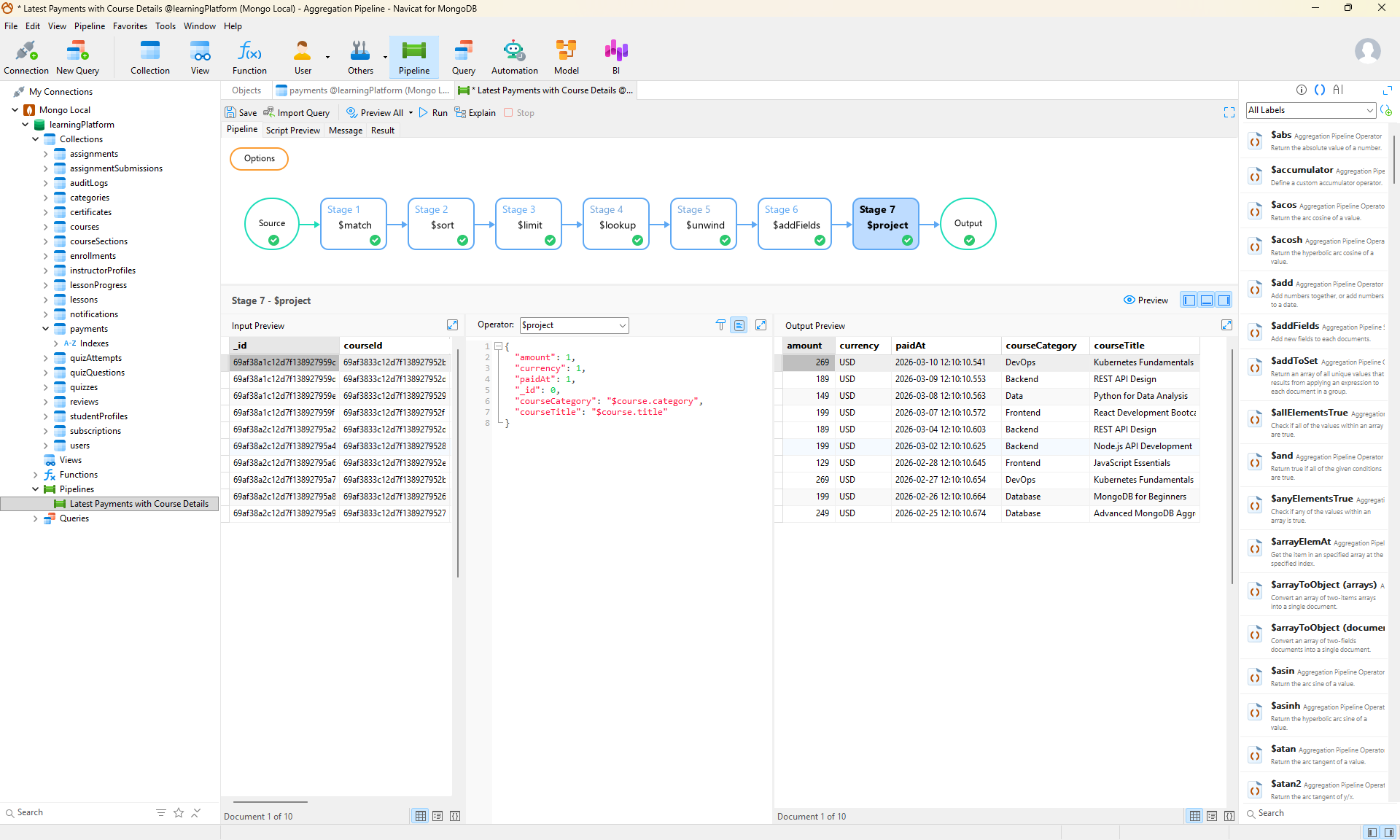
Querying, Aggregation & Visual Explain
- Write MongoDB queries in the Query Editor.
- Use code completion and snippets to write queries faster.
- Build aggregation pipelines step by step.
- Use Visual Explain to understand how MongoDB runs a query.
- Helpful when you want to check performance and see if indexes are used correctly.
Data Modeling, BI & Documentation
- Use data modeling tools to better understand the database structure.
- Analyze schema patterns and detect structure issues.
- Create BI dashboards and charts from MongoDB data.
- Generate a Data Dictionary for documentation.
- Useful when you need to explain or document the database for a team.
Import, Export & Automation
- Import data from different file formats and external sources.
- Export MongoDB data to formats like Excel, CSV, and others.
- Transfer and synchronize data between databases.
- Schedule tasks, backups, and repeated jobs.
- Helpful when you often move data between local, test, and production environments.
Pricing
- 14-day free trial available.
- The monthly plan starts from $22.99/month.
- Yearly plan starts from $229.99/year.
- A perpetual license is also available for $449.00.
Pros
- Strong database management features.
- Includes import, export, transfer, sync, and automation tools.
- Good option for users already familiar with Navicat.
- Includes Visual Explain, aggregation tools, BI dashboards, and data modeling.
- Useful when you want one tool for many database tasks.
Cons
- Can feel complex for beginners.
- Paid tool, so it may not be ideal for users who only need basic browsing.
- Some users may find it heavier than smaller MongoDB clients.
NoSQL Booster
NoSQLBooster is a MongoDB GUI made more for developers who like working close to the shell. It gives you a script editor, IntelliSense, SQL query support, debugging tools, and performance utilities in the same workspace.
It is not the most visual tool in this list, but it can be useful if you write a lot of MongoDB commands and scripts.
Cross-Platform: Windows, macOS, Linux.
Useful for: MongoDB scripting, SQL-style queries, debugging, and shell-based workflows.
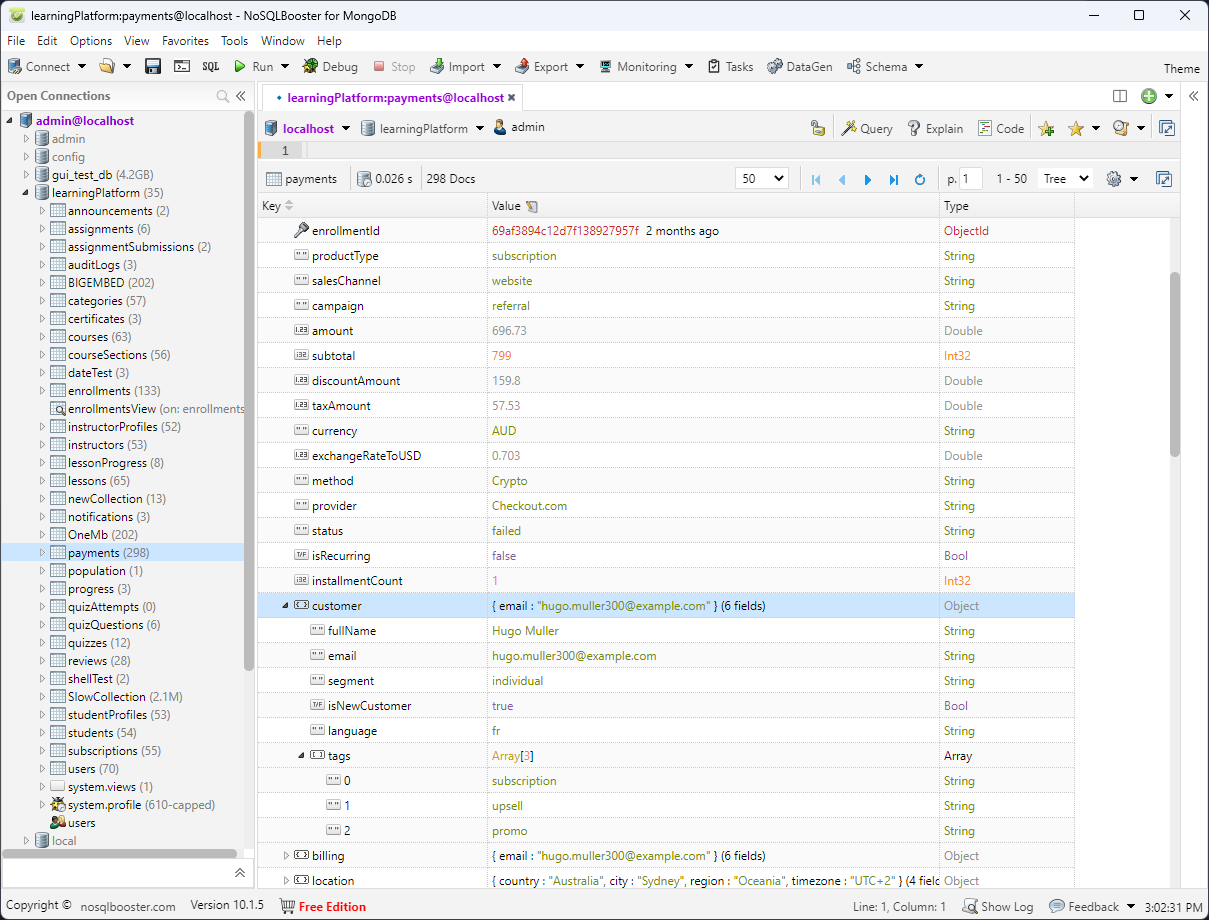
Shell & Script Editor
- Browse databases, collections, and documents from the left sidebar.
- Open documents in a tree-style view when you want to inspect nested fields.
- Write MongoDB commands in a built-in editor.
- Use autocomplete for collections, fields, methods, and operators.
SQL Query Support
- Run SQL-style queries against MongoDB.
- Use familiar SQL clauses like
SELECT,WHERE,GROUP BY,ORDER BY, andLIMIT. - See how SQL queries translate into MongoDB syntax.
- Useful if you come from relational databases and still think faster in SQL.
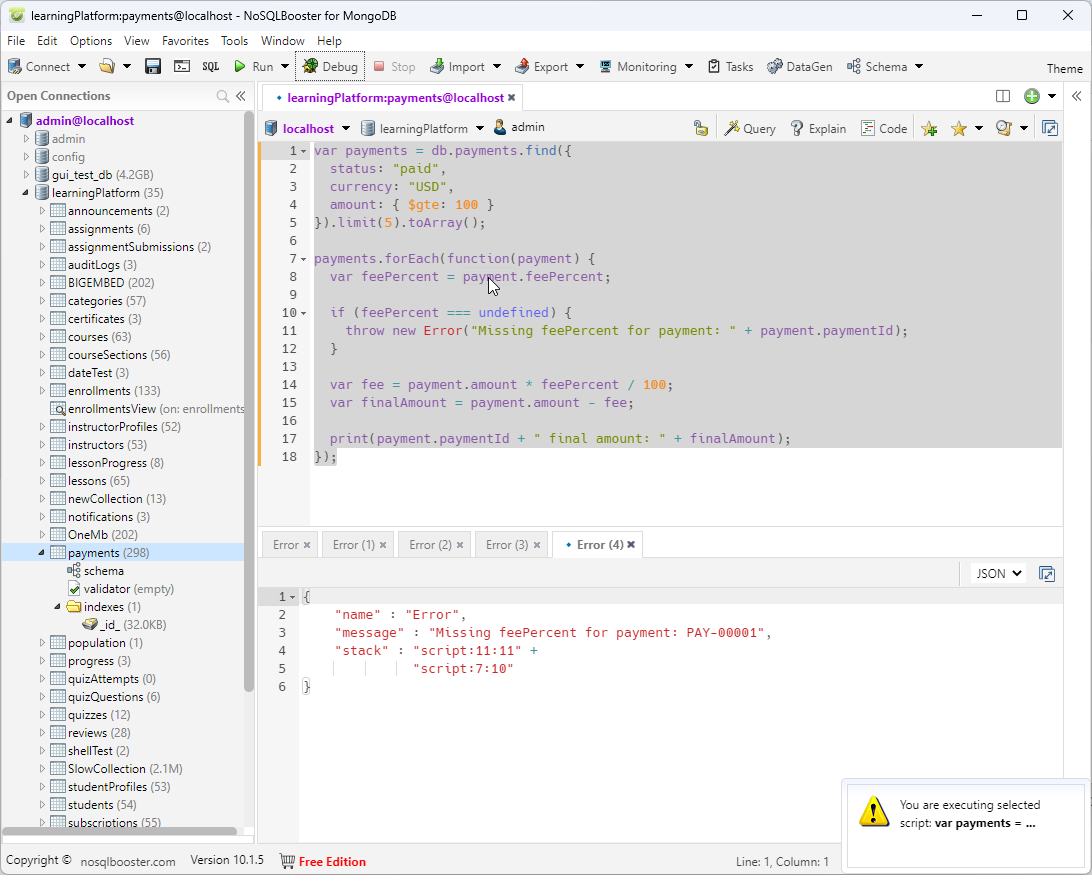
MongoDB Script Debugger
- Debug MongoDB scripts directly inside the tool.
- Set breakpoints and step through code.
- Check variables while the script is running.
- Helpful when you work with more complex JavaScript logic, not just simple find queries.
Query Tools, Monitoring & Performance
- Use Visual Explain to understand how a query runs.
- Check slow operations with profiling and monitoring tools.
- Use tools like mongostat, mongotop, log parser, and current operations.
- Work with indexes and query plans when you need to improve performance.
Import, Export & Extra Utilities
- Import and export data from the interface.
- Use task scheduling for repeated jobs.
- Generate test data when you need sample records.
- Use query code generation for different programming languages.
- Helpful when your MongoDB work involves scripts, tests, and repeated tasks.
Pricing
- 30-day trial after installation.
- Free edition available with limited features after the trial.
- Paid perpetual licenses start from $129.
- This means you pay once for the selected license, not every month or year.
Advantages
- Strong shell and scripting experience.
- Good IntelliSense and code completion.
- Includes SQL query support.
- MongoDB script debugger is useful for advanced scripts.
- Includes performance tools like Visual Explain, profiler, and monitoring utilities.
Disadvantages
- Less visual than tools like VisuaLeaf, Mingo, or Studio 3T.
- The interface feels more technical, especially for beginners.
- Some tools are more useful for developers than casual MongoDB users.
- If you mostly need simple browsing, it may feel heavier than necessary.
NoSQL Manager
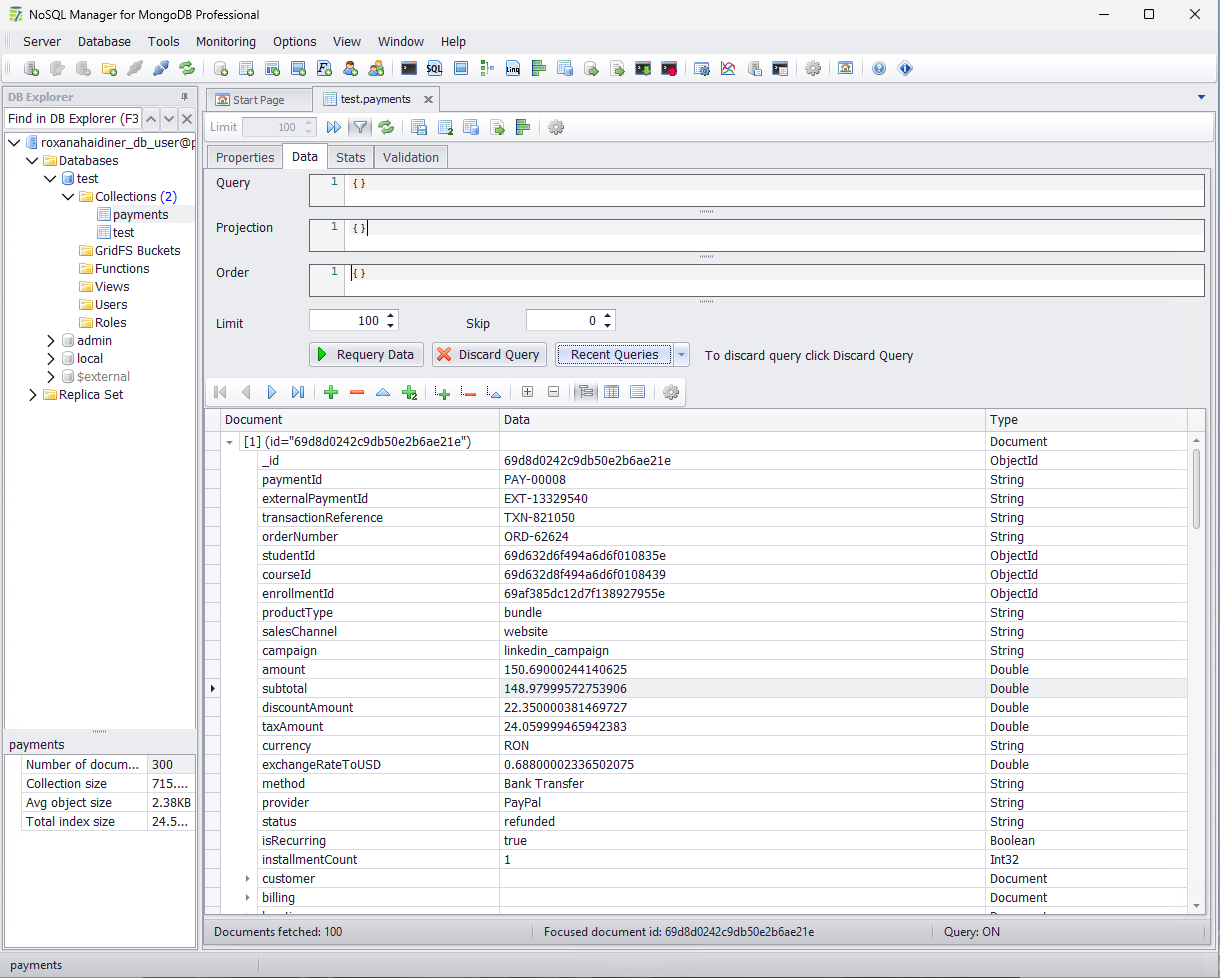
NoSQL Manager is a MongoDB tool built more for administration than for modern visual workflows. The interface feels older, but the tool still includes many practical features for users who want to manage collections, indexes, users, roles, shell commands, backups, and server activity from one place.
Platform: Windows.
Best for: MongoDB administration, shell usage, monitoring, import/export, and backup tasks.
Data View & Collection Management
- Browse databases, collections, and documents from the left-side explorer.
- View documents in Tree, Table, or JSON mode.
- Edit, filter, and sort collection data.
- Work with arrays, binary data, and nested document fields.
- Useful when you need a direct way to inspect and manage MongoDB data.
Embedded Shell
- Run native MongoDB shell commands inside the tool.
- Use code autocompletion while writing commands.
- Save scripts and mark frequently used scripts as favorites.
- Edit query results directly when needed.
- Useful if you prefer shell commands but still want a GUI around them.
Schema & Object Management
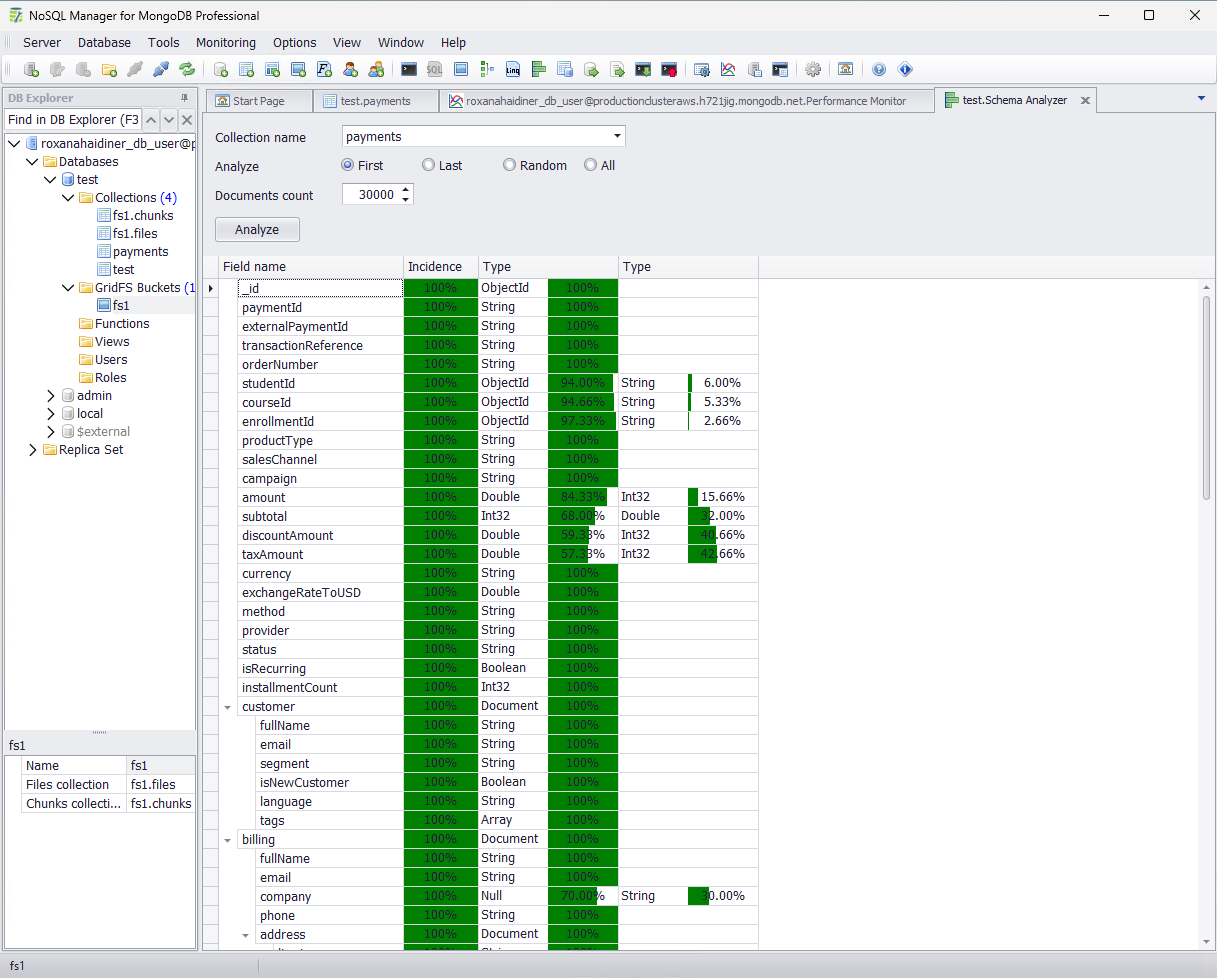
- Analyze collection structure with the Schema Analyzer.
- Manage databases, collections, views, indexes, users, roles, replica sets, GridFS, and functions.
- Create or drop database objects from the interface.
- Helpful for admin tasks where you need more than just document browsing.
Monitoring, Import & Backup Tools
- Monitor server activity with tools like Server Status Viewer, Operation Monitor, Performance Monitor, and mongotop GUI.
- Import data from CSV or JSON files.
- Export data to CSV, JSON, XML, and XLSX.
- Use GUI tools for mongodump and mongorestore.
- Copy collections or move data between MongoDB servers.
Pricing
- Free version available.
- 14-day evaluation period for the Pro version.
- The Pro version is listed at $180 for 1 year.
Pros
- Good set of MongoDB administration tools.
- Embedded shell with autocomplete.
- Includes monitoring, import, export, dump, and restore features.
- Useful for users who manage MongoDB servers from Windows.
Cons
- Windows-focused.
- The interface looks older compared with newer MongoDB GUIs.
- Less focused on modern visual workflows like dashboards or drag-and-drop query building.
- Not the best choice if you want a polished, modern UI.
How to Choose the Right MongoDB GUI
All these tools are useful, but they are not built for the same type of work.
If you are a developer, look at query building, shell support, aggregations, debugging, and performance tools like VisuaLeaf.
If you are a data analyst, then charts, dashboards, exports, filters, and clean document views may matter more.
Also, think about how you like to work. Some users prefer a modern and visual interface. Others are fine with an older UI if the tool has the admin features they need.
Performance is another important point. If you work with large collections or big documents, speed and responsiveness can make a big difference.
This list does not include every MongoDB GUI on the market. There are other good tools too, so the best choice is the one that fits your workflow, your budget, and your style of working with MongoDB.
Want to Learn More About the Best Aggregation Tools?
If you work with MongoDB, you will sooner or later need aggregation pipelines.
And honestly, the tool you use can make a big difference. A good aggregation builder helps you understand each step faster and makes the whole process less frustrating.
I also wrote a separate article where I compare the best tools for building MongoDB aggregation pipelines:
https://visualeaf.com/blog/best-tools-to-build-mongodb-aggregation-pipelines-visually-in-2026/