A Faster Way to Build MongoDB Queries Visually
Learn how to build MongoDB queries visually with drag and drop, AI help, real-time query generation, and flexible result views in VisuaLeaf.


Working with MongoDB, I found myself stuck on the same issue: I knew exactly what I wanted to do, but I was still spending too much time typing out my query every single time.
Not because my queries were particularly complex, but because of all the little things I had to keep track of:field names, operators, nested paths, and so on. Making sure the syntax was correct and tweaking small things. It was exhausting for something I did dozens of times a day.
I wanted to find a way to query faster and more visually. Something that would let me spend more time on my data and less time typing everything out again.
This is one of the reasons I ended up creating VisuaLeaf, and I have to say that the Visual Query Builder is probably one of my favorite features.
The Query Builder Starts Where You Already Work
One thing I wanted from the beginning was to avoid opening five different screens just to build one query.
So in this platform, the Query Builder opens directly from the collection view. You open a collection, start browsing documents, and from there you can switch into visual query building without breaking your flow.
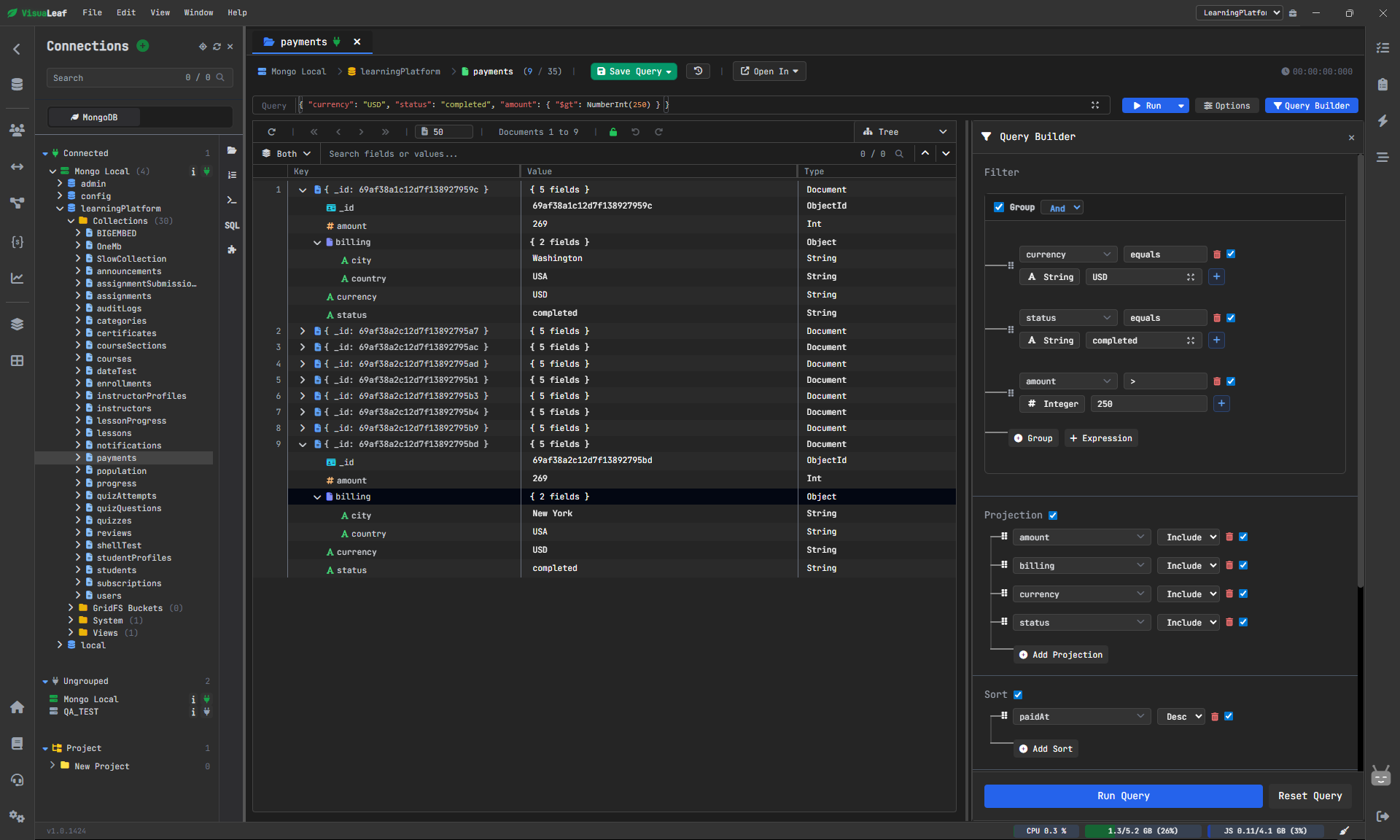
That may sound like a small detail, but it matters.
Because most of the time, real work doesn't start with "I want to build a query."
It starts with "I'm already in this collection, and I need to find something faster."
If you prefer a visual explanation, I also created a step-by-step video where I build the same query:
How to Build MongoDB Query Visually
I Didn’t Want Drag-and-Drop to Feel Like a Gimmick
A lot of tools have some form of visual query building, but once queries get more realistic, the interface starts to feel limited.
That's exactly what I didn't want.
So in VisuaLeaf, you can drag and drop fields into the Query Builder, and more importantly, you can keep adding multiple operations and combine multiple fields in the same visual filter.
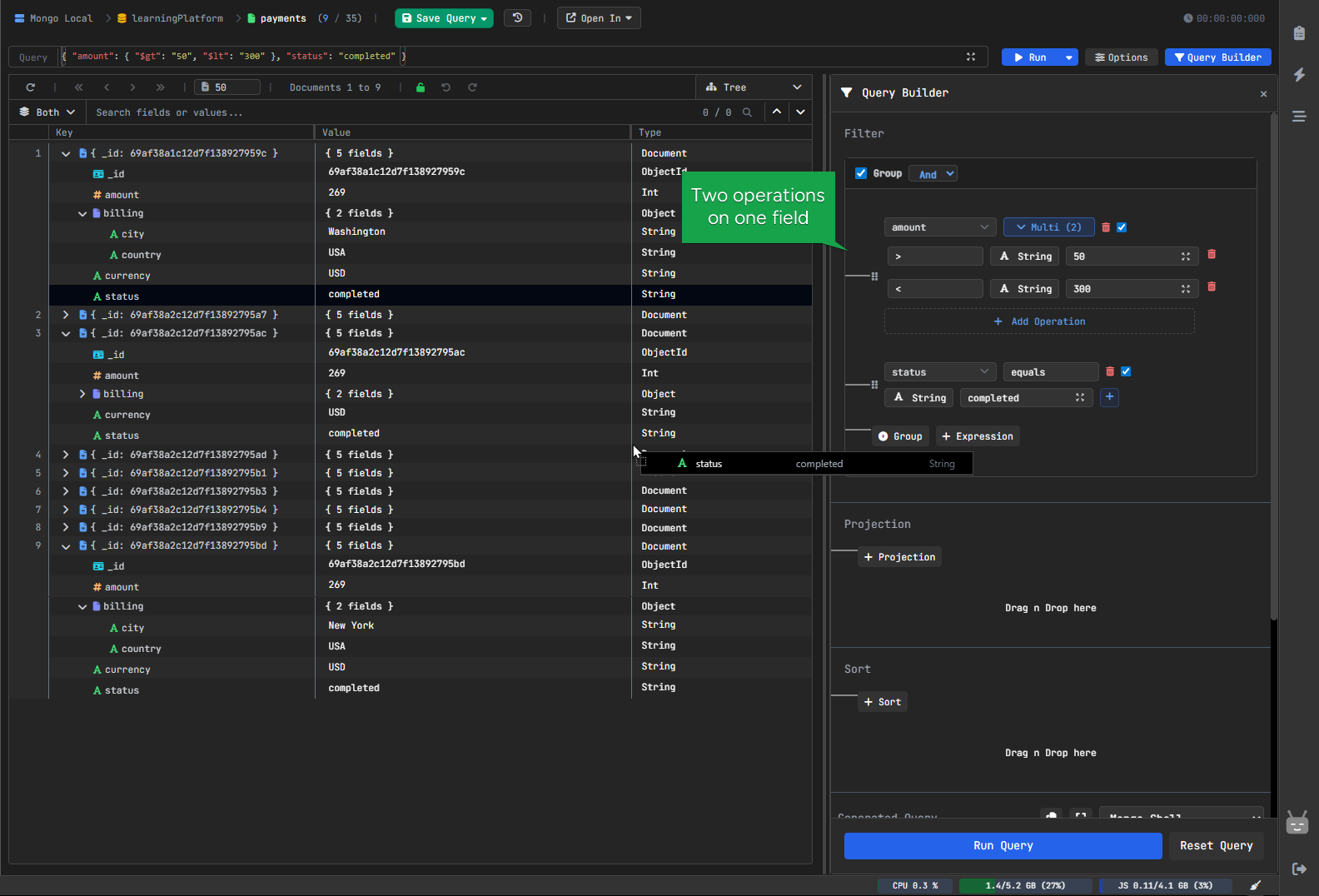
That makes a real difference, because most useful queries aren't about just one field.
You usually want something more like:
- one field should be greater than a value
- another field should match something else
- maybe sort the results
- maybe include only certain fields
- maybe group conditions with AND / OR
That's where a visual builder should still feel useful, not just for simple demos.
You Can Build Visually, but the Real Query Is Still There
This was important to me too.
I didn't want the Query Builder to become a toy interface where you click around but never really see what's happening underneath.
So while you build visually, the real MongoDB query is generated automatically.
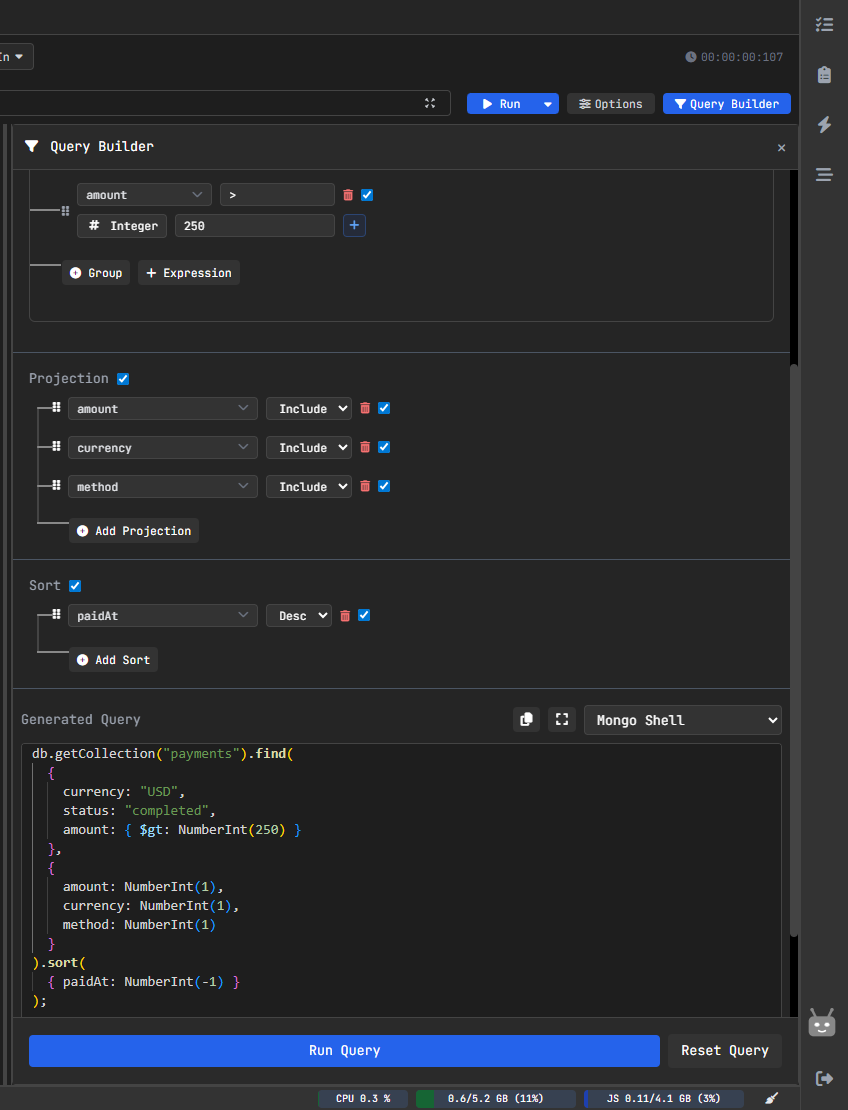
That means the feature helps both kinds of users:
- if you are newer to MongoDB, you can understand the query better
- if you already know MongoDB, you can move faster without losing control
The visual side isn't there to hide the real query - it's there to help you get to it faster
Just Describe What You Want and Let AI Build It
Sometimes I don't even want to drag fields at all - I just want to describe what I need and get the results right away.
That's why I decided to build the AI Helper in Query Builder, especially since we live in a world filled with AI. You can describe the query in plain English, let VisuaLeaf generate it, and then refine it if needed.
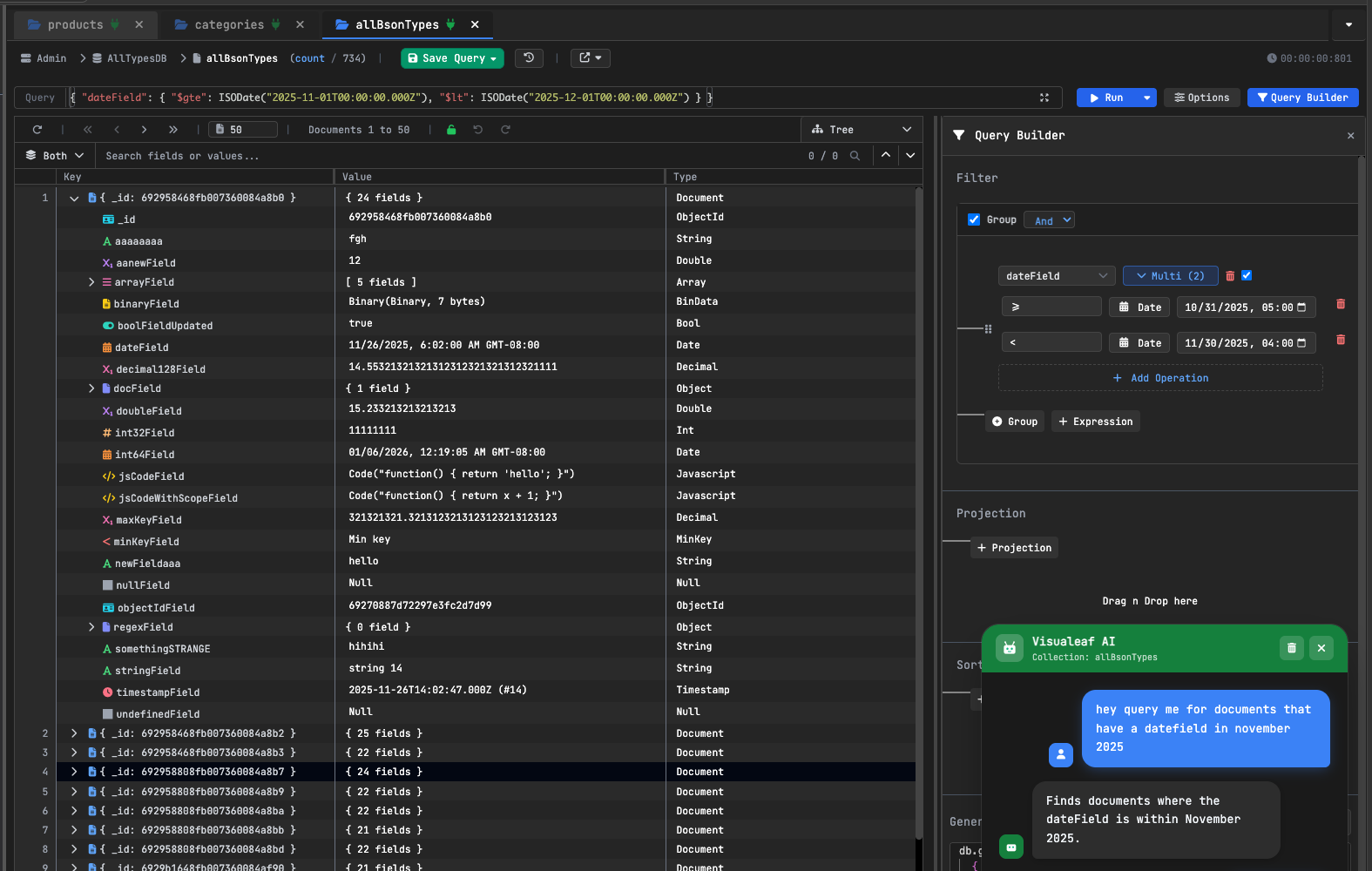
This is useful when:
- you are still learning MongoDB
- you want a quick starting point
- you are testing an idea
- you don't feel like writing the full structure from scratch
And honestly, this isn't just for beginners. Even experienced users have moments when they just want a faster start.
Building the Query Is Only Half of It
A query tool is not really good if the result is still hard to read.
That's why I cared a lot about how the output is displayed too.
In VisuaLeaf, after running a query, you can inspect the same result in different ways depending on what you need.
Tree View
This is the one I use when I want to understand the structure of a document better.
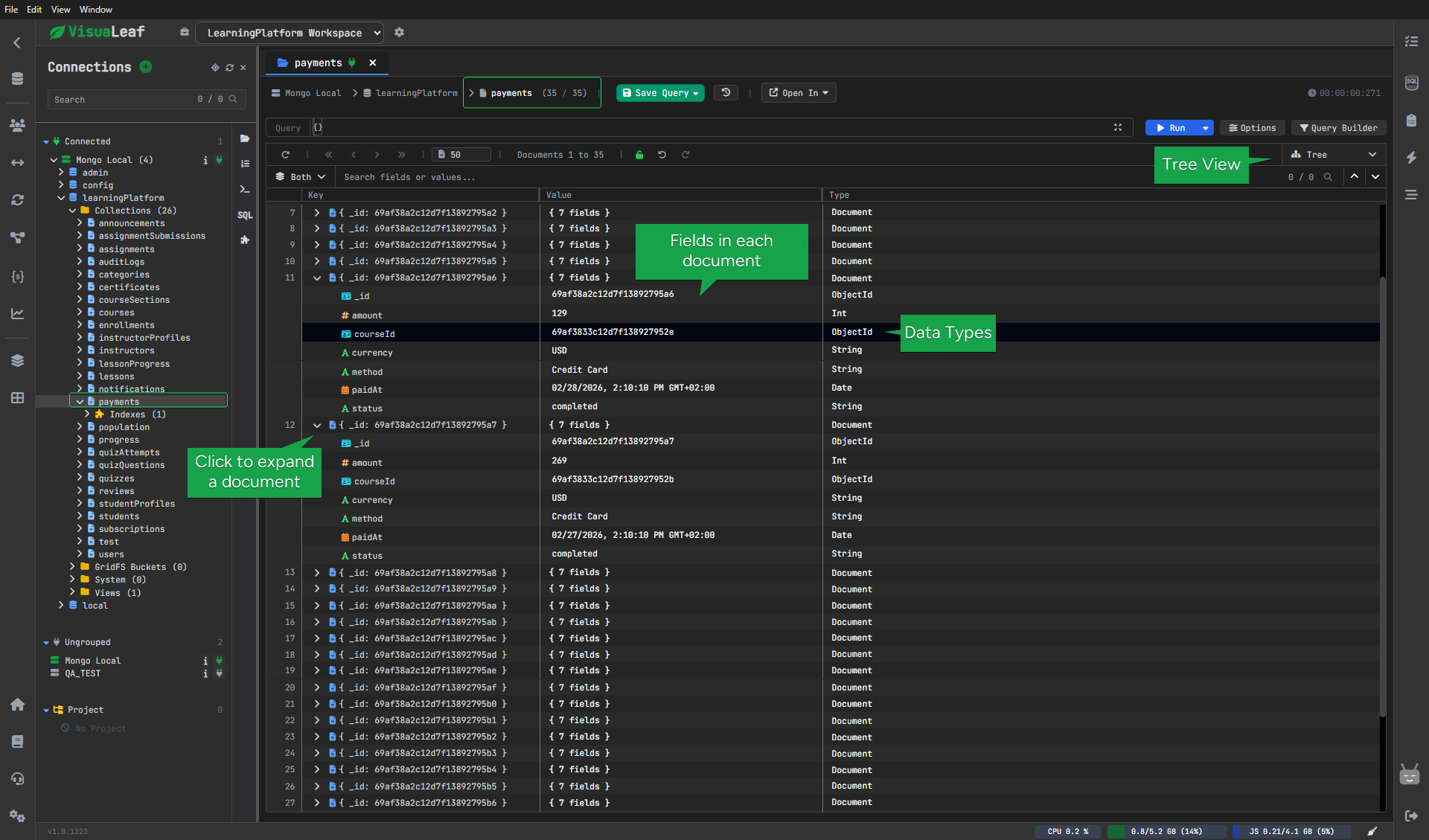
It's easier for:
- nested fields
- arrays
- objects inside objects
- quick exploration
It also makes it easier to search inside fields and values while you browse.
Table View
This is better when I want to compare multiple documents faster.
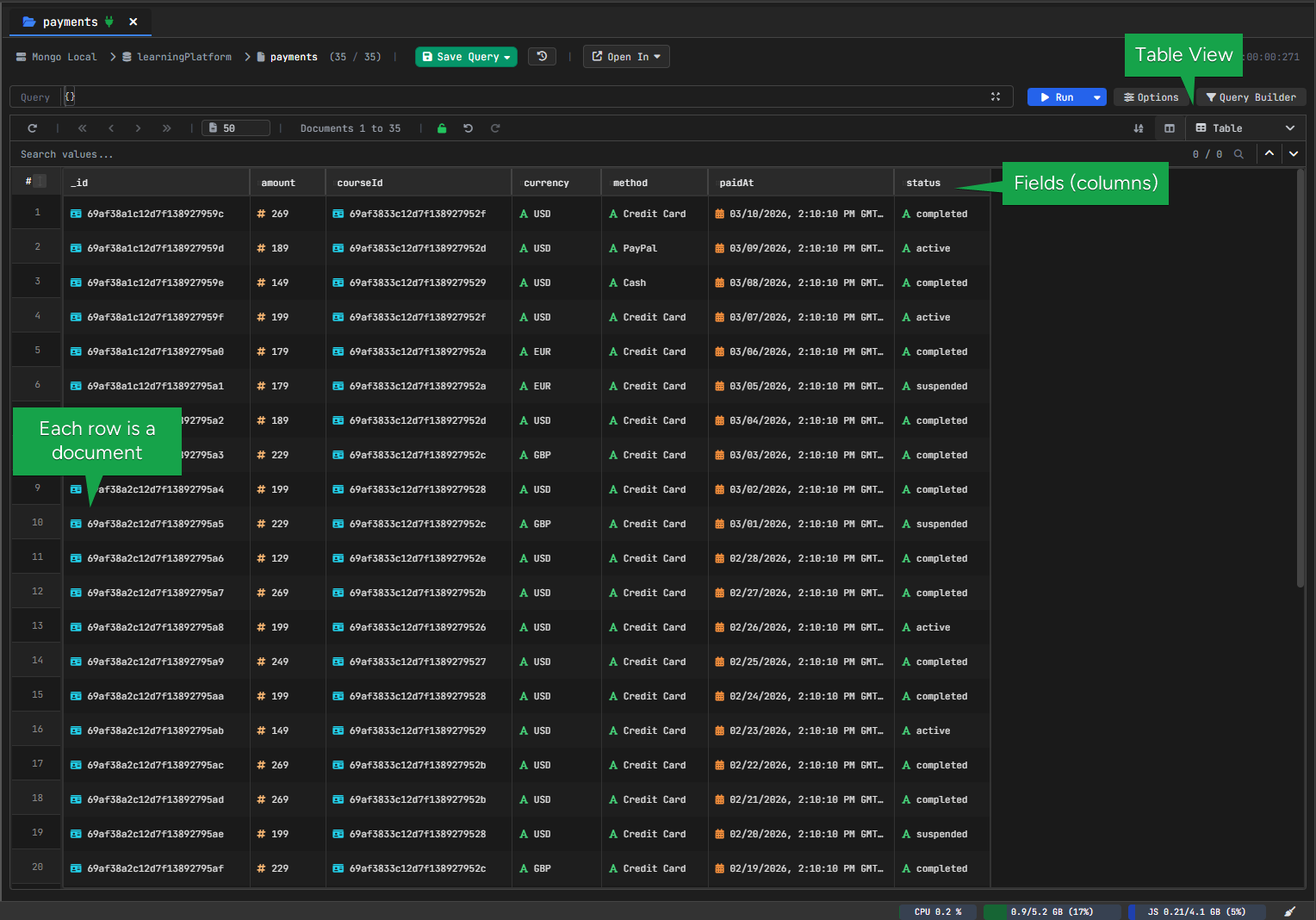
You can scan rows and columns much more easily, which helps when you are trying to spot patterns or compare values side by side.
BSON View
This is useful when exact MongoDB types matter.
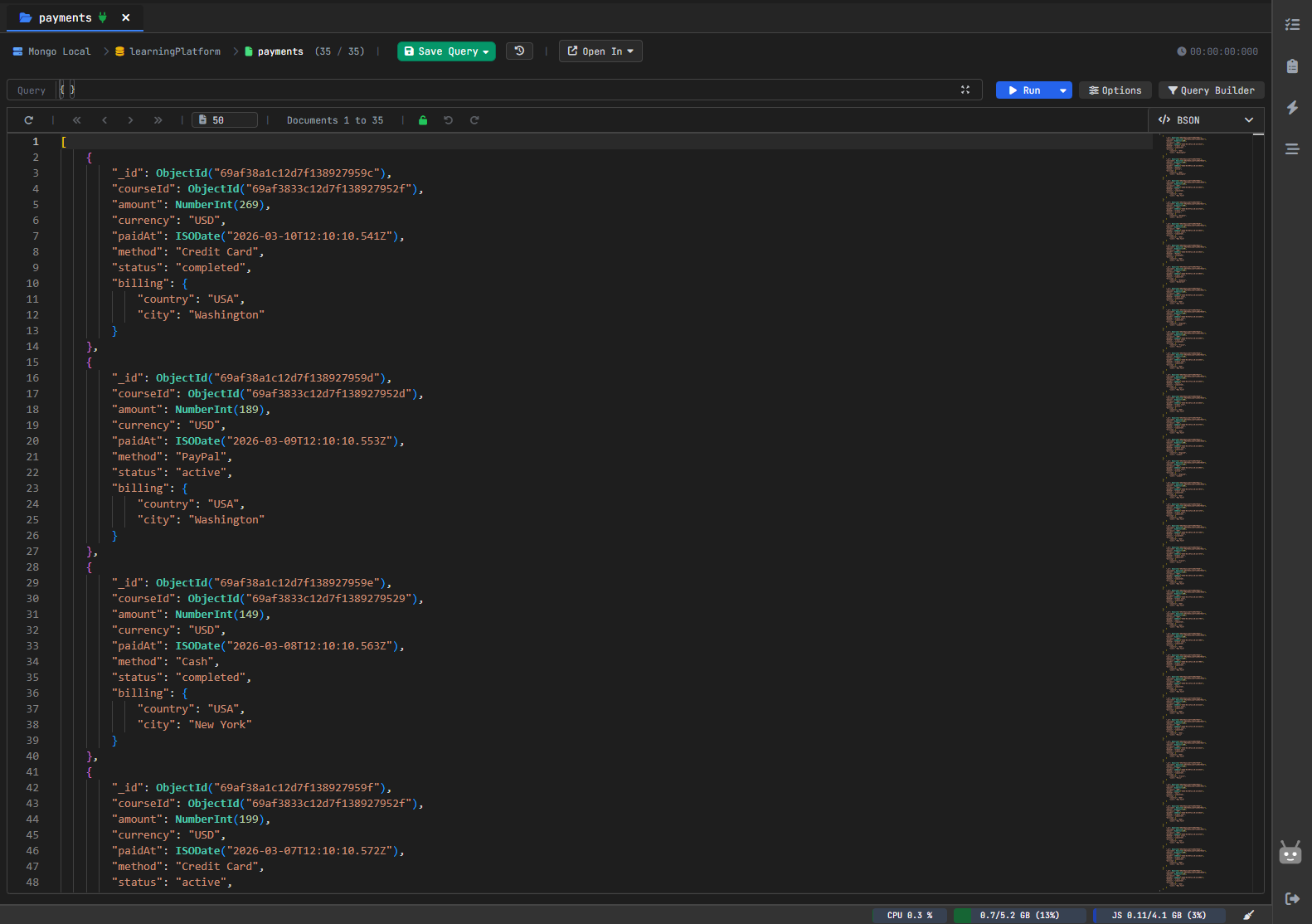
Sometimes you don't just want to see the value.
You also want to see the actual type clearly, like ObjectId, Date, or other BSON-specific values.
Search Inside Results Saves More Time Than People Think
This is one of those features that sounds small, but in daily work it matters a lot.
Once the documents are loaded, I don't want to rebuild the query every time just to find one value on the screen.
I want to search through the results directly.
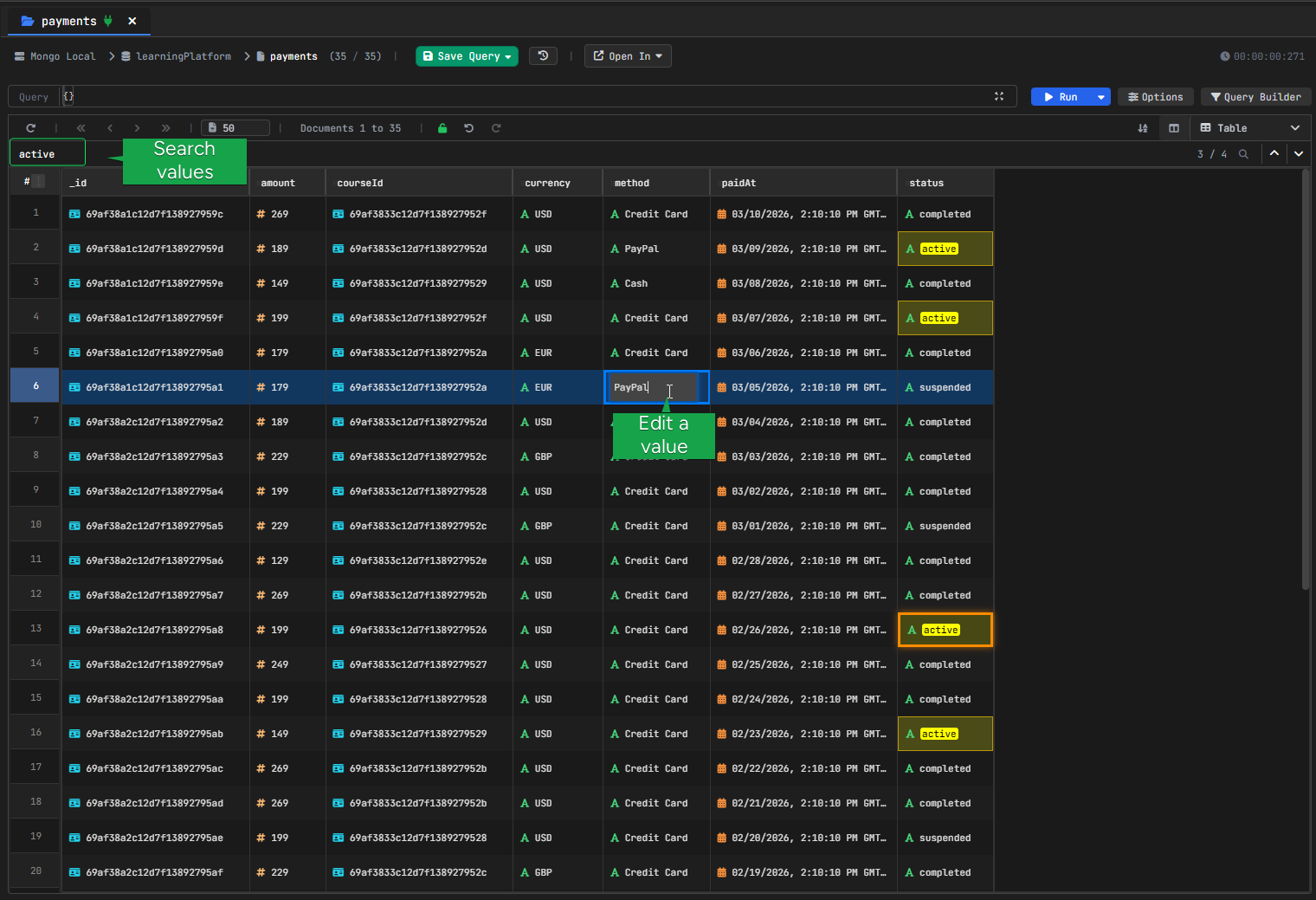
So if I already have the data in front of me, I can keep exploring it without constantly starting over.
Speed Was Non-Negotiable
A query tool can have a nice interface, but if it feels slow, the whole experience becomes frustrating.
That's why performance mattered from the beginning.
Even with large documents—I tested with 15MB documents—it stays fast. Loading
50 documents (750MB total) took just 4 seconds, and the interface stayed
completely responsive.
In my own testing, I was able to load up to 50k documents in under 2 seconds, which makes a huge difference when I'm testing, checking results, and adjusting the query again.
That speed matters even more when it's combined with result search and different output views, because the whole experience stays fluid instead of feeling heavy.
Load up to 50k documents in under 2 seconds
I Also Wanted It to Connect Better to Real Development
Another thing I did not want was a tool that only helps visually, but stops being useful the moment you need actual code.
So VisuaLeaf can also generate the query in different programming languages like:
- Python, Java, C#
- JavaScript - Node.js
- Kotlin, PHP, Ruby
and others.
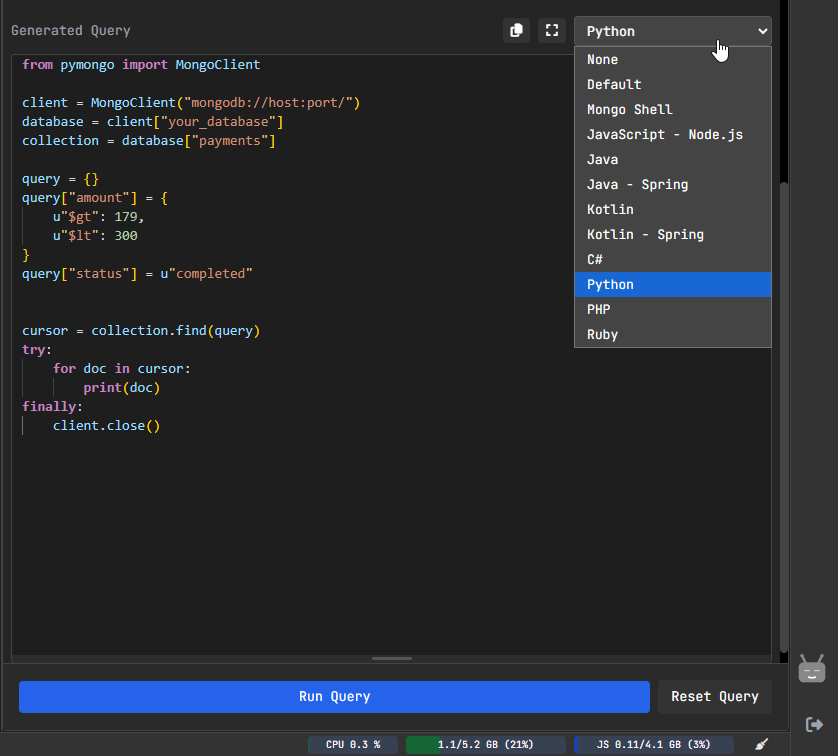
That makes the Query Builder more than just a visual helper.
You can build the query, verify the result, and then drop it straight into your code.
What I Wanted in the End
I didn't want to build another MongoDB tool that looked impressive in demos
but felt clunky in real work. So I focused on what actually matters day-to-day. That meant:
- opening the Query Builder directly from the collection view
- dragging and dropping multiple fields
- adding multiple operations without feeling limited
- keeping the real query visible
- using AI when I want a faster start
- switching between Tree, Table, and BSON views
- searching through results directly
- keeping the tool fast even with large result sets
- making it easier to move from visual query building to real code
That's the direction behind VisuaLeaf Query Builder.
So, if you're tired of writing MongoDB queries from scratch every time, try VisuaLeaf and see how a more visual workflow can make the whole process easier.