NoSQLBooster Alternative: Visual MongoDB Shell Workflow
Explore VisuaLeaf as a NoSQLBooster alternative with MongoDB Shell, autocomplete, visual results, saved scripts, history, and aggregation tools.


If you use MongoDB and want a GUI tool to help you work faster, NoSQLBooster is often one of the tools you’ll hear about.
It has a strong reputation for a reason. It gives developers a shell-focused way to work with MongoDB and can handle queries, scripts, aggregations, SQL-style queries, and other database tasks from one place.
But maybe you want something different.
You still want the MongoDB Shell, but not as a separate place where you write commands and then struggle to understand the result.
You want to write a command, run it, inspect the data clearly, save useful scripts, and move into visual query building or aggregation work when it makes sense.
That’s where VisuaLeaf takes a different approach.
It keeps the MongoDB Shell within the workspace while providing visual output, autocomplete, saved scripts, query tools, and aggregation builders.
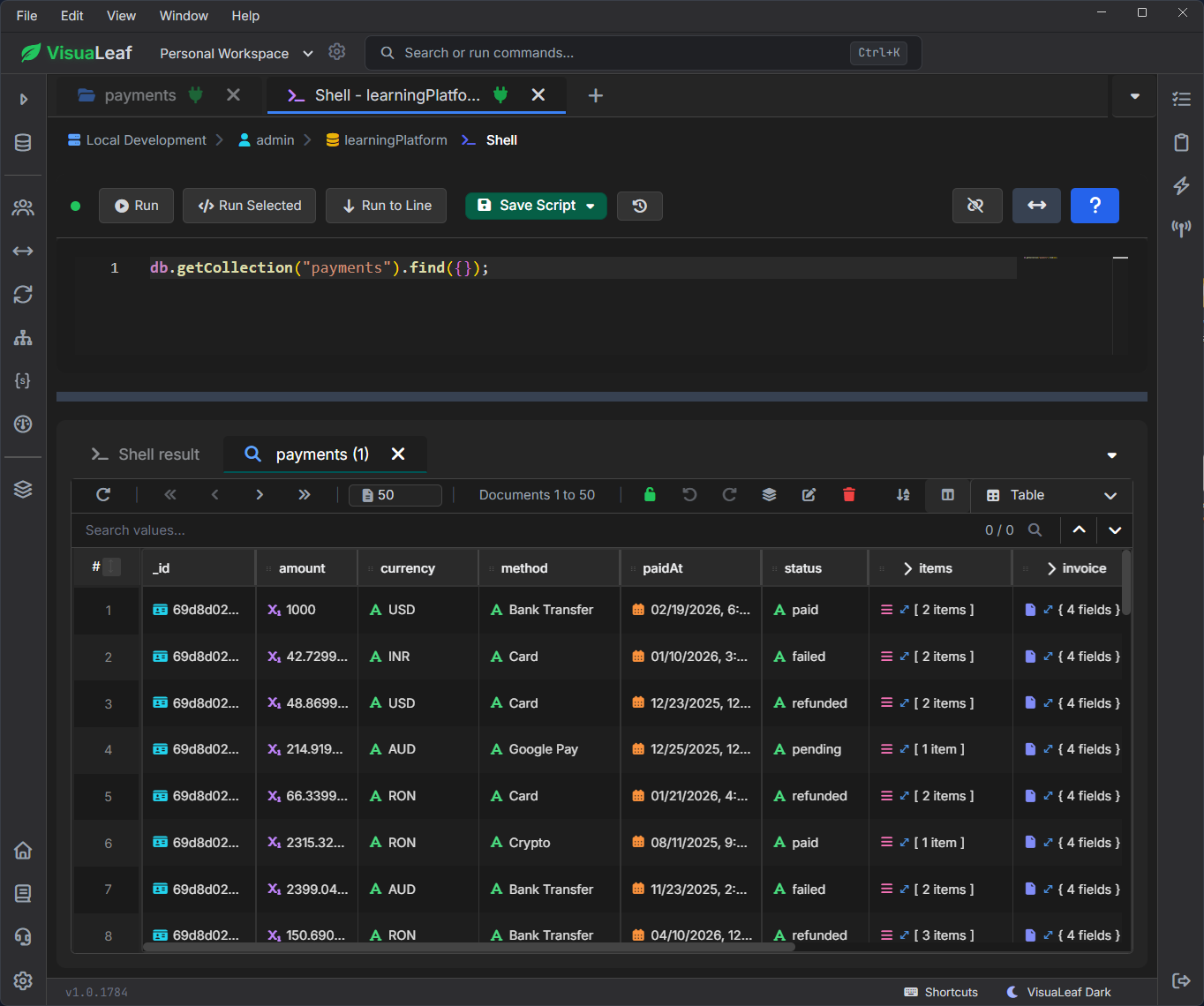
Why VisuaLeaf Can Be a NoSQLBooster Alternative
NoSQLBooster is a good choice if you want a classic MongoDB IDE built strongly around shell usage, scripting, SQL-style querying, monitoring, and debugging.
VisuaLeaf is better suited for users who want the shell but also want the workflow around it to feel easier to follow.
The difference is simple:
- use the shell when writing commands is faster
- use visual output when the result is harder to read
- use saved scripts when the work repeats
- use the visual query builder when filters become annoying to write manually
- use the aggregation builder when pipelines become too long to understand at once
So the point is not only “VisuaLeaf has a shell.”
The point is that the shell is connected to the rest of the MongoDB workflow.
Run a Shell Query and Read the Result Immediately
The real difference is visible after you run a command.
For example, you can write a shell query like this:
db.payments.find({
  status: "paid",
  amount: { $gte: 1000 }
})
In a classic shell workflow, you usually continue by reading the output as raw documents.
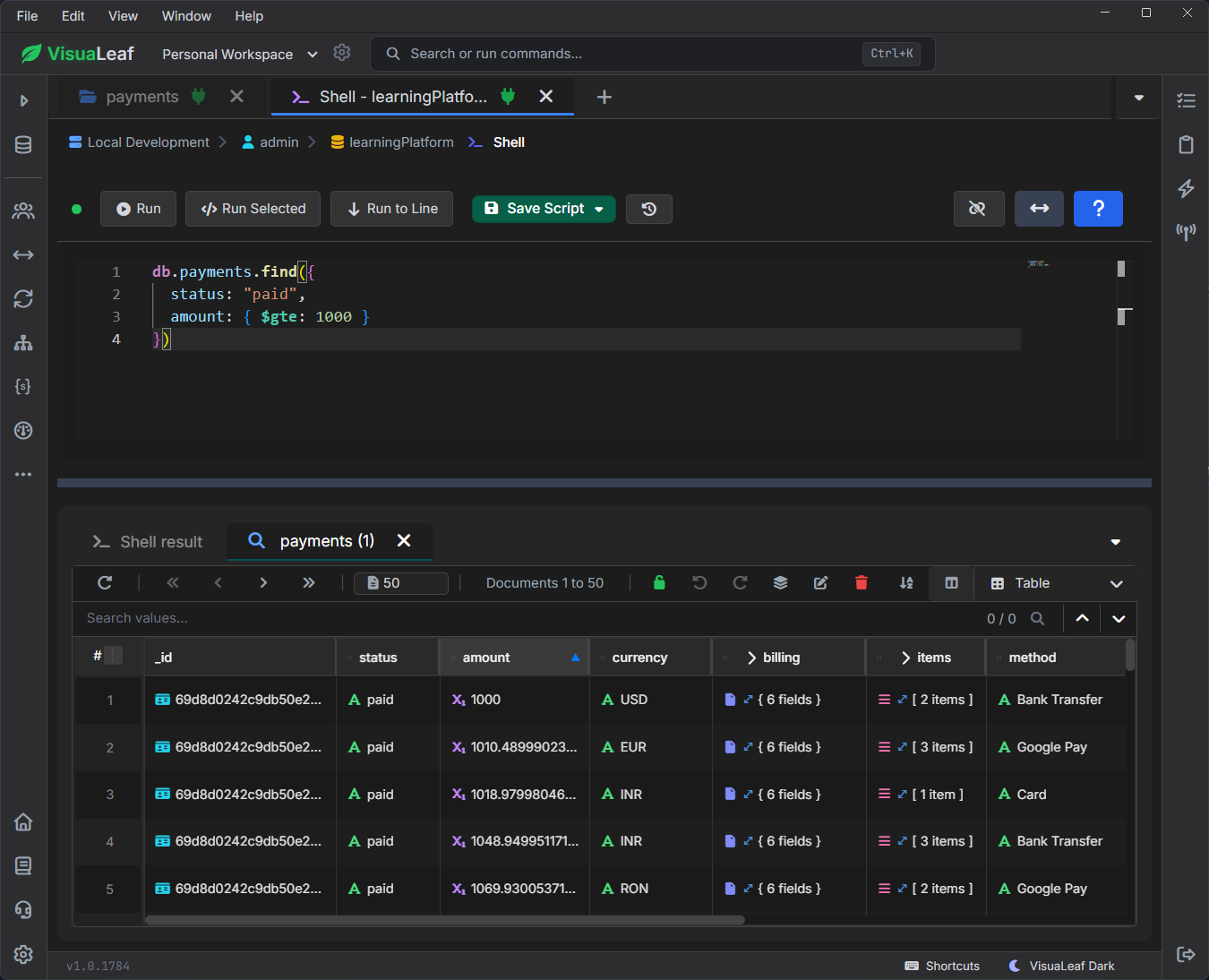
In VisuaLeaf, the result appears directly below the command, in a clear visual table view.
So instead of scanning raw JSON, you can immediately see the matching payments, compare amounts, check the currency, and open nested fields like billing or items.
This makes the shell more practical for everyday work.
You still write the command yourself, but the result is easier to read and continue working with.
You can learn more here: https://visualeaf.com/blog/mongodb-shell-visual-output/
Write Commands Faster With Autocomplete
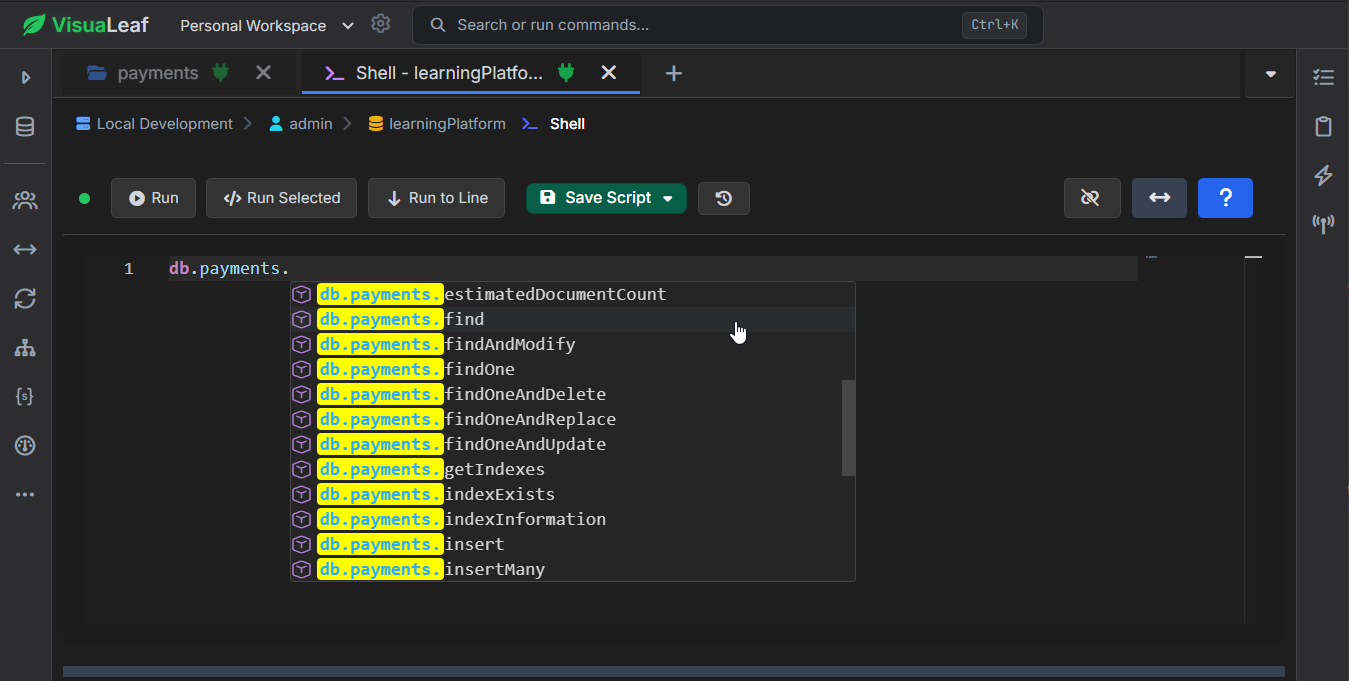
Autocomplete is useful because it helps you move faster while still writing commands yourself.
For example, when you start typing:
db.payments.
You can continue with methods like:
find()
aggregate()
insertOne()
updateOne()
deleteOne()
This helps when you switch between collections, methods, operators, and repeated commands.
You still control the query, but the tool helps you avoid small mistakes and write faster.
Read Commands More Clearly with Syntax Highlighting
When a query has only one condition, it is easy to read.
But once you add dates, operators, and selected fields, the command becomes harder to scan:
db.payments.find(
  {
    status: { $in: ["paid", "refunded"] },
    paidAt: { $gte: ISODate("2026-01-01T00:00:00Z") }
  },
  {
    amount: 1,
    currency: 1,
    method: 1,
    paidAt: 1
  }
)
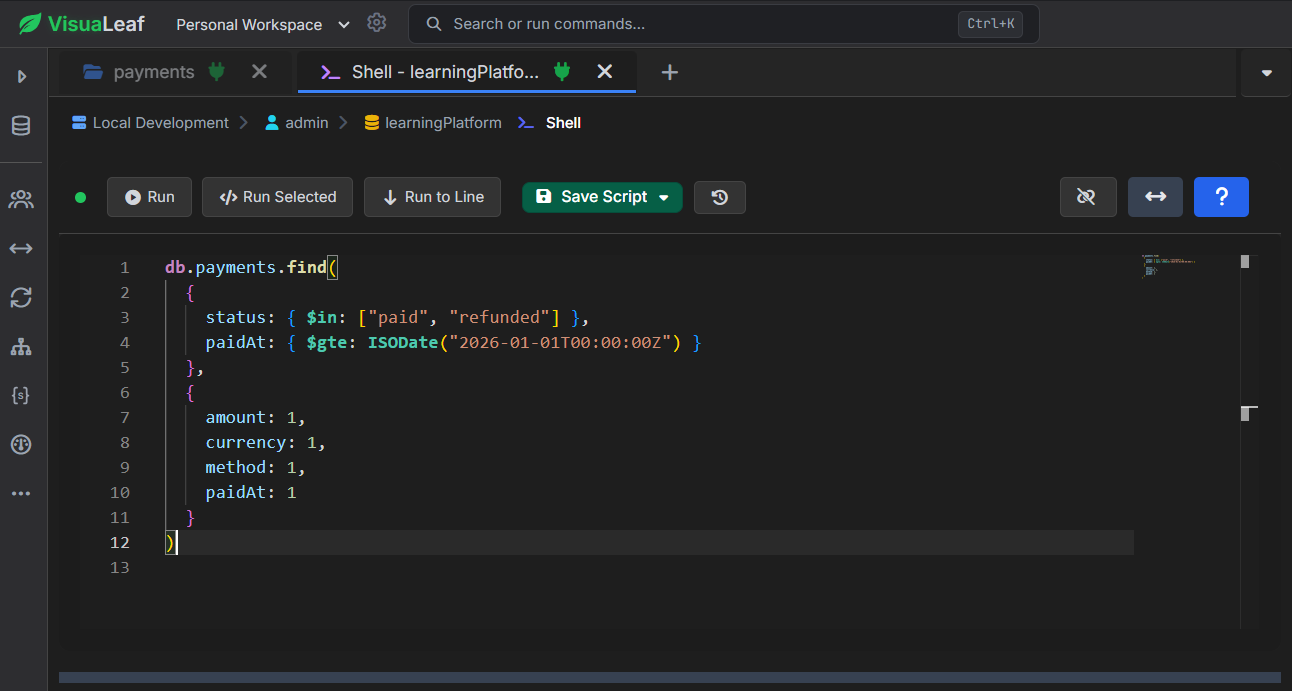
This is where a clearer editor experience helps.
Fields, values, operators, dates, and brackets are easier to separate, so you can understand the command faster and change it without losing the structure.
Save Useful Scripts and Reuse Previous Queries
A lot of MongoDB work repeats itself.
Maybe you often check failed payments:
db.payments.find({
  status: "failed"
})
Maybe you can check payments from a specific period:
db.payments.find({
  createdAt: { $gte: ISODate("2026-01-01T00:00:00Z") }
})
Or maybe you test the same query with small changes.
These commands should not have to be rewritten every time.
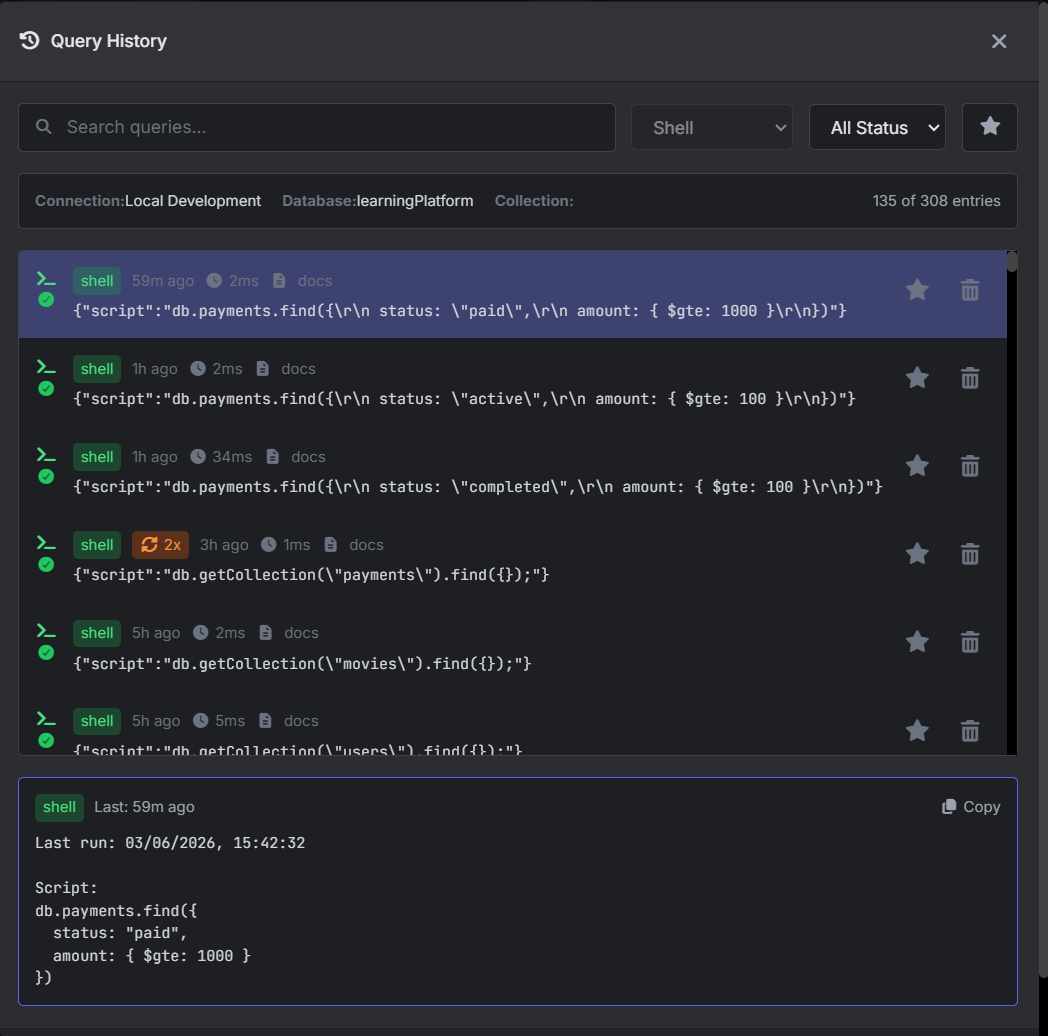
In VisuaLeaf, you can save useful scripts in the Script Library and reopen them later when you need them again.
You can also use Query History to return to commands you already ran, rerun them, and adjust them without starting from zero.
That makes the shell much more practical for everyday work.
Create Queries Without Writing Code
Not every query needs to be written manually.
Sometimes the shell is faster.
Other times, especially with multiple filters or AND/OR logic, visual query building is easier.
VisuaLeaf lets you build queries visually and still see the generated query behind it.
So you can write directly in the shell when that is faster, or build visually when the query becomes harder to follow.

Create Aggregation Pipelines Step by Step
Aggregations are powerful, but they can quickly become hard to read.
A short pipeline is fine:
db.payments.aggregate([
  { $match: { status: "completed" } },
  { $group: { _id: "$method", totalAmount: { $sum: "$amount" } } },
  { $sort: { totalAmount: -1 } }
])
But once you add more stages, filters, groups, and transformations, the pipeline becomes harder to follow.
That is where a visual aggregation builder helps.
In VisuaLeaf, you can build the pipeline step by step and see the output for each stage. This makes it easier to understand what changed and where.
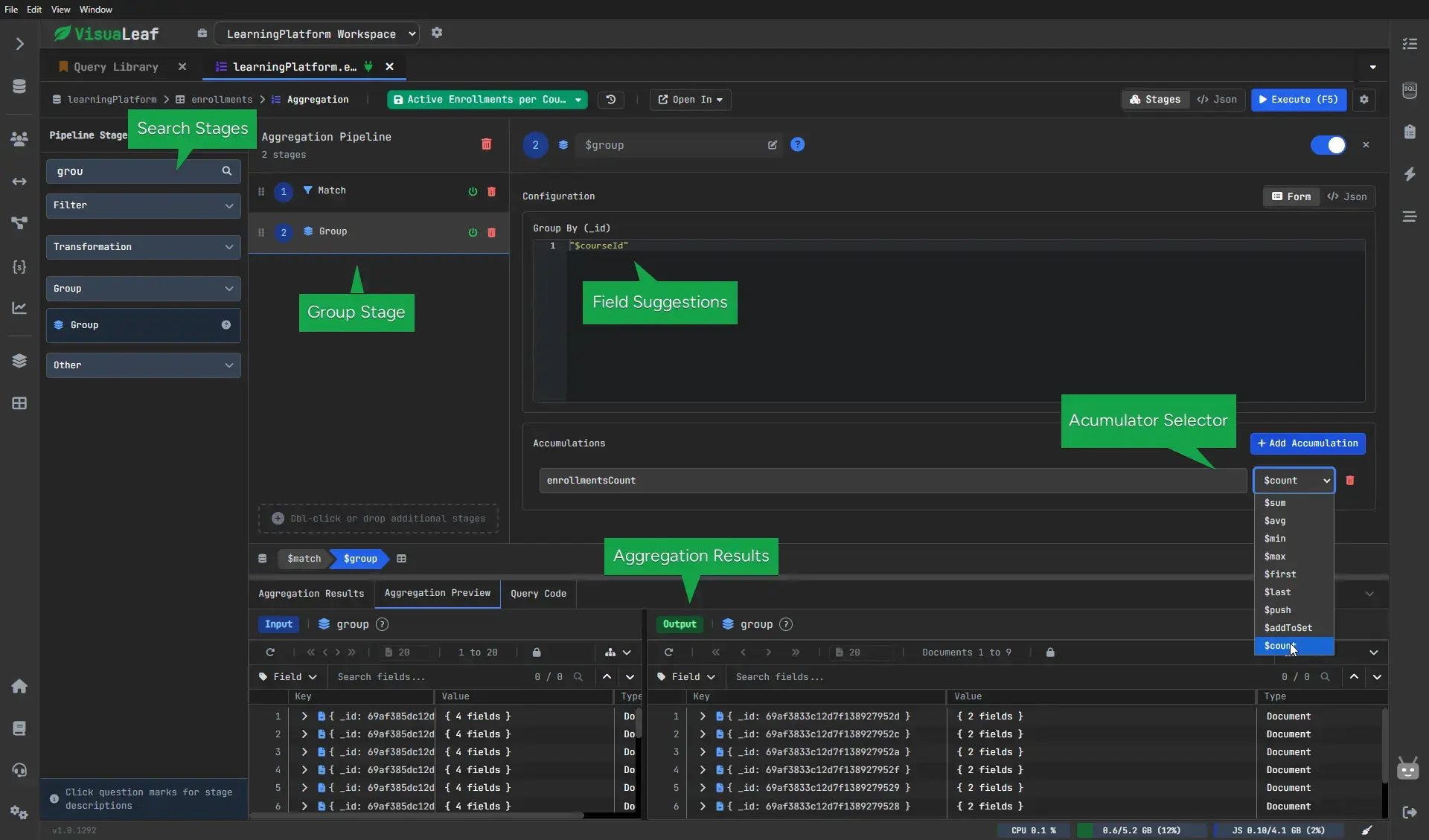
For longer aggregations, a visual pipeline builder can make each stage easier to understand.
Less Switching Between Tools
This is one of the biggest reasons VisuaLeaf feels different.
You do not have to keep moving between a shell, a query builder, an aggregation editor, and another tool for visual results.
In VisuaLeaf, these workflows stay closer together.
You can use the MongoDB Shell, visual query builder, aggregation pipeline builder, and visual result views from one workspace.
Use the shell when the shell is fastest.
Use visual tools when the work becomes harder to follow.
NoSQLBooster vs VisuaLeaf
NoSQLBooster is a strong option for users who want a classic MongoDB IDE focused on shell scripting and developer-oriented workflows.
VisuaLeaf is built with a different perspective.
It keeps the shell available, but connects it with a more visual way of working with MongoDB.
| Feature | NoSQLBooster | VisuaLeaf |
|---|---|---|
| MongoDB shell | Embedded mongosh engine | Full shell compatibility with visual output |
| Autocomplete | True IntelliSense | Context-aware autocomplete |
| Syntax highlighting | Editor assistance for writing code | Syntax highlighting in query and aggregation editors |
| Script history | More focused on shell-based work | Script management and history |
| Saved scripts | User-saved query scripts in “My Queries” | Save scripts to a library and organize by project |
| Visual query builder | Not highlighted as the main workflow | Visual query builder with real-time query preview |
| Aggregation pipeline builder | Aggregation is supported | Visual pipeline builder with stage preview and code mode |
| Visual result exploration | Results tab and data viewer | Tree, Table, BSON, and Explain views |
| Charts and dashboards | Not the main focus | Query- and aggregation-driven chart tools |
| Best for | Shell-heavy IDE workflow with SQL, monitoring, and debugging | Visual MongoDB Shell workflow with nearby builders and views |
Conclusion
NoSQLBooster has a strong reputation for a reason.
It is a powerful MongoDB IDE, especially for users who enjoy shell-heavy workflows.
But if you want a different way to work with MongoDB Shell, VisuaLeaf is worth considering.
It keeps the shell available, but makes the workflow around it more visual.
You can write commands, use autocomplete, inspect results, save scripts, build queries, create aggregations, and continue working with MongoDB from one place.
If you want to try it yourself, explore the MongoDB Shell in VisuaLeaf and see how it fits into a more visual MongoDB workflow.
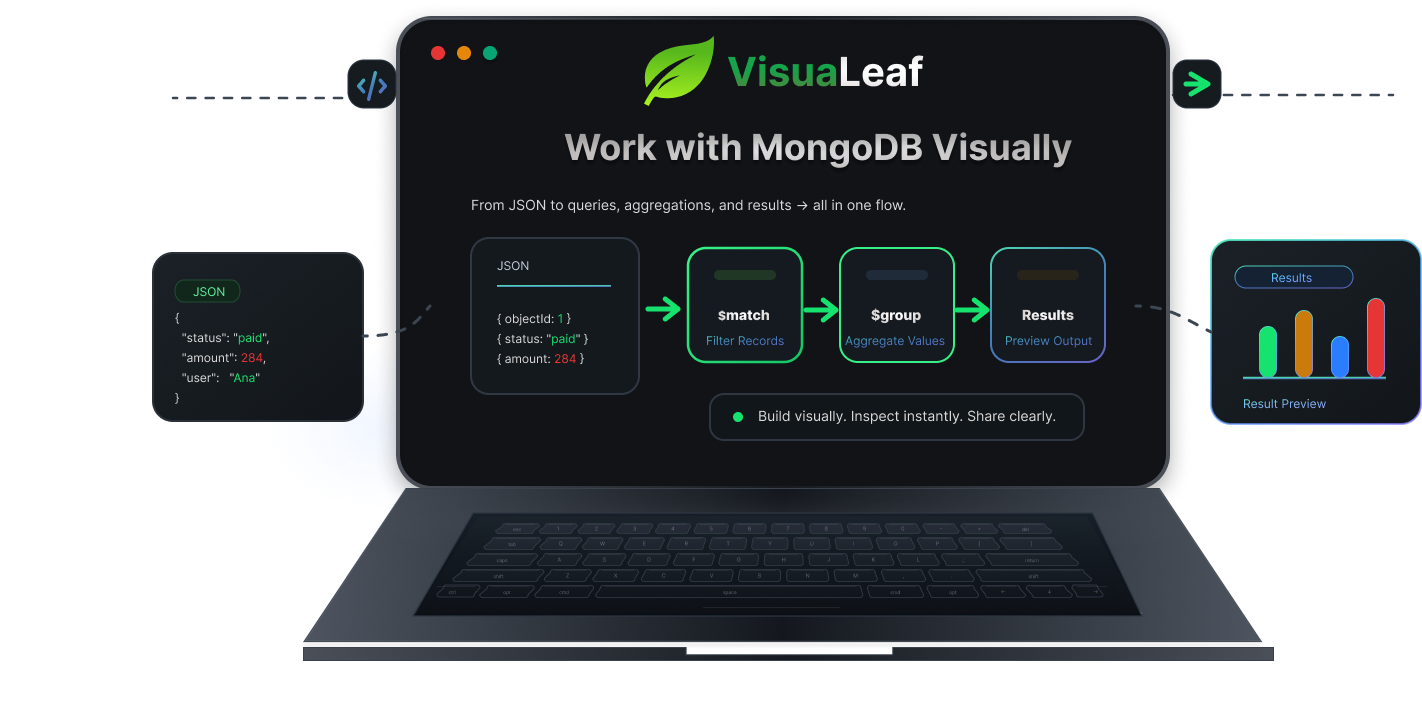
Download VisuaLeaf Community Edition and work with MongoDB visually.