7 MongoDB Query Mistakes That Return the Wrong Results
Learn 7 common MongoDB query mistakes with simple find() examples, including $or, $in, nested fields, dates, and text search.


MongoDB queries look simple. You type a field, give it a value, hit run, and you get your data back.
But just because a query runs without throwing an error doesn't mean it worked right. Sometimes you get a blank screen. Sometimes you get way too many records. Other times, the data looks fine at first glance, but it doesn't actually match what you asked for.
Most of these slip-ups happen for one basic reason: the query structure doesn't match the way the data actually sits in the database.
To show you what we mean, we’ll use a clinic database with a collection called visits. Here is what a typical document looks like:
{
  _id: ObjectId("6871b6f9c3f1d1a4c2a10001"),
  status: "completed",
  visitDate: ISODate("2026-07-01T09:30:00Z"),

  patient: {
    name: "Anna Keller",
    age: 34
  },

  doctor: {
    fullName: "Dr. Michael Brown",
    specialization: "Neurology"
  },

  symptoms: ["cough", "fever"],

  prescriptions: [
    {
      medicationName: "Cough syrup",
      dosage: "10ml twice daily"
    },
    {
      medicationName: "Magnesium supplement",
      dosage: "1 tablet daily"
    }
  ],

  invoice: {
    paymentStatus: "paid",
    method: "card",
    total: 250,
    issuedAt: ISODate("2026-05-18T10:15:00Z")
  }
}
You can run these examples right in the VisuaLeaf MongoDB Shell. Using visual tools makes a big difference because you can see exactly what MongoDB is returning in real time.
1. Forgetting the Curly Braces
This is just a quick typo, but it breaks things right away.
The Mistake:
db.visits.find(status: "completed") // Syntax Error!
The Correct Query
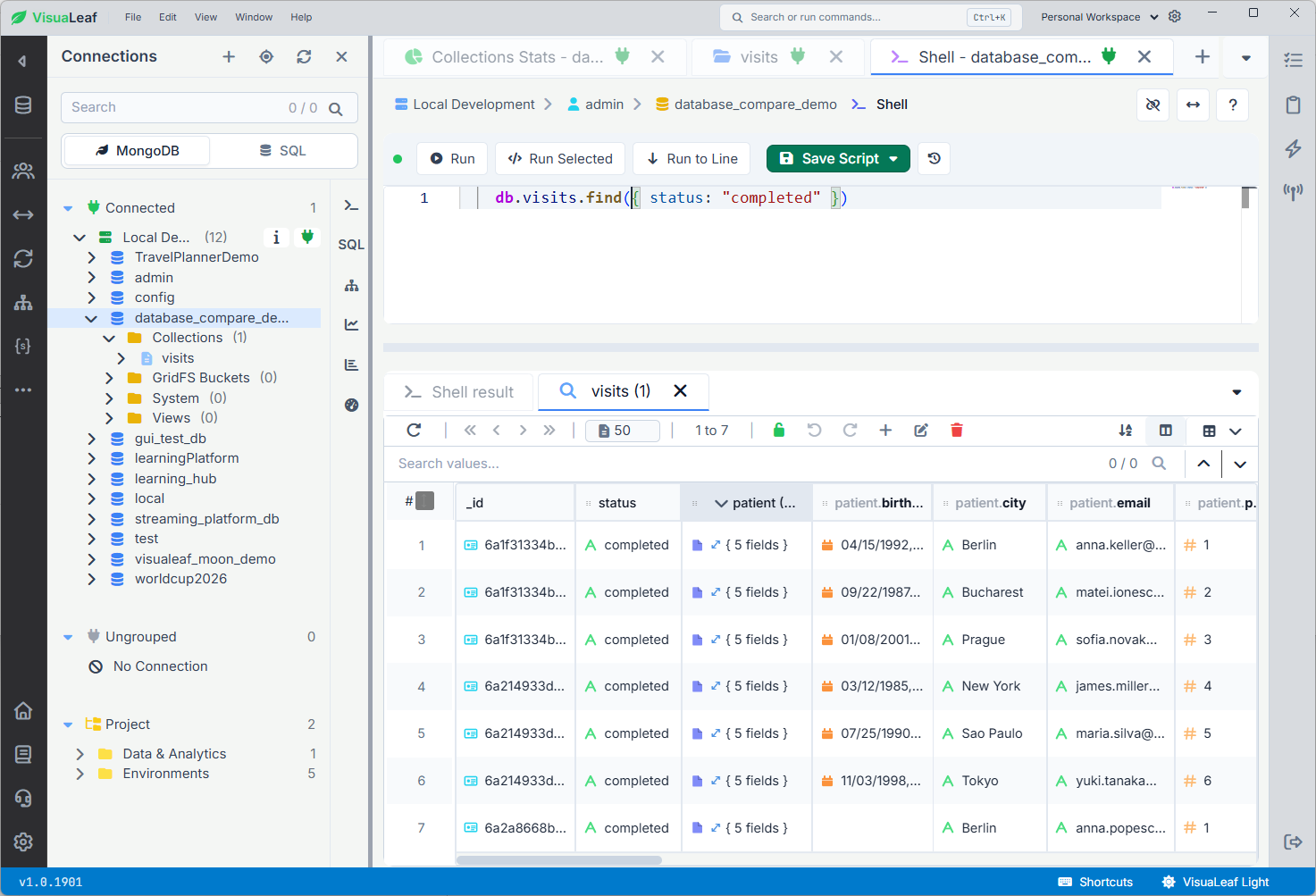
find() syntax with the filter wrapped inside curly braces.The find() method always expects an object. Even if you are only looking for one specific thing, you still need to wrap that condition in curly braces {}.
2. Treating $or Like a Regular Object
This one trips a lot of people up because the broken version looks like it should work.
The Mistake:
db.visits.find({
  $or: {
    status: "completed",
    "invoice.paymentStatus": "unpaid"
  }
})
What is wrong:
$or expects an array of conditions, but this query gives it one object.The error will usually be something like:
MongoServerError: $or must be an arrayThe Correct Query
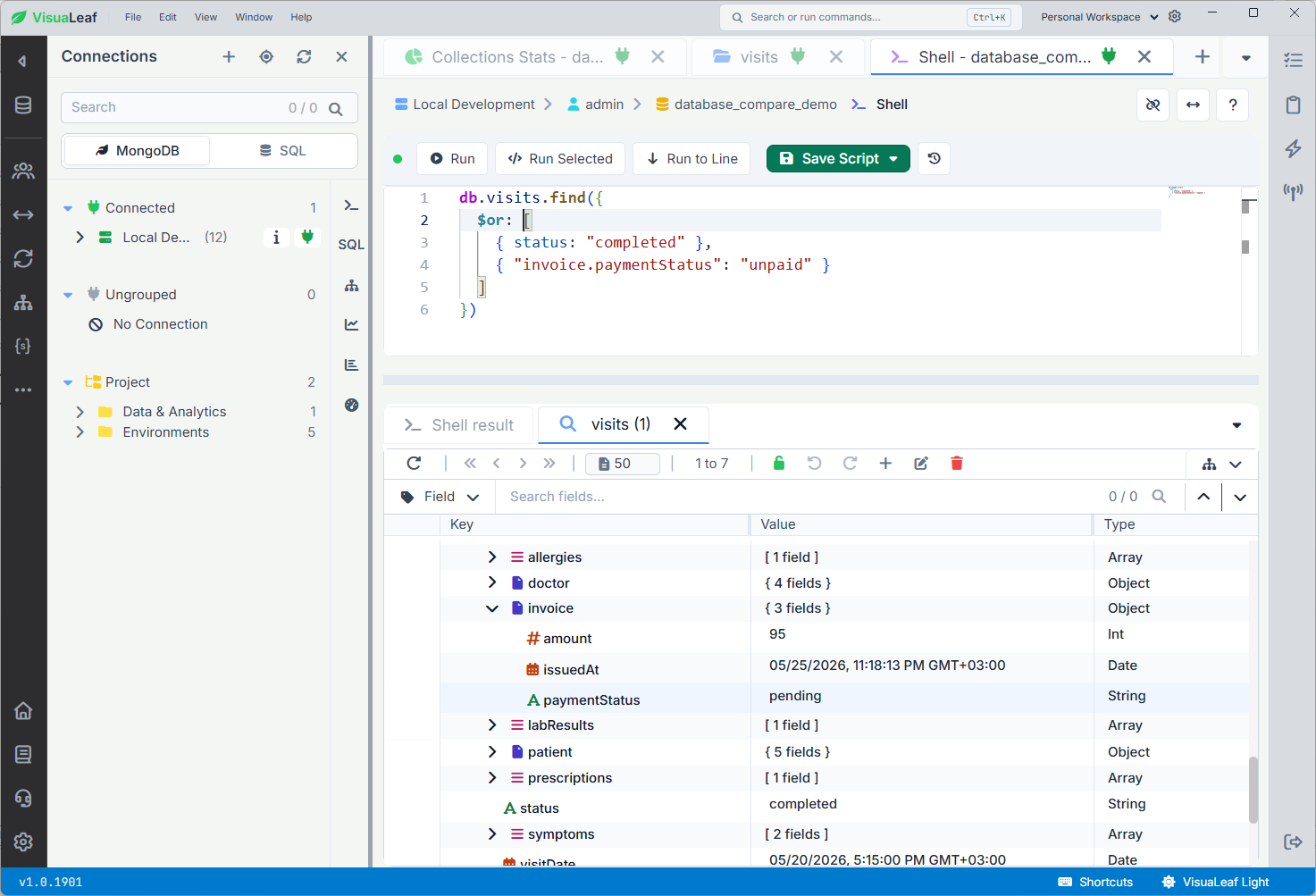
$or to return visits that match at least one condition.The first query is wrong because $or needs an array, not one regular object.
Each condition has to be written as its own object inside [].
The corrected query returns visits where the status is completed or the invoice is unpaid.
3. Querying Nested Fields Like They Are Flat
MongoDB documents often have fields inside other fields.
In our `visits` collection, `doctor` is an object:
doctor: {
  fullName: "Dr. Michael Brown",
  specialization: "Neurology"
}
Query to avoid:
db.visits.find({
  doctor: "Neurology"
})
This asks MongoDB to find a doctor field that is exactly "Neurology".
But doctor is not a string. It is an object, so it will usually return nothing.
Better query:
db.visits.find({
  "doctor.specialization": "Neurology"
})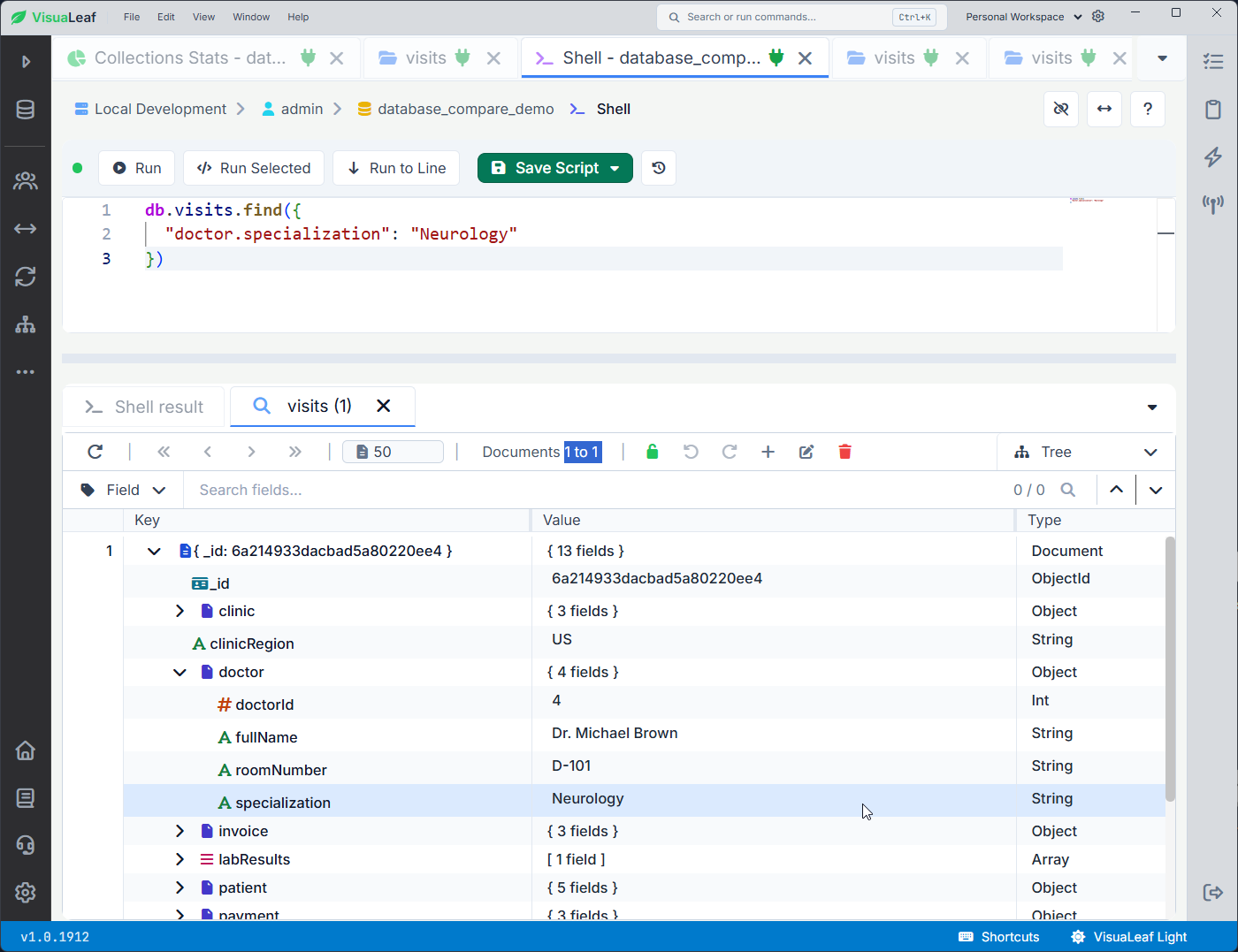
doctor object.The dot tells MongoDB to go inside the doctor object and check the specialization field.
So instead of asking:
Is the whole doctor field equal to Neurology?you are asking:
Is the doctor’s specialization Neurology?
4. Typing the Same Field Twice
Say you want to find visits with doctors from Cardiology or Dermatology.
Query to avoid:
db.visits.find({
  "doctor.specialization": "Cardiology",
  "doctor.specialization": "Dermatology"
})
The corrected version uses $in:
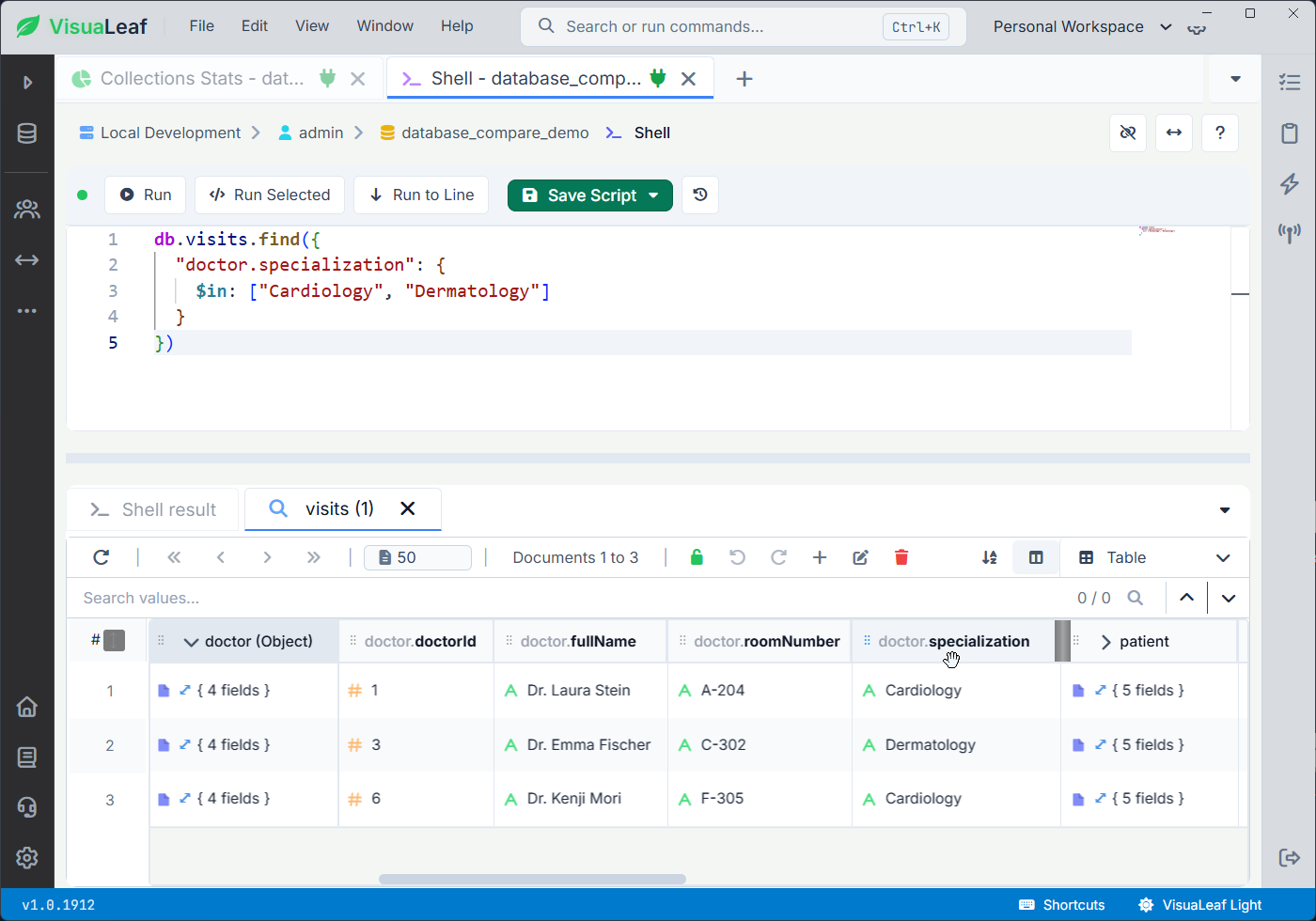
$in to find visits where one field matches multiple possible values.In JavaScript and MongoDB, you should not reuse the same key inside one object.
If you type "doctor.specialization" twice, the second value can overwrite the first one. So MongoDB may only search for Dermatology.
If one field can match more than one value, use $in.
5. Treating Dates Like Plain Text
Dates can look like regular text, but in MongoDB they are often stored as real Date values.
In our visits collection, the invoice date is stored inside the invoice object:
invoice: {
  issuedAt: ISODate("2026-05-18T10:15:00Z")
}
So this query will not work as expected:
db.visits.find({
  "invoice.issuedAt": "2026-05-18"
})
This searches for a string, not a Date, so it will usually return nothing.
The corrected version uses a date range:
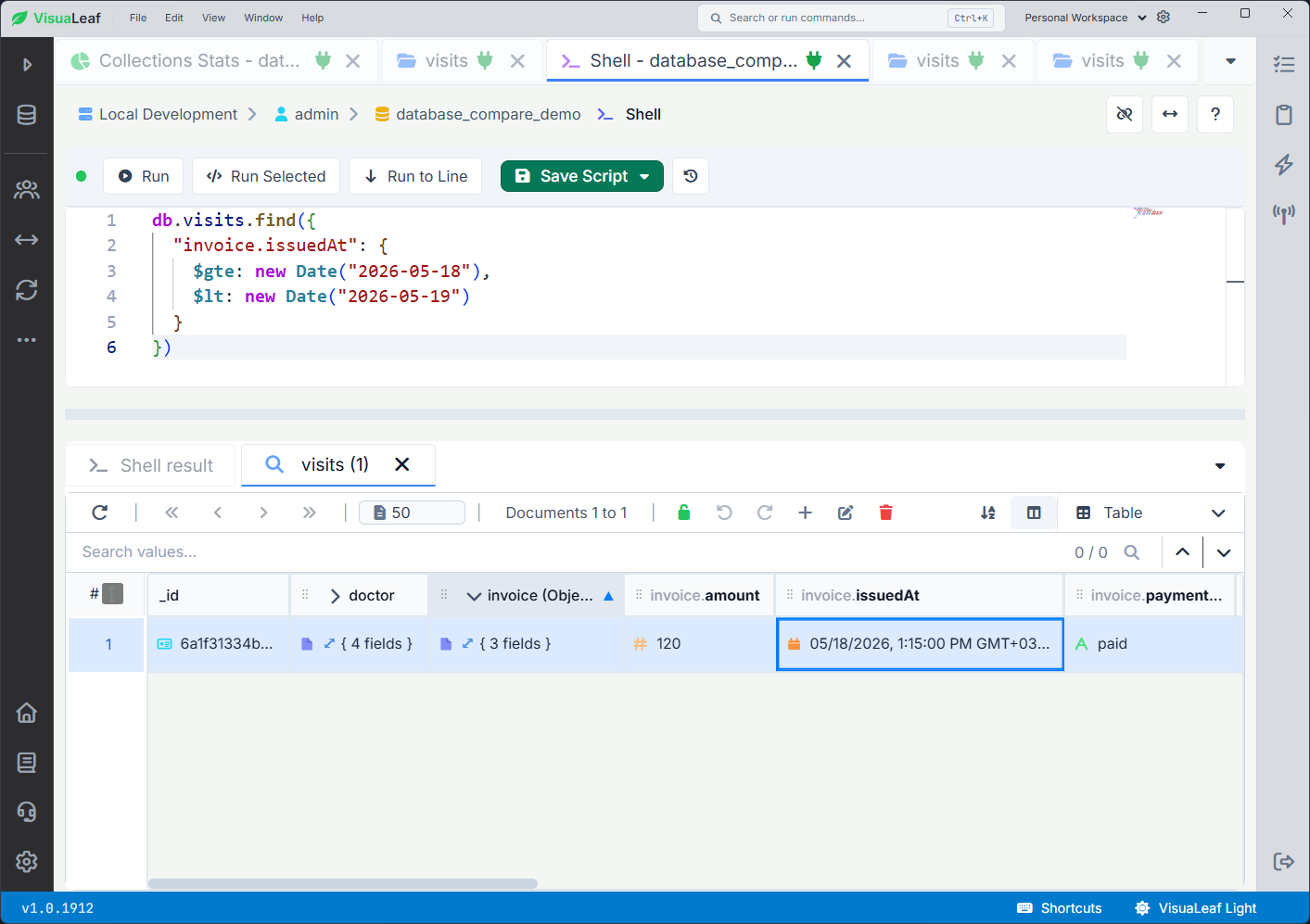
This returns invoices created on May 18, 2026.
The range matters because dates usually include time. A visit at 1:15 PM is still on May 18, but it is not equal to midnight.
So instead of asking:
Is the date exactly "2026-05-18"?you are asking:
Is the date on or after May 18 and before May 19?
6. Expecting Text Search to Work Automatically
MongoDB does not offer a fuzzy Google-like text search on regular string fields by default.
In our visits collection, the doctor name is stored like this:
doctor: {
  fullName: "Dr. Michael Brown"
}
So this query will not work:
db.visits.find({
  "doctor.fullName": "Michael"
})
Why it breaks: This checks if the doctor's name is exactly "Michael". Because our actual data says "Dr. Michael Brown", this query misses it completely.
Better setup:
For text search, you need to create a text index first:
db.visits.createIndex({
  "doctor.fullName": "text"
})
Then, you can use the $text operator to search for keywords:
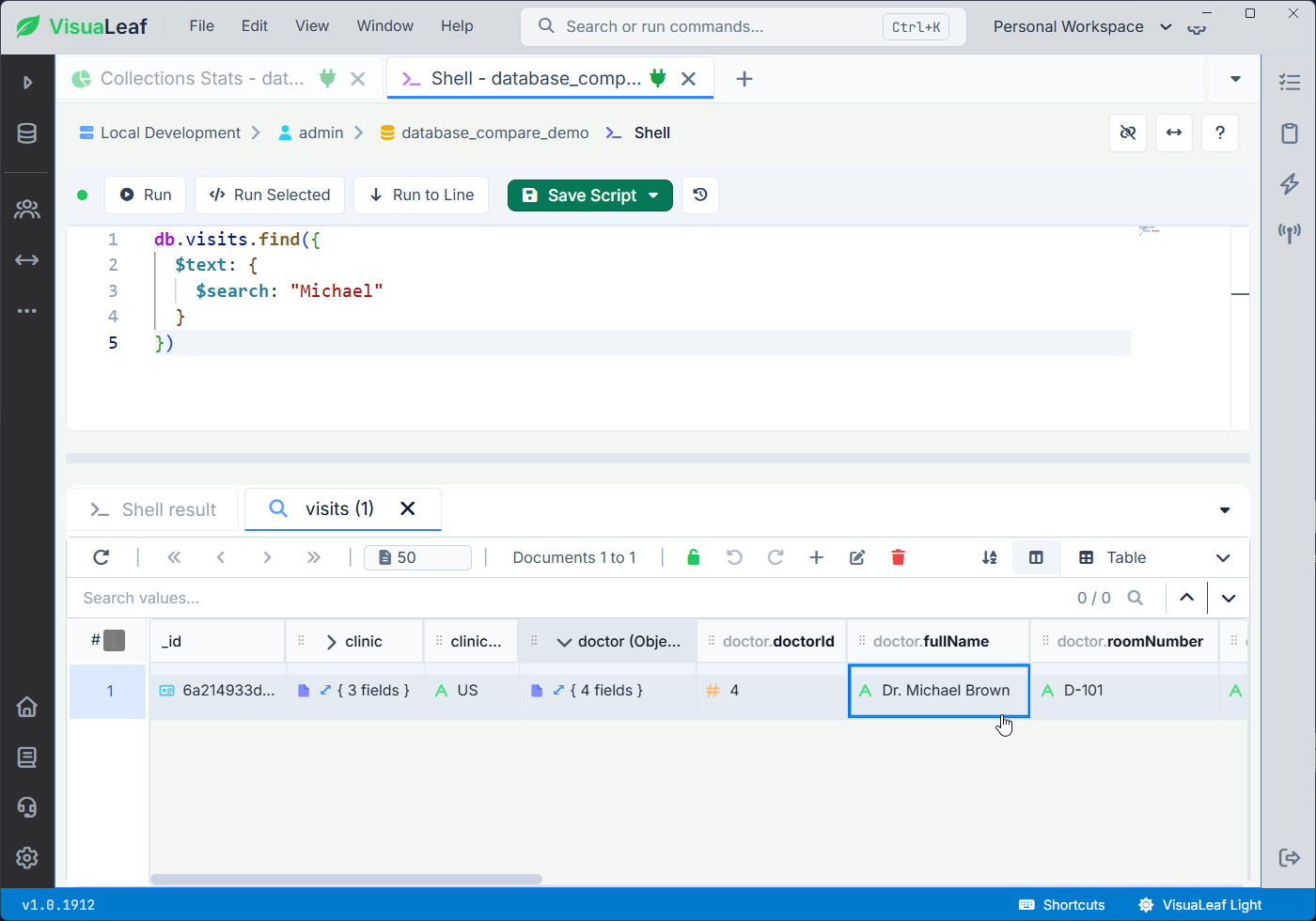
$text to search for a word inside an indexed text field.Now MongoDB can search for the word Michael inside the indexed field.
The important part is this:
$text search does not work unless the collection has a text index.7. Reading $or Logic Backwards
This query runs fine, but it is easy to read it the wrong way:
db.visits.find({
  status: "completed",
  $or: [
    { "doctor.specialization": "Neurology" },
    { "invoice.paymentStatus": "unpaid" }
  ]
})
This does not mean:
completed OR Neurology OR unpaidIt actually means:
completed AND (Neurology OR unpaid)Because status is outside the $or block, MongoDB treats it as required.
So MongoDB first looks for visits where status is completed. Then, from those visits, it checks if the doctor is specialized in Neurology or the invoice is unpaid.
If you want all three conditions to be part of the OR logic, move status inside the $or array.
Better query:
db.visits.find({
  $or: [
    { status: "completed" },
    { "doctor.specialization": "Neurology" },
    { "invoice.paymentStatus": "unpaid" }
  ]
})
Now the query means:
completed OR Neurology OR unpaidSame fields. Different structure. Different result.
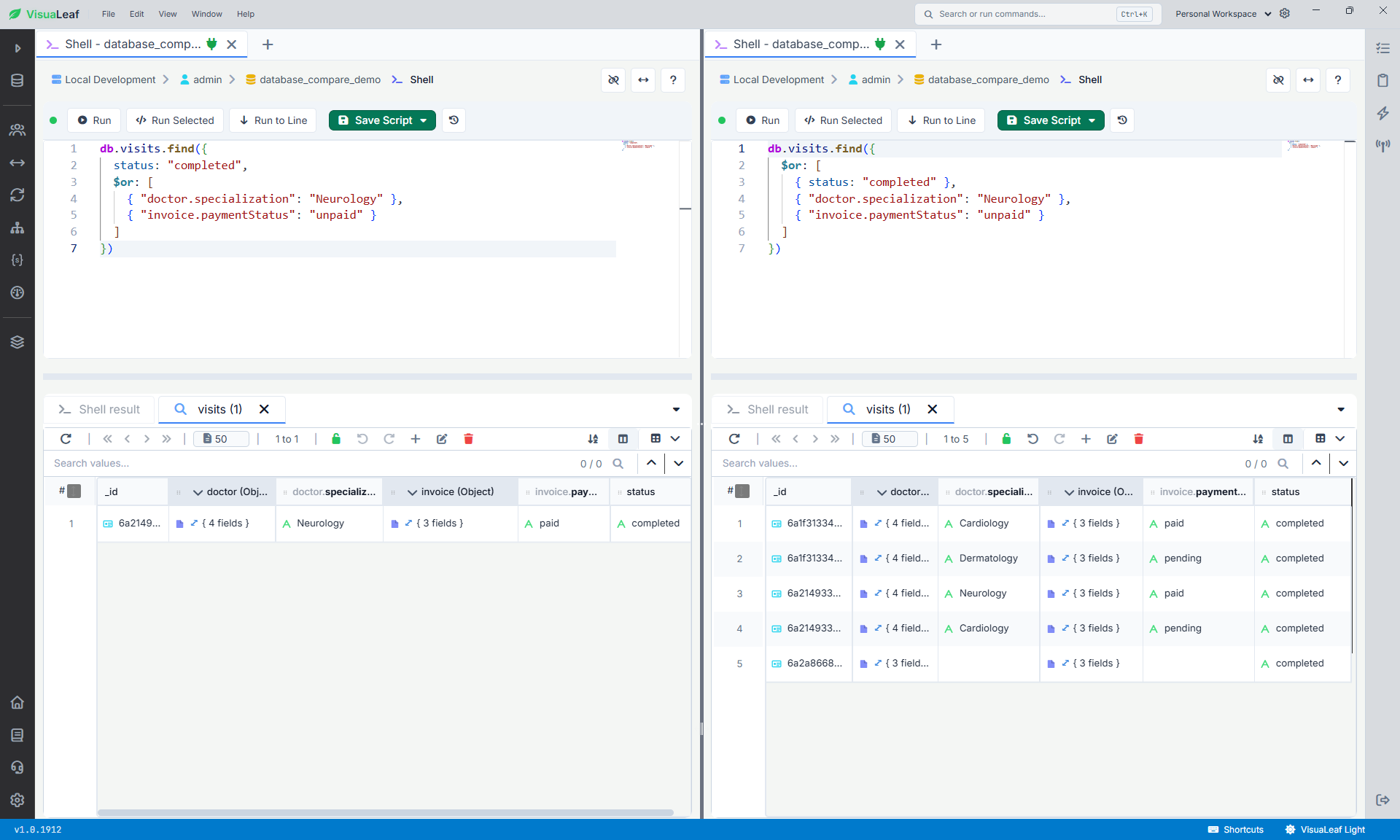
$or queries: the left query requires status: "completed", while the right query puts all conditions inside $or.One More Thing to Do before Using Your Query
A MongoDB query is only as good as your understanding of the underlying document structure.
Before you spend hours rewriting a broken query, do one simple thing: Open a single raw document from your collection.
- Look closely at the exact spelling of field names.
- Check the data types (Are numbers stored as strings? Are dates stored as objects?).
- Map out your nested objects.
This is exactly where a visual tool like VisuaLeaf helps. Instead of guessing from your code editor, you can test your queries inside the built-in shell and instantly toggle over to the Table View or Tree View to see exactly how your documents are laid out in real-time.
This makes it much easier to see what MongoDB is actually matching.

Free Community Edition