MongoDB Access Control - Users, Roles, and Permissions
Learn how MongoDB access control works with users, roles, and permissions. This guide explains built-in roles, custom roles, and practical RBAC examples using Mongo shell and VisuaLeaf.


There are two major aspects when connecting to MongoDB.
One of them is identifying yourself.
The other one is defining what you are permitted to do.
Both aspects are different from each other.
A user could identify itself correctly by using its username and password, yet the user wouldn’t be able to perform any actions with databases, update any document within, add new users, or manage any roles.
All these permissions are provided through RBAC.
Role-Based Access Control, or RBAC, refers to the allocation of specific roles to users in MongoDB. Roles determine what actions can be performed on particular databases or collections.
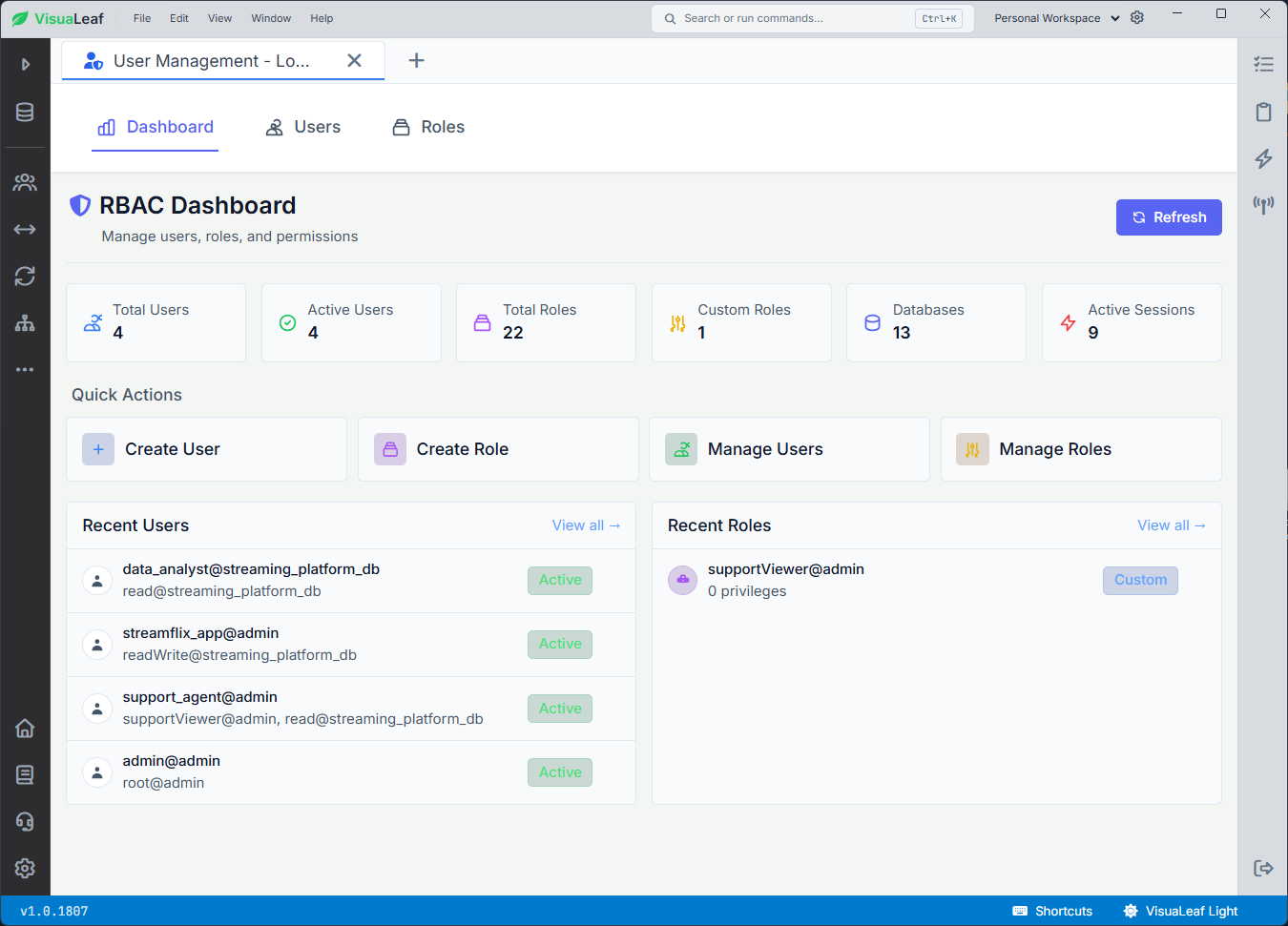
For this example, I used the VisuaLeaf RBAC Dashboard to create and review users, roles, and permissions visually. The same setup can also be done from the Mongo shell, but using VisuaLeaf makes it easier to see who has access to what.
In my case, I decided to use the streaming_platform_db database, whose collections include:
users
movies
reviews
payments
subscriptions
It is an appropriate choice as not all users would require the same access rights.
For instance, the app requires writing operations.
The data analyst may require reading operations.
The support agent requires viewing users, payments, and subscriptions.
Administrative rights should be reserved for admin tasks.
Authentication vs. Authorization
Authentication provides an answer to the following question:
Is this really the person they claim to be?
Authorization provides the answer to the following question:
What can this person do?
In other words, even if support_agent succeeds in logging into MongoDB, it should prevent them from executing update, insert, and delete queries if their role is read.
That is how it should be.
The login was successful. The operation wasn’t.
This proves that the role works.
Sample Environment Configuration
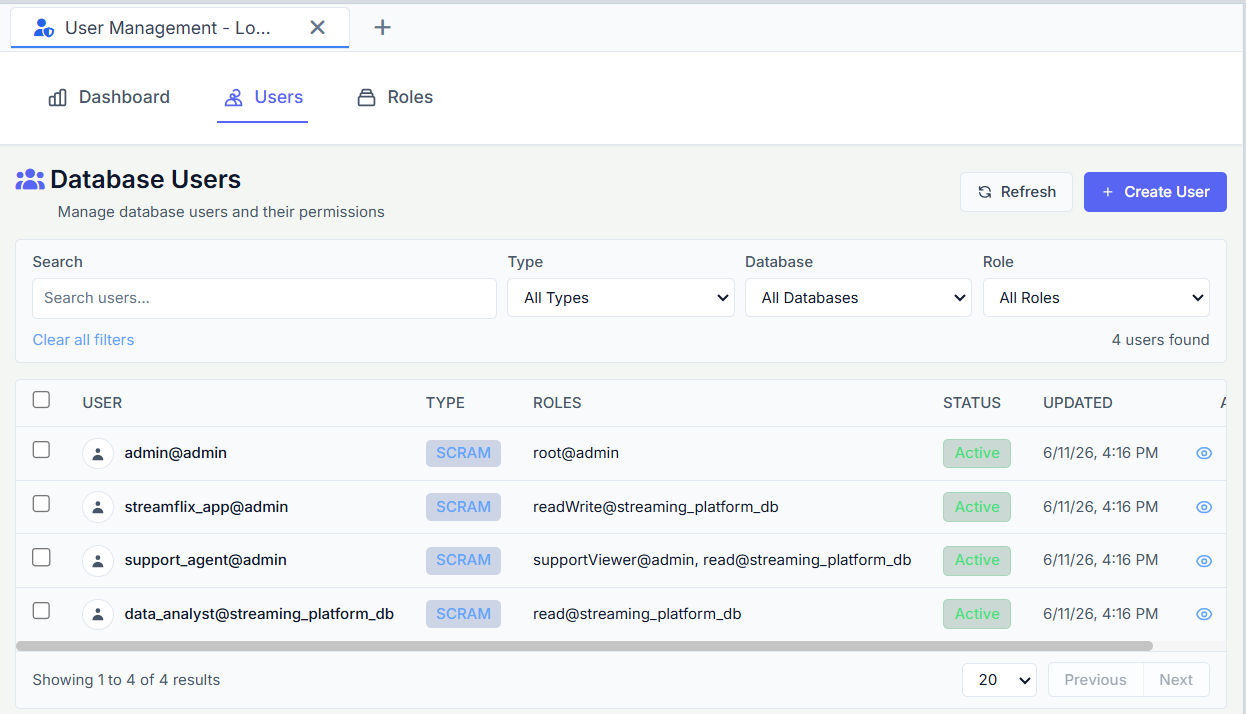
I have configured some users in VisuaLeaf with various roles as follows:
data_analyst@streaming_platform_db   read@streaming_platform_db
streamflix_app@admin                 readWrite@streaming_platform_db
support_agent@admin                  supportViewer@admin, read@streaming_platform_db
admin@admin                          root@admin
A simple configuration, yet it includes most possible scenarios.
The admin user is used for administrative purposes.
The streamflix_app user is used for applications.
The data_analyst user is used for generating and reviewing reports.
The support_agent user is used for support activities that require data verification without making any changes.
Role Definition in MongoDB
The MongoDB role is defined through privileges.
The privilege means:
This operation is permitted on this database/resource.
The operation can be find, insert, update, or remove.
The resource can be a database or an exact collection.
Thus, the role is more than just its name; it is a combination of rules.
For instance,
read@streaming_platform_db
means that the user has the permission to read information from streaming_platform_db.
It doesn’t imply the user is granted access to read all the databases present on the server.
That’s because of the latter part - the database.
Built-In Roles You Will Use Often
MongoDB has numerous built-in default roles, but you don't have to start with all of them.
Most beginners will probably use the following ones first:
| Role | What it means | Good for |
|---|---|---|
read |
Can view data | Analysts, support users |
readWrite |
Can view and change data | Application users |
dbAdmin |
Can manage database tasks like indexes | Database maintenance |
userAdmin |
Can manage users and roles for a database | Access management |
root |
Full admin access | Trusted admin account |
Here comes the common temptation to use the root role in every case, which will help avoid access issues.
It will work just fine at the early stage.
However, the problem is that, over time, it will become difficult to trace which user can make changes.
A proper solution is to grant each user only those permissions required for their work.
Creating an Admin User
The admin user normally exists in the admin database.
In the Mongo shell, it may be created like so:
use admin

db.createUser({
  user: "admin",
  pwd: passwordPrompt(),
  roles: [
    { role: "root", db: "admin" }
  ]
})
It gives you total administrative access.
Do not use it for anything except administrative purposes.
It is not needed by the application to simply save review data or manage subscriptions.
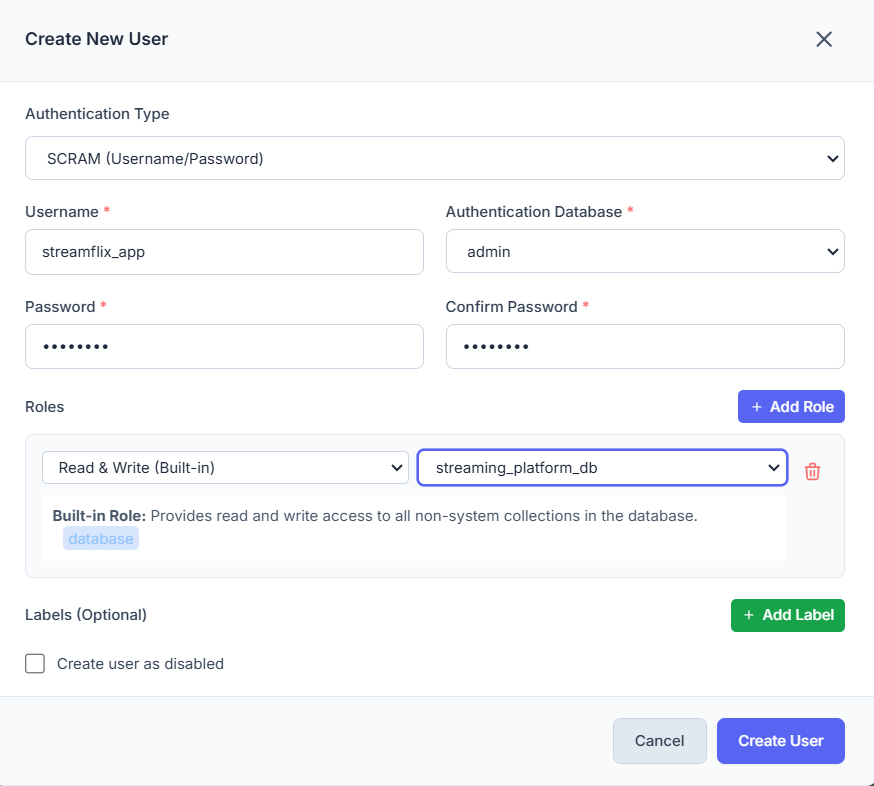
Creating an Application User
The application must be able to read and write the data stored in the application’s database.
For this purpose, we can rely on the readWrite permission.
use admin

db.createUser({
  user: "streamflix_app",
  pwd: passwordPrompt(),
  roles: [
    { role: "readWrite", db: "streaming_platform_db" }
  ]
})
This user will be able to manipulate the documents in the streaming_platform_db.
It will have the ability to create new users, save their reviews, update their subscriptions, and record their payments.
However, it will not be able to manage users and roles at the server level.
And this was the very idea behind the user creation process.
Creating a Support Role with Limited Access
The application user needs readWrite access because the app has to save reviews, update subscriptions, and record payments.
A support user is different.
Support usually needs to check information, not change it.
For example, a support agent may need to answer questions like:
Does this user exist?
Was the payment created?
Is the subscription active?
Giving this user full database access would be too much.
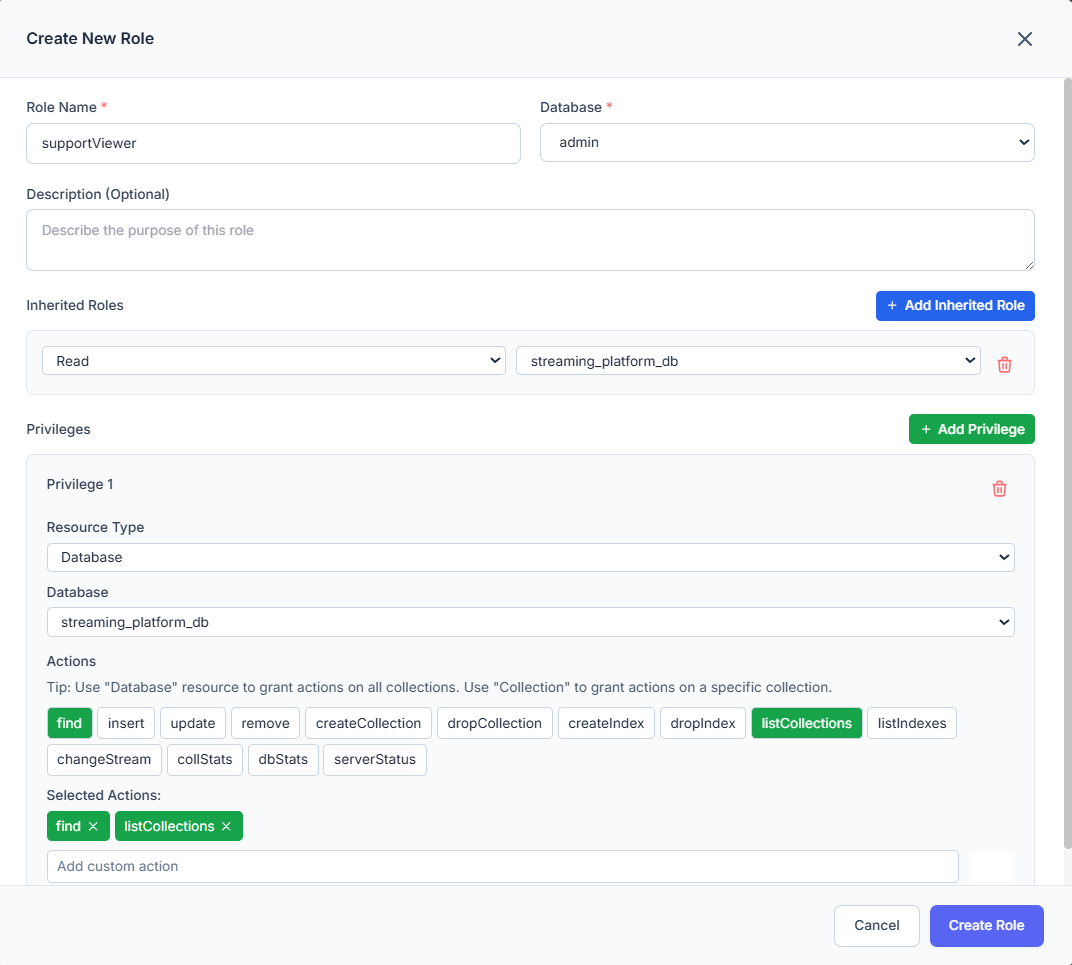
A better option is to create a smaller custom role for support work. In this example, I use a role called supportViewer.
In VisuaLeaf, I can create this role from the Create New Role dialog. The role is created in the admin database, but the permission applies to streaming_platform_db.
Here, I selected two actions:
find
listCollections
This means the role can read documents and list the collections in the database.
In the Mongo shell, the same role would look like this:
use admin

db.createRole({
  role: "supportViewer",
  privileges: [
    {
      resource: { db: "streaming_platform_db", collection: "" },
      actions: ["find", "listCollections"]
    }
  ],
  roles: []
})
The empty collection name means the permission applies to all collections in streaming_platform_db.
The find action lets the user read documents.
The listCollections action lets the user see which collections exist.
It does not include:
insert
update
remove
dropCollection
createIndex
dropIndex
userAdmin
root
So this role can check data, but it does not have full admin power.
That is the point of a custom role: give enough access for the task, but not more than needed.
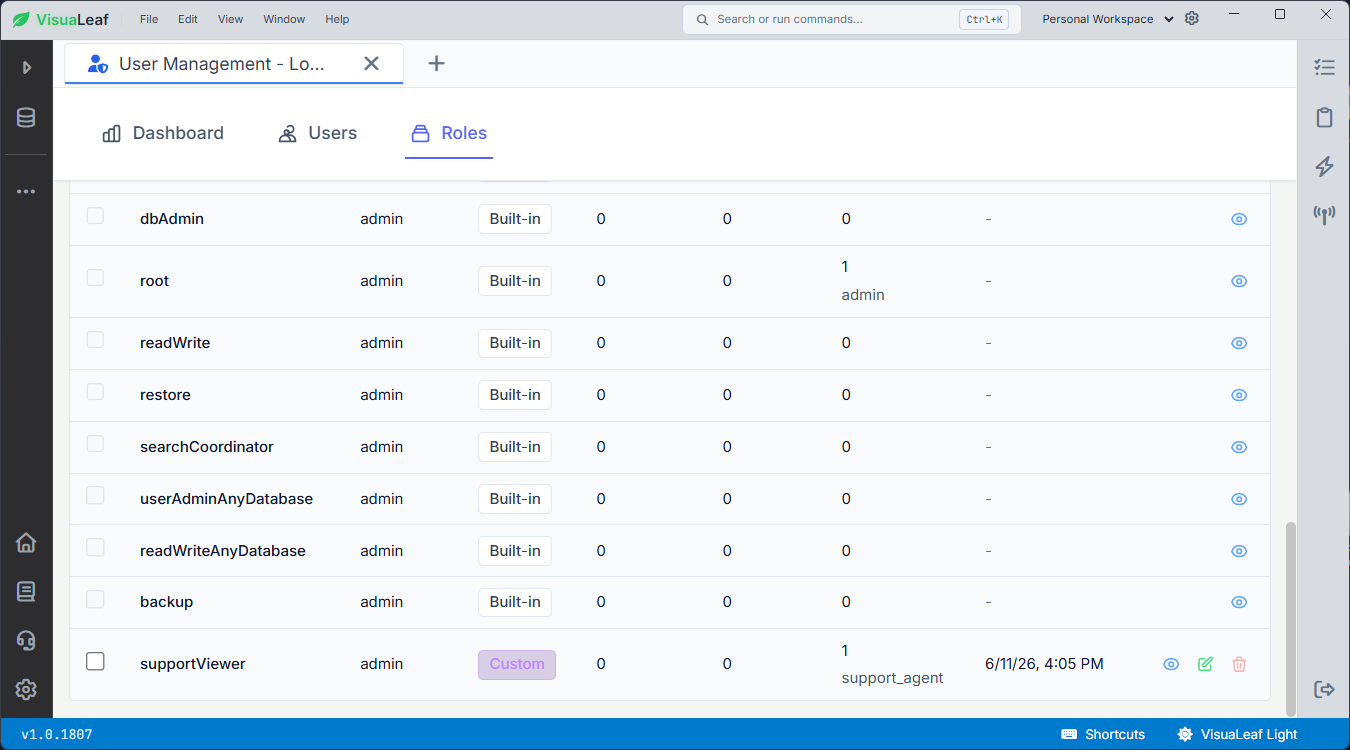
In the Roles tab, VisuaLeaf also shows custom roles next to the built-in MongoDB roles. In this example, supportViewer appears as a custom role and is assigned to support_agent.
Checking a User’s Access
Once you’ve added users and roles, it is also good to verify what MongoDB actually saved.
To view details about the support user:
use admin

db.getUser("support_agent")
To display the user’s privileges:
use admin

db.getUser("support_agent", { showPrivileges: true })
Since this example also uses the supportViewer custom role, you can check that role too:
use admin

db.getRole("supportViewer", { showPrivileges: true })
This is useful when something seems off.
The user could have been created using the wrong authentication database.
The role may point to the wrong database.
Or the user may have the right role name, but not the privileges you expected.
In VisuaLeaf, you can review this information from the Users tab instead of checking everything only from the shell.
Connecting With a User
When you connect with a MongoDB user, make sure you use the right authentication database.
For example, if support_agent was created in admin, connect like this:
mongosh -u "support_agent" -p "yourPassword" --authenticationDatabase "admin"
Then switch to the app database:
use streaming_platform_db
A read query should work:
db.users.find()
But a write should fail:
db.users.insertOne({
  name: "Test User"
})
If the user only has read, that failure is expected.
It means MongoDB is blocking writes for that user.
Where VisuaLeaf Helps
Mongo shell commands are useful because they show exactly what MongoDB is doing.
But when you have several users and roles, it is easier to review them visually.
In VisuaLeaf, the RBAC Dashboard shows users, roles, databases, and active sessions in one place. You can quickly see which users exist, which roles they have, and whether they have read-only, read-write, or admin access.
This helps when you return to a project later and need to understand the access setup quickly.
A Simple Rule for MongoDB Permissions
Start with the smallest role that works.
Use read when someone only needs to view data.
Use readWrite when the application needs to change data.
Use dbAdmin or userAdmin for specific admin tasks.
Use root only when full control is really needed.
Do not give admin permissions just to avoid access errors. That shortcut usually creates problems later.
Final Setup
In this example, the setup looks like this:
admin           -> root
streamflix_app  -> readWrite
data_analyst    -> read
support_agent   -> supportViewer, read
Each user has a clear purpose.
The admin user handles administration.
The app user works with application data.
The analyst reads data for reports.
The support user can check support-related records without changing them.
This is the main idea behind RBAC in MongoDB.
Give users enough access to do their work, but not more than they need.
Learn more about our RBAC Dashboard feature here: RBAC Dashboard
Try VisuaLeaf.